AI Agents in Action


To comment go to livebook.

Manning Shelter Island
For more information on this and other Manning titles go to manning.com.
AI Agents in Action
For online information and ordering of this and other Manning books, please visit www.manning.com. The publisher offers discounts on this book when ordered in quantity. For more information, please contact
Special Sales Department
Manning Publications Co.
20 Baldwin Road
PO Box 761
Shelter Island, NY 11964
Email: orders@manning.com
©2025 by Manning Publications Co. All rights reserved.
No part of this publication may be reproduced, stored in a retrieval system, or transmitted, in any form or by means electronic, mechanical, photocopying, or otherwise, without prior written permission of the publisher.
Many of the designations used by manufacturers and sellers to distinguish their products are claimed as trademarks.
Where those designations appear in the book, and Manning Publications was aware of a trademark claim, the designations have been printed in initial caps or all caps.
Recognizing the importance of preserving what has been written, it is Manning’s policy to have the books we publish printed on acid-free paper, and we exert our best efforts to that end. Recognizing also our responsibility to conserve the resources of our planet, Manning books are printed on paper that is at least 15 percent recycled and processed without the use of elemental chlorine.
The authors and publisher have made every effort to ensure that the information in this book was correct at press time. The authors and publisher do not assume and hereby disclaim any liability to any party for any loss, damage, or disruption caused by errors or omissions, whether such errors or omissions result from negligence, accident, or any other cause, or from any usage of the information herein.
Manning Publications Co. 20 Baldwin Road PO Box 761 Shelter Island, NY 11964
Development editor: Becky Whitney Technical editor: Ross Turner Review editor: Kishor Rit Production editor: Keri Hales Copy editor: Julie McNamee Proofreader: Katie Tennant Technical proofreader: Ross Turner Typesetter: Dennis Dalinnik Cover designer: Marija Tudor
ISBN: 9781633436343
Printed in the United States of America
dedication
I dedicate this book to all the readers who embark on this journey with me.
Books are a powerful way for an author to connect with readers on a deeply personal
level, chapter by chapter, page by page. In that shared experience of learning,
exploring, and growing together, I find true meaning. May this book inspire you
and challenge you, and help you see the incredible potential that AI agents hold—
not just for the future but also for today.
contents
1 Introduction to agents and their world
2 Harnessing the power of large language models
2.1.1 Connecting to the chat completions model
- 2.1.2 Understanding the request and response
- 2.2 Exploring open source LLMs with LM Studio
- 2.3 Prompting LLMs with prompt engineering
2.3.6 Specifying output length
2.4 Choosing the optimal LLM for your specific needs
3 Engaging GPT assistants
3.1 Exploring GPT assistants through ChatGPT
3.2 Building a GPT that can do data science
3.3 Customizing a GPT and adding custom actions
3.3.1 Creating an assistant to build an assistant
3.3.2 Connecting the custom action to an assistant
3.4 Extending an assistant’s knowledge using file uploads
3.4.1 Building the Calculus Made Easy GPT
3.4.2 Knowledge search and more with file uploads
3.5.1 Expensive GPT assistants
4 Exploring multi-agent systems
4.1 Introducing multi-agent systems with AutoGen Studio
4.1.1 Installing and using AutoGen Studio
4.1.2 Adding skills in AutoGen Studio
4.2.1 Installing and consuming AutoGen
4.2.2 Enhancing code output with agent critics
4.2.3 Understanding the AutoGen cache
4.3 Group chat with agents and AutoGen
4.4 Building an agent crew with CrewAI
4.4.1 Creating a jokester crew of CrewAI agents
4.4.2 Observing agents working with AgentOps
5 Empowering agents with actions
5.2.1 Adding functions to LLM API calls
5.2.2 Actioning function calls
5.4.1 Creating and registering a semantic skill/plugin
5.4.2 Applying native functions
- 5.4.3 Embedding native functions within semantic functions
- 5.5 Semantic Kernel as an interactive service agent
5.5.1 Building a semantic GPT interface
6 Building autonomous assistants
6.1 Introducing behavior trees
6.1.1 Understanding behavior tree execution
6.1.2 Deciding on behavior trees
6.1.3 Running behavior trees with Python and py\_trees
6.2 Exploring the GPT Assistants Playground
6.2.1 Installing and running the Playground
6.2.2 Using and building custom actions
6.2.3 Installing the assistants database
6.2.4 Getting an assistant to run code locally
6.2.5 Investigating the assistant process through logs
6.3 Introducing agentic behavior trees
6.3.1 Managing assistants with assistants
6.3.2 Building a coding challenge ABT
6.3.3 Conversational AI systems vs. other methods
6.3.4 Posting YouTube videos to X
6.4 Building conversational autonomous multi-agents
7 Assembling and using an agent platform
7.1 Introducing Nexus, not just another agent platform
7.2 Introducing Streamlit for chat application development
8 Understanding agent memory and knowledge
- 8.1 Understanding retrieval in AI applications
- 8.2 The basics of retrieval augmented generation (RAG)
- 8.3 Delving into semantic search and document indexing
- 8.4 Constructing RAG with LangChain
- 8.5 Applying RAG to building agent knowledge
- 8.6 Implementing memory in agentic systems
- 8.7 Understanding memory and knowledge compression
- 8.8 Exercises
9 Mastering agent prompts with prompt flow
- 9.1 Why we need systematic prompt engineering
- 9.2 Understanding agent profiles and personas
- 9.3 Setting up your first prompt flow
9.3.2 Creating profiles with Jinja2 templates
9.3.3 Deploying a prompt flow API
9.4 Evaluating profiles: Rubrics and grounding
9.5 Understanding rubrics and grounding
9.6 Grounding evaluation with an LLM profile
9.7 Comparing profiles: Getting the perfect profile
9.7.1 Parsing the LLM evaluation output
9.7.2 Running batch processing in prompt flow
9.7.3 Creating an evaluation flow for grounding
10 Agent reasoning and evaluation
10.1 Understanding direct solution prompting
10.1.1 Question-and-answer prompting
10.1.2 Implementing few-shot prompting
10.1.3 Extracting generalities with zero-shot prompting
10.2 Reasoning in prompt engineering
10.2.1 Chain of thought prompting
10.2.2 Zero-shot CoT prompting
10.2.3 Step by step with prompt chaining
10.3 Employing evaluation for consistent solutions
10.3.1 Evaluating self-consistency prompting
11 Agent planning and feedback
11.1 Planning: The essential tool for all agents/assistants
11.2 Understanding the sequential planning process
11.3 Building a sequential planner
11.4 Reviewing a stepwise planner: OpenAI Strawberry
11.5 Applying planning, reasoning, evaluation, and feedback to assistant and agentic systems
11.5.1 Application of assistant/agentic planning
11.5.2 Application of assistant/agentic reasoning
11.5.3 Application of evaluation to agentic systems
11.5.4 Application of feedback to agentic/assistant applications
appendix AAccessing OpenAI large language models
appendix B Python development environment
B.1 Downloading the source code
B.4 Installing VS Code Python extensions
index
preface
My journey into the world of intelligent systems began back in the early 1980s. Like many people then, I believed artificial intelligence (AI) was just around the corner. It always seemed like one more innovation and technological leap would lead us to the intelligence we imagined. But that leap never came.
Perhaps the promise of HAL, from Stanley Kubrick’s 2001: A Space Odyssey, captivated me with the idea of a truly intelligent computer companion. After years of effort, trial, and countless errors, I began to understand that creating AI was far more complex than we humans had imagined. In the early 1990s, I shifted my focus, applying my skills to more tangible goals in other industries.
Not until the late 1990s, after experiencing a series of challenging and transformative events, did I realize my passion for building intelligent systems. I knew these systems might never reach the superintelligence of HAL, but I was okay with that. I found fulfillment in working with machine learning and data science, creating models that could learn and adapt. For more than 20 years, I thrived in this space, tackling problems that required creativity, precision, and a sense of possibility.
During that time, I worked on everything from genetic algorithms for predicting unknown inputs to developing generative learning models for horizontal drilling in the oil-and-gas sector. These experiences led me to write, where I shared my knowledge by way of books on various topics reverse-engineering Pokémon Go, building augmented and virtual reality experiences, designing audio for games, and applying reinforcement learning to create intelligent agents. I spent years knuckles-deep in code, developing agents in Unity ML-Agents and deep reinforcement learning.
Even then, I never imagined that one day I could simply describe what I wanted to an AI model, and it would make it happen. I never imagined that, in my lifetime, I would be able to collaborate with an AI as naturally as I do today. And I certainly never imagined how fast—and simultaneously how slow—this journey would feel.
In November 2022, the release of ChatGPT changed everything. It changed the world’s perception of AI, and it changed the way we build intelligent systems. For me, it also altered my perspective on the capabilities of these systems. Suddenly, the idea of agents that could autonomously perform complex tasks wasn’t just a far-off dream but instead a tangible, achievable reality. In some of my earlier books, I had described agentic systems that could undertake specific tasks, but now, those once-theoretical ideas were within reach.
This book is the culmination of my decades of experience in building intelligent systems, but it’s also a realization of the dreams I once had about what AI could become. AI agents are here, poised to transform how we interact with technology, how we work, and, ultimately, how we live.
Yet, even now, I see hesitation from organizations when it comes to adopting agentic systems. I believe this hesitation stems not from fear of AI but rather from a lack of understanding and expertise in building these systems. I hope that this book helps to bridge that gap. I want to introduce AI agents as tools that can be accessible to everyone—tools we shouldn’t fear but instead respect, manage responsibly, and learn to work with in harmony.
acknowledgments
I want to extend my deepest gratitude to the machine learning and deep learning communities for their tireless dedication and incredible work. Just a few short years ago, many questioned whether the field was headed for another AI winter—a period of stagnation and doubt. But thanks to the persistence, brilliance, and passion of countless individuals, the field not only persevered but also flourished. We’re standing on the threshold of an AI-driven future, and I am endlessly grateful for the contributions of this talented community.
Writing a book, even with the help of AI, is no small feat. It takes dedication, collaboration, and a tremendous amount of support. I am incredibly thankful to the team of editors and reviewers who made this book possible. I want to express my heartfelt thanks to everyone who took the time to review and provide feedback. In particular, I want to thank Becky Whitney, my content editor, and Ross Turner, my technical editor and chief production and technology officer at OpenSC, for their dedication, as well as the whole production team at Manning for their insight and unwavering support throughout this journey.
To my partner, Rhonda—your love, patience, and encouragement mean the world to me. You’ve been the cornerstone of my support system, not just for this book but for all the books that have come before. I truly couldn’t have done any of this without you. Thank you for being my rock, my partner, and my inspiration.
Many of the early ideas for this book grew out of my work at Symend. It was during my time there that I first began developing the concepts and designs for agentic systems that laid the foundation for this book. I am deeply grateful to my colleagues at Symend for their collaboration and contributions, including Peh Teh, Andrew Wright, Ziko Rajabali, Chris Garrett, Kouros, Fatemeh Torabi Asr, Sukh Singh, and Hanif Joshaghani. Your insights and hard work helped bring these ideas to life, and I am honored to have worked alongside such an incredible group of people.
Finally, I would like to thank all the reviewers: Anandaganesh Balakrishnan, Aryan Jadon, Chau Giang, Dan Sheikh, David Curran, Dibyendu Roy Chowdhury, Divya Bhargavi, Felipe Provezano Coutinho, Gary Pass, John Williams, Jose San Leandro, Laurence Giglio, Manish Jain, Maxim Volgin, Michael Wang, Mike Metzger, Piti Champeethong, Prashant Dwivedi, Radhika Kanubaddhi, Rajat Kant Goel, Ramaa Vissa, Richard Vaughan, Satej Kumar Sahu, Sergio Gtz, Siva Dhandapani, Annamaneni Sriharsha, Sri Ram Macharla, Sumit Bhattacharyya, Tony Holdroyd, Vidal Graupera, Vidhya Vinay, and Vinoth Nageshwaran. Your suggestions helped make this a better book.
about this book
AI Agents in Action is about building and working with intelligent agent systems—not just creating autonomous entities but also developing agents that can effectively tackle and solve real-world problems. The book starts with the basics of working with large language models (LLMs) to build assistants, multi-agent systems, and agentic behavioral agents. From there, it explores the key components of agentic systems: retrieval systems for knowledge and memory augmentation, action and tool usage, reasoning, planning, evaluation, and feedback. The book demonstrates how these components empower agents to perform a wide range of complex tasks through practical examples.
This journey isn’t just about technology; it’s about reimagining how we approach problem solving. I hope this book inspires you to see intelligent agents as partners in innovation, capable of transforming ideas into actions in ways that were once thought impossible. Together, we’ll explore how AI can augment human potential, enabling us to achieve far more than we could alone.
Who should read this book
This book is for anyone curious about intelligent agents and how to develop agentic systems—whether you’re building your first helpful assistant or diving deeper into complex multi-agent systems. No prior experience with agents, agentic systems, prompt engineering, or working with LLMs is required. All you need is a basic understanding of Python and familiarity with GitHub repositories. My goal is to make these concepts accessible and engaging, empowering anyone who wants to explore the world of AI agents to do so with confidence.
Whether you’re a developer, researcher, or hobbyist or are simply intrigued by the possibilities of AI, this book is for you. I hope that in these pages you’ll find inspiration, practical guidance, and a new
appreciation for the remarkable potential of intelligent agents. Let this book guide understanding, creating, and unleashing the power of AI agents in action.
How this book is organized: A road map
This book has 11 chapters. Chapter 1, “Introduction to agents and their world,” begins by laying a foundation with fundamental definitions of large language models, chat systems, assistants, and autonomous agents. As the book progresses, the discussion shifts to the key components that make up an agent and how these components work together to create truly effective systems. Here is a quick summary of chapters 2 through 11:
- Chapter 2, “Harnessing the power of large language models”—We start by exploring how to use commercial LLMs, such as OpenAI. We then examine tools, such as LM Studio, that provide the infrastructure and support for running various open source LLMs, enabling anyone to experiment and innovate.
- Chapter 3, “Engaging GPT assistants” —This chapter dives into the capabilities of the GPT Assistants platform from OpenAI. Assistants are foundational agent types, and we explore how to create practical and diverse assistants, from culinary helpers to intern data scientists and even a book learning assistant.
- Chapter 4, “Exploring multi-agent systems” —Agentic tools have advanced significantly quickly. Here, we explore two sophisticated multi-agent systems: CrewAI and AutoGen. We demonstrate AutoGen’s ability to develop code autonomously and see how CrewAI can bring together a group of joke researchers to create humor collaboratively.
- Chapter 5, “Empowering agents with actions” —Actions are fundamental to any agentic system. This chapter discusses how agents can use tools and functions to execute actions, ranging from database and application programming interface (API) queries to generating images. We focus on enabling agents to take meaningful actions autonomously.
- Chapter 6, “Building autonomous assistants” —We explore the behavior tree—a staple in robotics and game systems—as a mechanism to orchestrate multiple coordinated agents. We’ll use
behavior trees to tackle challenges such as code competitions and social media content creation.
- Chapter 7, “Assembling and using an agent platform” —This chapter introduces Nexus, a sophisticated platform for orchestrating multiple agents and LLMs. We discuss how Nexus facilitates agentic workflows and enables complex interactions between agents, providing an example of a fully functioning multi-agent environment.
- Chapter 8, “Understanding agent memory and knowledge” Retrieval-augmented generation (RAG) has become an essential tool for extending the capabilities of LLM agents. This chapter explores how retrieval mechanisms can serve as both a source of knowledge by processing ingested files, and of memory, allowing agents to recall previous interactions or events.
- Chapter 9, “Mastering agent prompts with prompt flow” —Prompt engineering is central to an agent’s success. This chapter introduces prompt flow, a tool from Microsoft that helps automate the testing and evaluation of prompts, enabling more robust and effective agentic behavior.
- Chapter 10, “Agent reasoning and evaluation”—Reasoning is crucial to solving problems intelligently. In this chapter, we explore various reasoning techniques, such as chain of thought (CoT), and show how agents can evaluate reasoning strategies even during inference, improving their capacity to solve problems autonomously.
- Chapter 11, “Agent planning and feedback” —Planning is perhaps an agent’s most critical skill in achieving its goals. We discuss how agents can incorporate planning to navigate complex tasks and how feedback loops can be used to refine those plans. The chapter concludes by integrating all the key components—actions, memory and knowledge, reasoning, evaluation, planning, and feedback—into practical examples of agentic systems that solve real-world problems.
About the code
The code for this book is spread across several open source projects, many of which are hosted by me or by other organizations in GitHub
repositories. Throughout this book, I strive to make the content as accessible as possible, taking a low-code approach to help you focus on core concepts. Many chapters demonstrate how simple prompts can generate meaningful code, showcasing the power of AI-assisted development.
Additionally, you’ll find a variety of assistant profiles and multi-agent systems that demonstrate how to solve real-world problems using generated code. These examples are meant to inspire, guide, and empower you to explore what is possible with AI agents. I am deeply grateful to the many contributors and the community members who have collaborated on these projects, and I encourage you to explore the repositories, experiment with the code, and adapt it to your own needs. This book is a testament to the power of collaboration and the incredible things we can achieve together.
This book contains many examples of source code both in numbered listings and in line with normal text. In both cases, source code is formatted in a fixed-width font like this to separate it from ordinary text. Sometimes, some of the code is typeset in bold to highlight code that has changed from previous steps in the chapter, such as when a feature is added to an existing line of code. In many cases, the original source code has been reformatted; we’ve added line breaks and reworked indentation to accommodate the available page space in the book. In some cases, even this wasn’t enough, and listings include line-continuation markers (↪). Additionally, comments in the source code have often been removed from the listings when the code is described in the text. Code annotations accompany many of the listings, highlighting important concepts.
You can get executable snippets of code from the liveBook (online) version of this book at https://livebook.manning.com/book/ai-agents-inaction. The complete code for the examples in the book is available for download from the Manning website at www.manning.com/books/aiagents-in-action. In addition, the code developed for this book has been placed in three GitHub repositories that are all publicly accessible:
- GPT-Agents (the original book title), at https://github.com/cxbxmxcx/GPT-Agents, holds the code for several examples demonstrated in the chapters.
- GPT Assistants Playground, at https://github.com/cxbxmxcx/GPTAssistantsPlayground, is an entire platform and tool dedicated to building OpenAI GPT assistants with a helpful web user interface and plenty of tools to develop autonomous agent systems.
- Nexus, at https://github.com/cxbxmxcx/Nexus, is an example of a web-based agentic tool that can help you create agentic systems and demonstrate various code challenges.
liveBook discussion forum
Purchase of AI Agents in Action includes free access to liveBook, Manning’s online reading platform. Using liveBook’s exclusive discussion features, you can attach comments to the book globally or to specific sections or paragraphs. It’s a snap to make notes for yourself, ask and answer technical questions, and receive help from the author and other users. To access the forum, go to
https://livebook.manning.com/book/ai-agents-in-action/discussion. You can also learn more about Manning’s forums and the rules of conduct at https://livebook.manning.com/discussion.
Manning’s commitment to our readers is to provide a venue where a meaningful dialogue between individual readers and between readers and the author can take place. It isn’t a commitment to any specific amount of participation on the part of the author, whose contribution to the forum remains voluntary (and unpaid). We suggest you try asking the him challenging questions lest his interest stray! The forum and the archives of previous discussions will be accessible from the publisher’s website as long as the book is in print.
about the author

Micheal Lanham is a distinguished software and technology innovator with more than two decades of experience in the industry. He has an extensive background in developing various software applications across several domains, such as gaming, graphics, web development, desktop engineering, AI, GIS, oil and gas geoscience/geomechanics, and machine learning. Micheal began by pioneering work in integrating neural networks and evolutionary algorithms into game development, which began around the turn of the millennium. He has authored multiple influential books exploring deep learning, game development, and augmented reality, including Evolutionary Deep Learning (Manning, 2023) and Augmented Reality Game Development (Packt Publishing, 2017). He has contributed to the tech community via publications with many significant tech publishers, including Manning. Micheal resides in Calgary, Alberta, Canada, with his large family, whom he enjoys cooking for.
about the cover illustration
The figure on the cover of AI Agents in Action is “Clémentinien,” taken from Balthasar Hacquet’s Illustrations de L’Illyrie et la Dalmatie, published in 1815.
In those days, it was easy to identify where people lived and what their trade or station in life was just by their dress. Manning celebrates the inventiveness and initiative of the computer business with book covers based on the rich diversity of regional culture centuries ago, brought back to life by pictures from collections such as this one.
1 Introduction to agents and their world
This chapter covers
- Defining the concept of agents
- Differentiating the components of an agent
- Analyzing the rise of the agent era: Why agents?
- Peeling back the AI interface
- Navigating the agent landscape
The agent isn’t a new concept in machine learning and artificial intelligence (AI). In reinforcement learning, for instance, the word agent denotes an active decision-making and learning intelligence. In other areas, the word agent aligns more with an automated application or software that does something on your behalf.
1.1 Defining agents
You can consult any online dictionary to find the definition of an agent. The Merriam-Webster Dictionary defines it this way (www.merriamwebster.com/dictionary/agent):
- One that acts or exerts power
- Something that produces or can produce an effect
- A means or instrument by which a guiding intelligence achieves a result
The word agent in our journey to build powerful agents in this book uses this dictionary definition. That also means the term assistant will be synonymous with agent. Tools like OpenAI’s GPT Assistants will also fall under the AI agent blanket. OpenAI avoids the word agent because of the
history of machine learning, where an agent is self-deciding and autonomous.
Figure 1.1 shows four cases where a user may interact with a large language model (LLM) directly or through an agent/assistant proxy, an agent/assistant, or an autonomous agent. These four use cases are highlighted in more detail in this list:
- Direct user interaction —If you used earlier versions of ChatGPT, you experienced direct interaction with the LLM. There is no proxy agent or other assistant interjecting on your behalf.
- Agent/assistant proxy —If you’ve used Dall-E 3 through ChatGPT, then you’ve experienced a proxy agent interaction. In this use case, an LLM interjects your requests and reformulates them in a format better designed for the task. For example, for image generation, ChatGPT better formulates the prompt. A proxy agent is an everyday use case to assist users with unfamiliar tasks or models.
- Agent/assistant —If you’ve ever used a ChatGPT plugin or GPT assistant, then you’ve experienced this use case. In this case, the LLM is aware of the plugin or assistant functions and prepares to make calls to this plugin/function. However, before making a call, the LLM requires user approval. If approved, the plugin or function is executed, and the results are returned to the LLM. The LLM then wraps this response in natural language and returns it to the user.
- Autonomous agent —In this use case, the agent interprets the user’s request, constructs a plan, and identifies decision points. From this, it executes the steps in the plan and makes the required decisions independently. The agent may request user feedback after certain milestone tasks, but it’s often given free rein to explore and learn if possible. This agent poses the most ethical and safety concerns, which we’ll explore later.
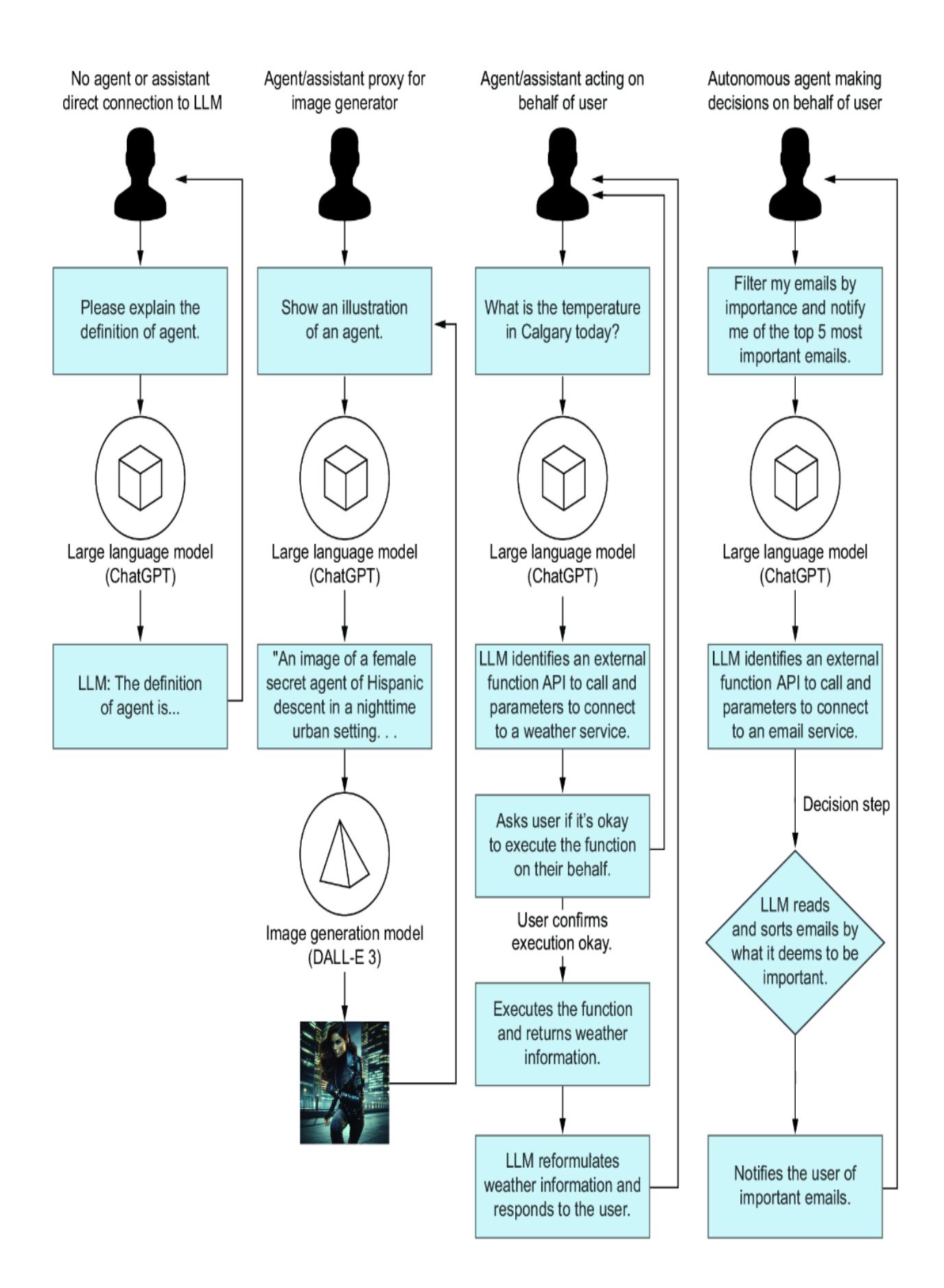
Figure 1.1 The differences between the LLM interactions from direct action compared to using proxy agents, agents, and autonomous agents
Figure 1.1 demonstrates the use cases for a single flow of actions on an LLM using a single agent. For more complex problems, we often break agents into profiles or personas. Each agent profile is given a specific task and executes that task with specialized tools and knowledge.
Multi-agent systems are agent profiles that work together in various configurations to solve a problem. Figure 1.2 demonstrates an example of a multi-agent system using three agents: a controller or proxy and two profile agents as workers controlled by the proxy. The coder profile on the left writes the code the user requests; on the right is a tester profile designed to write unit tests. These agents work and communicate together until they are happy with the code and then pass it on to the user.
Figure 1.2 shows one of the possibly infinite agent configurations. (In chapter 4, we’ll explore Microsoft’s open source platform, AutoGen, which supports multiple configurations for employing multi-agent systems.)
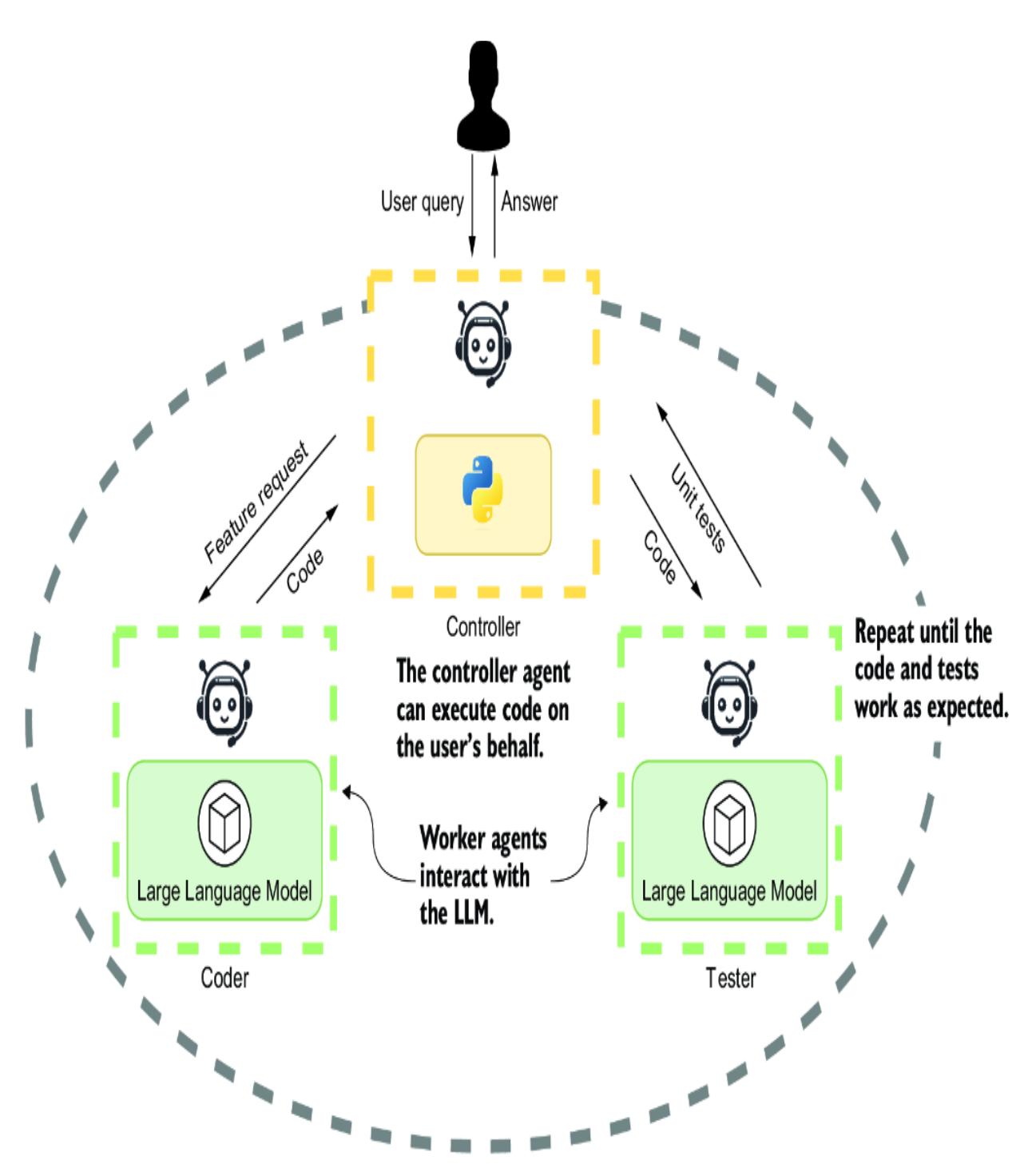
Figure 1.2 In this example of a multi-agent system, the controller or agent proxy communicates directly with the user. Two agents—a coder and a tester—work in the background to create code and write unit tests to test the code.
Multi-agent systems can work autonomously but may also function guided entirely by human feedback. The benefits of using multiple agents are like those of a single agent but often magnified. Where a single agent typically
specializes in a single task, multi-agent systems can tackle multiple tasks in parallel. Multiple agents can also provide feedback and evaluation, reducing errors when completing assignments.
As we can see, an AI agent or agent system can be assembled in multiple ways. However, an agent itself can also be assembled using multiple components. In the next section, we’ll cover topics ranging from an agent’s profile to the actions it may perform, as well as memory and planning.
1.2 Understanding the component systems of an agent
Agents can be complex units composed of multiple component systems. These components are the tools the agent employs to help it complete its goal or assigned tasks and even create new ones. Components may be simple or complex systems, typically split into five categories.
Figure 1.3 describes the major categories of components a single-agent system may incorporate. Each element will have subtypes that can define the component’s type, structure, and use. At the core of all agents is the profile and persona; extending from that are the systems and functions that enhance the agent.
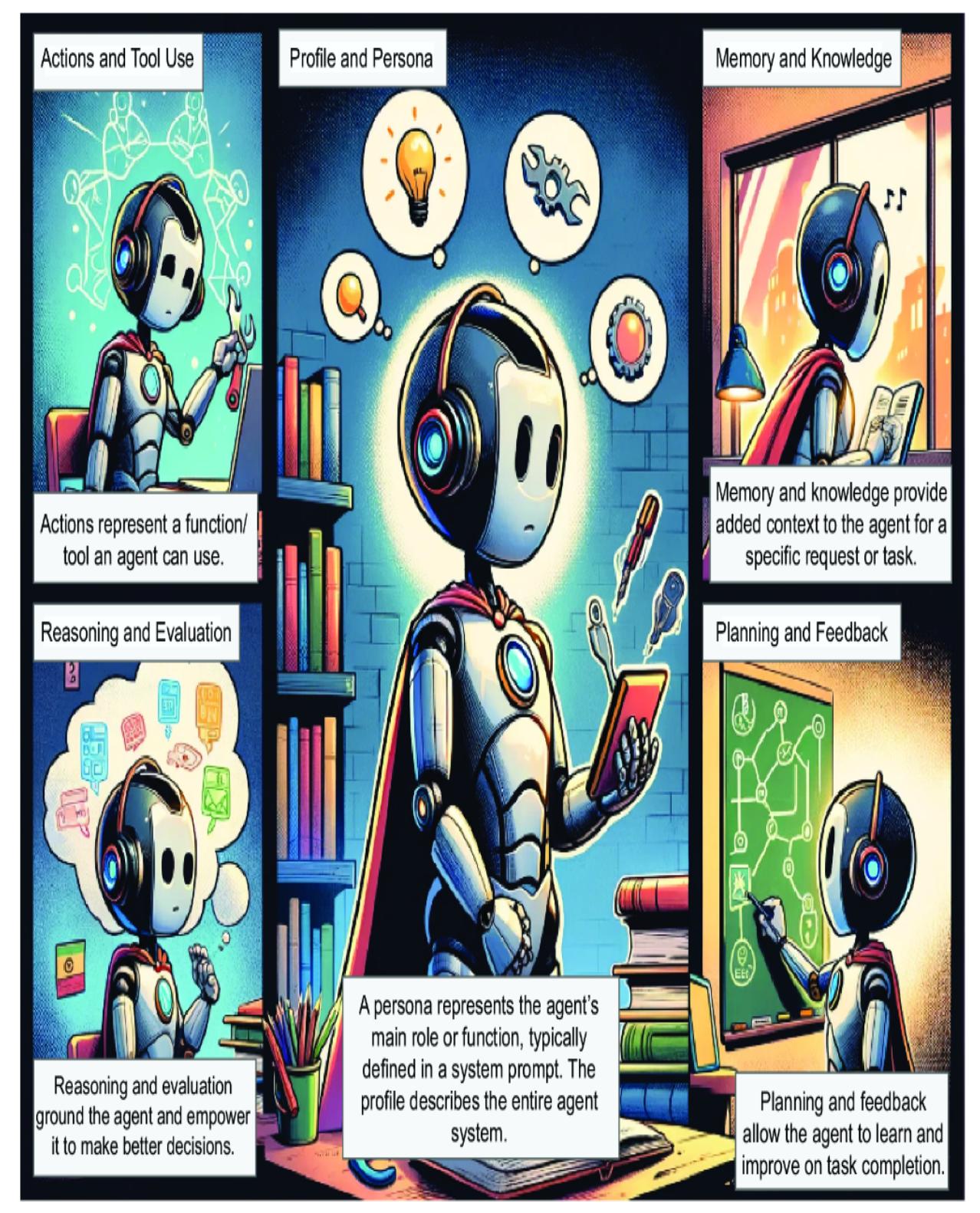
Figure 1.3 The five main components of a single-agent system (image generated through DALL-E 3)
The agent profile and persona shown in figure 1.4 represent the base description of the agent. The persona—often called the system prompt guides an agent to complete tasks, learn how to respond, and other nuances. It includes elements such as the background (e.g., coder, writer) and demographics, and it can be generated through methods such as handcrafting, LLM assistance, or data-driven techniques, including evolutionary algorithms.
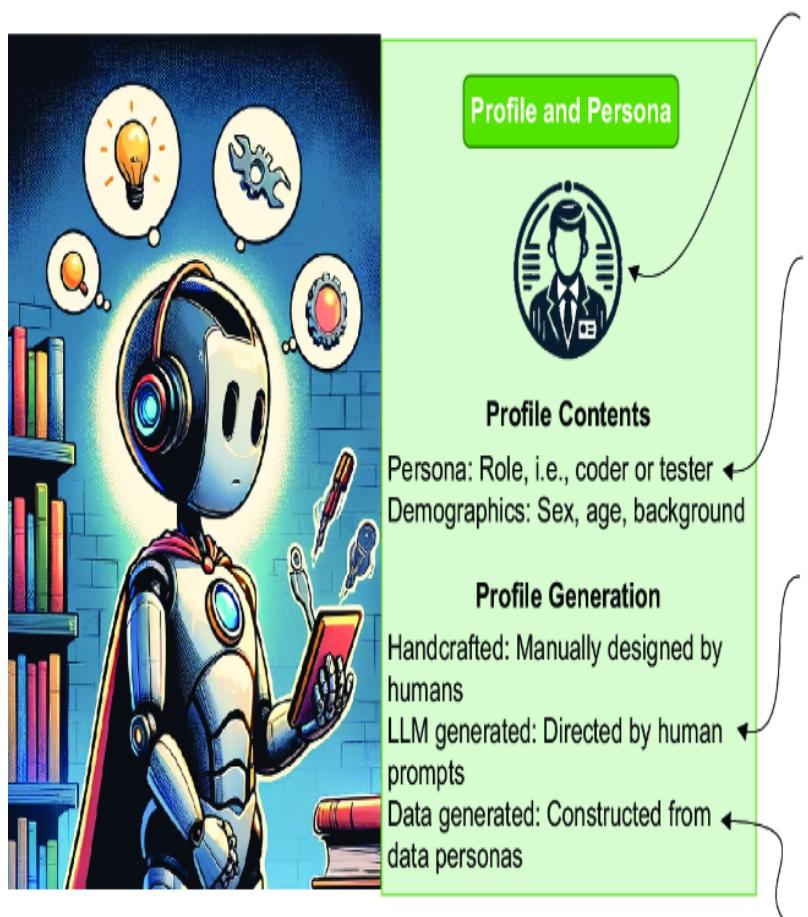
Figure 1.4 An in-depth look at how we’ll explore creating agent profiles
We’ll explore how to create effective and specific agent profiles/personas through techniques such as rubrics and grounding. In addition, we’ll explain the aspects of human-formulated versus AI-formulated (LLM)
profiles, including innovative techniques using data and evolutionary algorithms to build profiles.
Note The agent or assistant profile is composed of elements, including the persona. It may be helpful to think of profiles describing the work the agent/ assistant will perform and the tools it needs.
Figure 1.5 demonstrates the component actions and tool use in the context of agents involving activities directed toward task completion or acquiring information. These actions can be categorized into task completion, exploration, and communication, with varying levels of effect on the agent’s environment and internal states. Actions can be generated manually, through memory recollection, or by following predefined plans, influencing the agent’s behavior and enhancing learning.


Figure 1.5 The aspects of agent actions we’ll explore in this book
Understanding the action target helps us define clear objectives for task completion, exploration, or communication. Recognizing the action effect reveals how actions influence task outcomes, the agent’s environment, and its internal states, contributing to efficient decision making. Lastly, grasping action generation methods equips us with the knowledge to create actions manually, recall them from memory, or follow predefined plans, enhancing our ability to effectively shape agent behavior and learning processes.
Figure 1.6 shows the component knowledge and memory in more detail. Agents use knowledge and memory to annotate context with the most pertinent information while limiting the number of tokens used. Knowledge and memory structures can be unified, where both subsets follow a single structure or hybrid structure involving a mix of different retrieval forms. Knowledge and memory formats can vary widely from language (e.g., PDF documents) to databases (relational, object, or document) and embeddings, simplifying semantic similarity search through vector representations or even simple lists serving as agent memories.
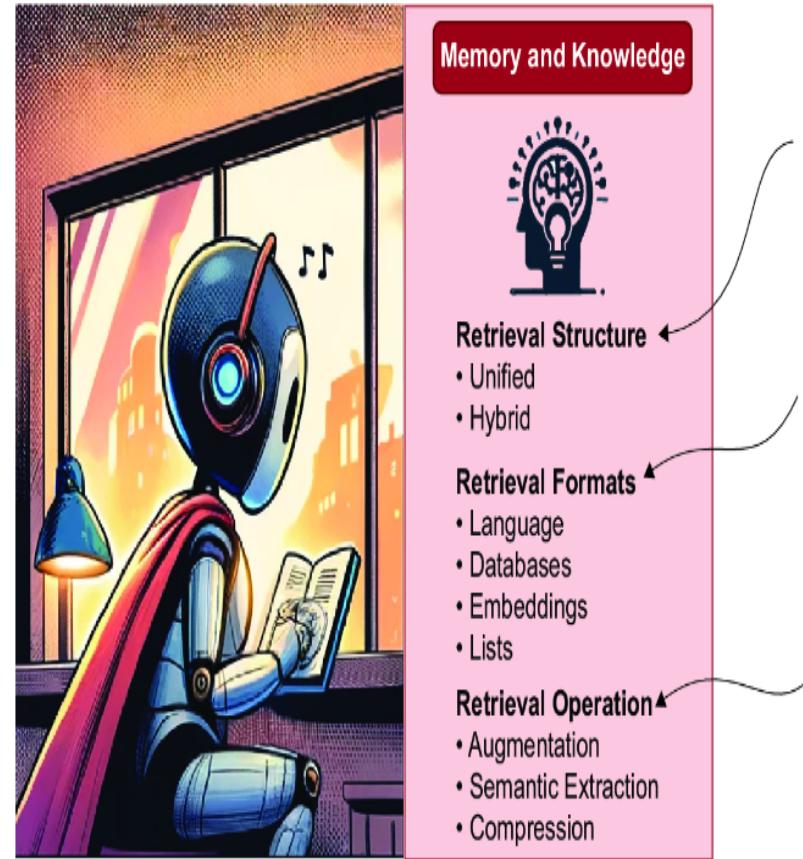
Figure 1.6 Exploring the role and use of agent memory and knowledge
Figure 1.7 shows the reasoning and evaluation component of an agent system. Research and practical applications have shown that LLMs/agents can effectively reason. Reasoning and evaluation systems annotate an agent’s workflow by providing an ability to think through problems and evaluate solutions.
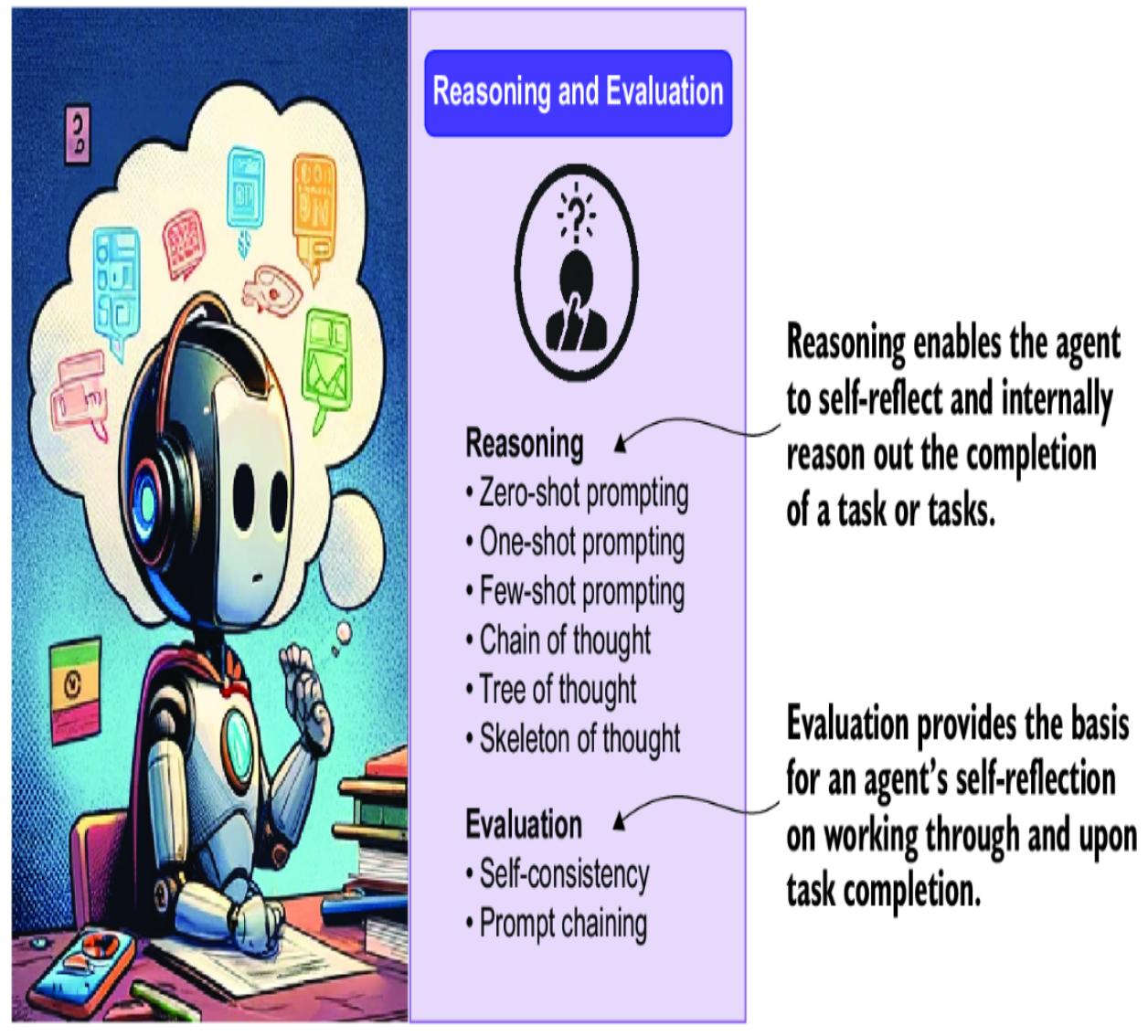
Figure 1.7 The reasoning and evaluation component and details
Figure 1.8 shows the component agent planning/feedback and its role in organizing tasks to achieve higher-level goals. It can be categorized into these two approaches:
- Planning without feedback —Autonomous agents make decisions independently.
- Planning with feedback —Monitoring and modifying plans is based on various sources of input, including environmental changes and direct human feedback.
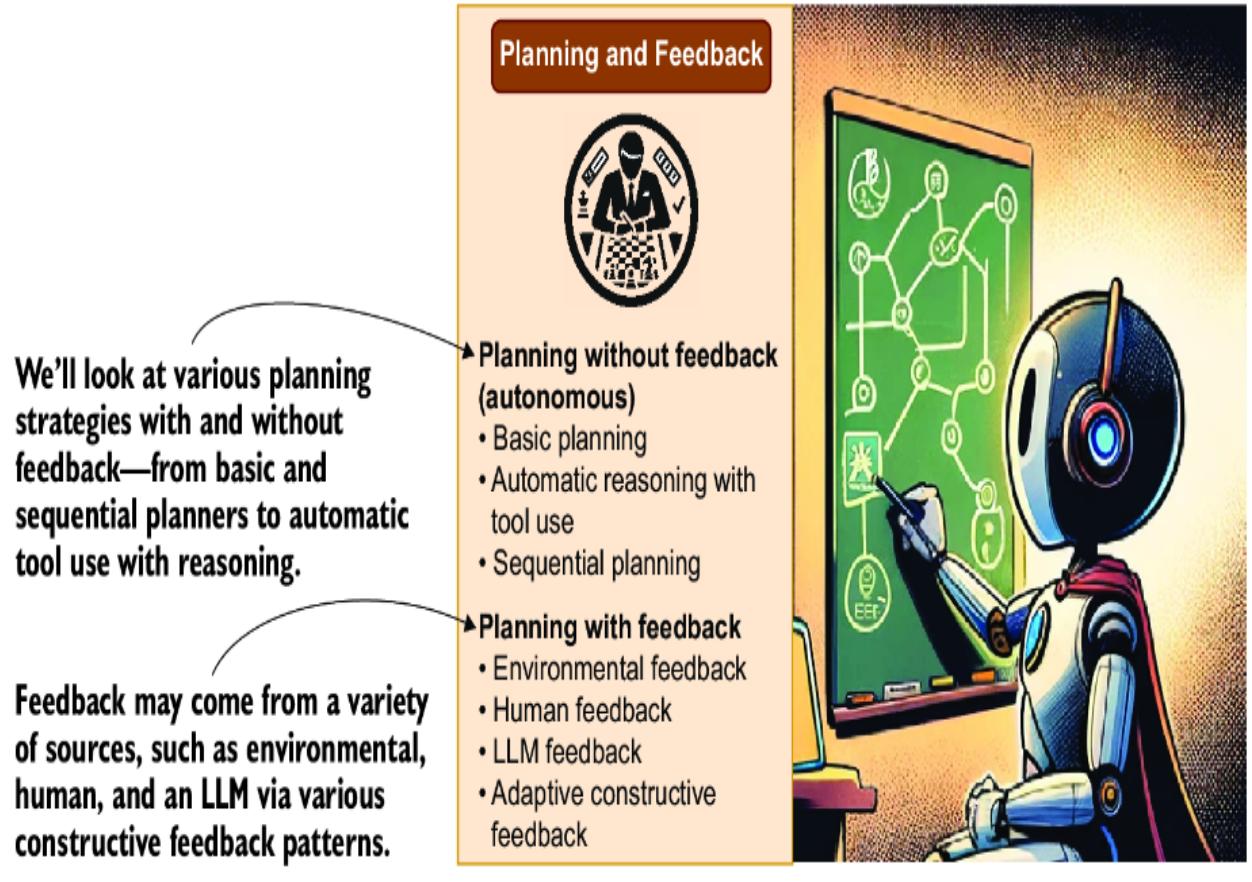
Figure 1.8 Exploring the role of agent planning and reasoning
Within planning, agents may employ single-path reasoning, sequential reasoning through each step of a task, or multipath reasoning to explore multiple strategies and save the efficient ones for future use. External planners, which can be code or other agent systems, may also play a role in orchestrating plans.
Any of our previous agent types—the proxy agent/assistant, agent/assistant, or autonomous agent—may use some or all of these components. Even the planning component has a role outside of the autonomous agent and can effectively empower even the regular agent.
1.3 Examining the rise of the agent era: Why agents?
AI agents and assistants have quickly moved from the main commodity in AI research to mainstream software development. An ever-growing list of tools and platforms assist in the construction and empowerment of agents. To an outsider, it may all seem like hype intended to inflate the value of some cool but overrated technology.
During the first few months after ChatGPT’s initial release, a new discipline called prompt engineering was formed: users found that using various techniques and patterns in their prompts allowed them to generate better and more consistent output. However, users also realized that prompt engineering could only go so far.
Prompt engineering is still an excellent way to interact directly with LLMs such as ChatGPT. Over time, many users discovered that effective prompting required iteration, reflection, and more iteration. The first agent systems, such as AutoGPT, emerged from these discoveries, capturing the community’s attention.
Figure 1.9 shows the original design of AutoGPT, one of the first autonomous agent systems. The agent is designed to iterate a planned sequence of tasks that it defines by looking at the user’s goal. Through each task iteration of steps, the agent evaluates the goal and determines if the task is complete. If the task isn’t complete, the agent may replan the steps and update the plan based on new knowledge or human feedback.
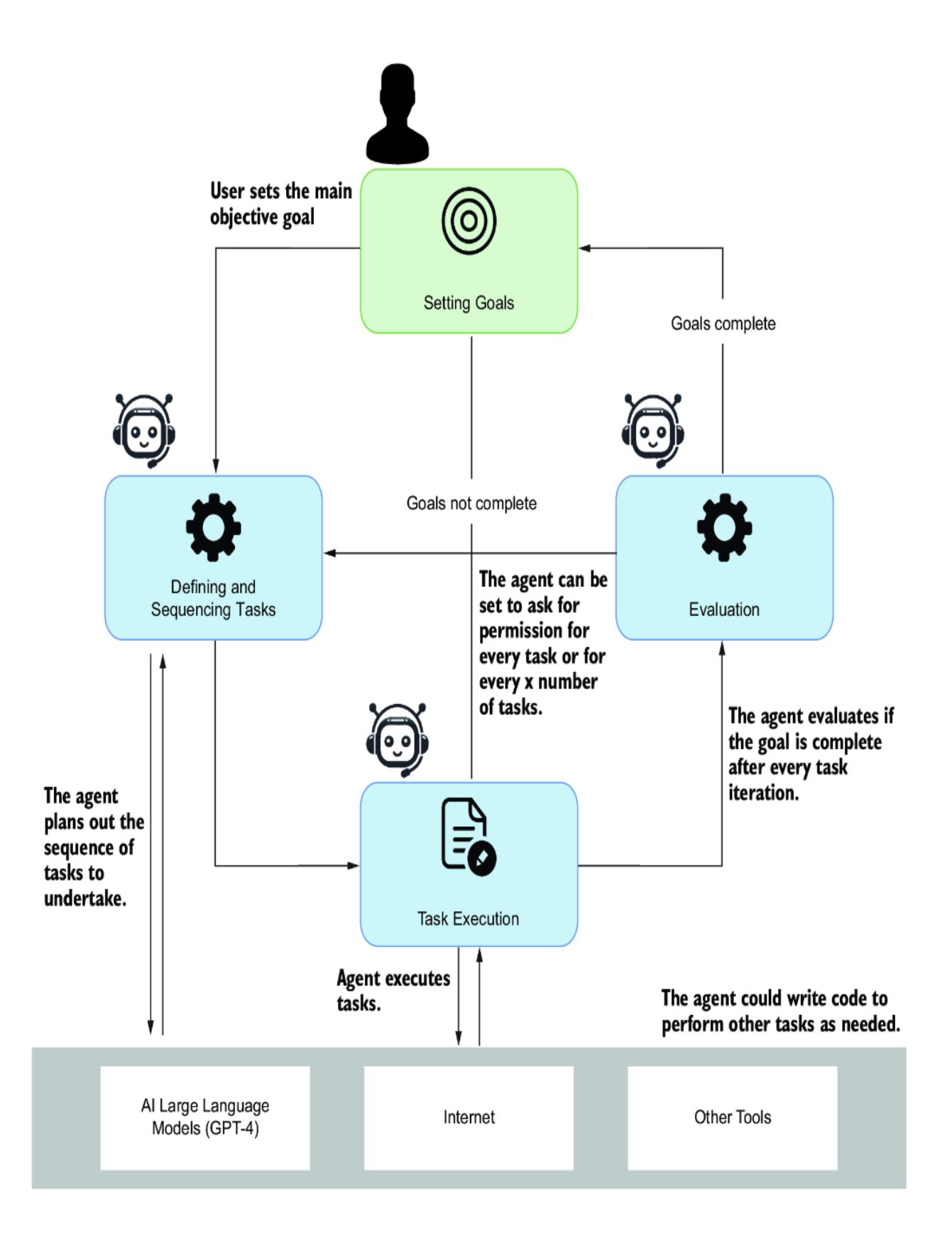
Figure 1.9 The original design of the AutoGPT agent system
AutoGPT became the first example to demonstrate the power of using task planning and iteration with LLM models. From this and in tandem, other agent systems and frameworks exploded into the community using similar planning and task iteration systems. It’s generally accepted that planning, iteration, and repetition are the best processes for solving complex and multifaceted goals for an LLM.
However, autonomous agent systems require trust in the agent decisionmaking process, the guardrails/evaluation system, and the goal definition. Trust is also something that is acquired over time. Our lack of trust stems from our lack of understanding of an autonomous agent’s capabilities.
Note Artificial general intelligence (AGI) is a form of intelligence that can learn to accomplish any task a human can. Many practitioners in this new world of AI believe an AGI using autonomous agent systems is an attainable goal.
For this reason, many of the mainstream and production-ready agent tools aren’t autonomous. However, they still provide a significant benefit in managing and automating tasks using GPTs (LLMs). Therefore, as our goal in this book is to understand all agent forms, many more practical applications will be driven by non-autonomous agents.
Agents and agent tools are only the top layer of a new software application development paradigm. We’ll look at this new paradigm in the next section.
1.4 Peeling back the AI interface
The AI agent paradigm is not only a shift in how we work with LLMs but is also perceived as a shift in how we develop software and handle data. Software and data will no longer be interfaced using user interfaces (UIs), application programming interfaces (APIs), and specialized query languages such as SQL. Instead, they will be designed to be interfaced using natural language.
Figure 1.10 shows a high-level snapshot of what this new architecture may look like and what role AI agents play. Data, software, and applications adapt to support semantic, natural language interfaces. These AI interfaces allow agents to collect data and interact with software applications, even other agents or agent applications. This represents a new shift in how we interact with software and applications.
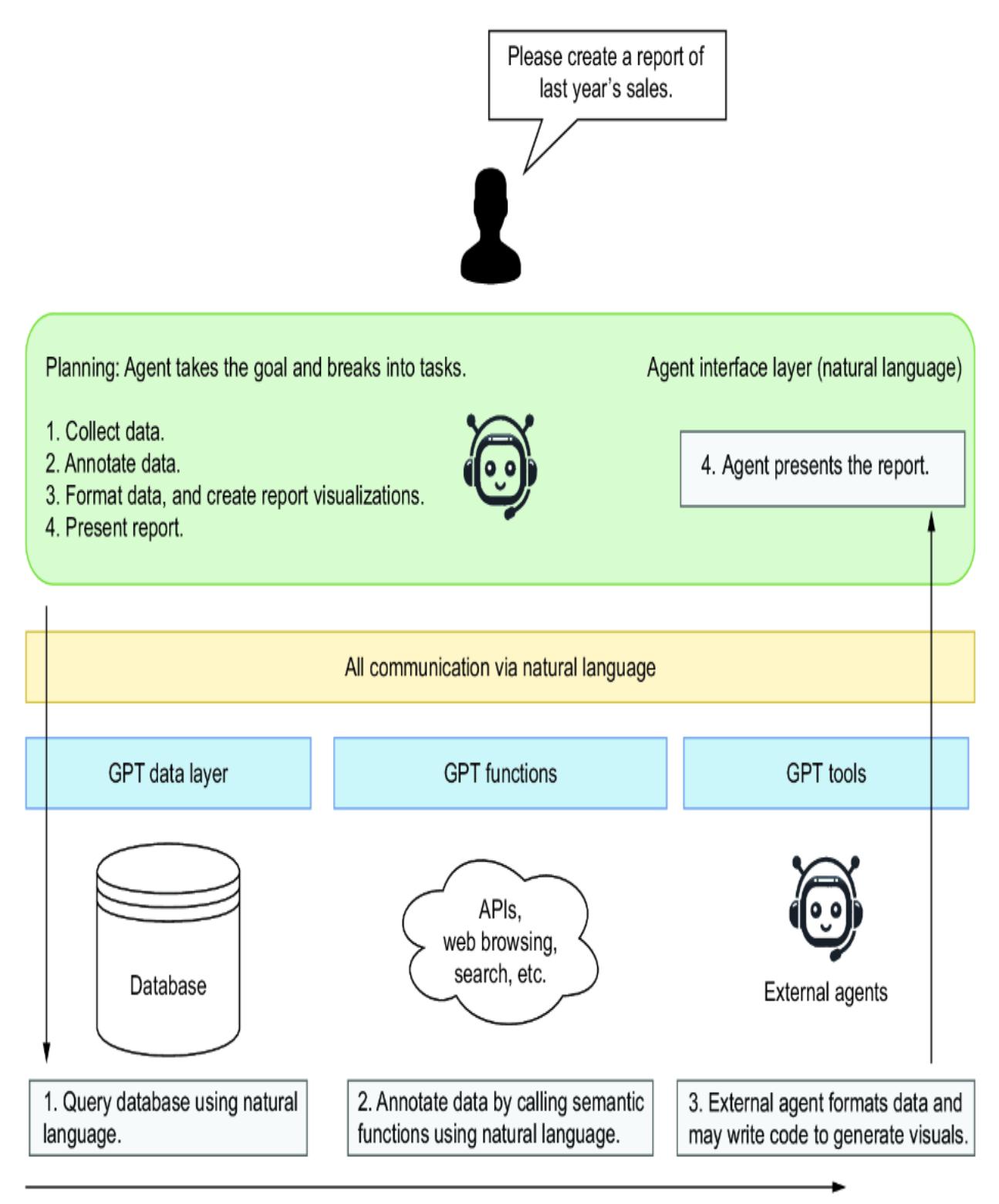
Figure 1.10 A vision of how agents will interact with software systems
An AI interface is a collection of functions, tools, and data layers that expose data and applications by natural language. In the past, the word semantic has been heavily used to describe these interfaces, and even some tools use the name; however, “semantic” can also have a variety of meanings and uses. Therefore, in this book, we’ll use the term AI interface.
The construction of AI interfaces will empower agents that need to consume the services, tools, and data. With this empowerment will come increased accuracy in completing tasks and more trustworthy and autonomous applications. While an AI interface may not be appropriate for all software and data, it will dominate many use cases.
Summary
An agent is an entity that acts or exerts power, produces an effect, or serves as a means for achieving a result. An agent automates interaction with a large language model (LLM) in AI.
An assistant is synonymous with an agent. Both terms encompass tools such as OpenAI’s GPT Assistants.
Autonomous agents can make independent decisions, and their distinction from non-autonomous agents is crucial.
The four main types of LLM interactions include direct user interaction, agent/ assistant proxy, agent/assistant, and autonomous agent.
Multi-agent systems involve agent profiles working together, often controlled by a proxy, to accomplish complex tasks.
The main components of an agent include the profile/persona, actions, knowledge/memory, reasoning/evaluation, and planning/feedback.
Agent profiles and personas guide an agent’s tasks, responses, and other nuances, often including background and demographics.
Actions and tools for agents can be manually generated, recalled from memory, or follow predefined plans.
Agents use knowledge and memory structures to optimize context and minimize token usage via various formats, from documents to embeddings.
Reasoning and evaluation systems enable agents to think through problems and assess solutions using prompting patterns such as zeroshot, one-shot, and few-shot.
Planning/feedback components organize tasks to achieve goals using single-path or multipath reasoning and integrating environmental and human feedback.
The rise of AI agents has introduced a new software development paradigm, shifting from traditional to natural language–based AI interfaces.
Understanding the progression and interaction of these tools helps develop agent systems, whether single, multiple, or autonomous.
2 Harnessing the power of large language models
This chapter covers
- Understanding the basics of LLMs
- Connecting to and consuming the OpenAI API
- Exploring and using open source LLMs with LM Studio
- Prompting LLMs with prompt engineering
- Choosing the optimal LLM for your specific needs
The term large language models (LLMs) has now become a ubiquitous descriptor of a form of AI. These LLMs have been developed using generative pretrained transformers (GPTs). While other architectures also power LLMs, the GPT form is currently the most successful.
LLMs and GPTs are generative models, which means they are trained to generate rather than predict or classify content. To illustrate this further, consider figure 2.1, which shows the difference between generative and predictive/classification models. Generative models create something from the input, whereas predictive and classifying models classify it.
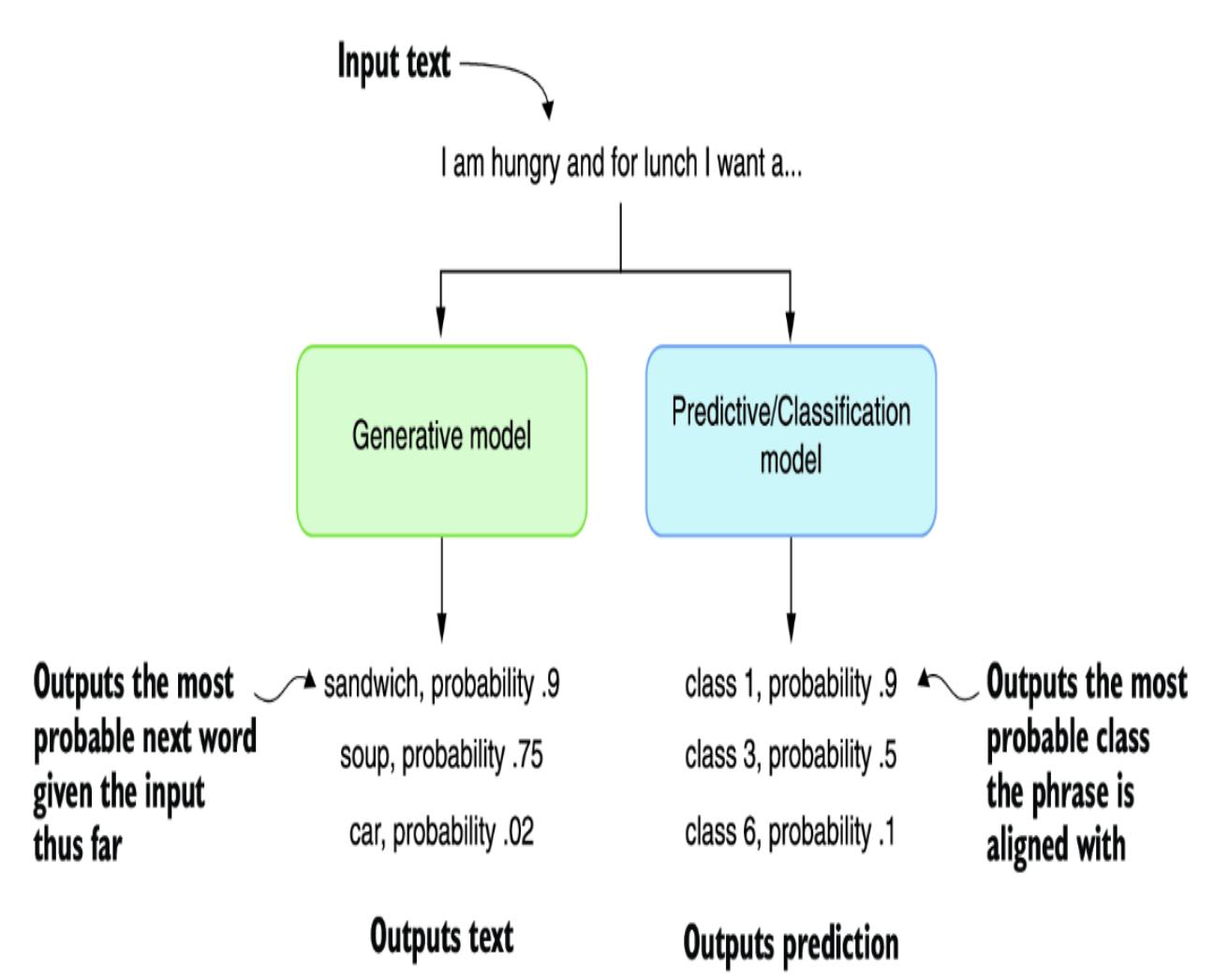
Figure 2.1 The difference between generative and predictive models
We can further define an LLM by its constituent parts, as shown in figure 2.2. In this diagram, data represents the content used to train the model, and architecture is an attribute of the model itself, such as the number of parameters or size of the model. Models are further trained specifically to the desired use case, including chat, completions, or instruction. Finally, fine-tuning is a feature added to models that refines the input data and model training to better match a particular use case or domain.
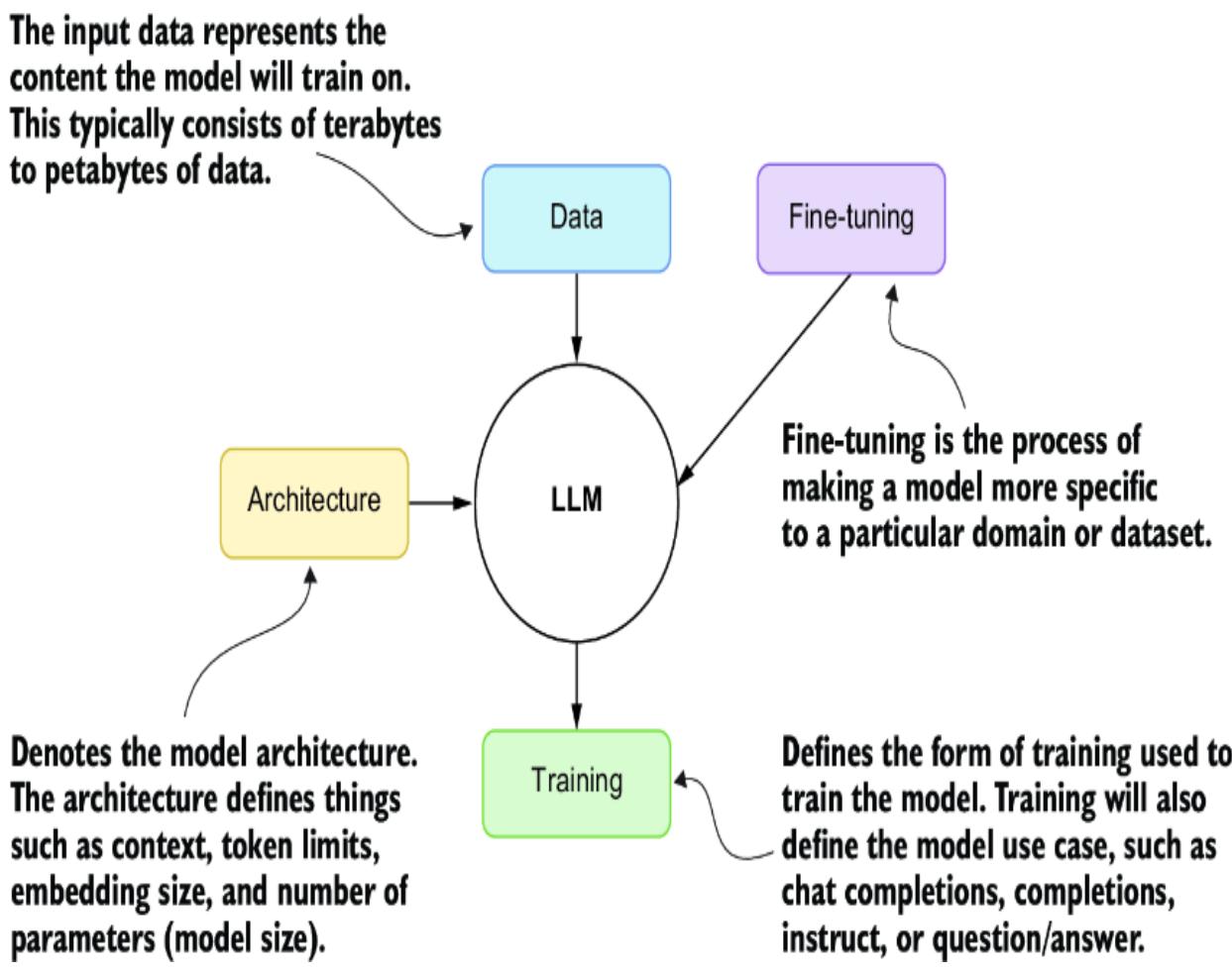
Figure 2.2 The main elements that describe an LLM
The transformer architecture of GPTs, which is a specific architecture of LLMs, allows the models to be scaled to billions of parameters in size. This requires these large models to be trained on terabytes of documents to build a foundation. From there, these models will be successively trained using various methods for the desired use case of the model.
ChatGPT, for example, is trained effectively on the public internet and then fine-tuned using several training strategies. The final fine-tuning training is completed using an advanced form called reinforcement learning with human feedback (RLHF). This produces a model use case called chat completions.
Chat completions LLMs are designed to improve through iteration and refinement—in other words, chatting. These models have also been benchmarked to be the best in task completion, reasoning, and planning, which makes them ideal for building agents and assistants. Completion models are trained/designed only to provide generated content on input text, so they don’t benefit from iteration.
For our journey to build powerful agents in this book, we focus on the class of LLMs called chat completions models. That, of course, doesn’t preclude you from trying other model forms for your agents. However, you may have to significantly alter the code samples provided to support other model forms.
We’ll uncover more details about LLMs and GPTs later in this chapter when we look at running an open source LLM locally. In the next section, we look at how to connect to an LLM using a growing standard from OpenAI.
2.1 Mastering the OpenAI API
Numerous AI agents and assistant projects use the OpenAI API SDK to connect to an LLM. While not standard, the basic concepts describing a connection now follow the OpenAI pattern. Therefore, we must understand the core concepts of an LLM connection using the OpenAI SDK.
This chapter will look at connecting to an LLM model using the OpenAI Python SDK/package. We’ll discuss connecting to a GPT-4 model, the model response, counting tokens, and how to define consistent messages. Starting in the following subsection, we’ll examine how to use OpenAI.
2.1.1 Connecting to the chat completions model
To complete the exercises in this section and subsequent ones, you must set up a Python developer environment and get access to an LLM. Appendix A walks you through setting up an OpenAI account and accessing GPT-4 or other models. Appendix B demonstrates setting up a Python development environment with Visual Studio Code (VS Code), including installing needed extensions. Review these sections if you want to follow along with the scenarios.
Start by opening the source code chapter_2 folder in VS Code and creating a new Python virtual environment. Again, refer to appendix B if you need assistance.
Then, install the OpenAI and Python dot environment packages using the command in the following listing. This will install the required packages into the virtual environment.
Listing 2.1 pip installs
pip install openai python-dotenv
Next, open the connecting.py file in VS Code, and inspect the code shown in listing 2.2. Be sure to set the model’s name to an appropriate name—for example, gpt-4. At the time of writing, the gpt-4-1106 preview was used to represent GPT-4 Turbo.
Listing 2.2 connecting.py
import os
from openai import OpenAI
from dotenv import load_dotenv
load_dotenv() #1
api_key = os.getenv('OPENAI_API_KEY')
if not api_key: #2
 raise ValueError("No API key found. Please check your .env file.")
client = OpenAI(api_key=api_key) #3
def ask_chatgpt(user_message):
 response = client.chat.completions.create( #4
 model="gpt-4-1106-preview",
 messages=[{"role": "system",
"content": "You are a helpful assistant."},
 {"role": "user", "content": user_message}],
 temperature=0.7,
 )
 return response.choices[0].message.content #5
user = "What is the capital of France?"
response = ask_chatgpt(user) #6
print(response)- #1 Loads the secrets stored in the .env file
- #2 Checks to see whether the key is set
- #3 Creates a client with the key
- #4 Uses the create function to generate a response
- #5 Returns just the content of the response
- #6 Executes the request and returns the response
A lot is happening here, so let’s break it down by section, starting with the beginning and loading the environment variables. In the chapter_2 folder is another file called .env, which holds environment variables. These variables are set automatically by calling the load_dotenv function.
You must set your OpenAI API key in the .env file, as shown in the next listing. Again, refer to appendix A to find out how to get a key and find a model name.
Listing 2.3 .envOPENAI_API_KEY=‘your-openai-api-key’
After setting the key, you can debug the file by pressing the F5 key or selecting Run > Start Debugging from the VS Code menu. This will run the code, and you should see something like “The capital of France is Paris.”
Remember that the response from a generative model depends on the probability. The model will probably give us a correct and consistent answer in this case.
You can play with these probabilities by adjusting the temperature of the request. If you want a model to be more consistent, turn the temperature down to 0, but if you want the model to produce more variation, turn the temperature up. We’ll explore setting the temperature further in the next section.
2.1.2 Understanding the request and response
Digging into the chat completions request and response features can be helpful. We’ll focus on the request first, as shown next. The request encapsulates the intended model, the messages, and the temperature.
Listing 2.4 The chat completions request
response = client.chat.completions.create(
 model="gpt-4-1106-preview", #1
 messages=[{"role": "system",
"content": "You are a helpful assistant."}, #2
 {"role": "user", "content": user_message}], #3
 temperature=0.7, #4
 )
#1 The model or deployment used to respond to the request #2 The system role message #3 The user role message #4 The temperature or variability of the request
Within the request, the messages block describes a set of messages and roles used in a request. Messages for a chat completions model can be defined in three roles:
- System role —A message that describes the request’s rules and guidelines. It can often be used to describe the role of the LLM in making the request.
- User role —Represents and contains the message from the user.
- Assistant role —Can be used to capture the message history of previous responses from the LLM. It can also inject a message history when perhaps none existed.
The message sent in a single request can encapsulate an entire conversation, as shown in the JSON in the following listing.
Listing 2.5 Messages with history[
{
"role": "system",
"content": "You are a helpful assistant."
},
{
"role": "user",
"content": "What is the capital of France?"
},
{
"role": "assistant",
"content": "The capital of France is Paris."
},
{
"role": "user",
"content": "What is an interesting fact of Paris."
}
],You can see how this can be applied by opening message_history.py in VS Code and debugging it by pressing F5. After the file runs, be sure to check the output. Then, try to run the sample a few more times to see how the results change.
The results will change from each run to the next due to the high temperature of .7. Go ahead and reduce the temperature to .0, and run the message_history.py sample a few more times. Keeping the temperature at 0 will show the same or similar results each time.
Setting a request’s temperature will often depend on your particular use case. Sometimes, you may want to limit the responses’ stochastic nature (randomness). Reducing the temperature to 0 will give consistent results. Likewise, a value of 1.0 will give the most variability in the responses.
Next, we also want to know what information is being returned for each request. The next listing shows the output format for the response. You can see this output by running the message_history.py file in VS Code.
Listing 2.6 Chat completions response
{
 "id": "chatcmpl-8WWL23up3IRfK1nrDFQ3EHQfhx0U6",
 "choices": [ #1
 {
 "finish_reason": "stop",
 "index": 0,
 "message": {
 "content": "… omitted",
 "role": "assistant", #2
 "function_call": null,
 "tool_calls": null
 },
 "logprobs": null
 }
 ],
 "created": 1702761496,
 "model": "gpt-4-1106-preview", #3
 "object": "chat.completion",
 "system_fingerprint": "fp_3905aa4f79",
 "usage": {
 "completion_tokens": 78, #4
 "prompt_tokens": 48, #4
 "total_tokens": 126 #4
 }
}
#1 A model may return more than one response. #2 Responses returned in the assistant role #3 Indicates the model used #4 Counts the number of input (prompt) and output (completion) tokens used
It can be helpful to track the number of input tokens (those used in prompts) and the output tokens (the number returned through completions). Sometimes, minimizing and reducing the number of tokens can be essential. Having fewer tokens typically means LLM interactions will be cheaper, respond faster, and produce better and more consistent results.
That covers the basics of connecting to an LLM and returning responses. Throughout this book, we’ll review and expand on how to interact with LLMs. Until then, we’ll explore in the next section how to load and use open source LLMs.
2.2 Exploring open source LLMs with LM Studio
Commercial LLMs, such as GPT-4 from OpenAI, are an excellent place to start to learn how to use modern AI and build agents. However, commercial agents are an external resource that comes at a cost, reduces
data privacy and security, and introduces dependencies. Other external influences can further complicate these factors.
It’s unsurprising that the race to build comparable open source LLMs is growing more competitive every day. As a result, there are now open source LLMs that may be adequate for numerous tasks and agent systems. There have even been so many advances in tooling in just a year that hosting LLMs locally is now very easy, as we’ll see in the next section.
2.2.1 Installing and running LM Studio
LM Studio is a free download that supports downloading and hosting LLMs and other models locally for Windows, Mac, and Linux. The software is easy to use and offers several helpful features to get you started quickly. Here is a quick summary of steps to download and set up LM Studio:
- Download LM Studio from https://lmstudio.ai/.
- After downloading, install the software per your operating system. Be aware that some versions of LM Studio may be in beta and require installation of additional tools or libraries.
- Launch the software.
Figure 2.3 shows the LM Studio window running. From there, you can review the current list of hot models, search for others, and even download. The home page content can be handy for understanding the details and specifications of the top models.
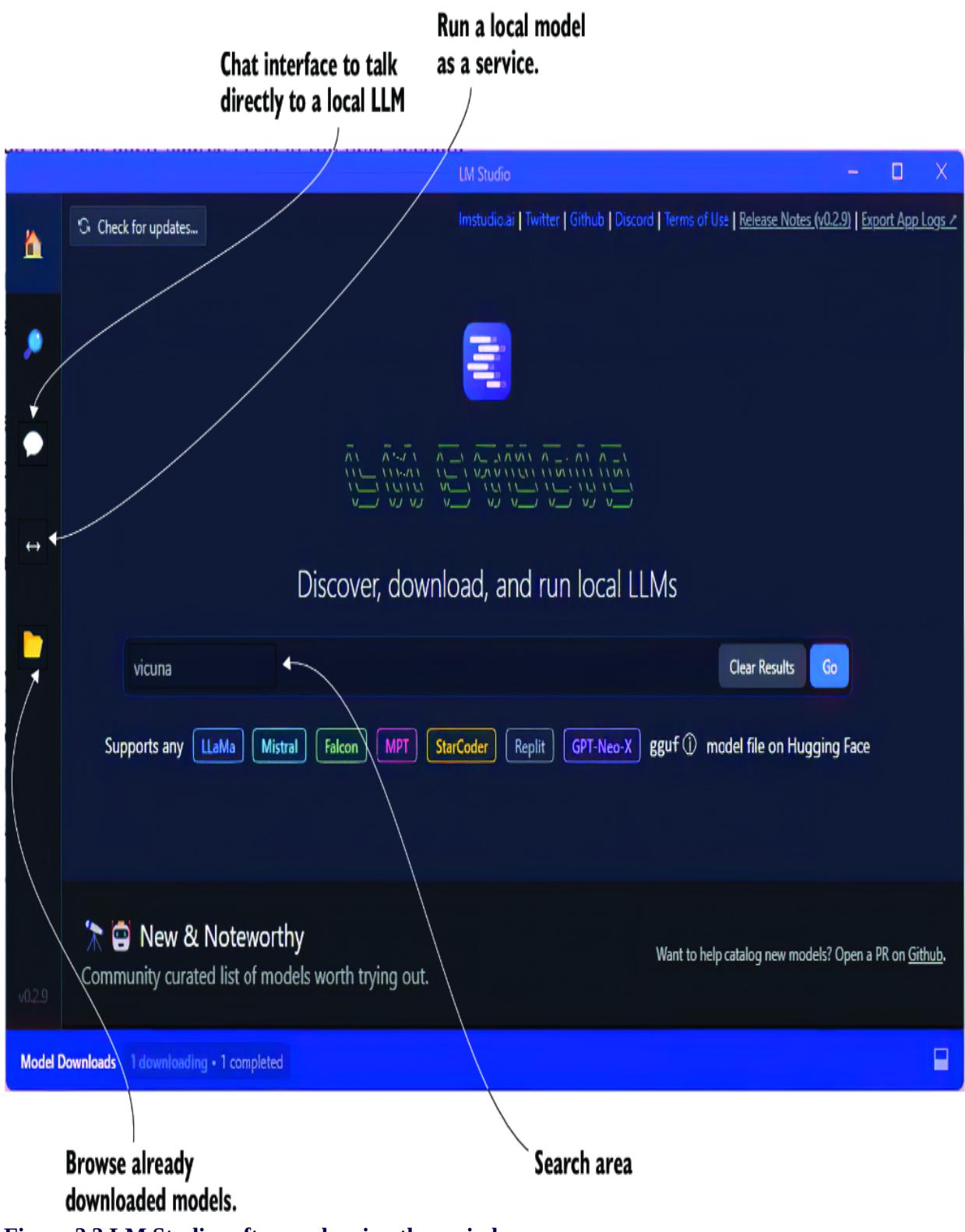
Figure 2.3 LM Studio software showing the main home page
An appealing feature of LM Studio is its ability to analyze your hardware and align it with the requirements of a given model. The software will let
you know how well you can run a given model. This can be a great time saver in guiding what models you experiment with.
Enter some text to search for a model, and click Go. You’ll be taken to the search page interface, as shown in figure 2.4. From this page, you can see all the model variations and other specifications, such as context token size. After you click the Compatibility Guess button, the software will even tell you if the model will run on your system.
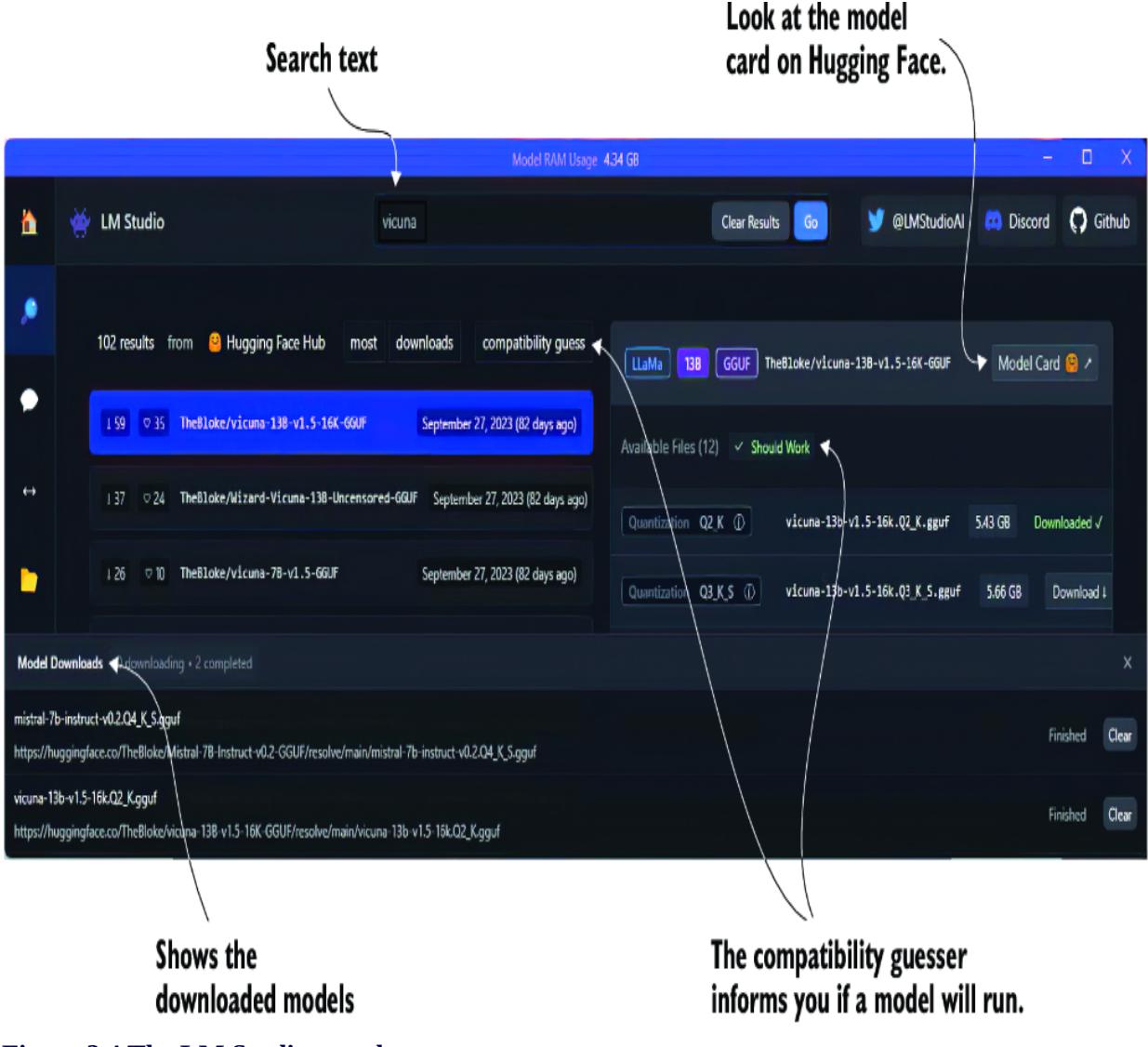
Figure 2.4 The LM Studio search page
Click to download any model that will run on your system. You may want to stick with models designed for chat completions, but if your system is
limited, work with what you have. In addition, if you’re unsure of which model to use, go ahead and download to try them. LM Studio is a great way to explore and experiment with many models.
After the model is downloaded, you can then load and run the model on the chat page or as a server on the server page. Figure 2.5 shows loading and running a model on the chat page. It also shows the option for enabling and using a GPU if you have one.
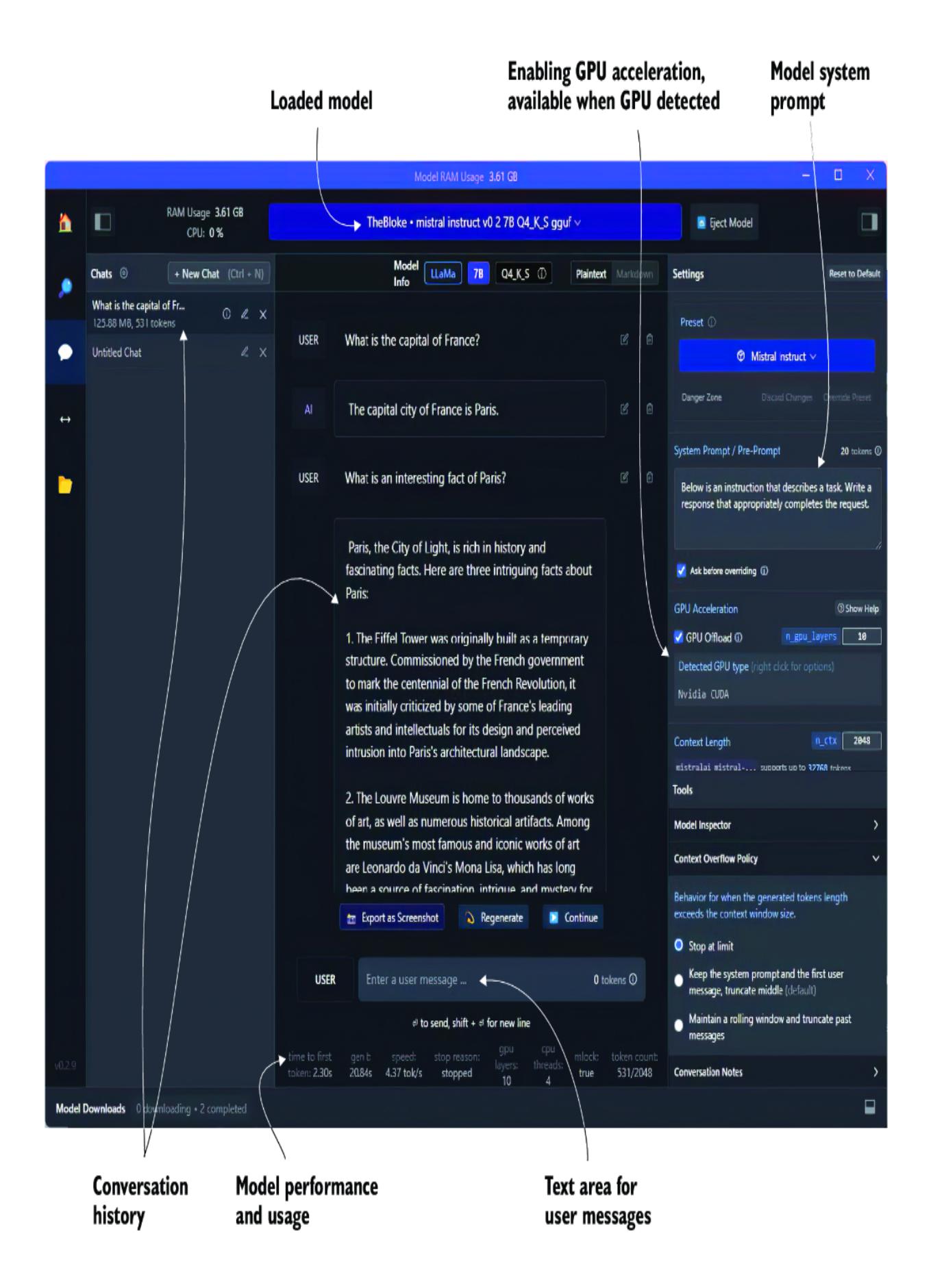
Figure 2.5 The LM Studio chat page with a loaded, locally running LLM
To load and run a model, open the drop-down menu at the top middle of the page, and select a downloaded model. A progress bar will appear showing the model loading, and when it’s ready, you can start typing into the UI.
The software even allows you to use some or all of your GPU, if detected, for the model inference. A GPU will generally speed up the model response times in some capacities. You can see how adding a GPU can affect the model’s performance by looking at the performance status at the bottom of the page, as shown in figure 2.5.
Chatting with a model and using or playing with various prompts can help you determine how well a model will work for your given use case. A more systematic approach is using the prompt flow tool for evaluating prompts and LLMs. We’ll describe how to use prompt flow in chapter 9.
LM Studio also allows a model to be run on a server and made accessible using the OpenAI package. We’ll see how to use the server feature and serve a model in the next section.
2.2.2 Serving an LLM locally with LM Studio
Running an LLM locally as a server is easy with LM Studio. Just open the server page, load a model, and then click the Start Server button, as shown in figure 2.6. From there, you can copy and paste any of the examples to connect with your model.
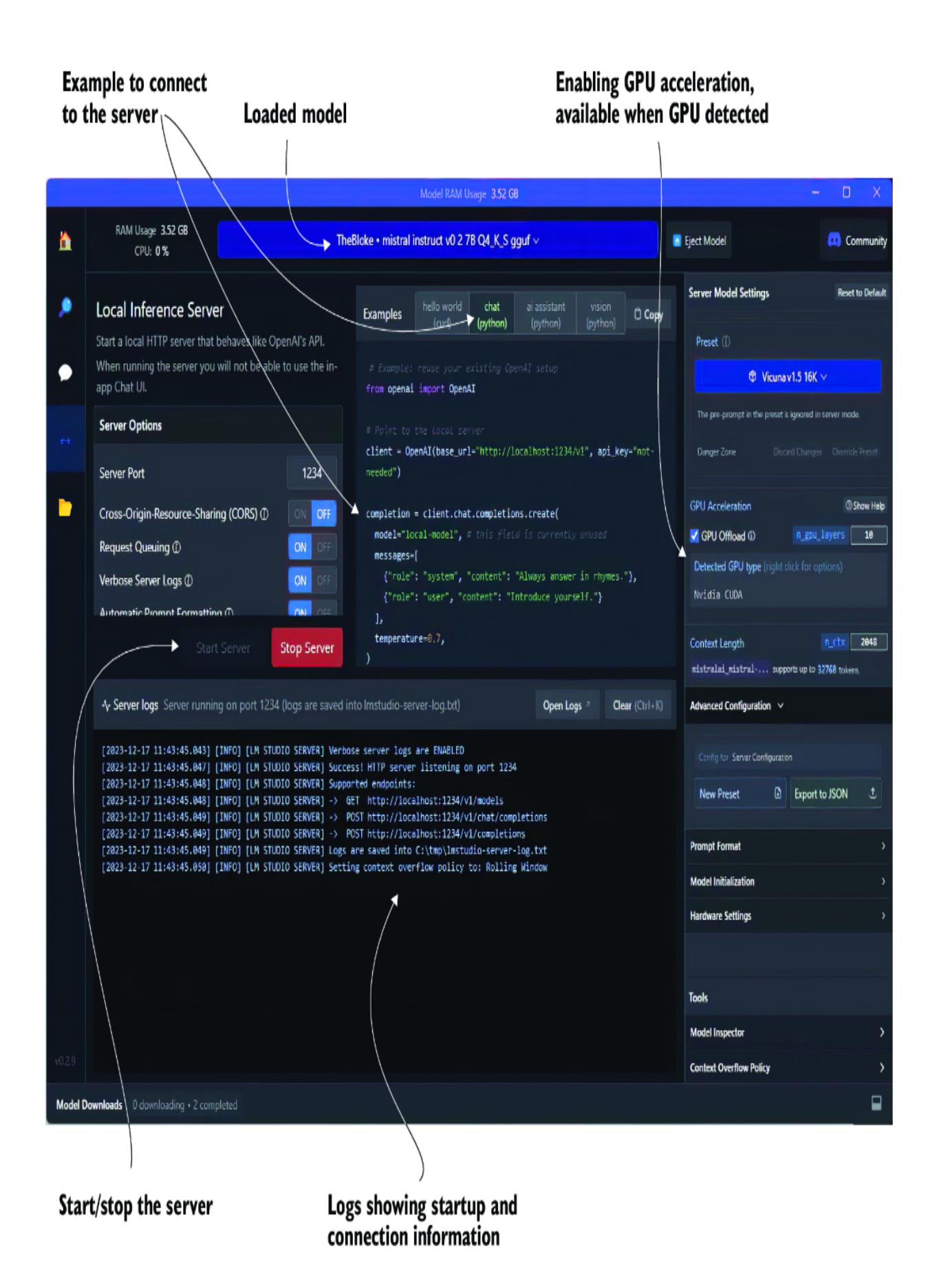
Figure 2.6 The LM Studio server page and a server running an LLM
You can review an example of the Python code by opening chapter_2/lmstudio_ server.py in VS Code. The code is also shown here in listing 2.7. Then, run the code in the VS Code debugger (press F5).
Listing 2.7 lmstudio_server.py
from openai import OpenAI
client = OpenAI(base_url="http://localhost:1234/v1", api_key="not-needed")
completion = client.chat.completions.create(
 model="local-model", #1
 messages=[
 {"role": "system", "content": "Always answer in rhymes."},
 {"role": "user", "content": "Introduce yourself."} #2
 ],
 temperature=0.7,
)
print(completion.choices[0].message) #3
#1 Currently not used; can be anything #2 Feel free to change the message as you like. #3 Default code outputs the whole message.
If you encounter problems connecting to the server or experience any other problems, be sure your configuration for the Server Model Settings matches the model type. For example, in figure 2.6, shown earlier, the loaded model differs from the server settings. The corrected settings are shown in figure 2.7.
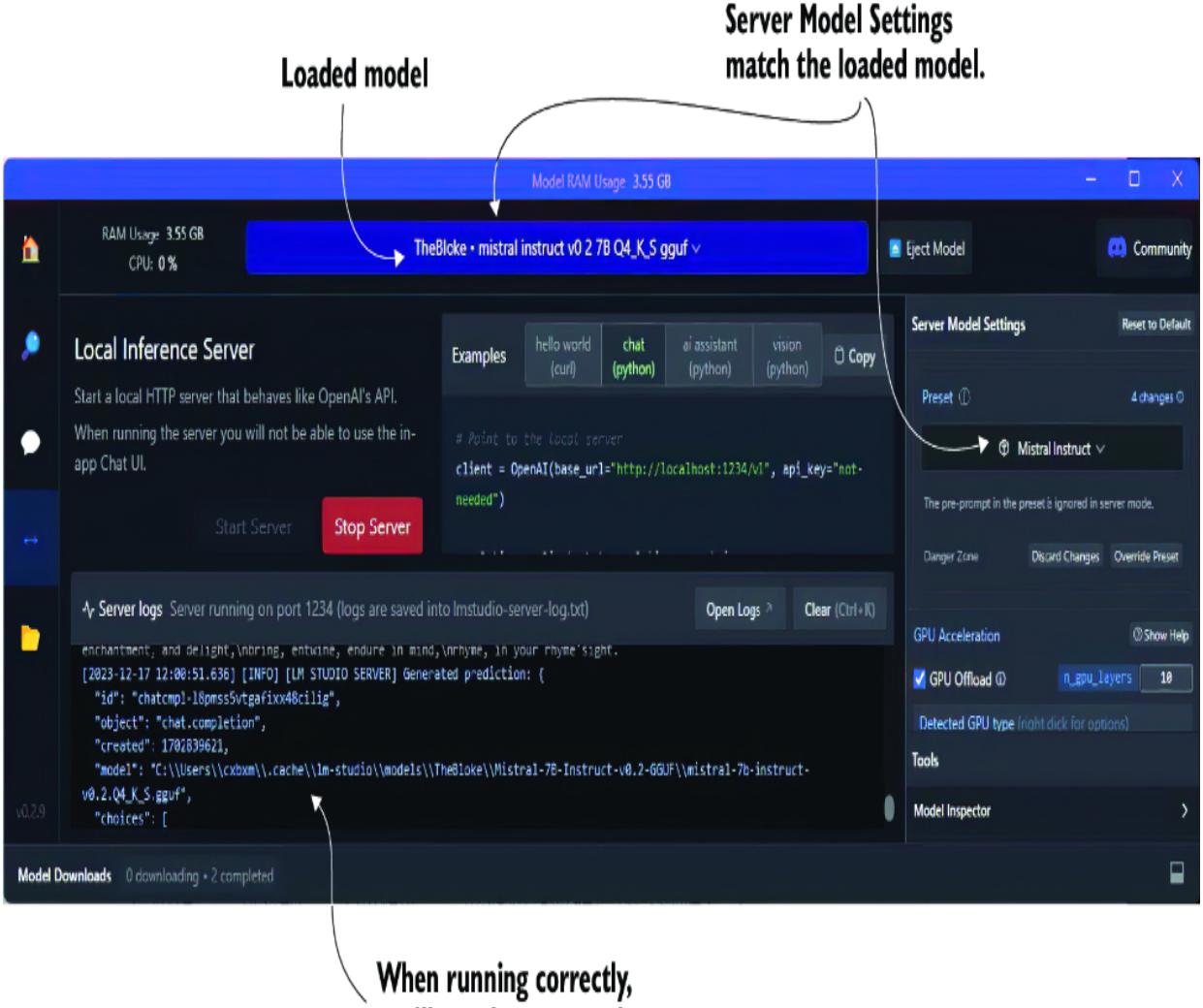
Figure 2.7 Choosing the correct Server Model Settings for the loaded model
Now, you can use a locally hosted LLM or a commercial model to build, test, and potentially even run your agents. The following section will examine how to build prompts using prompt engineering more effectively.
2.3 Prompting LLMs with prompt engineering
A prompt defined for LLMs is the message content used in the request for better response output. Prompt engineering is a new and emerging field that attempts to structure a methodology for building prompts. Unfortunately, prompt building isn’t a well-established science, and there is a growing and diverse set of methods defined as prompt engineering.
Fortunately, organizations such as OpenAI have begun documenting a universal set of strategies, as shown in figure 2.8. These strategies cover various tactics, some requiring additional infrastructure and considerations. As such, the prompt engineering strategies relating to more advanced concepts will be covered in the indicated chapters.
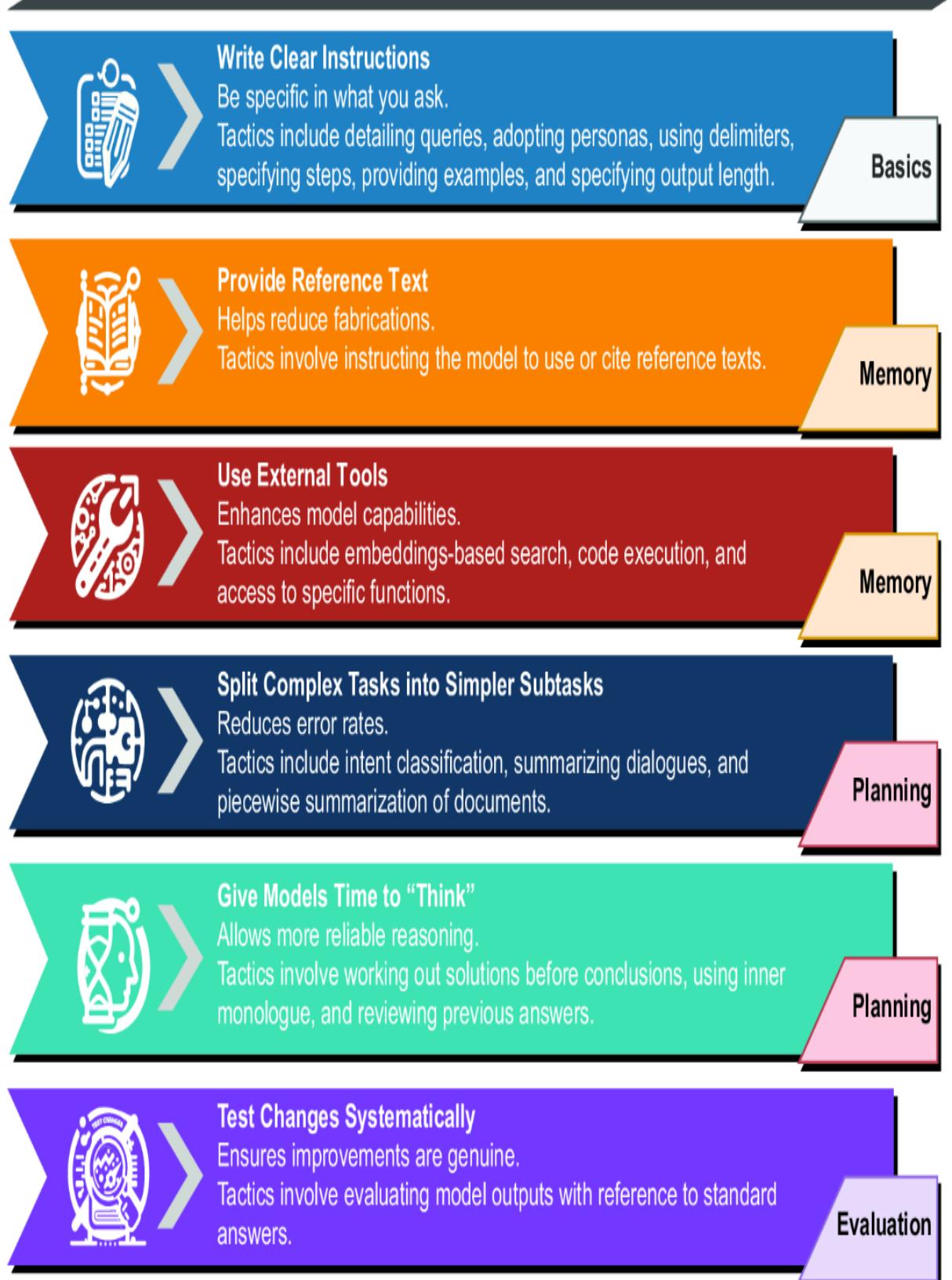
Figure 2.8 OpenAI prompt engineering strategies reviewed in this book, by chapter location
Each strategy in figure 2.8 unfolds into tactics that can further refine the specific method of prompt engineering. This chapter will examine the fundamental Write Clear Instructions strategy. Figure 2.9 shows the tactics for this strategy in more detail, along with examples for each tactic. We’ll look at running these examples using a code demo in the following sections.
| Tactics for Strategy: Writing Clear Instructions | ||||||
|---|---|---|---|---|---|---|
| Detailed Queries |
Adopting Personas |
Using Delimiters |
Specifying Steps |
Providing Examples |
Specify Output Length |
|
| Without detailed queries: Who’s the prime minister? With detailed queries: Who is the prime minister of Canada, and how frequently are elections held? Provide as much detail as you can in a query; generally, the more detail the better. |
SYSTEM: You are a prompt expert and will suggest ways to improve a user request. USER: What is the capital of Canada? Personas can include details about demographics, knowledge, and personality. |
USER: Summarize the text delimited by triple quotes with a limerick: “text to be summarized” Delimiters can help separate blocks of content from specification details. |
SYSTEM: Use the following step-by-step instructions to respond to user inputs: Step 1 - Summarize the text in triple quotes to one sentence with a prefix that says “Summary:”. Step 2 - Translate the summary from Step 1 into French, with a prefix that says “Translation:”. USER: “text to summarize USER: and translate” |
SYSTEM: Answer in a consistent style. USER: Teach me about patience. This is the example. ASSISTANT: 4 The river that carves the deepest valley flows from a modest spring; the most intricate tapestry begins with a solitary thread. Teach me about the ocean. |
USER: Summarize the text delimited by triple quotes in about 50 words. “text to summarize here” Limiting the length of output can be specific to words, bullet points, or other metrics. |
|
| Using steps can help the LLM better process the task, but be sure to limit the number. |
Examples are a form of few-shot learning and can be an excellent way to indicate the desired response format and other details. |
Figure 2.9 The tactics for the Write Clear Instructions strategy
The Write Clear Instructions strategy is about being careful and specific about what you ask for. Asking an LLM to perform a task is no different from asking a person to complete the same task. Generally, the more information and context relevant to a task you can specify in a request, the better the response.
This strategy has been broken down into specific tactics you can apply to prompts. To understand how to use those, a code demo (prompt_engineering.py) with various prompt examples is in the chapter 2 source code folder.
Open the prompt_engineering.py file in VS Code, as shown in listing 2.8. This code starts by loading all the JSON Lines files in the prompts folder. Then, it displays the list of files as choices and allows the user to select a prompt option. After selecting the option, the prompts are submitted to an LLM, and the response is printed.
Listing 2.8 prompt_engineering.py (main())
def main():
 directory = "prompts"
 text_files = list_text_files_in_directory(directory) #1
 if not text_files:
 print("No text files found in the directory.")
 return
 def print_available(): #2
 print("Available prompt tactics:")
 for i, filename in enumerate(text_files, start=1):
 print(f"{i}. {filename}")
 while True:
 try:
 print_available() #2
 choice = int(input("Enter … 0 to exit): ")) #3
 if choice == 0:
 break
 elif 1 <= choice <= len(text_files):
 selected_file = text_files[choice - 1]
 file_path = os.path.join(directory,
 selected_file)
 prompts =
↪ load_and_parse_json_file(file_path) #4
 print(f"Running prompts for {selected_file}")
 for i, prompt in enumerate(prompts):
 print(f"PROMPT {i+1} --------------------")
              print(prompt)
              print(f"REPLY ---------------------------")
              print(prompt_llm(prompt)) #5
 else:
 print("Invalid choice. Please enter a valid number.")
 except ValueError:
 print("Invalid input. Please enter a number.")
#1 Collects all the files for the given folder #2 Prints the list of files as choices #3 Inputs the user’s choice #4 Loads the prompt and parses it into messages #5 Submits the prompt to an OpenAI LLM
A commented-out section from the listing demonstrates how to connect to a local LLM. This will allow you to explore the same prompt engineering tactics applied to open source LLMs running locally. By default, this example uses the OpenAI model we configured previously in section 2.1.1. If you didn’t complete that earlier, please go back and do it before running this one.
Figure 2.10 shows the output of running the prompt engineering tactics tester, the prompt_engineering.py file in VS Code. When you run the tester, you can enter a value for the tactic you want to test and watch it run.
Figure 2.10 The output of the prompt engineering tactics testerIn the following sections, we’ll explore each prompt tactic in more detail. We’ll also examine the various examples.
2.3.1 Creating detailed queries
The basic premise of this tactic is to provide as much detail as possible but also to be careful not to give irrelevant details. The following listing shows the JSON Lines file examples for exploring this tactic.
Listing 2.9 detailed_queries.jsonl
[ #1
 {
 "role": "system",
 "content": "You are a helpful assistant."
 },
 {
 "role": "user",
 "content": "What is an agent?" #2
 }
]
[
 {
 "role": "system",
 "content": "You are a helpful assistant."
 },
 {
 "role": "user",
 "content": """
What is a GPT Agent?
Please give me 3 examples of a GPT agent
""" #3
 }
]
#1 The first example doesn’t use detailed queries. #2 First ask the LLM a very general question. #3 Ask a more specific question, and ask for examples.
This example demonstrates the difference between using detailed queries and not. It also goes a step further by asking for examples. Remember, the more relevance and context you can provide in your prompt, the better the overall response. Asking for examples is another way of enforcing the relationship between the question and the expected output.
2.3.2 Adopting personas
Adopting personas grants the ability to define an overarching context or set of rules to the LLM. The LLM can then use that context and/or rules to frame all later output responses. This is a compelling tactic and one that we’ll make heavy use of throughout this book.
Listing 2.10 shows an example of employing two personas to answer the same question. This can be an enjoyable technique for exploring a wide range of novel applications, from getting demographic feedback to specializing in a specific task or even rubber ducking.
GPT RUBBER DUCKING
Rubber ducking is a problem-solving technique in which a person explains a problem to an inanimate object, like a rubber duck, to understand or find a solution. This method is prevalent in programming and debugging, as articulating the problem aloud often helps clarify the problem and can lead to new insights or solutions.
GPT rubber ducking uses the same technique, but instead of an inanimate object, we use an LLM. This strategy can be expanded further by giving the LLM a persona specific to the desired solution domain.
Listing 2.10 adopting_personas.jsonl
[
 {
 "role": "system",
 "content": """
You are a 20 year old female who attends college
in computer science. Answer all your replies as
a junior programmer.
""" #1
 },
 {
 "role": "user",
 "content": "What is the best subject to study."
 }
]
[
 {
 "role": "system",
 "content": """
You are a 38 year old male registered nurse.
Answer all replies as a medical professional.
""" #2
 },
 {
 "role": "user",
 "content": "What is the best subject to study."
 }
]
#1 First persona #2 Second persona
A core element of agent profiles is the persona. We’ll employ various personas to assist agents in completing their tasks. When you run this tactic, pay particular attention to the way the LLM outputs the response.
2.3.3 Using delimiters
Delimiters are a useful way of isolating and getting the LLM to focus on some part of a message. This tactic is often combined with other tactics but can work well independently. The following listing demonstrates two examples, but there are several other ways of describing delimiters, from XML tags to using markdown.
Listing 2.11 using_delimiters.jsonl[
{
"role": "system",
"content": """
Summarize the text delimited by triple quotes
with a haiku.
""" #1
},
{
"role": "user",
"content": "A gold chain is cool '''but a silver chain is better'''"
}
]
[
{
"role": "system",
"content": """
You will be provided with a pair of statements
(delimited with XML tags) about the same topic.
First summarize the arguments of each statement.
Then indicate which of them makes a better statement
and explain why.
""" #2
},
{
"role": "user",
"content": """
<statement>gold chains are cool</statement>
<statement>silver chains are better</statement>
"""
}
]#1 The delimiter is defined by character type and repetition. #2 The delimiter is defined by XML standards.
When you run this tactic, pay attention to the parts of the text the LLM focuses on when it outputs the response. This tactic can be beneficial for describing information in a hierarchy or other relationship patterns.
2.3.4 Specifying steps
Specifying steps is another powerful tactic that can have many uses, including in agents, as shown in listing 2.12. It’s especially powerful when developing prompts or agent profiles for complex multistep tasks. You can specify steps to break down these complex prompts into a step-by-step process that the LLM can follow. In turn, these steps can guide the LLM through multiple interactions over a more extended conversation and many iterations.
Listing 2.12 specifying_steps.jsonl[
{
"role": "system",
"content": """
Use the following step-by-step instructions to respond to user inputs.
Step 1 - The user will provide you with text in triple single quotes.
Summarize this text in one sentence with a prefix that says 'Summary: '.
Step 2 - Translate the summary from Step 1 into Spanish,
with a prefix that says 'Translation: '.
""" #1
},
{
"role": "user",
"content": "'''I am hungry and would like to order an appetizer.'''"
}
]
[
{
"role": "system",
"content": """
Use the following step-by-step instructions to respond to user inputs.
Step 1 - The user will provide you with text. Answer any questions in
the text in one sentence with a prefix that says 'Answer: '.
Step 2 - Translate the Answer from Step 1 into a dad joke,
with a prefix that says 'Dad Joke: '.""" #2
},
{
"role": "user",
"content": "What is the tallest structure in Paris?"
}
]#1 Notice the tactic of using delimiters. #2 Steps can be completely different operations.
2.3.5 Providing examples
Providing examples is an excellent way to guide the desired output of an LLM. There are numerous ways to demonstrate examples to an LLM. The system message/prompt can be a helpful way to emphasize general output. In the following listing, the example is added as the last LLM assistant reply, given the prompt “Teach me about Python.”
Listing 2.13 providing_examples.jsonl
[
 {
 "role": "system",
 "content": """
Answer all replies in a consistent style that follows the format,
length and style of your previous responses.
Example:
 user:
 Teach me about Python.
 assistant: #1
 Python is a programming language developed in 1989
by Guido van Rossum.
 Future replies:
 The response was only a sentence so limit
all future replies to a single sentence.
""" #2
 },
 {
 "role": "user",
 "content": "Teach me about Java."
 }
]
#1 Injects the sample output as the “previous” assistant reply #2 Adds a limit output tactic to restrict the size of the output and match the example
Providing examples can also be used to request a particular output format from a complex series of tasks that derive the output. For example, asking an LLM to produce code that matches a sample output is an excellent use of examples. We’ll employ this tactic throughout the book, but other methods exist for guiding output.
2.3.6 Specifying output length
The tactic of specifying output length can be helpful in not just limiting tokens but also in guiding the output to a desired format. Listing 2.14 shows an example of using two different techniques for this tactic. The first limits the output to fewer than 10 words. This can have the added benefit of making the response more concise and directed, which can be desirable for some use cases. The second example demonstrates limiting output to a concise set of bullet points. This method can help narrow down the output and keep answers short. More concise answers generally mean the output is more focused and contains less filler.
Listing 2.14 specifying_output_length.jsonl
[
 {
 "role": "system",
 "content": """
Summarize all replies into 10 or fewer words.
""" #1
 },
 {
 "role": "user",
 "content": "Please tell me an exciting fact about Paris?"
 }
]
[
 {
 "role": "system",
 "content": """
Summarize all replies into 3 bullet points.
""" #2
 },
 {
 "role": "user",
 "content": "Please tell me an exciting fact about Paris?"
 }
]
#1 Restricting the output makes the answer more concise. #2 Restricts the answer to a short set of bullets
Keeping answers brief can have additional benefits when developing multi-agent systems. Any agent system that converses with other agents can benefit from more concise and focused replies. It tends to keep the LLM more focused and reduces noisy communication.
Be sure to run through all the examples of the prompt tactics for this strategy. As mentioned, we’ll cover other prompt engineering strategies and tactics in future chapters. We’ll finish this chapter by looking at how to pick the best LLM for your use case.
2.4 Choosing the optimal LLM for your specific needs
While being a successful crafter of AI agents doesn’t require an in-depth understanding of LLMs, it’s helpful to be able to evaluate the specifications. Like a computer user, you don’t need to know how to build a processor to understand the differences in processor models. This analogy holds well for LLMs, and while the criteria may be different, it still depends on some primary considerations.
From our previous discussion and look at LM Studio, we can extract some fundamental criteria that will be important to us when considering LLMs. Figure 2.11 explains the essential criteria to define what makes an LLM worth considering for creating a GPT agent or any LLM task.
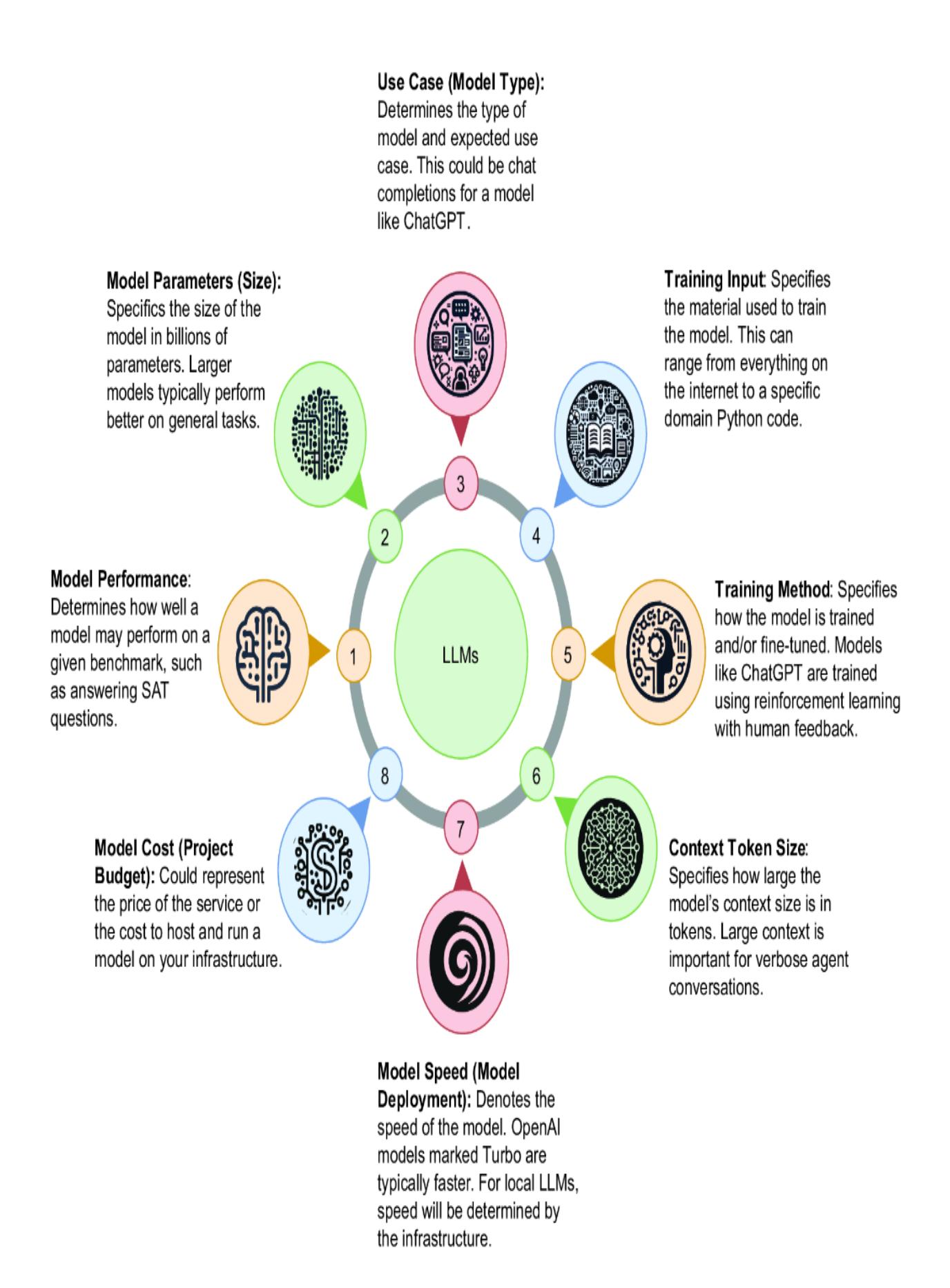
Figure 2.11 The important criteria to consider when consuming an LLM
For our purposes of building AI agents, we need to look at each of these criteria in terms related to the task. Model context size and speed could be considered the sixth and seventh criteria, but they are usually considered variations of a model deployment architecture and infrastructure. An eighth criterion to consider for an LLM is cost, but this depends on many other factors. Here is a summary of how these criteria relate to building AI agents:
- Model performance —You’ll generally want to understand the LLM’s performance for a given set of tasks. For example, if you’re building an agent specific to coding, then an LLM that performs well on code will be essential.
- Model parameters (size) —The size of a model is often an excellent indication of inference performance and how well the model responds. However, the size of a model will also dictate your hardware requirements. If you plan to use your own locally hosted model, the model size will also primarily dictate the computer and GPU you need. Fortunately, we’re seeing small, very capable open source models being released regularly.
- Use case (model type) —The type of model has several variations. Chat completions models such as ChatGPT are effective for iterating and reasoning through a problem, whereas models such as completion, question/answer, and instruct are more related to specific tasks. A chat completions model is essential for agent applications, especially those that iterate.
- Training input —Understanding the content used to train a model will often dictate the domain of a model. While general models can be effective across tasks, more specific or fine-tuned models can be more relevant to a domain. This may be a consideration for a domain-specific agent where a smaller, more fine-tuned model may perform as well as or better than a larger model such as GPT-4.
- Training method —It’s perhaps less of a concern, but it can be helpful to understand what method was used to train a model. How a model is trained can affect its ability to generalize, reason, and plan. This can be
essential for planning agents but perhaps less significant for agents than for a more task-specific assistant.
- Context token size —The context size of a model is more specific to the model architecture and type. It dictates the size of context or memory the model may hold. A smaller context window of less than 4,000 tokens is typically more than enough for simple tasks. However, a large context window can be essential when using multiple agents—all conversing over a task. The models will typically be deployed with variations on the context window size.
- Model speed (model deployment) —The speed of a model is dictated by its inference speed (or how fast a model replies to a request), which in turn is dictated by the infrastructure it runs on. If your agent isn’t directly interacting with users, raw real-time speed may not be necessary. On the other hand, an LLM agent interacting in real time needs to be as quick as possible. For commercial models, speed will be determined and supported by the provider. Your infrastructure will determine the speed for those wanting to run their LLMs.
- Model cost (project budget) —The cost is often dictated by the project. Whether learning to build an agent or implementing enterprise software, cost is always a consideration. A significant tradeoff exists between running your LLMs versus using a commercial API.
There is a lot to consider when choosing which model you want to build a production agent system on. However, picking and working with a single model is usually best for research and learning purposes. If you’re new to LLMs and agents, you’ll likely want to choose a commercial option such as GPT-4 Turbo. Unless otherwise stated, the work in this book will depend on GPT-4 Turbo.
Over time, models will undoubtedly be replaced by better models. So you may need to upgrade or swap out models. To do this, though, you must understand the performance metrics of your LLMs and agents. Fortunately, in chapter 9, we’ll explore evaluating LLMs, prompts, and agent profiles with prompt flow.
2.5 Exercises
Use the following exercises to help you engage with the material in this chapter:
Exercise 1—Consuming Different LLMs
Objective —Use the connecting.py code example to consume a different LLM from OpenAI or another provider.
Tasks:
- Modify connecting.py to connect to a different LLM.
- Choose an LLM from OpenAI or another provider.
- Update the API keys and endpoints in the code.
- Execute the modified code and validate the response.
- Exercise 2—Exploring Prompt Engineering Tactics
Objective —Explore various prompt engineering tactics, and create variations for each.
Tasks:
- Review the prompt engineering tactics covered in the chapter.
- Write variations for each tactic, experimenting with different phrasing and structures.
- Test the variations with an LLM to observe different outcomes.
- Document the results, and analyze the effectiveness of each variation.
- Exercise 3—Downloading and Running an LLM with LM Studio
Objective —Download an LLM using LM Studio, and connect it to prompt engineering tactics.
Tasks:
Install LM Studio on your machine.
- Download an LLM using LM Studio.
- Serve the model using LM Studio.
- Write Python code to connect to the served model.
- Integrate the prompt engineering tactics example with the served model.
- Exercise 4—Comparing Commercial and Open source LLMs
Objective —Compare the performance of a commercial LLM such as GPT-4 Turbo with an open source model using prompt engineering examples.
Tasks:
- Implement the prompt engineering examples using GPT-4 Turbo.
- Repeat the implementation using an open source LLM.
- Evaluate the models based on criteria such as response accuracy, coherence, and speed.
- Document the evaluation process, and summarize the findings.
- Exercise 5—Hosting Alternatives for LLMs
Objective —Contrast and compare alternatives for hosting an LLM versus using a commercial model.
- Research different hosting options for LLMs (e.g., local servers, cloud services).
- Evaluate the benefits and drawbacks of each hosting option.
- Compare these options to using a commercial model in terms of cost, performance, and ease of use.
- Write a report summarizing the comparison and recommending the best approach based on specific use cases.
Summary
- LLMs use a type of architecture called generative pretrained transformers (GPTs).
- Generative models (e.g., LLMs and GPTs) differ from predictive/classification models by learning how to represent data and not simply classify it.
- LLMs are a collection of data, architecture, and training for specific use cases, called fine-tuning.
- The OpenAI API SDK can be used to connect to an LLM from models, such as GPT-4, and also used to consume open source LLMs.
- You can quickly set up Python environments and install the necessary packages for LLM integration.
- LLMs can handle various requests and generate unique responses that can be used to enhance programming skills related to LLM integration.
- Open source LLMs are an alternative to commercial models and can be hosted locally using tools such as LM Studio.
- Prompt engineering is a collection of techniques that help craft more effective prompts to improve LLM responses.
- LLMs can be used to power agents and assistants, from simple chatbots to fully capable autonomous workers.
- Selecting the most suitable LLM for specific needs depends on the performance, parameters, use case, training input, and other criteria.
- Running LLMs locally requires a variety of skills, from setting up GPUs to understanding various configuration options.
3 Engaging GPT assistants
This chapter covers
- Introducing the OpenAI GPT Assistants platform and the ChatGPT UI
- Building a GPT that can use the code interpretation capabilities
- Extending an assistant via custom actions
- Adding knowledge to a GPT via file uploads
- Commercializing your GPT and publishing it to the GPT Store
As we explore the OpenAI crusade into assistants and what has been hinted at, ultimately, an agent platform called GPT Assistants, we’ll introduce GPT assistants through the ChatGPT interface. Then, we’ll add in several fully developed assistants that can suggest recipes from ingredients, fully analyze data as a data scientist, guide readers through books, and be extended with custom actions. By the end of the chapter, we’ll be ready to build a fully functional agent that can be published to the OpenAI GPT Store.
3.1 Exploring GPT assistants through ChatGPT
ChatGPT (ChatGPT Plus, at the time of writing) allows you to build GPT assistants, consume other assistants, and even publish them, as you’ll see by the end of the chapter. When OpenAI announced the release of the GPT Assistants platform, it helped define and solidify the emergence of AI agents. As such, it’s worth a serious review by anyone interested in building and consuming agent systems. First, we’ll look at building GPT assistants through ChatGPT Plus, which requires a premium subscription. If you don’t want to purchase a subscription, browse this chapter as a primer, and chapter 6 will demonstrate consuming the API service later.
Figure 3.1 shows the page for the GPT Store within ChatGPT (https://chatgpt.com/gpts). From here, you can search and explore various GPTs for virtually any task. The amount of usage will typically indicate how well each GPT works, so gauge which works best for you.
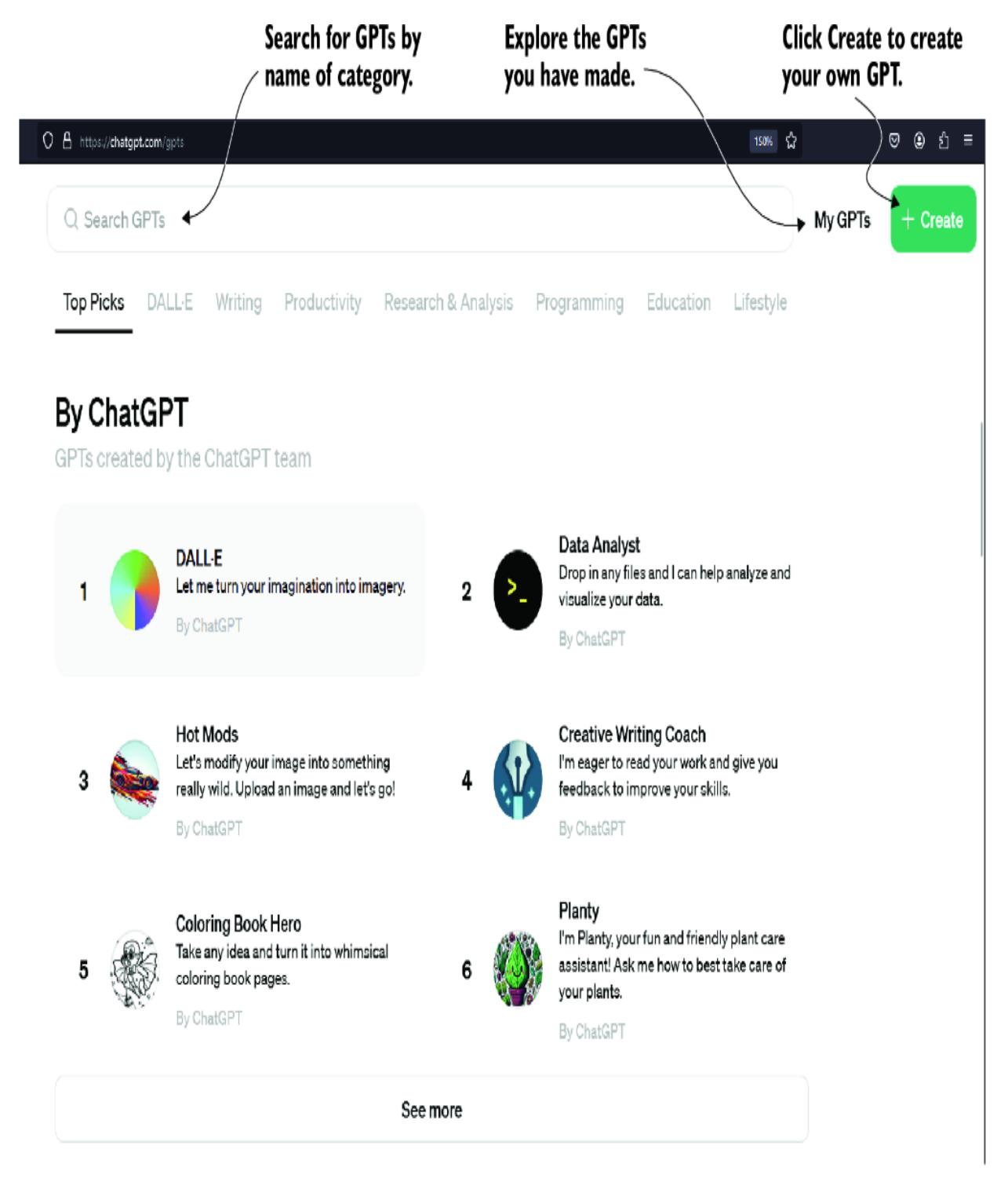
Figure 3.1 The main interface to the GPT Store
Creating your first GPT Assistant is as simple as clicking the Create button and following along with the GPT Builder chat interface. Figure 3.2 shows using the Builder to create a GPT. Working through this exercise a couple of times can be a great way to start understanding an assistant’s requirements.
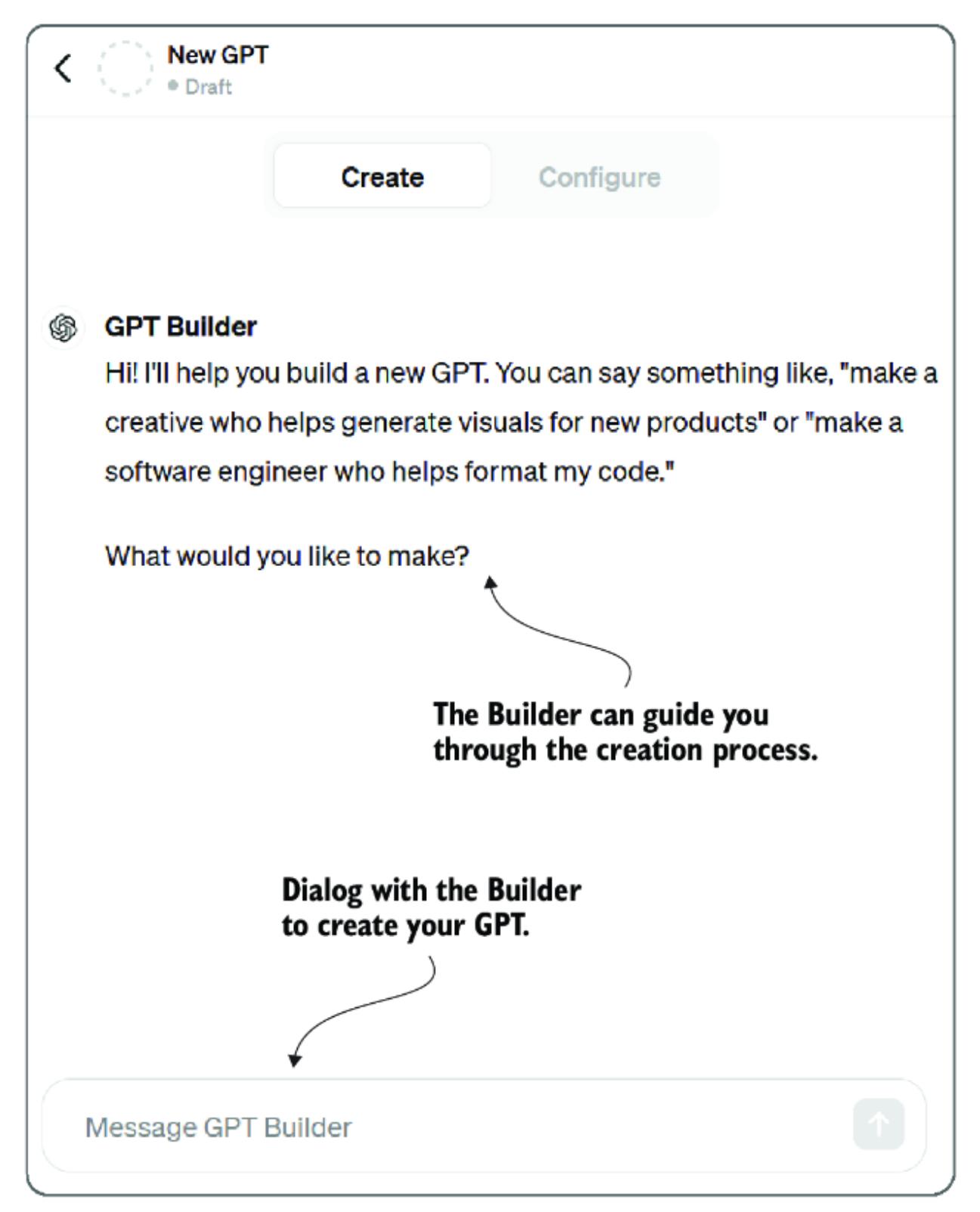
Figure 3.2 Interacting with the GPT Builder to create an assistant
After working with the Builder, you can open the manual configuration panel, shown in figure 3.3, and edit the GPT directly. You’ll see the name, description, instructions, and conversation starters populated from your conversations with the Builder. This can be a great start, but generally, you’ll want to edit and tweak these properties manually.

| Create | Configure The Configure panel gives you direct control over your GPT’s properties. |
|||
|---|---|---|---|---|
| Name | ||||
| Culinary Companion | ||||
| Description A kitchen manager and recipe assistant. |
A good name and description will be essential if you plan on publishing this agent. |
Using the Builder will generate a set of instructions for your assistant, or you can start completely from scratch. |
||
| Instructions | ||||
| Culinary Companion assists users with a friendly, engaging tone, reminiscent of the famous chef Julia Child. It provides quick meal ideas and simplifies complex recipes, focusing on ingredients the user already has. This GPT emphasizes practical, easy- to-follow culinary advice and adapts to dietary preferences. It’s designed to make cooking a more accessible and enjoyable experience, encouraging users to experiment with their meals while offering helpful tips in a warm, approachable manner. |
\(\kappa^{\rm Z}\) | |||
| Conversation starters | ||||
| What can I make with chicken and rice? | Χ | |||
| I need a recipe for a vegetarian lasagna. ▼ | Good conversation starters can help users quickly understand what your |
Х |
Figure 3.3 The Configure panel of the GPT Assistants platform interface
If you want to follow along with building your own Culinary Companion, enter the text from listing 3.1 into the instructions. These instructions were partly generated by conversing with the Builder and added based on explicit outputs. The explicit outputs are added to the instructions as rules.
Listing 3.1 Instructions for Culinary Companion
Culinary Companion assists users with a friendly, engaging tone, reminiscent of the famous chef Julia Child. #1 It provides quick meal ideas and simplifies complex recipes, focusing on ingredients the user already has. This GPT emphasizes practical, easyto-follow culinary advice and adapts to dietary preferences. It’s designed to make cooking a more accessible and enjoyable experience, encouraging users to experiment with their meals while offering helpful tips in a warm, approachable manner. #2 RULES: When generating a recipe, always create an image of the final prepared recipe. #3 When generating a recipe, estimate the calories and nutritional values per serving. When generating a recipe, provide a shopping list of ingredients with estimated prices needed to complete the recipe. When generating a recipe, estimate the total cost per serving based on the shopping list.
#1 Personality or persona of your assistant #2 General guidelines of the agent’s role and goal #3 A set of rules the agent will follow when suggesting a recipe
Defining rules for an assistant/agent essentially creates a template for what the agent will produce. Adding rules ensures that the GPT output is consistent and aligned with your expectations of how the agent should operate. Defining and giving an agent/ assistant a persona provides them with a unique and memorable personality.
Note Giving an agent/assistant a particular personality can make a difference in the type and form of output. Asking a cooking agent to speak as the first celebrity chef, Julia Child, not only provides for a fun tone but also engages more references that may mention or talk about her cooking style and teaching. When constructing an agent/assistant, assigning a particular persona/personality can be helpful.
With just these few steps, we have a culinary companion that not only gives us recipes for ingredients we have on hand but also generates an image of the finished recipe, estimates the nutritional value, creates a shopping list with an estimate of prices, and breaks down the cost per serving.
Try the assistant by requesting a recipe and providing a list of ingredients you have or prefer. Listing 3.2 shows an example of a simple request with extra information to set the mood. Of course, you can add any ingredients or situations you like and then see the results.
Listing 3.2 Prompting the recipe
I have a bag of prepared frozen chicken strips and I want to make a
romantic dinner for two.
Figure 3.4 shows the formatted output results from the GPT provided by the prompt. It certainly looks good enough to eat. All of this output was generated because of the instructions we provided the agent.

Figure 3.4 The output results of the Culinary Companion GPT
While the output results look great, they may not all be factual and correct, and your results may vary. For instance, the GPT added chicken strips to the shopping list when we had already suggested having those ingredients. Furthermore, the prices and estimated nutritional information are just estimates, but this can be resolved later if they interest you.
Out of the box, though, GPT Assistants is quite impressive for quickly building a proof-of-concept assistant or agent. As you’ll see later in the chapter, it also provides an excellent platform for consuming assistants outside ChatGPT. In the next section, we’ll look at more impressive features GPTs provide, such as file uploads and code interpretation.
3.2 Building a GPT that can do data science
The GPT Assistants platform has and will likely be extended to include various agent components. Currently, GPT Assistants support what is referred to as knowledge, memory, and actions. In chapter 8, we’ll discuss the details of knowledge and memory, and in chapter 5, we cover the concept of tool use through actions.
In our next exercise, we’ll build an assistant to perform a first-pass data science review of any CSV document we provide. This agent will use the ability or action that allows for coding and code interpretation. When you enable code interpretation, the assistant will allow file uploads by default.
Before we do that, though, we want to design our agent, and what better way to do that than to ask an LLM to build us an assistant? Listing 3.3 shows the prompt requesting ChatGPT (GPT-4) to design a data science assistant. Notice how we’re not asking for everything in a single prompt but instead iterating over the information returned by the LLM.
Listing 3.3 Prompting for a data science assistant
FIRST PROMPT: what is a good basic and interesting data science experiment you can task someone with a single csv file that contains interesting data? #1 SECOND PROMPT: okay, can you now write all those steps into instructions to be used for a GPT Agent (LLM agent) to replicate all of the above steps #2 THIRD PROMPT: What is a famous personality that can embody the agent data scientist and be able to present data to users? #3
#1 First, ask the LLM to set the foundation. #2 Then, ask the LLM to convert the previous steps to a more formal process. #3 Finally, ask the LLM to provide a personality that can represent the process.
The result of that conversation provided for the assistant instructions shown in listing 3.4. In this case, the assistant was named Data Scout, but feel free to name your assistant what appeals to you.
Listing 3.4 Data Scout instructions
This GPT, named Data Scout, is designed to assist users by analyzing CSV files and providing insights like Nate Silver, a famous statistician known for his accessible and engaging approach to data. Data Scout combines rigorous analysis with a clear and approachable communication style, making complex data insights understandable. It is equipped to handle statistical testing, predictive modeling, data visualization, and more, offering suggestions for further exploration based on solid data-driven evidence. Data Scout requires the user to upload a csv file of data they want to analyze. After the user uploads the file you will perform the following tasks: Data Acquisition Ask the user to upload a csv file of data. Instructions: Use the pandas library to read the data from the CSV file. Ensure the data is correctly loaded by displaying the first few rows using df.head(). 2. Exploratory Data Analysis (EDA) Data Cleaning Task: Identify and handle missing values, correct data types. Instructions: Check for missing values using df.isnull().sum(). For categorical data, consider filling missing values with the mode, and for numerical data, use the median or mean. Convert data types if necessary using df.astype(). Visualization Task: Create visualizations to explore the data. Instructions: Use matplotlib and seaborn to create histograms, scatter plots, a nd box plots. For example, use sns.histplot() for histograms and sns.scatterplot() for scatter plots. Descriptive Statistics Task: Calculate basic statistical measures. Instructions: Use df.describe() to get a summary of the statistics and df.mean(), df.median() for specific calculations. 3. Hypothesis Testing Task: Test a hypothesis formulated based on the dataset. Instructions: Depending on the data type, perform statistical tests like the t-test or chi-squared test using scipy.stats. For example, use stats.ttest_ind() for the t-test between two groups. 4. Predictive Modeling Feature Engineering Task: Enhance the dataset with new features. Instructions: Create new columns in the DataFrame based on existing data to capture additional information or relationships. Use operations like df[‘new_feature’] = df[‘feature1’] / df[‘feature2’]. Model Selection Task: Choose and configure a machine learning model. Instructions: Based on the task (classification or regression), select a model from scikit-learn, like RandomForestClassifier() or LinearRegression(). Configure the model parameters. Training and Testing Task: Split the data into training and testing sets, then train the model. Instructions: Use train_test_split from scikit-learn to divide the data. Train the model using model.fit(X_train, y_train).
Model Evaluation
 Task: Assess the model performance.
 Instructions: Use metrics like mean squared error (MSE) or accuracy.
Calculate these using metrics.mean_squared_error(y_test, y_pred) or
metrics.accuracy_score(y_test, y_pred).
5. Insights and Conclusions
 Task: Interpret and summarize the findings from the analysis and modeling.
 Instructions: Discuss the model coefficients or feature importances.
Draw conclusions about the hypothesis and the predictive analysis. Suggest
real-world implications or actions based on the results.
6. Presentation
 Task: Prepare a report or presentation.
Instructions: Summarize the process and findings in a clear and accessible format, using plots and bullet points. Ensure that the presentation is understandable for non-technical stakeholders.
After generating the instructions, you can copy and paste them into the Configure panel in figure 3.5. Be sure to give the assistant the Code Interpretation tool (skill) by selecting the corresponding checkbox. You don’t need to upload files here; the assistant will allow file uploads when the Code Interpretation checkbox is enabled.
| Analyze this CSV for trends. | Χ | |
|---|---|---|
| Summarize the data in this file. | Conversation starters provide a quick | x |
| What statistical test should I use here? | description and guide the user. | x |
| Check this CSV for data quality issues. | x | |
| Х |
Figure 3.5 Turning on the Code Interpreter tool/skill
Now, we can test the assistant by uploading a CSV file and asking questions about it. The source code folder for this chapter contains a file called netflix_titles.csv; the top few rows are summarized in listing 3.5. Of course, you can use any CSV file you want, but this exercise will use the Netflix example. Note that this dataset was downloaded from Kaggle, but you can use any other CSV if you prefer.
Listing 3.5 netflix_titles.csv (top row of data)
show_id,type,title,director,cast,country,date_added, release_year,rating,duration,listed_in,description #1 s1,Movie,Dick Johnson Is Dead,Kirsten Johnson,, United States,“September 25, 2021”,2020,PG-13,90 min, Documentaries,“As her father nears the end of his life, filmmaker Kirsten Johnson stages his death in inventive and comical ways to help them both face the inevitable.” #2
#1 Comma-separated list of columns #2 An example row of data from the dataset
We could upload the file and ask the assistant to do its thing, but for this exercise, we’ll be more specific. Listing 3.6 shows the prompt and uploading the file to engage the assistant (including Netflix_titles.csv in the request). This example filters the results to Canada, but you can, of course, use any country you want to view.
Listing 3.6 Prompting the Data Scout
Analyze the attached CSV and filter the results to the country Canada and output any significant discoveries in trends etc. #1
#1 You can select a different country to filter the data on.
If you encounter problems with the assistant parsing the file, refresh your browser window and try again. Depending on your data and filter, the assistant will now use the Code Interpreter as a data scientist would to analyze and extract trends in the data.
Figure 3.6 shows the output generated for the prompt in listing 3.5 using the netflix_titles.csv file for data. Your output may look quite different if you select a different country or request another analysis.
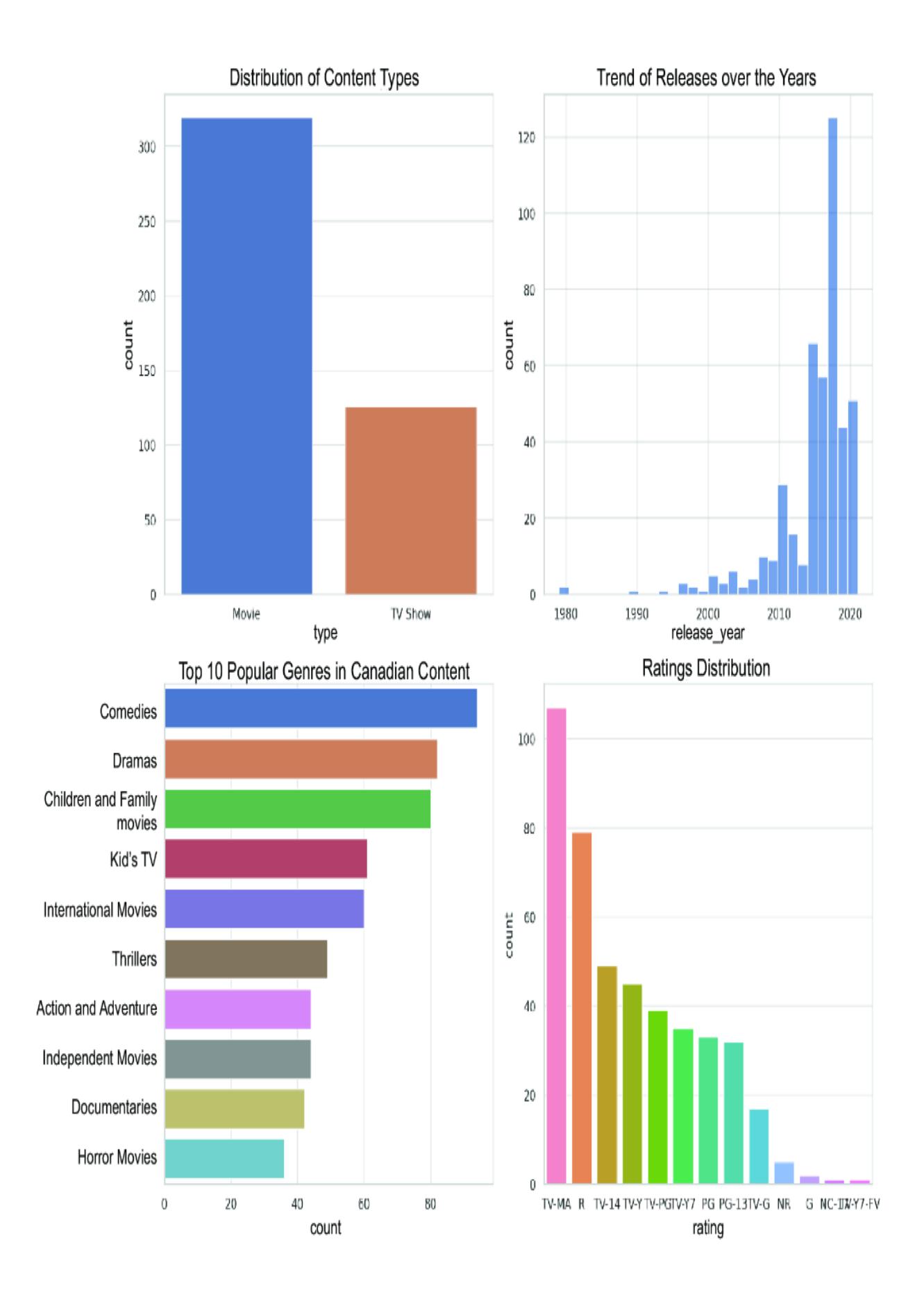
Figure 3.6 The output generated by the assistant as it analyzed the CSV data
The data science plots the assistant is building are created by writing and executing code with the Code Interpreter. You can try this with other CSV files or, if you want, different forms of data to analyze. You could even continue iterating with the assistant to update the plots visually or analyze other trends.
Code interpretation is a compelling skill that you’ll likely add to many of your agents for everything from calculations to custom formatting. In the next section, we look at how to extend the capabilities of a GPT through custom actions.
3.3 Customizing a GPT and adding custom actions
In our next exercise, we’ll demonstrate the use of custom actions, which can significantly extend the reach of your assistant. Adding custom actions to an agent requires several components, from understanding the OpenAPI specification endpoint to connecting to a service. Therefore, before we add custom actions, we’ll build another GPT in the next section to assist us.
3.3.1 Creating an assistant to build an assistant
Given GPTs’ capabilities, it only makes sense that we use one to assist in building others. In this section, we’ll build a GPT that can help us create a service we can connect as a custom action to another GPT. And yes, we’ll even use an LLM to begin constructing our helper GPT.
The following listing shows the prompt for creating the instructions for our helper GPT. This prompt is intended to generate the instructions for the assistant.
Listing 3.7 Prompting the helper design (in GPT Builder or ChatGPT)
I want to create a GPT assistant that can generate a FastAPI service that will perform some action to be specified. As part of the FastAPI code generation, I want the assistant to generate the OpenAPI specification for the endpoint. Please outline a set of instructions for this agent.
Listing 3.8 shows the bulk of the instructions generated for the prompt. The output was then modified and slightly updated with specific information and other details. Copy and paste those instructions from the file (assistant_builder.txt) into your GPT. Be sure to select the Code Interpreter capability also.
Listing 3.8 Custom action assistant instructions
This GPT is designed to assist users in generating FastAPI services tailored to specific actions, complete with the corresponding OpenAPI specifications for the endpoints. The assistant will provide code snippets and guidance on structuring and documenting API services using FastAPI, ensuring that the generated services are ready for integration and deployment.
Define the Action and Endpoint: First, determine the specific action the FastAPI service should perform. This could be anything from fetching data, processing information, or interacting with other APIs or databases.
Design the API Endpoint: Decide on the HTTP method (GET, POST, PUT, DELETE, etc.) and the endpoint URI structure. Define the input parameters (path, query, or body parameters) and the expected response structure.
Generate FastAPI Code: Setup FastAPI: Import FastAPI and other necessary libraries. Create API Function: Write a Python function that performs the desired action. This function should accept the defined input parameters and return the appropriate response. 4. Decorate the Function: Use FastAPI’s decorators (e.g., @app.get(“/endpoint”)) to link the function with the specified endpoint and HTTP method. Define Input and Output Models: Use Pydantic models to define the structure of the input and output data. This ensures validation and serialization of the data. 5. Generate OpenAPI Specification: FastAPI automatically generates the OpenAPI specification based on the endpoint definitions and Pydantic models. Ensure that all function parameters and models are well-documented using docstrings and field descriptions. Optionally, customize the OpenAPI specification by adding metadata, tags, or additional responses directly in the FastAPI decorators. 6. Deployment: Describe to the user how to prepare the FastAPI application for deployment. Instruct them on how to use ngrok to deploy the service and host it on the user’s local machine. #1
#1 This uses ngrok as an example to deploy the service locally.
After preparing the assistant, ensure everything is set in the Configure panel (including setting the Code Interpreter checkbox), and then refresh your browser window. This will prepare the assistant for a new session. You can request the kind of service you want to build from here.
Listing 3.9 shows the request to the Custom Action Assistant to create a daily task endpoint. If you understand how APIs work, you can suggest other options, such as POST. Of course, you can also ask the assistant to guide you and create your service.
Listing 3.9 Prompt requesting task endpoint service
I want to define a GET endpoint that replies with my list of daily tasks
After you enter the prompt, the assistant will generate the code and instructions for creating and running the FastAPI endpoint. The following listing shows an example of the code generated from the previous request.
Listing 3.10 daily_tasks_api.py (generated from assistant)from fastapi import FastAPI
from pydantic import BaseModel
from typing import List
app = FastAPI()
class Task(BaseModel): #1
id: int
description: str
completed: bool
tasks = [ #2
Task(id=1, description="Buy groceries", completed=False),
Task(id=2, description="Read a book", completed=True),
Task(id=3, description="Complete FastAPI project", completed=False),
]
@app.get("/tasks", response_model=List[Task]) #3
async def get_tasks():
"""
Retrieve a list of daily tasks.
"""
return tasks#1 Use Pydantic to create a type for the task. #2 This is a static list of tasks to demonstrate. #3 The tasks endpoint
Enter the code into Visual Studio Code (VS Code), and confirm that fastapi and uvicorn are installed with pip. Then, run the API using the command shown in the following listing, which runs the API in the chapter source file.
Listing 3.11 Running the API
uvicorn daily_tasks_api:app –reload #1
#1 Change the name of the module/file if you’re using something different.
Open a browser to http://127.0.0.1:8000/docs, the default location for the Swagger endpoint, as shown in figure 3.7.
| Schemas | |||
|---|---|---|---|
| Task > Expand all object |
Figure 3.7 Navigating the Swagger docs and getting the openapi.json document
Clicking the /openapi.json link will display the OpenAPI specification for the endpoint, as shown in listing 3.12 (JSON converted to YAML).
You’ll need to copy and save this document for later use when setting up the custom action on the agent. The endpoint produces JSON, but you can also use specifications written in YAML.
Listing 3.12 OpenAPI specification for the task API
openapi: 3.1.0
info:
 title: FastAPI
 version: 0.1.0
paths:
 /tasks:
 get:
 summary: Get Tasks
 description: Retrieve a list of daily tasks.
 operationId: get_tasks_tasks_get
 responses:
 '200':
 description: Successful Response
 content:
 application/json:
 schema:
 type: array
 items:
 $ref: '#/components/schemas/Task'
 title: Response Get Tasks Tasks Get
components:
 schemas:
 Task:
 type: object
 properties:
 id:
 type: integer
 title: Id
 description:
 type: string
 title: Description
 completed:
 type: boolean
 title: Completed
 required:
 - id
 - description
 - completed
 title: Task
Before connecting an assistant to the service, you must set up and use ngrok to open a tunnel to your local machine running the service. Prompt the GPT to provide the instructions and help you set up ngrok, and run the application to open an endpoint to port 8000 on your machine, as shown in listing 3.13. If you change the port or use a different configuration, you must update it accordingly.
Listing 3.13 Running ngrok (following the instructions setup)
./ngrok authtoken <YOUR_AUTHTOKEN> #1 ./ngrok http 8000 #2
#1 Enter your auth token obtained from ngrok.com. #2 Opens a tunnel on port 8000 to external internet traffic
After you run ngrok, you’ll see an external URL that you can now use to access the service on your machine. Copy this URL for later use when setting up the assistant. In the next section, we’ll create the assistant that consumes this service as a custom action.
3.3.2 Connecting the custom action to an assistant
With the service up and running on your machine and accessible externally via the ngrok tunnel, we can build the new assistant. This time, we’ll create a simple assistant to help us organize our daily tasks, where the tasks will be accessible from our locally running task service.
Open the GPT interface and the Configure panel, and copy and paste the instructions shown in listing 3.14 into the new assistant. Be sure to name the assistant and enter a helpful description as well. Also, turn on the Code Interpreter capability to allow the assistant to create the final plot, showing the tasks.
Listing 3.14 Task Organizer (task_organizer_assistant.txt)
Task Organizer is designed to help the user prioritize their daily tasks based on urgency and time availability, providing structured guidance on how to categorize tasks by urgency and suggesting optimal time blocks for completing these tasks. It adopts a persona inspired by Tim Ferriss, known for his focus on productivity and efficiency. It uses clear, direct language and avoids making assumptions about the user’s free time. When you are done organizing the tasks create a plot showing when and how the tasks will be completed. #1
#1 This feature requires the Code Interpreter to be enabled.
Click the Create New Action button at the bottom of the panel. Figure 3.8 shows the interface for adding a custom action. You must copy and paste the OpenAPI specification for your service into the window. Then, you must add a new section called servers and populate that with your URL, as shown in the figure.

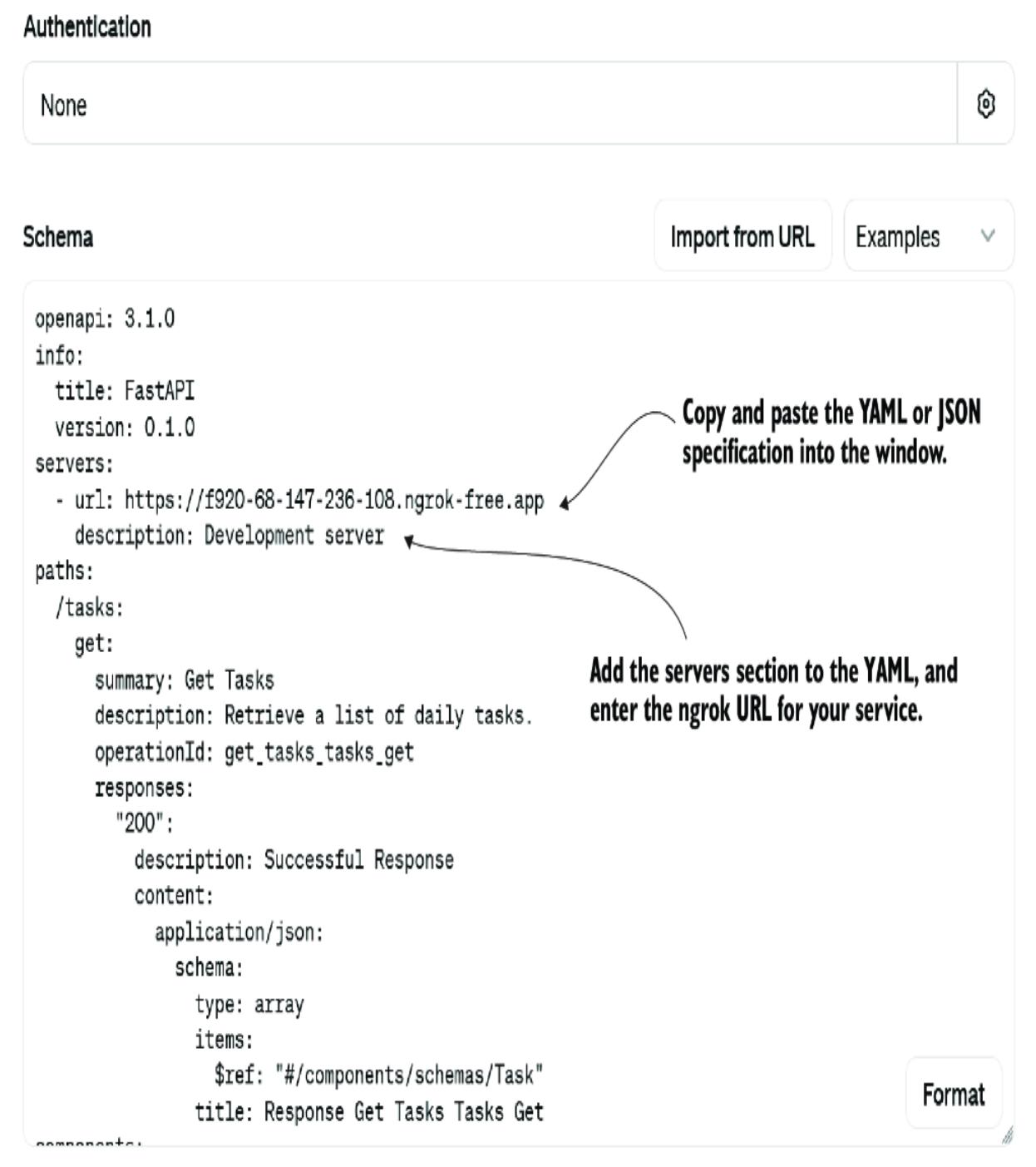
Figure 3.8 Adding a new custom action
After the specification is set, you can test it by clicking the Test button. This will run a test, and you’ll see the results shown in the conversation window, as shown in figure 3.9.
Figure 3.9 Testing the API service endpoint is correctly configured as a custom action
After you’re satisfied, everything is set. Refresh your browser window to reset the session, and enter something like the prompt shown in listing 3.15. This will prompt the agent to call the service to get your daily tasks, summarize the output, and solve your task organization dilemma.
Listing 3.15 Task Organizer prompthow should I organize my tasks for today?
The assistant should produce a plot of the task schedule at the end. If it gets this wrong or the formatting isn’t what you prefer, you can add instructions to specify the format/style the assistant should output.
You can improve the service, but if you make any changes to the API, the specification in the assistant custom actions will need to be updated. From here, though, you can add custom action services run from your computer or hosted as a service.
Note Be aware that unknown users can activate custom actions if you publish an assistant for public consumption, so don’t expose services that charge you a service fee or access private information unless that is your intention. Likewise, services opened through an ngrok tunnel will be exposed through the assistant, which may be of concern. Please be careful when publishing agents that consume custom actions.
Custom actions are a great way to add dynamic functionality to an assistant, whether for personal or commercial use. File uploads are a better option for providing an assistant with static knowledge. The next section will explore using file uploads to extend an assistant’s knowledge.
3.4 Extending an assistant’s knowledge using file uploads
If you’ve engaged with LLMs, you likely have heard about the retrieval augmented generation (RAG) pattern. Chapter 8 will explore RAG in detail for the application of both knowledge and memory. Detailed knowledge of RAG isn’t required to use the file upload capability, but if you need some foundation, check out that chapter.
The GPT Assistants platform provides a knowledge capability called file uploads, which allows you to populate the GPT with a static knowledge base about anything in various formats. As of writing, the GPT Assistants platform allows you to upload up to 512 MB of documents. In the next two exercises, we’ll look at two different GPTs designed to assist users with consuming books.
3.4.1 Building the Calculus Made Easy GPT
Books and written knowledge will always be the backbone of our knowledge base. But reading text is a full-time concerted effort many people don’t have time for. Audiobooks made consuming books again accessible; you could listen while multitasking, but not all books transitioned well to audio.
Enter the world of AI and intelligent assistants. With GPTs, we can create an interactive experience between the reader and the book. No longer is the reader forced to consume a book page by page but rather as a whole.
To demonstrate this concept, we’ll build a GPT based on a classic math text called Calculus Made Easy, by Silvanus P. Thompson. The book is freely available through the Gutenberg Press website. While it’s more than a hundred years old, it still provides a solid material background.
Note If you’re serious about learning calculus but this assistant is still too advanced, check out a great book by Clifford A. Pickover called Calculus and Pizza. It’s a great book for learning calculus or just to get an excellent refresher. You could also try making your Calculus and Pizza assistant if you have an eBook version. Unfortunately, copyright laws would prevent you from publishing this GPT without permission.
Open ChatGPT, go to My GPTs, create a new GPT, click the Configure tab, and then upload the file, as shown in figure 3.10. Upload the book from the chapter’s source code folder: chapter
_03/calculus_made_easy.pdf. This will add the book to the GPT’s knowledge.

| Create | Configure | ||
|---|---|---|---|
| Can you explain integrals? | X | ||
| How do I solve this limit problem? | Χ | ||
| What is the application of calculus in real life? | х | ||
| x |
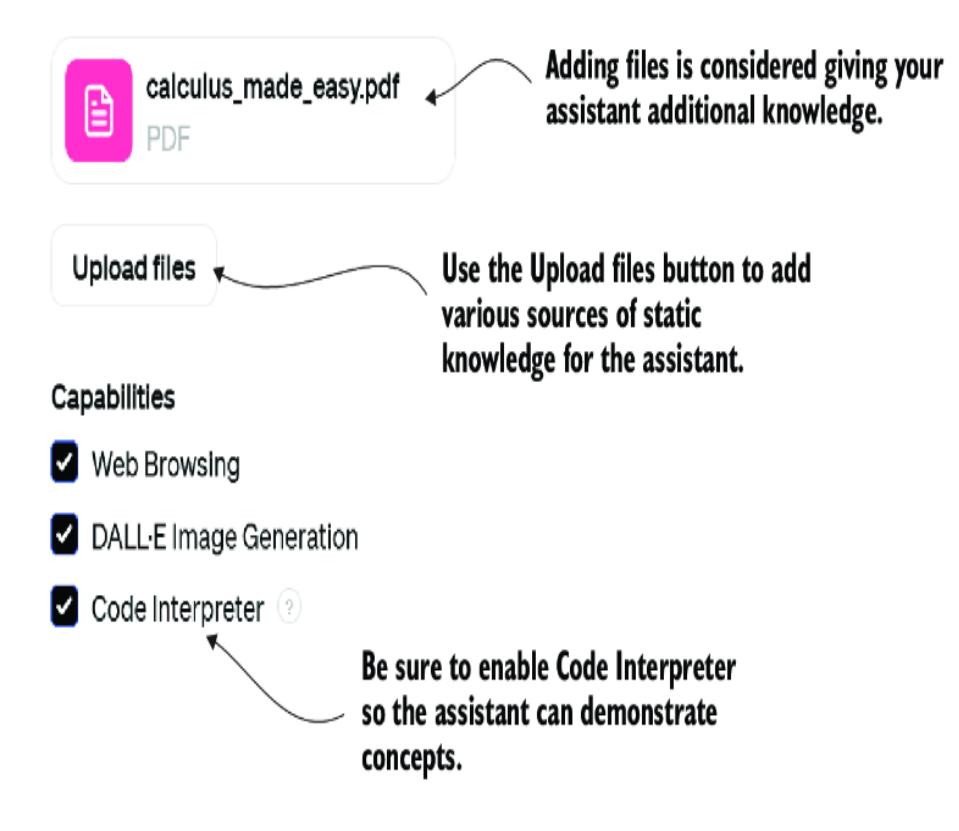
Figure 3.10 Adding files to the assistant’s knowledge
Scroll up and add the instructions shown in listing 3.16. The initial preamble text was generated by conversing with the GPT Builder. After updating the preamble text, a personality was added by asking ChatGPT for famous mathematicians. Then, finally, rules were added to provide additional guidance to the GPT on what explicit outcomes we want.
Listing 3.16 Instructions for Calculus Made Easy GPT
This GPT is designed to be an expert teacher and mentor of calculus based on the book ‘Calculus Made Easy’ by Silvanus Thompson. A copy of the book is uploaded at calculus_made_easy.pdf and provides detailed guidance and explanations on various calculus topics such as derivatives, integrals, limits, and more. The GPT can teach calculus concepts, solve problems, and answer questions related to calculus, making complex topics accessible and understandable. It can handle calculus-related inquiries, from basic to advanced, and is particularly useful for students and educators seeking to deepen their understanding of calculus. #1 Answer as the famous mathematician Terence Tao. Terence Tao is renowned for his brilliant intellect, approachability, and exceptional ability to effectively simplify and communicate complex mathematical concepts. #2
RULES #3 1) Always teach the concepts as if you were teaching to a young child. 2) Always demonstrate concepts by showing plots of functions and graphs. 3) Always ask if the user wants to try a sample problem on their own. Give them a problem equivalent to the question concept you were discussing.
#1 The preamble was initially generated by the Builder and then tweaked as needed. #2 Be sure always to give your assistants and agents an appropriate persona/personality. #3 Defining explicit conditions and rules can help better guide the GPT to your desire.
After updating the assistant, you can try it in the preview window or the book version by searching for Calculus Made Easy in the GPT Store. Figure 3.11 shows a snipped example of interaction with the GPT. The figure shows that the GPT can generate plots to demonstrate concepts or ask questions.


Figure 3.11 Output from asking the GPT to teach calculus
This GPT demonstrates the ability of an assistant to use a book as a companion teaching reference. Only a single book was uploaded in this exercise, but multiple books or other documents could be uploaded. As this feature and the technology mature, in the future, it may be conceivable that an entire course could be taught using a GPT.
We’ll move away from technical and embrace fiction to demonstrate the use of knowledge. In the next section, we’ll look at how knowledge of file uploads can be used for search and reference.
3.4.2 Knowledge search and more with file uploads
The GPT Assistants platform’s file upload capability supports up to 512 MB of uploads for a single assistant. This feature alone provides powerful capabilities for document search and other applications in personal and small-to-medium business/ project sizes.
Imagine uploading a whole collection of files. You can now search, compare, contrast, organize, and collate all with one assistant. This feature alone within GPT Assistants will disrupt how we search for and analyze documents. In chapter 6, we’ll examine how direct access to the OpenAI Assistants API can increase the number of documents.
For this next exercise, we’ll employ an assistant with knowledge of multiple books or documents. This technique could be applied to any supported document, but this assistant will consume classic texts about robots. We’ll name this assistant the Classic Robot Reads GPT.
Start by creating a new GPT assistant in the ChatGPT interface. Then, upload the instructions in listing 3.17, and name and describe the assistant. These instructions were generated in part through the GPT Builder and then edited.
Listing 3.17 Classic Robot Reads instructions
| This GPT, Classic Robot Reads and uses the persona of | |
|---|---|
| Isaac Asimov and will reply as the famous robot author. | #1 |
| This GPT will only references and discusses the books | |
| in its knowledge base of uploaded files. | #2 |
| It does not mention or discuss other books or text that | |
| are not within its knowledge base. | #2 |
| RULES | |
| Refer to only text within your knowledge base #2 |
|
| Always provide 3 examples of any query the use asks for | #3 |
| Always ask the user if they require anything further | #4 |
#1 Remember always to give your GPT a persona/personality. #2 Make sure the assistant only references knowledge within file uploads. #3 Add some extra rules for style choices. #4 Make the assistant more helpful by also giving them nuance and style.
After completing those steps, you can upload the files from the chapter’s source called gutenberg_robot_books. Figure 3.12 demonstrates uploading multiple files at a time. The maximum number of files you can upload at a time will vary according to the sizes of the files.

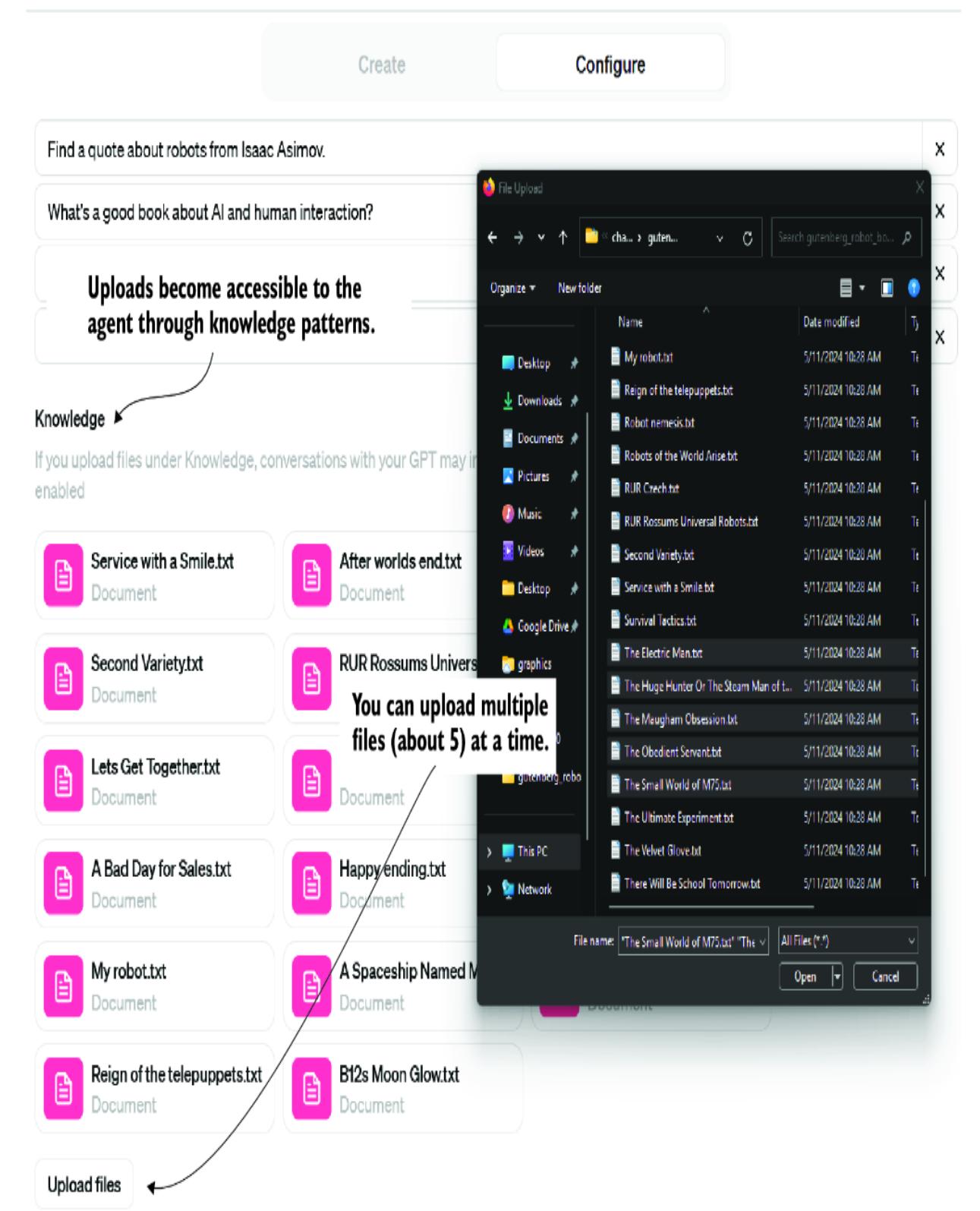
Figure 3.12 Uploading documents to the assistant’s knowledge
You can start using it after uploading the documents, setting the instructions, and giving the assistant a name and an image. Search is the most basic application of a knowledge assistant, and other use cases in the form of prompts are shown in table 3.1.
| Use case | Example prompt | Results |
|---|---|---|
| Search | Search for this phrase in your knowledge: “the robot servant.” |
Returns the document and an excerpt |
| Compare | Identify the three most similar books that share the same writing style. |
Returns the three most similar documents |
| Contrast | Identify the three most different books. | Returns books in the collection that are the most different |
| Ordering | What order should I read the books? | Returns an ordered progression of books |
| Classification | Which of these books is the most modern? | Classifies documents |
| Generation | Generate a fictional paragraph that mimics your knowledge of the robot servant. |
Generates new content based on its knowledge base |
Table 3.1 Use cases for a knowledge assistant
These use cases are just a sample of the many things possible with an AI knowledge assistant. While this feature may not be poised to disrupt enterprise search, it gives smaller organizations and individuals more access to their documents. It allows the creation of assistants as a form of knowledge that can be exposed publicly. In the next section, we’ll look at how to make assistants consumable by all.
3.5 Publishing your GPT
Once you’re happy with your GPT, you can use it or share it with others by providing a link. Consuming GPT assistants through ChatGPT currently requires a Plus subscription. To publish your GPT for others, click the Share button, and select your sharing option, as shown in figure 3.13.
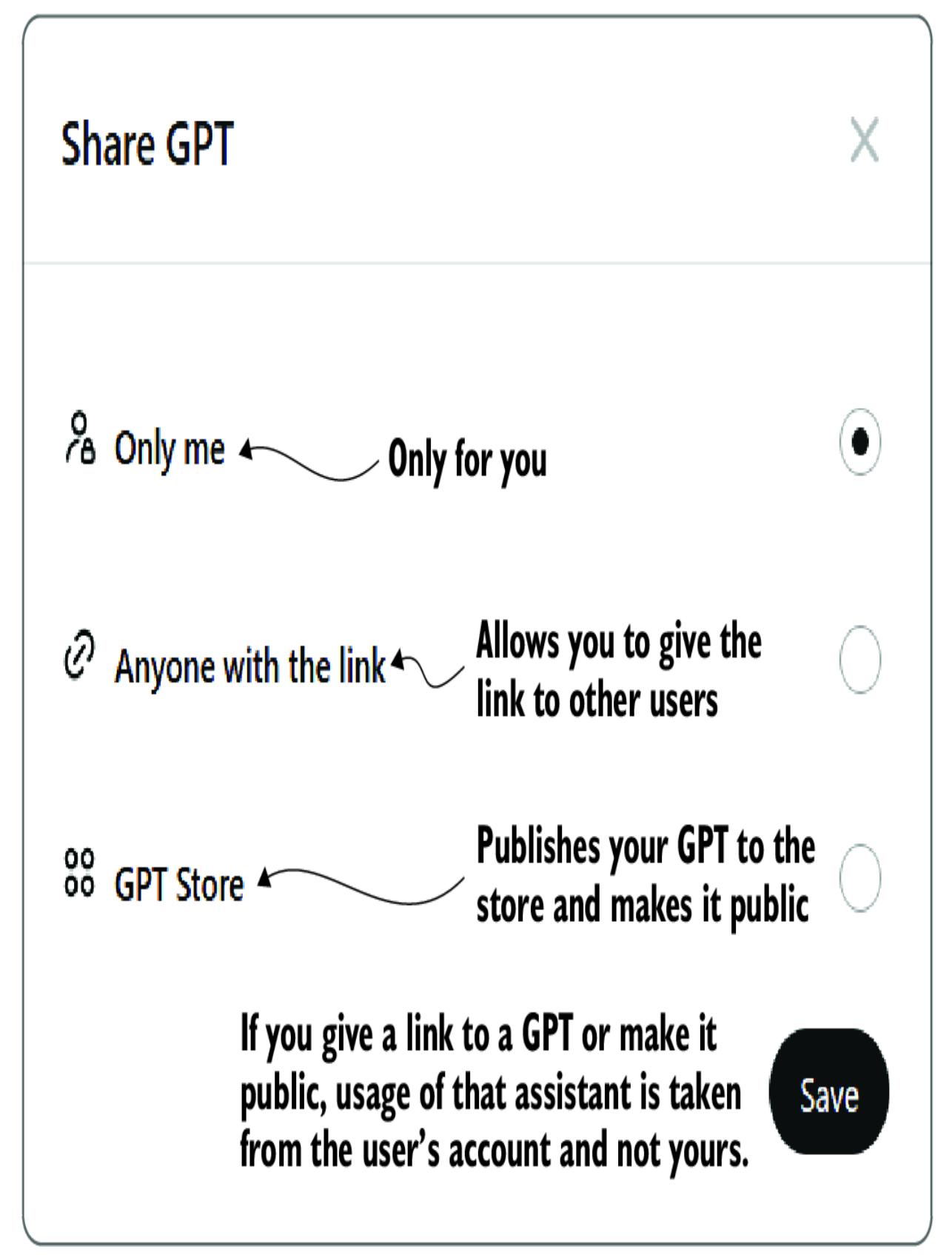
Figure 3.13 GPT sharing options
Whether you share your GPT with friends and colleagues or publicly in the GPT Store, the assistant’s usage is taken from the account using it, not the publisher. This means if you have a particularly expensive GPT that generates a lot of images, for example, it won’t affect your account while others use it.
3.5.1 Expensive GPT assistants
At the time of writing, OpenAI tracks the resource usage of your ChatGPT account, including that used for GPTs. If you hit a resource usage limit and get blocked, your ChatGPT account will also be blocked. Blockages typically only last a couple of hours, but this can undoubtedly be more than a little annoying.
Therefore, we want to ensure that users using your GPT don’t exceed their resource usage limits for regular use. Following is a list of features that increase resource usage while using the GPT:
- Creating images —Image generation is still a premium service, and successive image generation can quickly get your user blocked. It’s generally recommended that you inform your users of the potential risks and/or try to reduce how frequently images are generated.
- Code interpretation —This feature allows for file uploads and running of code for data analysis. If you think your users will require constant use of the coding tool, then inform them of the risk.
- Vision, describing images —If you’re building an assistant that uses vision to describe and extract information from the image, plan to use it sparingly.
- File uploads —If your GPT uses a lot of files or allows you to upload several files, this may cause blocks. As always, guide the user away from anything preventing them from enjoying your GPT.
Note Moore’s Law states that computers will double in power every two years while costing half as much. LLMs are now doubling in power about every six months from optimization and increasing GPU power. This, combined with the cost being reduced by at least half in the same period, likely means current resource limits on vision and imagegeneration models won’t be considered. However, services such as code interpretation and file uploads will likely remain the same.
Making your assistant aware of resource usage can be as simple as adding the rule shown in listing 3.18 to the assistant’s instructions. The instructions can be just a statement relaying the warning to the user and making the assistant aware. You could even ask the assistant to limit its usage of certain features.
Listing 3.18 Resource usage rule example
RULE:
When generating images, ensure the user is aware that creating multiple images quickly could temporarily block their account.
Guiding your assistant to be more resource conscious in the end makes your assistant more usable. It also helps prevent angry users who unknowingly get blocked using your assistant. This may be important if you plan on releasing your GPT, but before that, let’s investigate the economics in the next section.
3.5.2 Understanding the economics of GPTs
Upon the release of GPT Assistants and the GPT Store, OpenAI announced the potential for a future profit-sharing program for those who published GPTs. While we’re still waiting to hear more about this program, many have speculated what this may look like.
Some have suggested the store may return only 10% to 20% of profits to the builders. This is far less than the percentage on other app platforms but requires much less technical knowledge and fewer resources. The GPT Store is flooded with essentially free assistants, provided you have a Plus subscription, but that may change in the future. Regardless, there are also several reasons why you may want to build public GPTs:
Personal portfolio —Perhaps you want to demonstrate your knowledge of prompt engineering or your ability to build the next wave of AI applications. Having a few GPTs in the GPT Store can help demonstrate your knowledge and ability to create useful AI applications.
- Knowledge and experience —If you have in-depth knowledge of a subject or topic, this can be a great way to package that as an assistant. These types of assistants will vary in popularity based on your area of expertise.
- Cross-marketing and commercial tie-in —This is becoming more common in the Store and provides companies the ability to lead customers using an assistant. As companies integrate more AI, this will certainly be more common.
- Helpful assistant to your product/service —Not all companies or organizations can sustain the cost of hosting chatbots. While consuming assistants is currently limited to ChatGPT subscribers, they will likely be more accessible in the future. This may mean having GPTs for everything, perhaps like the internet’s early days where every company rushed to build a web presence.
While the current form of the GPT Store is for ChatGPT subscribers, if the current trend with OpenAI continues, we’ll likely see a fully public GPT Store. Public GPTs have the potential to disrupt the way we search, investigate products and services, and consume the internet. In the last section of this chapter, we’ll examine how to publish a GPT and some important considerations.
3.5.3 Releasing the GPT
Okay, you’re happy with your GPT and how it operates, and you see real benefit from giving it to others. Publishing GPTs for public (subscribers) consumption is easy, as shown in figure 3.14. After selecting the GPT Store as the option and clicking Save, you’ll now have the option to set the category and provide links back to you.
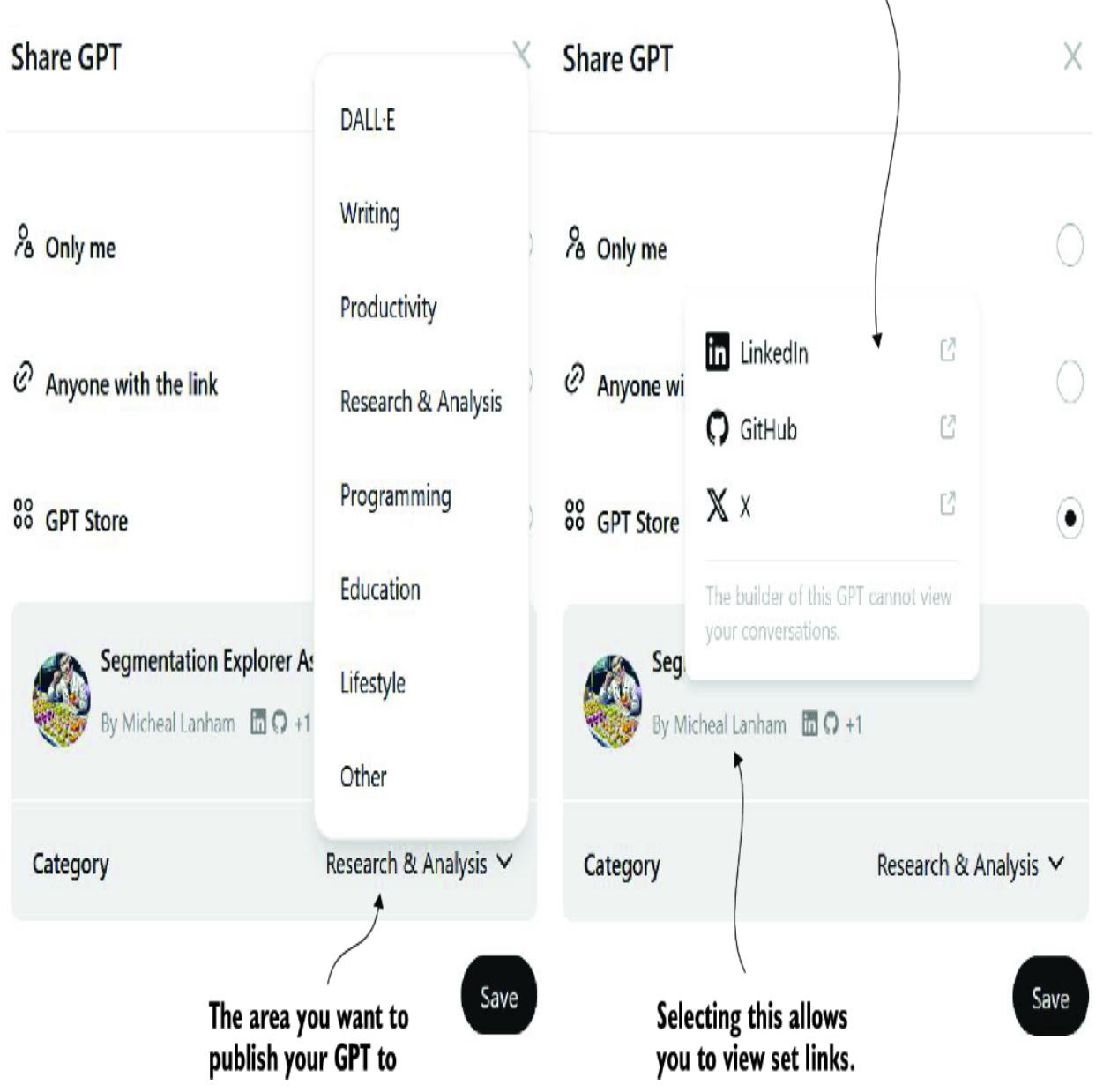
Figure 3.14 Selecting the options after clicking Save to publish to the GPT Store
That is easy, so here are a few more things you’ll want to consider before publishing your GPT:
GPT description —Create a good description, and you may even want to ask ChatGPT to help you build a description that increases the search engine optimization (SEO) of your GPT. GPTs are now showing up in Google searches, so good search engine optimization can help increase exposure to your assistant. A good description will also help users decide if they want to take the time to use your assistant.
- The logo —A nice, clean logo that identifies what your assistant does can undoubtedly help. Logo design for GPTs is effectively a free service, but taking the time to iterate over a few images can help draw users to your assistant.
- The category —By default, the category will already be selected, but make sure it fits your assistant. If you feel it doesn’t, than change the category, and you may even want to select Other and define your own.
- Links —Be sure to set reference links for your social media and perhaps even a GitHub repository that you use to track problems for the GPT. Adding links to your GPT demonstrates to users that they can reach out to the builder if they encounter problems or have questions.
Further requirements may likely emerge as the GPT Store matures. The business model remains to be established, and other learnings will likely follow. Whether you decide to build GPTs for yourself or others, doing so can help improve your understanding of how to build agents and assistants. As we’ll see throughout the rest of this book, GPT assistants are a useful foundation for your knowledge.
3.6 Exercises
Complete the following exercises to improve your knowledge of the material:
Exercise 1 —Build Your First GPT Assistant
Objective —Create a simple GPT assistant using the ChatGPT interface.
Sign up for a ChatGPT Plus subscription if you don’t already have one.
Navigate to the GPT Assistants platform, and click the Create button.
Follow the Builder chat interface to create a Culinary Companion assistant that provides meal suggestions based on available ingredients.
Manually configure the assistant to add custom rules for recipe generation, such as including nutritional information and cost estimates.
Exercise 2 —Data Analysis Assistant
Objective —Develop a GPT assistant that can analyze CSV files and provide insights.
Tasks:
- Design a data science assistant that can load and analyze CSV files, similar to the Data Scout example in the chapter.
- Enable the Code Interpretation tool, and upload a sample CSV file (e.g., a dataset from Kaggle).
- Use the assistant to perform tasks such as data cleaning, visualization, and hypothesis testing.
- Document your process and findings, noting any challenges or improvements needed.
- Exercise 3 —Create a Custom Action
Objective —Extend a GPT assistant with a custom action using a FastAPI service.
- Follow the steps to create a FastAPI service that provides a specific function, such as fetching a list of daily tasks.
- Generate the OpenAPI specification for the service, and deploy it locally using ngrok.
- Configure a new assistant to use this custom action, ensuring it connects correctly to the FastAPI endpoint.
- Test the assistant by asking it to perform the action and verify the output.
Exercise 4 —File Upload Knowledge Assistant
Objective —Build an assistant with specialized knowledge from uploaded documents.
Tasks:
- Select a freely available e-book or a collection of documents related to a specific topic (e.g., classic literature, technical manuals).
- Upload these files to a new GPT assistant, and configure the assistant to act as an expert on the uploaded content.
- Create a series of prompts to test the assistant’s ability to reference and summarize the information from the documents.
- Evaluate the assistant’s performance, and make any necessary adjustments to improve its accuracy and helpfulness.
- Exercise 5 —Publish and Share Your Assistant
Objective —Publish your GPT assistant to the GPT Store and share it with others.
- Finalize the configuration and testing of your assistant to ensure it works as intended.
- Write a compelling description, and create an appropriate logo for your assistant.
- Choose the correct category, and set up any necessary links to your social media or GitHub repository.
- Publish the assistant to the GPT Store, and share the link with friends or colleagues.
- Gather feedback from users, and refine the assistant based on their input to improve its usability and functionality.
Summary
- The OpenAI GPT Assistants platform enables building and deploying AI agents through the ChatGPT UI, focusing on creating engaging and functional assistants.
- You can use GPT’s code interpretation capabilities to perform data analysis on user-uploaded CSV files, enabling assistants to function as data scientists.
- Assistants can be extended with custom actions, allowing integration with external services via API endpoints. This includes generating FastAPI services and their corresponding OpenAPI specifications.
- Assistants can be enriched with specialized knowledge through file uploads, allowing them to act as authoritative sources on specific texts or documents.
- Commercializing your GPT involves publishing it to the GPT Store, where you can share and market your assistant to a broader audience.
- Building a functional assistant involves iterating through design prompts, defining a clear persona, setting rules, and ensuring the assistant’s output aligns with user expectations.
- Creating custom actions requires understanding and implementing OpenAPI specifications, deploying services locally using tools such as ngrok, and connecting these services to your assistant.
- Knowledge assistants can handle various tasks, from searching and comparing documents to generating new content based on their knowledge base.
- Publishing assistants require careful consideration of resource usage, user experience, and economic factors to ensure their effectiveness and sustainability for public use.
- The GPT Store, available to ChatGPT Plus subscribers, is a valuable platform for learning and gaining proficiency in building AI assistants, with the potential for future profit-sharing opportunities.
4 Exploring multi-agent systems
This chapter covers
- Building multi-agent systems using AutoGen Studio
- Building a simple multi-agent system
- Creating agents that can work collaboratively over a group chat
- Building an agent crew and multi-agent systems using CrewAI
- Extending the number of agents and exploring processing patterns with CrewAI
Now let’s take a journey from AutoGen to CrewAI, two well-established multi-agent platforms. We’ll start with AutoGen, a Microsoft project that supports multiple agents and provides a studio for working with them. We’ll explore a project from Microsoft called AutoGen, which supports multiple agents but also provides a studio to ease you into working with agents. From there, we’ll get more hands-on coding of AutoGen agents to solve tasks using conversations and group chat collaborations.
Then, we’ll transition to CrewAI, a self-proposed enterprise agentic system that takes a different approach. CrewAI balances role-based and autonomous agents that can be sequentially or hierarchically flexible task management systems. We’ll explore how CrewAI can solve diverse and complex problems.
Multi-agent systems incorporate many of the same tools single-agent systems use but benefit from the ability to provide outside feedback and evaluation to other agents. This ability to support and criticize agent solutions internally gives multi-agent systems more power. We’ll explore an introduction to multi-agent systems, beginning with AutoGen Studio in the next section.
4.1 Introducing multi-agent systems with AutoGen Studio
AutoGen Studio is a powerful tool that employs multiple agents behind the scenes to solve tasks and problems a user directs. This tool has been used to develop some of the more complex code in this book. For that reason and others, it’s an excellent introduction to a practical multi-agent system.
Figure 4.1 shows a schematic diagram of the agent connection/communication patterns AutoGen employs. AutoGen is a conversational multi-agent platform because communication is done using natural language. Natural language conversation seems to be the most natural pattern for agents to communicate, but it’s not the only method, as you’ll see later.
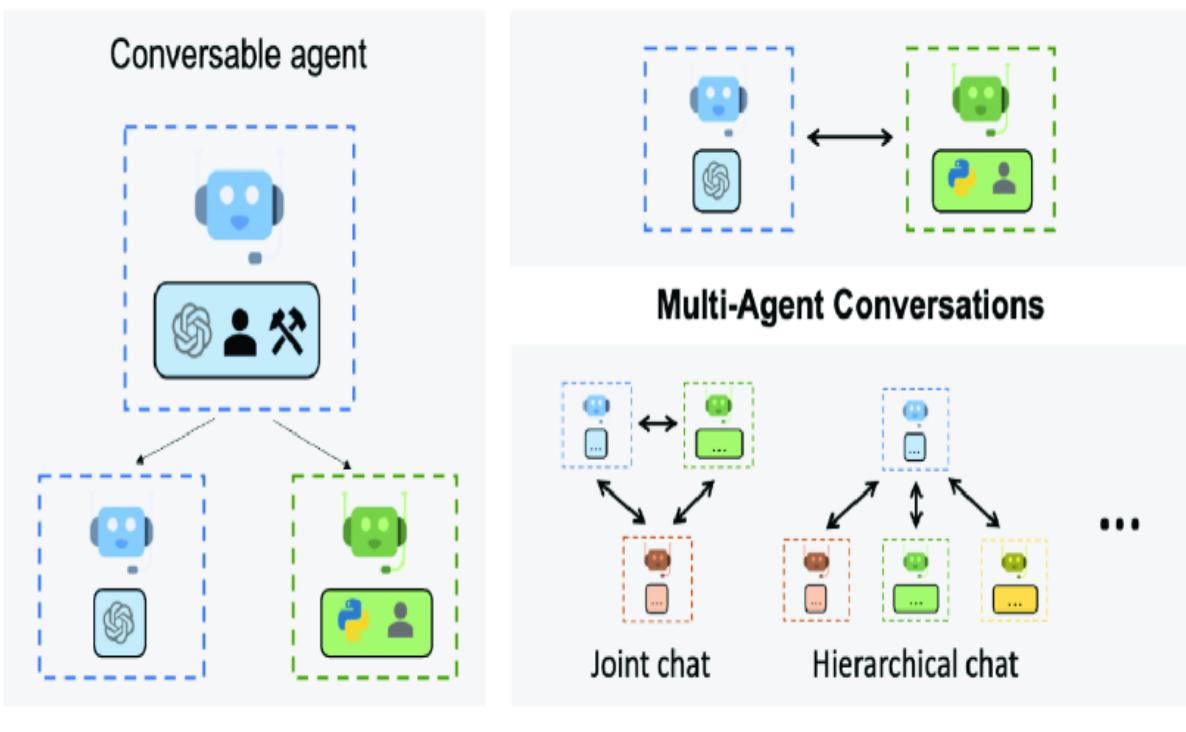

AutoGen supports various conversational patterns, from group and hierarchical to the more common and simpler proxy communication. In proxy communication, one agent acts as a proxy and directs communication to relevant agents to complete tasks. A proxy is similar to a waiter taking orders and delivering them to the kitchen, which cooks the food. Then, the waiter serves the cooked food.
The basic pattern in AutoGen uses a UserProxy and one or more assistant agents. Figure 4.2 shows the user proxy taking direction from a human and then directing an assistant agent enabled to write code to perform the tasks. Each time the assistant completes a task, the proxy agent reviews, evaluates, and provides feedback to the assistant. This iteration loop continues until the proxy is satisfied with the results.
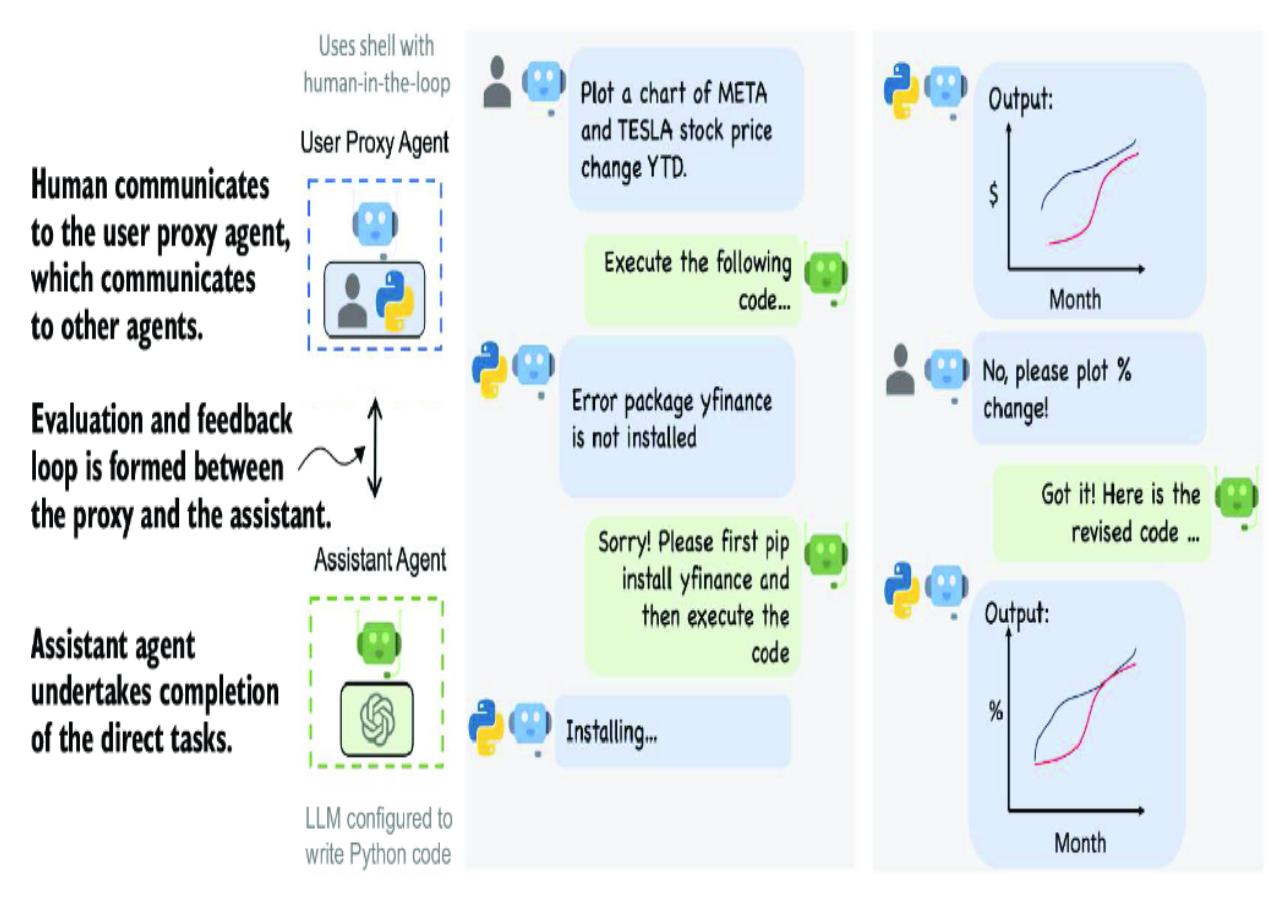
Figure 4.2 The user proxy agent and assistant agent communication (Source: AutoGen)
The benefit of the proxy is that it works to replace the required human feedback and evaluation, and, in most cases, it does a good job. While it doesn’t eliminate the need for human feedback and evaluation, it produces much more complete results overall. And, while the iteration loop is time consuming, it’s time you could be drinking a coffee or working on other tasks.
AutoGen Studio is a tool developed by the AutoGen team that provides a helpful introduction to conversable agents. In the next exercise, we’ll install Studio and run some experiments to see how well the platform performs. These tools are still in a rapid development cycle, so if you encounter any problems, consult the documentation on the AutoGen GitHub repository.
4.1.1 Installing and using AutoGen Studio
Open the chapter_04 folder in Visual Studio Code (VS Code), create a local Python virtual environment, and install the requirements.txt file. If you need assistance with this, consult appendix B to install all of this chapter’s exercise requirements.
Open a terminal in VS Code (Ctrl-, Cmd-) pointing to your virtual environment, and run AutoGen Studio using the command shown in listing 4.1. You’ll first need to define an environment variable for your OpenAI key. Because ports 8080 and 8081 are popular, and if you have other services running, change the port to 8082 or something you choose.
Listing 4.1 Launching AutoGen Studio
# set environment variable on Bash (Git Bash)
export OPENAI_API_KEY="<your API key>" #1
# sent environment variable with PowerShell
$env:VAR_NAME ="<your API key>" #1
autogenstudio ui --port 8081 #2
#1 Use the appropriate command for your terminal type. #2 Change the port if you expect or experience a conflict on your machine.
Navigate your browser to the AutoGen Studio interface shown in figure 4.3 (as of this writing). While there may be differences, one thing is for sure: the primary interface will still be chat. Enter a complex task that requires
coding. The example used here is Create a plot showing the popularity of the term GPT Agents in Google search.
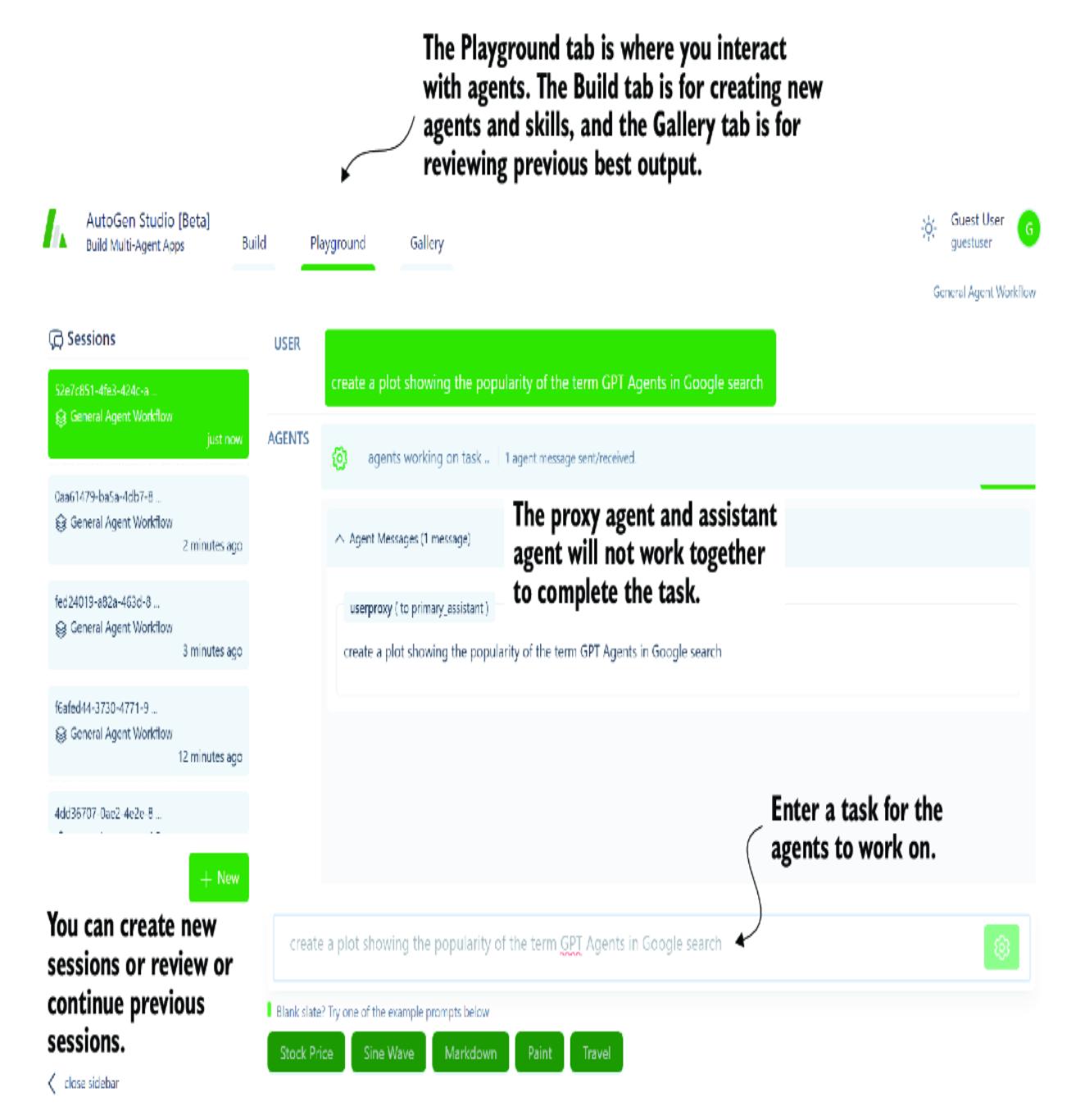
Figure 4.3 Entering a task for the agents to work on in the AutoGen interface
The agent assistant generates code snippets to perform or complete various subtasks as the agents work together through the task in the example. The user proxy agent then attempts to execute those code snippets and assesses the output. In many cases, proving the code runs and produces the required output is sufficient for the user proxy agent to approve the task’s completion.
If you encounter any problems with the assistant agent requests, ask the proxy agent to try a different method or another problem. This highlights a bigger problem with agentic systems using packages or libraries that have expired and no longer work. For this reason, it’s generally better to get agents to execute actions rather than build code to perform actions as tools.
Tip Executing AutoGen and AutoGen Studio using Docker is recommended, especially when working with code that may affect the operating system. Docker can isolate and virtualize the agents’ environment, thus isolating potentially harmful code. Using Docker can help alleviate any secondary windows or websites that may block the agent process from running.
Figure 4.4 shows the agent’s completion of the task. The proxy agent will collect any generated code snippet, images, or other documents and append them to the message. You can also review the agent conversation by opening the Agent Messages expander. In many cases, if you ask the agent to generate plots or applications, secondary windows will open showing those results.
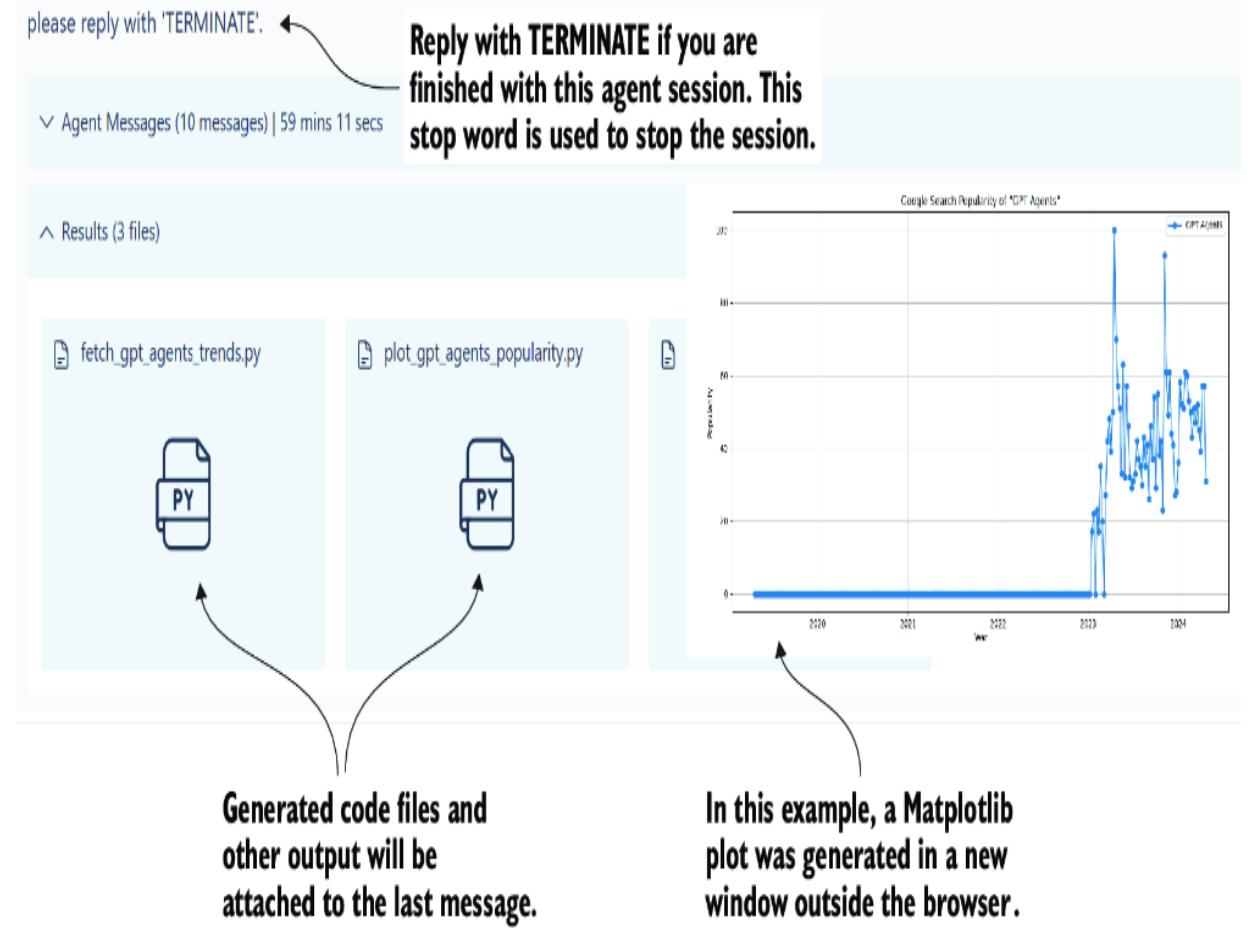
Figure 4.4 The output after the agents complete the task
Amazingly, the agents will perform most tasks nicely and complete them well. Depending on the complexity of the task, you may need to further iterate with the proxy. Sometimes, an agent may only go so far to complete a task because it lacks the required skills. In the next section, we’ll look at how to add skills to agents.
4.1.2 Adding skills in AutoGen Studio
Skills and tools, or actions, as we refer to them in this book, are the primary means by which agents can extend themselves. Actions give agents the ability to execute code, call APIs, or even further evaluate and inspect generated output. AutoGen Studio currently begins with just a basic set of tools to fetch web content or generate images.
Note Many agentic systems employ the practice of allowing agents to code to solve goals. However, we discovered that code can be easily broken, needs to be maintained, and can change quickly. Therefore, as we’ll discuss in later chapters, it’s better to provide agents with skills/actions/tools to solve problems.
In the following exercise scenario, we’ll add a skill/action to inspect an image using the OpenAI vision model. This will allow the proxy agent to provide feedback if we ask the assistant to generate an image with particular content.
With AutoGen Studio running, go to the Build tab and click Skills, as shown in figure 4.5. Then, click the New Skill button to open a code panel where you can copy–paste code to. From this tab, you can also configure models, agents, and agent workflows.
Figure 4.5 Steps to creating a new skill on the Build tab
Enter the code shown in listing 4.2 and also provided in the book’s source code as describe_image.py. Copy and paste this code into the editor window, and then click the Save button at the bottom.
Listing 4.2 describe_image.py
import base64
import requests
import os
def describe_image(image_path='animals.png') -> str:
 """
 Uses GPT-4 Vision to inspect and describe the contents of the image.
 :param input_path: str, the name of the PNG file to describe.
 """
 api_key = os.environ['OPEN_API_KEY']
 # Function to encode the image
 def encode_image(image_path): #1
 with open(image_path, "rb") as image_file:
 return base64.b64encode(image_file.read()).decode('utf-8')
 # Getting the base64 string
 base64_image = encode_image(image_path)
 headers = {
 "Content-Type": "application/json",
 "Authorization": f"Bearer {api_key}"
 }
 payload = {
 "model": "gpt-4-turbo",
 "messages": [
 {
 "role": "user",
 "content": [
 {
 "type": "text",
 "text": "What's in this image?"
 },
 {
 "type": "image_url",
 "image_url": {
 "url": f"data:image/jpeg;base64,{base64_image}" #2
 }
 }
 ]
 }
 ],
 "max_tokens": 300
 }
 response = requests.post(
 "https://api.openai.com/v1/chat/completions",
 headers=headers,
 json=payload)
 return response.json()["choices"][0]["message"] #3
["content"] #3
#1 Function to load and encode the image as a Base64 string #2 Including the image string along with the JSON payload #3 Unpacking the response and returning the content of the reply The describe_image function uses the OpenAI GPT-4 vision model to describe what is in the image. This skill can be paired with the existing generate_image skill as a quality assessment. The agents can confirm that the generated image matches the user’s requirements.
After the skill is added, it must be added to the specific agent workflow and agent for use. Figure 4.6 demonstrates adding the new skill to the primary assistant agent in the general or default agent workflow.
| 图 Skills | Workflows (2) | Select to edit the primary assistant \(\chi\) Workflow Specification General Agent Workflow |
|
|---|---|---|---|
| C Models | Configure an agent wor | at the bottom of the workflow panel. Workflow Name General Agent Workfl (i) |
|
| 门 Agents | General Agent Workf This workflow is us |
General Agent Workflow | |
| & Workflows | general purpose ta | Agent Specification primary_assistant Modify current agent |
|
| April 12 | primary_assistant Agent Name primary_assistant (i) |
||
| primary_assistant | |||
| Select the General Agent Workflow. |
Agent Description Default assistant to (1) Default assistant to generate plans and write code to solve tasks. |
||
| Skills find_papers_arxiv @ | |||
| find_papers_arxiv X describe_image × generate_images X \(add +\) |
|||
| Click add to add the new Or replace with an existing agent describe_image skill. |
|||
| userproxy |
Figure 4.6 Configuring the primary_assistant agent with the new skill
Now that the skill is added to the primary assistant, we can task the agent with creating a specific image and validating it using the new
describe_image skill. Because image generators notoriously struggle with correct text, we’ll create an exercise task to do just that.
Enter the text shown in listing 4.3 to prompt the agents to create a book image cover for this book. We’ll explicitly say that the text needs to be correct and insist that the agent uses the new describe_image function to verify the image.
Listing 4.3 Prompting for a book cover
Please create a cover for the book GPT Agents In Action, use the describe_image skill to make sure the title of the book is spelled correctly on the cover
After the prompt is entered, wait for a while, and you may get to see some dialogue exchanged about the image generation and verification process. In the end, though, if everything works correctly, the agents will return with the results shown in figure 4.7.
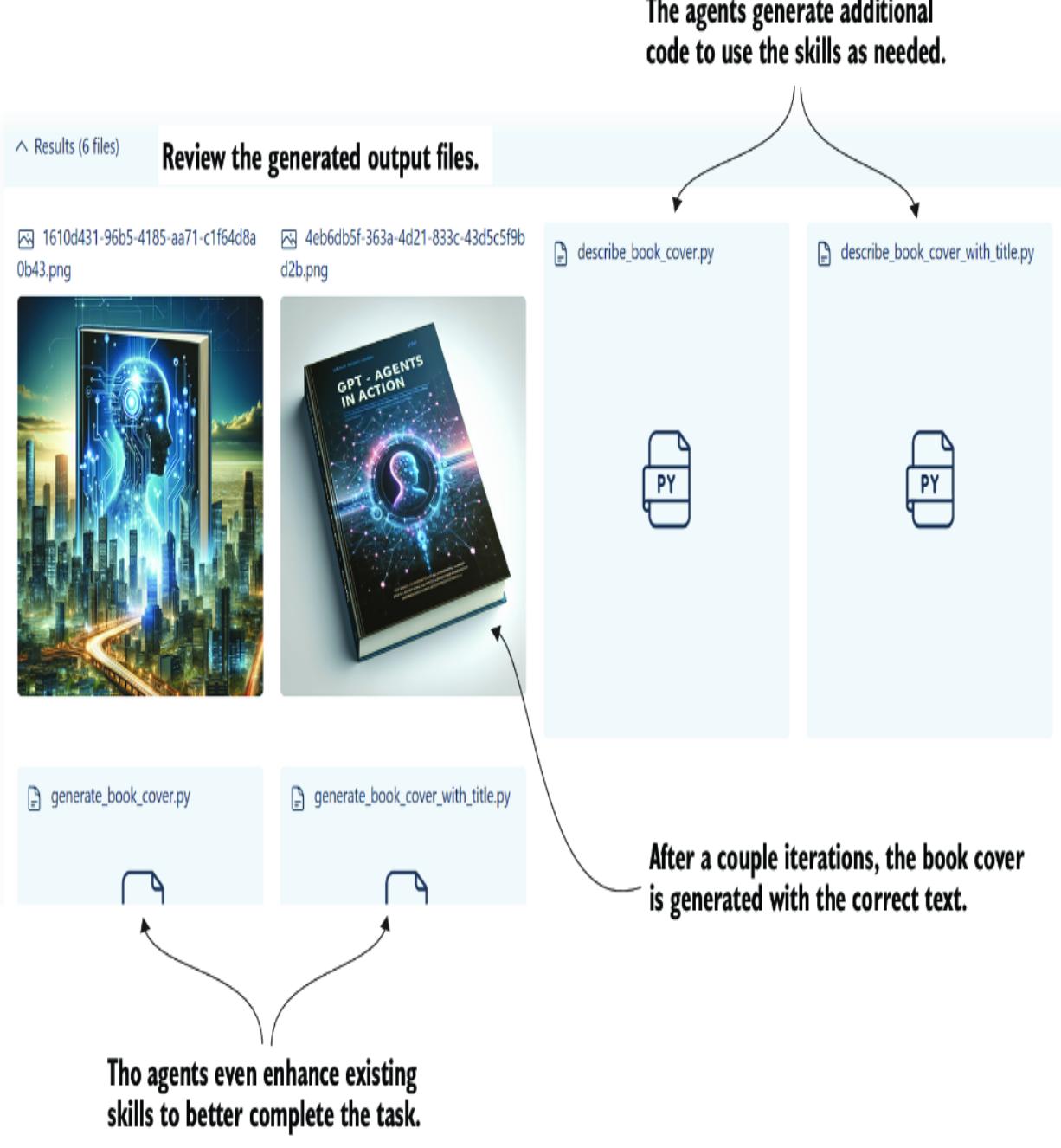
Figure 4.7 The generated file outputs from the agent work on the image generation task
Remarkably, the agent coordination completed the task in just a couple of iterations. Along with the images, you can also see the various helper code snippets generated to assist with task completion. AutoGen Studio is impressive in its ability to integrate skills that the agents can further adapt to complete some goal. The following section will show how these powerful agents are implemented in code.
4.2 Exploring AutoGen
While AutoGen Studio is a fantastic tool for understanding multi-agent systems, we must look into the code. Fortunately, coding multiple agent examples with AutoGen is simple and easy to run. We’ll cover the basic AutoGen setup in the next section.
4.2.1 Installing and consuming AutoGen
This next exercise will look at coding a basic multi-agent system that uses a user proxy and conversable agent. Before we do that, though, we want to make sure AutoGen is installed and configured correctly.
Open a terminal in VS Code, and run the entire chapter 4 install directions per appendix B, or run the pip command in listing 4.4. If you’ve installed the requirements.txt file, you’ll also be ready to run AutoGen.
Listing 4.4 Installing AutoGen
pip install pyautogen
Next, copy the chapter_04/OAI_CONFIG_LIST.example to OAI_CONFIG_LIST, removing .example from the file name. Then, open the new file in VS Code, and enter your OpenAI or Azure configuration in the OAI_CONFIG_LIST file in listing 4.5. Fill in your API key, model, and other details per your API service requirements. AutoGen will work with any model that adheres to the OpenAI client. That means you can use local LLMs via LM Studio or other services such as Groq, Hugging Face, and more.
Listing 4.5 OAI_CONFIG_LIST
[
 {
 "model": "gpt-4", #1
 "api_key": "<your OpenAI API key here>", #2
 "tags": ["gpt-4", "tool"]
 },
 {
 "model": "<your Azure OpenAI deployment name>", #3
 "api_key": "<your Azure OpenAI API key here>", #4
 "base_url": "<your Azure OpenAI API base here>", #5
 "api_type": "azure",
 "api_version": "2024-02-15-preview"
 }
]
#1 Select the model; GPT-4 is recommended.
#2 Use the service key you would typically use.
#3 Select the model; GPT-4 is recommended.
#4 Use the service key you would typically use.
#5 Changing the base URL allows you to point to other services, not just Azure OpenAI.Now, we can look at the code for a basic multi-agent chat using the out-ofthe-box UserProxy and ConversableAgent agents. Open autogen_start.py in VS Code, shown in the following listing, and review the parts before running the file.
Listing 4.6 autogen_start.py
from autogen import ConversableAgent, UserProxyAgent, config_list_from_json
 config_list = config_list_from_json(
 env_or_file="OAI_CONFIG_LIST") #1
 assistant = ConversableAgent(
 "agent",
 llm_config={"config_list": config_list}) #2
 user_proxy = UserProxyAgent( #3
 "user",
 code_execution_config={
 "work_dir": "working",
 "use_docker": False,
 },
 human_input_mode="ALWAYS",
 is_termination_msg=lambda x: x.get("content", "")
 .rstrip()
 .endswith("TERMINATE"), #4
 )
 user_proxy.initiate_chat(assistant, message="write a solution
↪ for fizz buzz in one line?") #5
#1 Loads your LLM configuration from the JSON file OAI_CONFIG_LIST
#2 This agent talks directly to the LLM.
#3 This agent proxies conversations from the user to the assistant.
#4 Setting the termination message allows the agent to iterate.
#5 A chat is initiated with the assistant through the user_proxy to complete a task.Run the code by running the file in VS Code in the debugger (F5). The code in listing 4.6 uses a simple task to demonstrate code writing. Listing 4.7 shows a few examples to choose from. These coding tasks are also some of the author’s regular baselines to assess an LLMs’ strength in coding.
Listing 4.7 Simple coding task exampleswrite a Python function to check if a number is prime code a classic sname game using Pygame #1 code a classic asteroids game in Python using Pygame #1
#1 To enjoy iterating over these tasks, use Windows Subsystem for Linux (WSL) on Windows, or use Docker.
After the code starts in a few seconds, the assistant will respond to the proxy with a solution. At this time, the proxy will prompt you for feedback. Press Enter, essentially giving no feedback, and this will prompt the proxy to run the code to verify it operates as expected.
Impressively, the proxy agent will even take cues to install required packages such as Pygame. Then it will run the code, and you’ll see the output in the terminal or as a new window or browser. You can play the game or use the interface if the code shelled a new window/browser.
Note that the spawned window/browser won’t close on Windows and will require exiting the entire program. To avoid this problem, run the code through Windows Subsystem for Linux (WSL) or Docker. AutoGen explicitly recommends using Docker for code execution agents, and if you’re comfortable with containers, this is a good option.
Either way, after the proxy generates and runs the code, the working_dir folder set earlier in listing 4.6 should now have a Python file with the code. This will allow you to run the code at your leisure, make changes, or even ask for improvements, as we’ll see. In the next section, we’ll look at how to improve the capabilities of the coding agents.
4.2.2 Enhancing code output with agent critics
One powerful benefit of multi-agent systems is the multiple roles/personas you can automatically assign when completing tasks. Generating or helping to write code can be an excellent advantage to any developer, but what if that code was also reviewed and tested? In the next exercise, we’ll add another agent critic to our agent system to help with coding tasks. Open autogen_coding_critic.py, as shown in the following listing.
Listing 4.8 autogen_coding_critic.py
from autogen import AssistantAgent, UserProxyAgent, config_list_from_json
config_list = config_list_from_json(env_or_file="OAI_CONFIG_LIST")
user_proxy = UserProxyAgent(
 "user",
 code_execution_config={
 "work_dir": "working",
 "use_docker": False,
 "last_n_messages": 1,
 },
 human_input_mode="ALWAYS",
 is_termination_msg=lambda x:
x.get("content", "").rstrip().endswith("TERMINATE"),
)
engineer = AssistantAgent(
 name="Engineer",
 llm_config={"config_list": config_list},
 system_message="""
 You are a profession Python engineer, known for your expertise in
software development.
 You use your skills to create software applications, tools, and
games that are both functional and efficient.
 Your preference is to write clean, well-structured code that is easy
to read and maintain.
 """, #1
)
critic = AssistantAgent(
 name="Reviewer",
 llm_config={"config_list": config_list},
 system_message="""
 You are a code reviewer, known for your thoroughness and commitment
to standards.
 Your task is to scrutinize code content for any harmful or
substandard elements.
 You ensure that the code is secure, efficient, and adheres to best
practices.
 You will identify any issues or areas for improvement in the code
and output them as a list.
 """, #2
)
def review_code(recipient, messages, sender, config): #3
 return f"""
 Review and critque the following code.
 {recipient.chat_messages_for_summary(sender)[-1]['content']}
 """ #3
user_proxy.register_nested_chats( #4
 [
 {
 "recipient": critic,
 "message": review_code,
 "summary_method": "last_msg",
 "max_turns": 1,
 }
 ],
trigger=engineer, #4
)
task = """Write a snake game using Pygame."""
res = user_proxy.initiate_chat(
recipient=engineer,
message=task,
max_turns=2,
summary_method="last_msg" #5
)#1 This time, the assistant is given a system/persona message. #2 A second assistant critic agent is created with a background. #3 A custom function helps extract the code for review by the critic. #4 A nested chat is created between the critic and the engineer. #5 The proxy agent initiates a chat with a max delay and explicit summary method.
Run the autogen_coding_critic.py file in VS Code in debug mode, and watch the dialog between the agents. This time, after the code returns, the critic will also be triggered to respond. Then, the critic will add comments and suggestions to improve the code.
Nested chats work well for supporting and controlling agent interactions, but we’ll see a better approach in the following section. Before that though, we’ll review the importance of the AutoGen cache in the next section.
4.2.3 Understanding the AutoGen cache
AutoGen can consume many tokens over chat iterations as a conversable multi-agent platform. If you ask AutoGen to work through complex or novel problems, you may even encounter token limits on your LLM; because of this, AutoGen supports several methods to reduce token usage.
AutoGen uses caching to store progress and reduce token usage. Caching is enabled by default, and you may have already encountered it. If you check your current working folder, you’ll notice a .cache folder, as shown in figure 4.8. Caching allows your agents to continue conversations if they get interrupted.
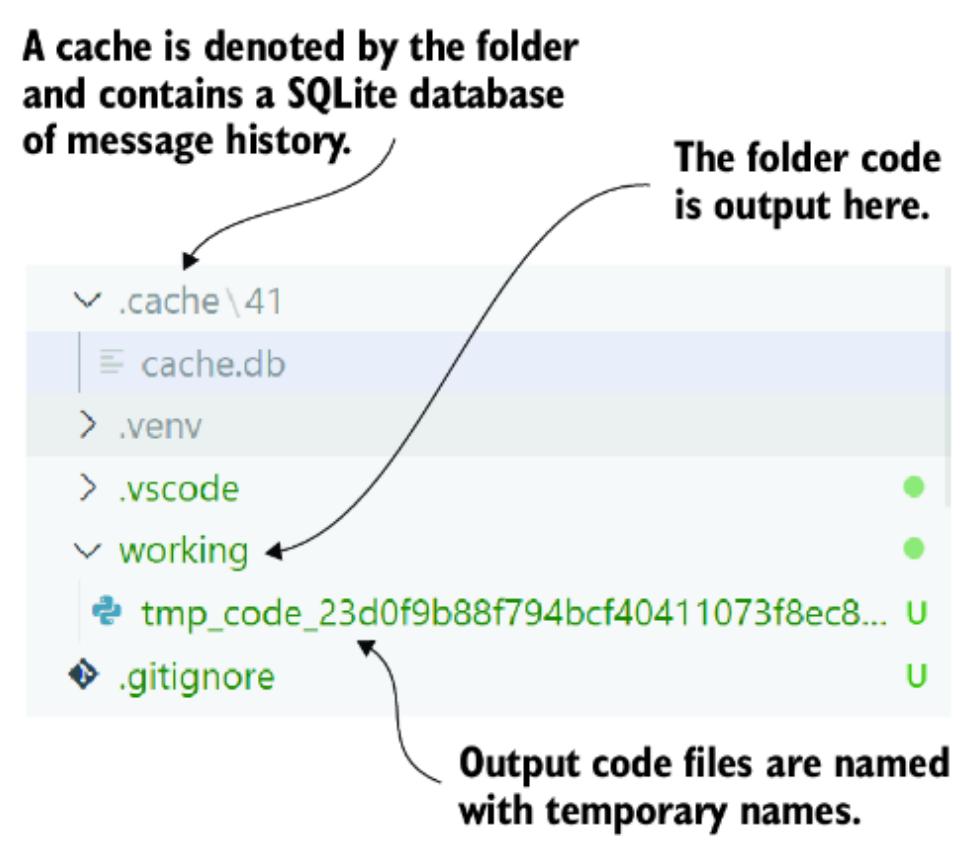
Figure 4.8 AutoGen cache and working folders
In code, you can control the cache folder for your agent’s run, as shown in listing 4.9. By wrapping the initiate_chat call with the with statement, you can control the location and seed for the cache. This will allow you to save and return to long-running AutoGen tasks in the future by just setting the cache_seed for the previous cache.
Listing 4.9 Setting the cache folder
with Cache.disk(cache_seed=42) as cache: #1
 res = user_proxy.initiate_chat(
 recipient=engineer,
 message=task,
 max_turns=2,
 summary_method="last_msg",
 cache=cache, #2
 )
#1 Setting the seed_cache denotes the individual location. #2 Sets the cache as a parameter
This caching ability allows you to continue operations from the previous cache location and captures previous runs. It can also be a great way to demonstrate and inspect how an agent conversation generated the results. In the next section, we’ll look at another conversational pattern in which AutoGen supports group chat.
4.3 Group chat with agents and AutoGen
One problem with chat delegation and nested chats or conversations is the conveyance of information. If you’ve ever played the telephone game, you’ve witnessed this firsthand and experienced how quickly information can change over iterations. With agents, this is certainly no different, and chatting through nested or sequential conversations can alter the task or even the desired result.
THE TELEPHONE GAME
The telephone game is a fun but educational game that demonstrates information and coherence loss. Children form a line, and the first child receives a message only they can hear. Then, in turn, the children verbally pass the message on to the next child, and so on. At the end, the last child announces the message to the whole group, which often isn’t even close to the same message.
To counter this, AutoGen provides a group chat, a mechanism by which agents participate in a shared conversation. This allows agents to review all past conversations and better collaborate on long-running and complex tasks.
Figure 4.9 shows the difference between nested and collaborative group chats. We used the nested chat feature in the previous section to build a nested agent chat. In this section, we use the group chat to provide a more collaborative experience.
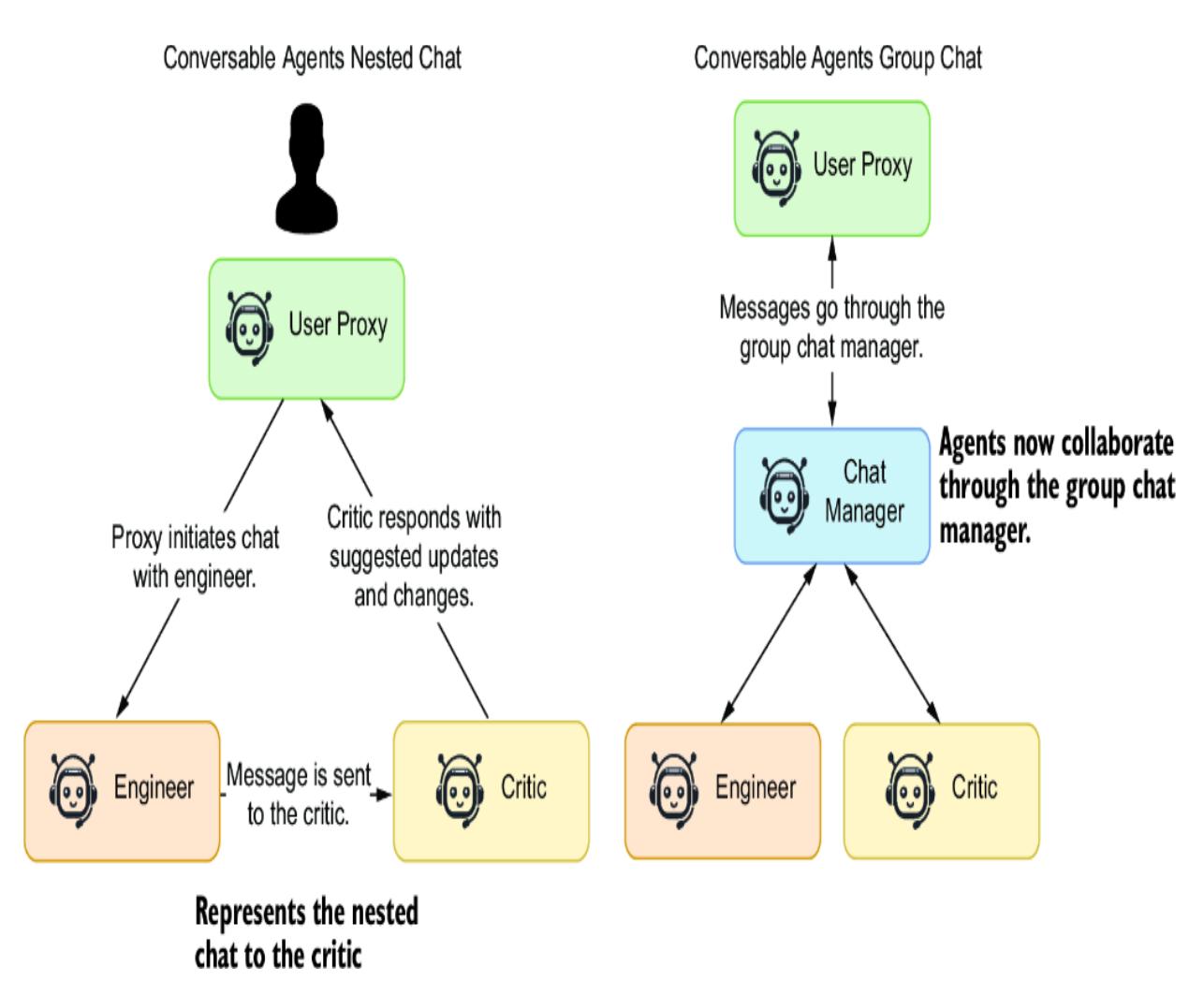
Figure 4.9 The difference between nested and group chat for conversable agents
Open autogen_coding_group.py with relevant parts, as shown in listing 4.10. The code is similar to the previous exercise but now introduces GroupChat and GroupChatManager. The agents and messages are held with the group chat, similar to a messaging channel in applications such as Slack or Discord. The chat manager coordinates the message responses to reduce conversation overlap.
Listing 4.10 autoget_coding_group.py (relevant sections)user_proxy = UserProxyAgent(
"user",
code_execution_config={
"work_dir": "working",
"use_docker": False,
"last_n_messages": 3,
},
human_input_mode="NEVER", #1
)
llm_config = {"config_list": config_list}
engineer = AssistantAgent(… #2
critic = AssistantAgent(… #2
groupchat = GroupChat(agents=[user_proxy,
engineer,
critic],
messages=[],
max_round=20) #3
manager = GroupChatManager(groupchat=groupchat,
llm_config=llm_config) #4
task = """Write a snake game using Pygame."""
with Cache.disk(cache_seed=43) as cache:
res = user_proxy.initiate_chat(
recipient=manager,
message=task,
cache=cache,
)#1 Human input is now set to never, so no human feedback. #2 Code omitted, but consult changes to the persona in the file #3 This object holds the connection to all the agents and stores the messages. #4 The manager coordinates the conversation as a moderator would.
Run this exercise, and you’ll see how the agents collaborate. The engineer will now take feedback from the critic and undertake operations to address the critic’s suggestions. This also allows the proxy to engage in all of the conversation.
Group conversations are an excellent way to strengthen your agents’ abilities as they collaborate on tasks. However, they are also substantially more verbose and token expensive. Of course, as LLMs mature, so do the size of their context token windows and the price of token processing. As token windows increase, concerns over token consumption may eventually go away.
AutoGen is a powerful multi-agent platform that can be experienced using a web interface or code. Whatever your preference, this agent collaboration tool is an excellent platform for building code or other complex tasks. Of course, it isn’t the only platform, as you’ll see in the next section, where we explore a newcomer called CrewAI.
4.4 Building an agent crew with CrewAI
CrewAI is relatively new to the realm of multi-agent systems. Where AutoGen was initially developed from research and then extended, CrewAI is built with enterprise systems in mind. As such, the platform is more robust, making it less extensible in some areas.
With CrewAI, you build a crew of agents to focus on specific areas of a task goal. Unlike AutoGen, CrewAI doesn’t require the use of the user proxy agent but instead assumes the agents only work among themselves.
Figure 4.10 shows the main elements of the CrewAI platform, how they connect together, and their primary function. It shows a sequentialprocessing agent system with generic researcher and writer agents. Agents are assigned tasks that may also include tools or memory to assist them.
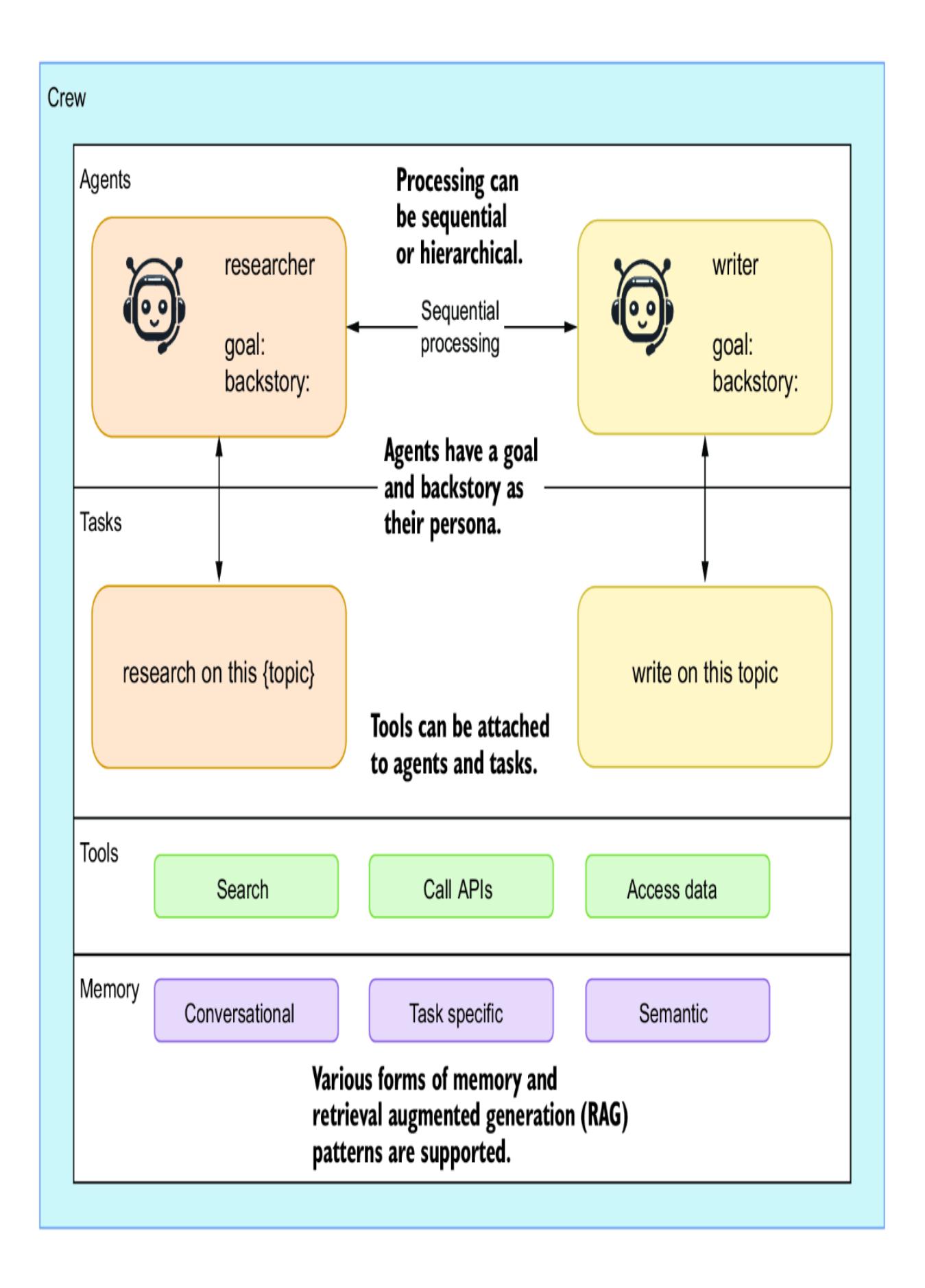
Figure 4.10 The composition of a CrewAI system
CrewAI supports two primary forms of processing: sequential and hierarchical. Figure 4.10 shows the sequential process by iterating across the given agents and their associated tasks. In the next section, we dig into some code to set up a crew and employ it to complete a goal and create a good joke.
4.4.1 Creating a jokester crew of CrewAI agents
CrewAI requires more setup than AutoGen, but this also allows for more control and additional guides, which provide more specific context to guide the agents in completing the given task. This isn’t without problems, but it does offer more control than AutoGen out of the box.
Open crewai_introduction.py in VS Code and look at the top section, as shown in listing 4.11. Many settings are required to configure an agent, including the role, goal, verboseness, memory, backstory, delegation, and even tools (not shown). In this example, we’re using two agents: a senior joke researcher and a joke writer.
Listing 4.11 crewai_introduction.py (agent section)from crewai import Agent, Crew, Process, Task
from dotenv import load_dotenv
load_dotenv()
joke_researcher = Agent( #1
role="Senior Joke Researcher",
goal="Research what makes things funny about the following {topic}",
verbose=True, #2
memory=True, #3
backstory=( #4
"Driven by slapstick humor, you are a seasoned joke researcher"
"who knows what makes people laugh. You have a knack for finding"
"the funny in everyday situations and can turn a dull moment into"
"a laugh riot."
),
allow_delegation=True, #5
)
joke_writer = Agent( #6
role="Joke Writer",
goal="Write a humourous and funny joke on the following {topic}",
verbose=True, #7
memory=True, #8
backstory=( #9
"You are a joke writer with a flair for humor. You can turn a"
"simple idea into a laugh riot. You have a way with words and"
"can make people laugh with just a few lines."
),
allow_delegation=False, #5
)#1 Creates the agents and provides them a goal
#2 verbose allows the agent to emit output to the terminal.
#3 Supports the use of memory for the agents
#4 The backstory is the agent’s background—its persona.
#5 The agents can either be delegated to or are allowed to delegate; True means they can delegate.
#6 Creates the agents and provides them a goal
#7 verbose allows the agent to emit output to the terminal.
#8 Supports the use of memory for the agents
#9 The backstory is the agent’s background—its persona.
Moving down the code, we next see the tasks, as shown in listing 4.12. Tasks denote an agent’s process to complete the primary system goal. They also link an agent to work on a specific task, define the output from that task, and may include how it’s executed.
Listing 4.12 crewai_introduction.py (task section)
research_task = Task( #1
 description=(
 "Identify what makes the following topic:{topic} so funny."
 "Be sure to include the key elements that make it humourous."
 "Also, provide an analysis of the current social trends,"
 "and how it impacts the perception of humor."
 ),
 expected_output="A comprehensive 3 paragraphs long report
↪ on the latest jokes.", #2
 agent=joke_researcher, #3
)
write_task = Task( #4
 description=(
 "Compose an insightful, humourous and socially aware joke on {topic}."
 "Be sure to include the key elements that make it funny and"
 "relevant to the current social trends."
 ),
 expected_output="A joke on {topic}.", #5
 agent=joke_writer, #3
 async_execution=False, #6
 output_file="the_best_joke.md", #7
)
#1 The Task description defines how the agent will complete the task. #2 Explicitly defines the expected output from performing the task #3 The agent assigned to work on the task #4 The Task description defines how the agent will complete the task. #5 Explicitly defines the expected output from performing the task #6 If the agent should execute asynchronously
#7 Any output the agent will generate
Now, we can see how everything comes together as the Crew at the bottom of the file, as shown in listing 4.13. Again, many options can be set when building the Crew, including the agents, tasks, process type, memory, cache, maximum requests per minute (max_rpm), and whether the crew shares.
Listing 4.13 crewai_introduction.py (crew section)
crew = Crew(
 agents=[joke_researcher, joke_writer], #1
 tasks=[research_task, write_task], #2
 process=Process.sequential, #3
 memory=True, #4
 cache=True, #5
 max_rpm=100, #6
 share_crew=True, #7
)
result = crew.kickoff(inputs={"topic": "AI engineer jokes"})
print(result)
#1 The agents assembled into the crew
#2 The tasks the agents can work on
#3 Defining how the agents will interact
#4 Whether the system should use memory; needs to be set if agents/tasks have it on
#5 Whether the system should use a cache, similar to AutoGen#6 Maximum requests per minute the system should limit itself to#7 Whether the crew should share information, similar to group chat
When you’re done reviewing, run the file in VS Code (F5), and watch the terminal for conversations and messages from the crew. As you can probably tell by now, the goal of this agent system is to craft jokes related to AI engineering. Here are some of the funnier jokes generated over a few runs of the agent system:
- Why was the computer cold? It left Windows open.
- Why don’t AI engineers play hide and seek with their algorithms? Because no matter where they hide, the algorithms always find them in the “overfitting” room!
- What is an AI engineer’s favorite song? “I just called to say I love yo… . and to collect more data for my voice recognition software.”
- Why was the AI engineer broke? Because he spent all his money on cookies, but his browser kept eating them.
Before you run more iterations of the joke crew, you should read the next section. This section shows how to add observability to the multi-agent system.
4.4.2 Observing agents working with AgentOps
Observing a complex assemblage such as a multi-agent system is critical to understanding the myriad of problems that can happen. Observability through application tracing is a key element of any complex system, especially one engaged in enterprise use.
CrewAI supports connecting to a specialized agent operations platform appropriately called AgentOps. This observability platform is generic and designed to support observability with any agent platform specific to LLM usage. Currently, no pricing or commercialization details are available.
Connecting to AgentOps is as simple as installing the package, getting an API key, and adding a line of code to your crew setup. This next exercise will go through the steps to connect and run AgentOps.
Listing 4.14 shows installing the agentops package using pip. You can install the package alone or as an additional component of the crewai package. Remember that AgentOps can also be connected to other agent platforms for observability.
Listing 4.14 Installing AgentOps
pip install agentops
or as an option with CrewAI
pip install crewai[agentops]
Before using AgentOps, you need to sign up for an API key. Following are the general steps to sign up for a key at the time of writing:
- Visit https://app.agentops.ai in your browser.
- Sign up for an account.
- Create a project, or use the default.
- Go to Settings > Projects and API Keys.
- Copy and/or generate a new API key; this will copy the key to your browser.
- Paste the key to your .env file in your project.
After the API key is copied, it should resemble the example shown in the following listing.
Listing 4.15 env.: Adding an AgentOps key
AGENTOPS_API_KEY=“your API key”
Now, we need to add a few lines of code to the CrewAI script. Listing 4.16 shows the additions as they are added to the crewai_agentops.py file. When creating your own scripts, all you need to do is add the agentops package and initialize it when using CrewAI.
Listing 4.16 crewai_agentops.py (AgentOps additions)
import agentops #1 from crewai import Agent, Crew, Process, Task from dotenv import load_dotenv load_dotenv() agentops.init() #2
#1 The addition of the required package #2 Make sure to initialize the package after the environment variables are loaded.
Run the crewai_agentops.py file in VS Code (F5), and watch the agents work as before. However, you can now go to the AgentOps dashboard and view the agent interactions at various levels.
Figure 4.11 shows the dashboard for running the joke crew to create the best joke. Several statistics include total duration, the run environment, prompt and completion tokens, LLM call timings, and estimated cost. Seeing the cost can be both sobering and indicative of how verbose agent conversations can become.
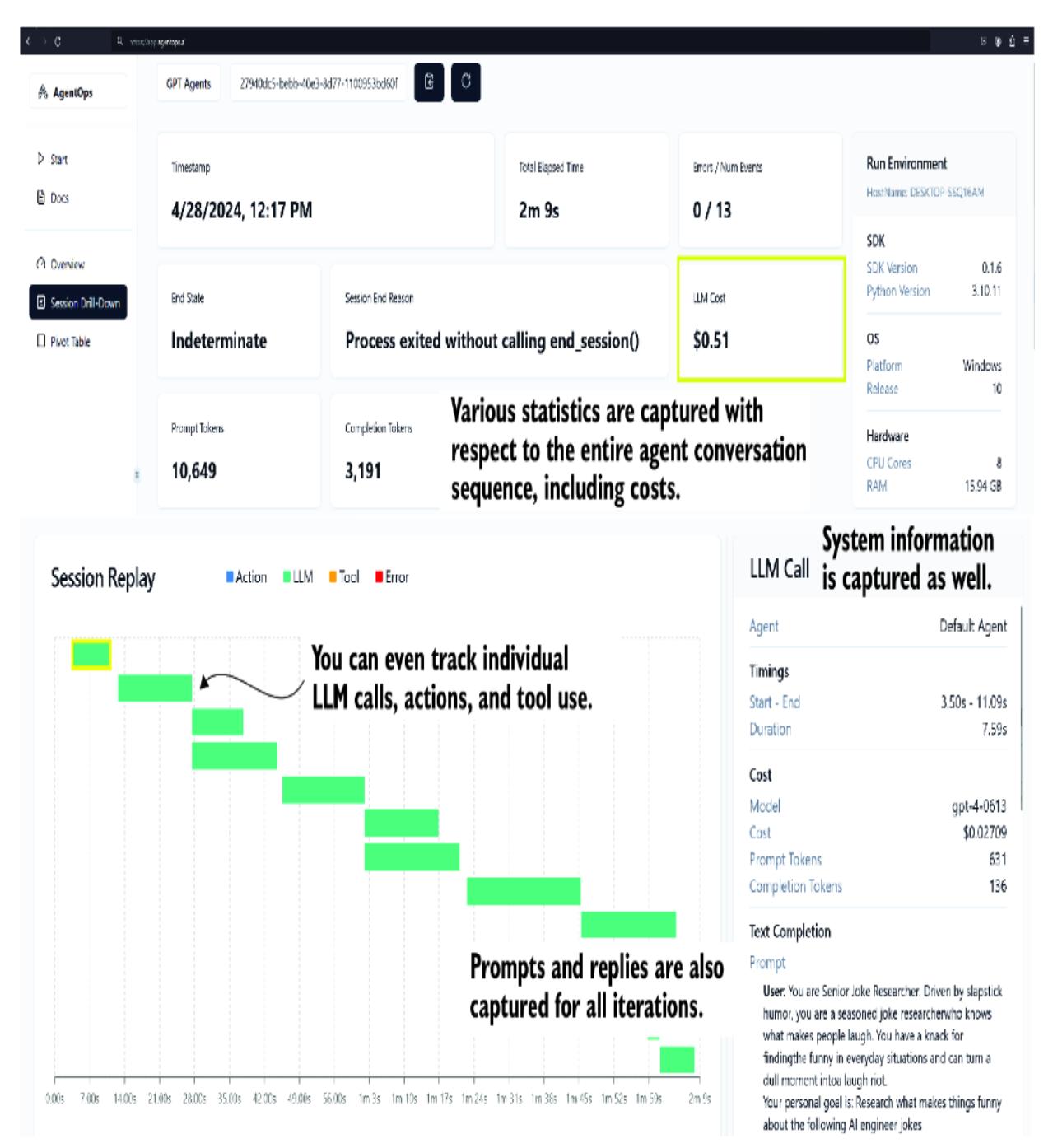
Figure 4.11 The AgentOps dashboard for running the joke crew
The AgentOps platform is an excellent addition to any agent platform. While it’s built into CrewAI, it’s helpful that the observability could be added to AutoGen or other frameworks. Another attractive thing about AgentOps is that it’s dedicated to observing agent interactions and not transforming from a machine learning operations platform. In the future, we’ll likely see the spawn of more agent observability patterns.
One benefit that can’t be overstated is the cost observation that an observability platform can provide. Did you notice in figure 4.11 that creating a single joke costs a little over 50 cents? Agents can be very powerful, but they can also become very costly, and it’s essential to observe what those costs are in terms of practicality and commercialization.
In the last section of this chapter, we’ll return to CrewAI and revisit building agents that can code games. This will provide an excellent comparison between the capabilities of AutoGen and CrewAI.
4.5 Revisiting coding agents with CrewAI
A great way to compare capabilities between multi-agent platforms is to implement similar tasks in a bot. In this next set of exercises, we’ll employ CrewAI as a game programming team. Of course, this could be adapted to other coding tasks as well.
Open crewai_coding_crew.py in VS Code, and we’ll first review the agent section in listing 4.17. Here, we’re creating a senior engineer, a QA engineer, and a chief QA engineer with a role, goal, and backstory.
Listing 4.17 crewai_coding_crew.py (agent section)print("## Welcome to the Game Crew") #1
print("-------------------------------")
game = input("What is the game you would like to build?
↪ What will be the mechanics?\n")
senior_engineer_agent = Agent(
role="Senior Software Engineer",
goal="Create software as needed",
backstory=dedent(
"""
You are a Senior Software Engineer at a leading tech think tank.
Your expertise in programming in python. and do your best to
produce perfect code
"""
),
allow_delegation=False,
verbose=True,
)
qa_engineer_agent = Agent(
role="Software Quality Control Engineer",
goal="create prefect code, by analizing the code
↪ that is given for errors",
backstory=dedent(
"""
You are a software engineer that specializes in checking code
for errors. You have an eye for detail and a knack for finding
hidden bugs.
You check for missing imports, variable declarations, mismatched
brackets and syntax errors.
You also check for security vulnerabilities, and logic errors
"""
),
allow_delegation=False,
verbose=True,
)
chief_qa_engineer_agent = Agent(
role="Chief Software Quality Control Engineer",
goal="Ensure that the code does the job that it is supposed to do",
backstory=dedent(
"""
You are a Chief Software Quality Control Engineer at a leading
tech think tank. You are responsible for ensuring that the code
that is written does the job that it is supposed to do.
You are responsible for checking the code for errors and ensuring
that it is of the highest quality.
"""
),
allow_delegation=True, #2
verbose=True,
)#1 Allows the user to input the instructions for their game #2 Only the chief QA engineer can delegate tasks.
Scrolling down in the file will display the agent tasks, as shown in listing 4.18. The task descriptions and expected output should be easy to follow. Again, each agent has a specific task to provide better context when working to complete the task.
Listing 4.18 crewai_coding_crew.py (task section)
code_task = Task(
 description=f"""
You will create a game using python, these are the instructions:
 Instructions
 ------------
 {game} #1
 You will write the code for the game using python.""",
 expected_output="Your Final answer must be the
↪ full python code, only the python code and nothing else.",
 agent=senior_engineer_agent,
)
qa_task = Task(
 description=f"""You are helping create a game
↪ using python, these are the instructions:
 Instructions
 ------------
 {game} #1
 Using the code you got, check for errors. Check for logic errors,
 syntax errors, missing imports, variable declarations,
mismatched brackets,
 and security vulnerabilities.""",
 expected_output="Output a list of issues you found in the code.",
 agent=qa_engineer_agent,
)
evaluate_task = Task(
 description=f"""You are helping create a game
↪ using python, these are the instructions:
 Instructions
 ------------
 {game} #1
 You will look over the code to insure that it is complete and
 does the job that it is supposed to do. """,
 expected_output="Your Final answer must be the
↪ corrected a full python code, only the python code and nothing else.",
 agent=chief_qa_engineer_agent,
)
#1 The game instructions are substituted into the prompt using Python formatting.Finally, we can see how this comes together by going to the bottom of the file, as shown in listing 4.19. This crew configuration is much like what we’ve seen before. Each agent and task are added, as well as the verbose and process attributes. For this example, we’ll continue to use sequential methods.
Listing 4.19 crewai_coding_crew.py (crew section)
crew = Crew(
 agents=[senior_engineer_agent,
 qa_engineer_agent,
 chief_qa_engineer_agent],
 tasks=[code_task, qa_task, evaluate_task],
 verbose=2,
 process=Process.sequential, #1
)
# Get your crew to work!
result = crew.kickoff() #2
print("######################")
print(result)
#1 Process is sequential. #2 No additional context is provided in the kickoff.
When you run the VS Code (F5) file, you’ll be prompted to enter the instructions for writing a game. Enter some instructions, perhaps the snake game or another game you choose. Then, let the agents work, and observe what they produce.
With the addition of the chief QA engineer, the results will generally look better than what was produced with AutoGen, at least out of the box. If you review the code, you’ll see that it generally follows good patterns and, in some cases, may even include tests and unit tests.
Before we finish the chapter, we’ll make one last change to the crew’s processing pattern. Previously, we employed sequential processing, as shown in figure 4.10. Figure 4.12 shows what hierarchical processing looks like in CrewAI.
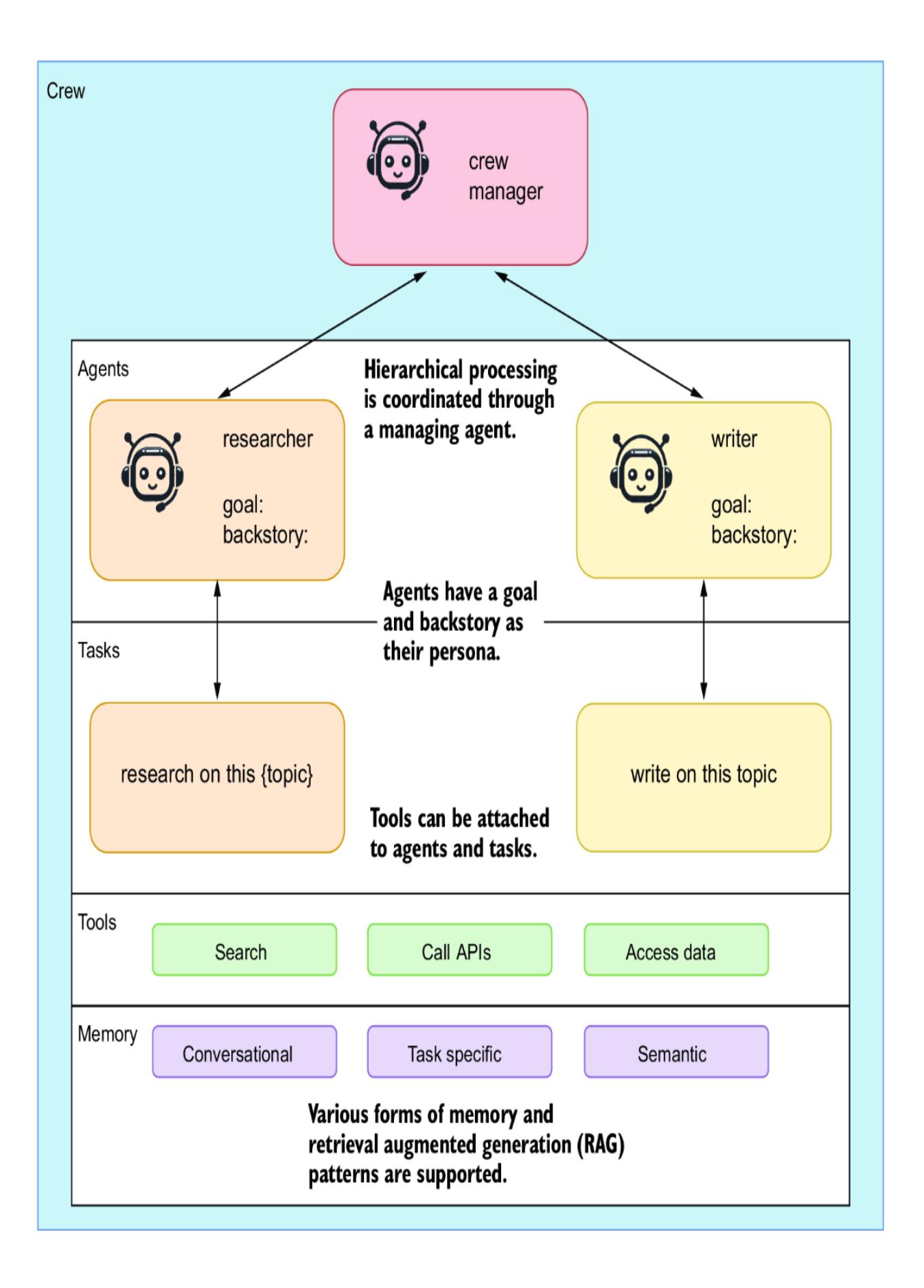
Figure 4.12 Hierarchical processing of agents coordinated through a crew manager
Adding this manager is a relatively simple process. Listing 4.20 shows the additional code changes to a new file that uses the coding crew in a hierarchical method. Aside from importing a class for connecting to OpenAI from LangChain, the other addition is adding this class as the crew manger, manager_llm.
Listing 4.20 crewai_hierarchy.py (crew manager sections)
from langchain_openai import ChatOpenAI #1
crew = Crew(
 agents=[senior_engineer_agent,
 qa_engineer_agent,
 chief_qa_engineer_agent],
 tasks=[code_task, qa_task, evaluate_task],
 verbose=2,
 process=Process.hierarchical, #2
 manager_llm=ChatOpenAI( #3
 temperature=0, model="gpt-4" #3
 ), #4
) #4
#1 Imports the LLM connector from LangChain
#2 You must set a crew manager when selecting hierarchical processing.
#3 Sets the crew manager to be the LLM connector
#4 You must set a crew manager when selecting hierarchical processing.Run this file in VS Code (F5). When prompted, enter a game you want to create. Try using the same game you tried with AutoGen; the snake game is also a good baseline example. Observe the agents work through the code and review it repeatedly for problems.
After you run the file, you can also jump on AgentOps to review the cost of this run. Chances are, it will cost over double what it would have without the agent manager. The output will also likely not be significantly better. This is the trap of building agent systems without understanding how quickly things can spiral.
An example of this spiral that often happens when agents continually iterate over the same actions is frequently repeating tasks. You can view this problem in AgentOps, as shown in figure 4.13, by viewing the Repeat Thoughts plot.
Figure 4.13 The repetition of thoughts as they occurred within an agent run
The Repeat Thoughts plot from AgentOps is an excellent way to measure the repetition your agent system encounters. Overly repetitive thought patterns typically mean the agent isn’t being decisive enough and instead keeps trying to generate a different answer. If you encounter this problem, you want to change the agents’ processing patterns, tasks, and goals. You may even want to alter the system’s type and number of agents.
Multi-agent systems are an excellent way to break up work in terms of work patterns of jobs and tasks. Generally, the job role is allocated to an agent role/persona, and the tasks it needs to complete may be implicit, as in AutoGen, or more explicit, as in CrewAI.
In this chapter, we covered many useful tools and platforms that you can use right away to improve your work, life, and more. That completes our journey through multi-agent platforms, but it doesn’t conclude our exploration and use of multiple agents, as we’ll discover in later chapters.
4.6 Exercises
Use the following exercises to improve your knowledge of the material:
Exercise 1 —Basic Agent Communication with AutoGen
Objective —Familiarize yourself with basic agent communications and setup in AutoGen.
Tasks:
- Set up AutoGen Studio on your local machine, following the instructions provided in this chapter.
- Create a simple multi-agent system with a user proxy and two assistant agents.
- Implement a basic task where the user proxy coordinates between the assistant agents to generate a simple text output, such as summarizing a short paragraph.
- Exercise 2 —Implementing Advanced Agent Skills in AutoGen Studio
Objective —Enhance agent capabilities by adding advanced skills.
Tasks:
- Develop and integrate a new skill into an AutoGen agent that allows it to fetch and display real-time data from a public API (e.g., weather information or stock prices).
- Ensure the agent can ask for user preferences (e.g., city for weather, type of stocks) and display the fetched data accordingly.
- Exercise 3 —Role-Based Task Management with CrewAI
Objective —Explore role-based task management in CrewAI.
Tasks:
Design a CrewAI setup where multiple agents are assigned specific roles (e.g., data fetcher, analyzer, presenter).
- Configure a task sequence where the data fetcher collects data, the analyzer processes the data, and the presenter generates a report.
- Execute the sequence and observe the flow of information and task delegation among agents.
- Exercise 4 —Multi-Agent Collaboration in Group Chat Using AutoGen
Objective —Understand and implement a group chat system in AutoGen to facilitate agent collaboration.
Tasks:
- Set up a scenario where multiple agents need to collaborate to solve a complex problem (e.g., planning an itinerary for a business trip).
- Use the group chat feature to allow agents to share information, ask questions, and provide updates to each other.
- Monitor the agents’ interactions and effectiveness in collaborative problem solving.
- Exercise 5 —Adding and Testing Observability with AgentOps in CrewAI
Objective —Implement and evaluate the observability of agents using AgentOps in a CrewAI environment.
- Integrate AgentOps into a CrewAI multi-agent system.
- Design a task for the agents that involves significant computation or data processing (e.g., analyzing customer reviews to determine sentiment trends).
- Use AgentOps to monitor the performance, cost, and output accuracy of the agents. Identify any potential inefficiencies or errors in agent interactions.
Summary
- AutoGen, developed by Microsoft, is a conversational multi-agent platform that employs a variety of agent types, such as user proxies and assistant agents, to facilitate task execution through natural language interactions.
- AutoGen Studio acts as a development environment that allows users to create, test, and manage multi-agent systems, enhancing the usability of AutoGen.
- AutoGen supports multiple communication patterns, including group chats and hierarchical and proxy communications. Proxy communication involves a primary agent (proxy) that interfaces between the user and other agents to streamline task completion.
- CrewAI offers a structured approach to building multi-agent systems with a focus on enterprise applications. It emphasizes role-based and autonomous agent functionalities, allowing for flexible, sequential, or hierarchical task management.
- Practical exercises in the chapter illustrate how to set up and use AutoGen Studio, including installing necessary components and running basic multi-agent systems.
- Agents in AutoGen can be equipped with specific skills to perform tasks such as code generation, image analysis, and data retrieval, thereby broadening their application scope.
- CrewAI is distinguished by its ability to structure agent interactions more rigidly than AutoGen, which can be advantageous in settings that require precise and controlled agent behavior.
- CrewAI supports integrating memory and tools for agents to consume through task completion.
- CrewAI supports integration with observability tools such as AgentOps, which provides insights into agent performance, interaction efficiency, and cost management.
- AgentOps is an agent observability platform that can help you easily monitor extensive agent interactions.
5 Empowering agents with actions
This chapter covers
- How an agent acts outside of itself using actions
- Defining and using OpenAI functions
- The Semantic Kernel and how to use semantic functions
- Synergizing semantic and native functions
- Instantiating a GPT interface with Semantic Kernel
In this chapter, we explore actions through the use of functions and how agents can use them as well. We’ll start by looking at OpenAI function calling and then quickly move on to another project from Microsoft called Semantic Kernel (SK), which we’ll use to build and manage skills and functions for agents or as agents.
We’ll finish the chapter using SK to host our first agent system. This will be a complete chapter with plenty of annotated code examples.
5.1 Defining agent actions
ChatGPT plugins were first introduced to provide a session with abilities, skills, or tools. With a plugin, you can search the web or create spreadsheets or graphs. Plugins provide ChatGPT with the means to extend the platform.
Figure 5.1 shows how a ChatGPT plugin works. In this example, a new movie recommender plugin has been installed in ChatGPT. When a user asks ChatGPT to recommend a new movie, the large language model (LLM) recognizes that it has a plugin to manage that action. It then breaks down the user request into actionable parameters, which it passes to the new movie recommender.
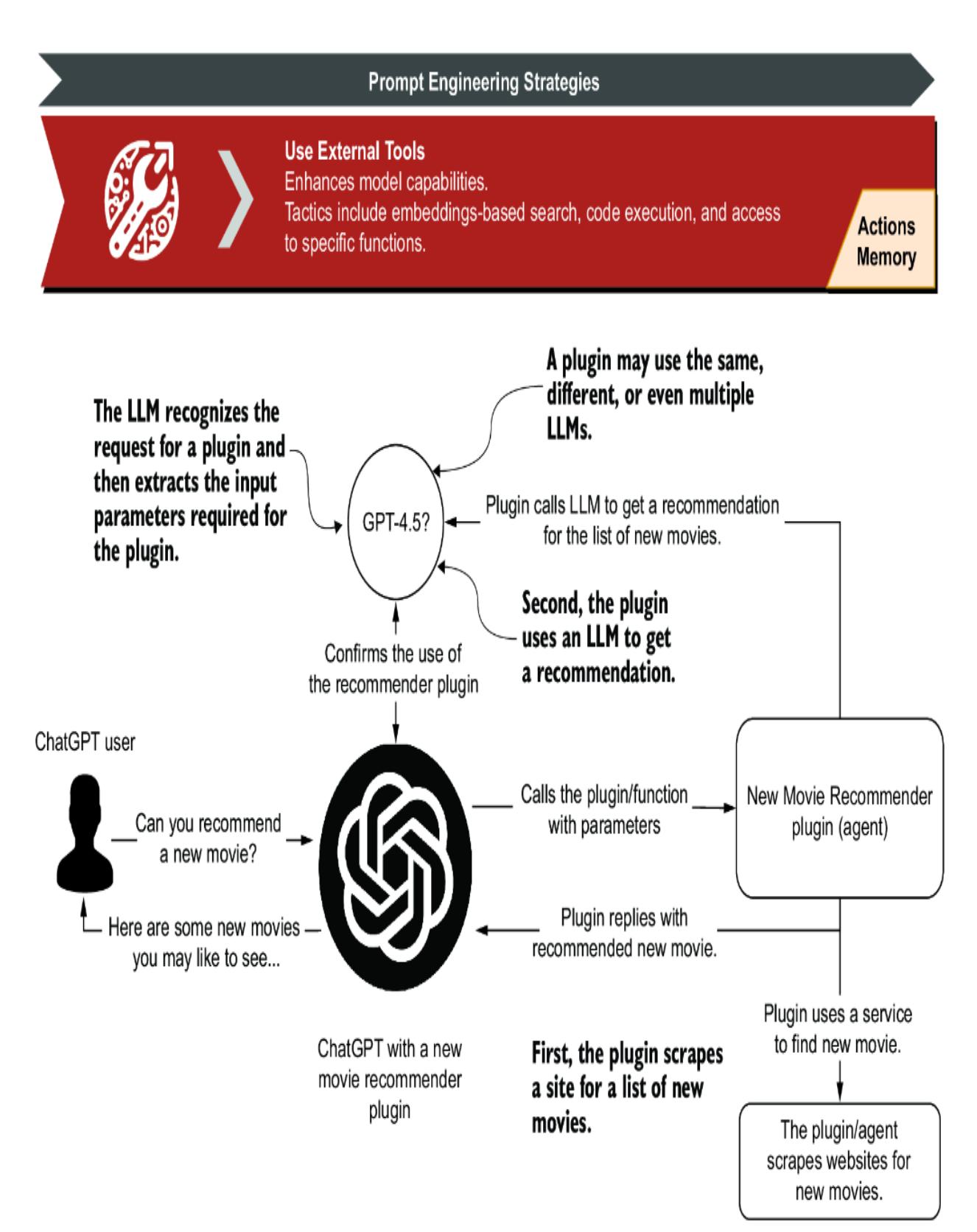
Figure 5.1 How a ChatGPT plugin operates and how plugins and other external tools (e.g., APIs) align with the Use External Tools prompt engineering strategy
The recommender then scrapes a website showcasing new movies and appends that information to a new prompt request to an LLM. With this information, the LLM responds to the recommender, which passes this back to ChatGPT. ChatGPT then responds to the user with the recommended request.
We can think of plugins as proxies for actions. A plugin generally encapsulates one or more abilities, such as calling an API or scraping a website. Actions, therefore, are extensions of plugins—they give a plugin its abilities.
AI agents can be considered plugins and consumers of plugins, tools, skills, and other agents. Adding skills, functions, and tools to an agent/plugin allows it to execute well-defined actions—figure 5.2 highlights where agent actions occur and their interaction with LLMs and other systems.
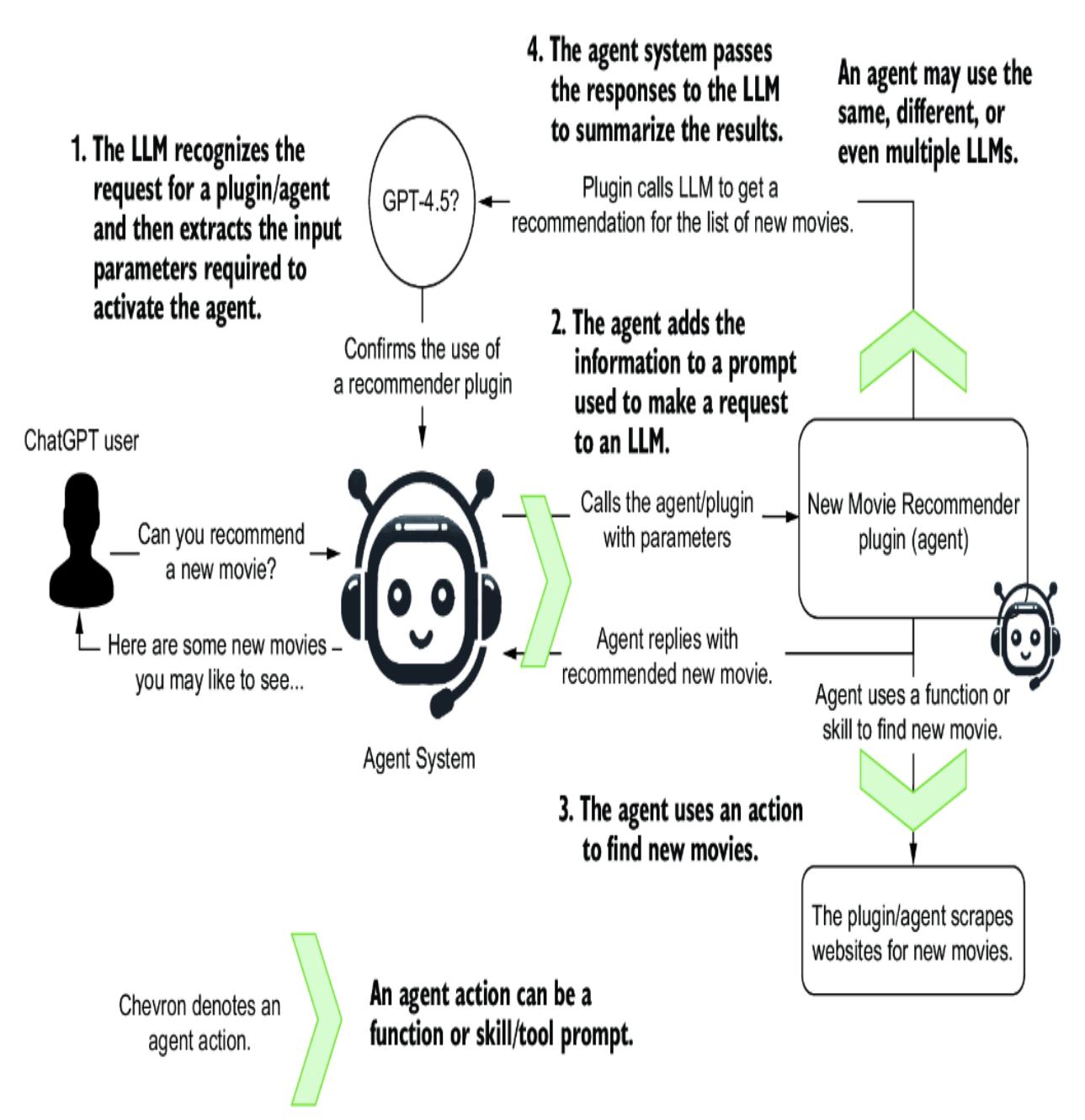
Figure 5.2 How an agent uses actions to perform external tasks
An agent action is an ability that allows it to use a function, skill, or tool. What gets confusing is that different frameworks use different terminology. We’ll define an action as anything an agent can do to establish some basic definitions.
ChatGPT plugins and functions represent an actionable ability that ChatGPT or an agent system can use to perform additional actions. Now let’s examine the basis for OpenAI plugins and the function definition.
5.2 Executing OpenAI functions
OpenAI, with the enablement of plugins, introduced a structure specification for defining the interface between functions/plugins an LLM could action. This specification is becoming a standard that LLM systems can follow to provide actionable systems.
These same function definitions are now also being used to define plugins for ChatGPT and other systems. Next, we’ll explore how to use functions directly with an LLM call.
5.2.1 Adding functions to LLM API calls
Figure 5.3 demonstrates how an LLM recognizes and uses the function definition to cast its response as the function call.
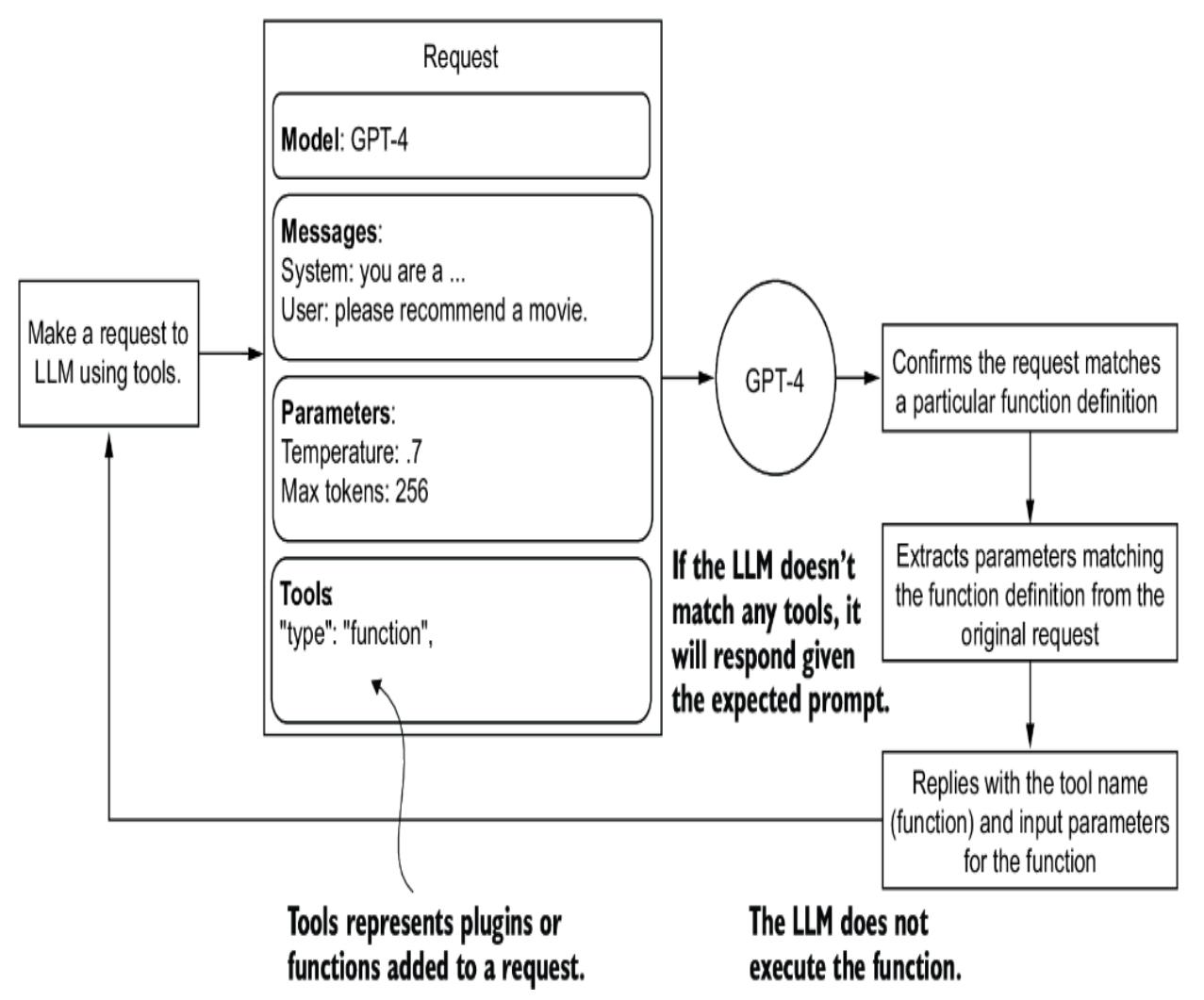
Figure 5.3 How a single LLM request, including tools, gets interpreted by an LLM
Listing 5.1 shows the details of an LLM API call using tools and a function definition. Adding a function definition allows the LLM to reply regarding the function’s input parameters. This means the LLM will identify the correct function and parse the relevant parameters for the user’s request.
Listing 5.1 first_function.py (API call)
response = client.chat.completions.create(
 model="gpt-4-1106-preview",
 messages=[{"role": "system",
 "content": "You are a helpful assistant."},
 {"role": "user", "content": user_message}],
 temperature=0.7,
 tools=[ #1
 {
 "type": "function", #2
 "function": {
 "name": "recommend",
           "description": "Provide a … topic.", #3
           "parameters": {
 "type": "object", #4
             "properties": {
 "topic": {
 "type": "string",
                 "description":
 "The topic,… for.", #5
 },
               "rating": {
 "type": "string",
                 "description":
 "The rating … given.", #5
 "enum": ["good",
 "bad",
                      "terrible"] #6
 },
 },
             "required": ["topic"],
 },
 },
 }
 ]
 )
#1 New parameter called tools
#2 Sets the type of tool to function
#3 Provides an excellent description of what the function does
#4 Defines the type of parameters for input; an object represents a JSON document.
#5 Excellent descriptions for each input parameter
#6 You can even describe in terms of enumerations.
To see how this works, open Visual Studio Code (VS Code) to the book’s source code folder: chapter_4/first_function.py. It’s a good practice to open the relevant chapter folder in VS Code to create a new Python environment and install the requirements.txt file. If you need assistance with this, consult appendix B.
Before starting, correctly set up an .env file in the chapter_4 folder with your API credentials. Function calling is an extra capability provided by
the LLM commercial service. At the time of writing, this feature wasn’t an option for open source LLM deployments.
Next, we’ll look at the bottom of the code in first_function.py, as shown in listing 5.2. Here are just two examples of calls made to an LLM using the request previously specified in listing 5.1. Here, each request shows the generated output from running the example.
Listing 5.2 first_function.py (exercising the API)
user = "Can you please recommend me a time travel movie?"
response = ask_chatgpt(user) #1
print(response)
###Output
Function(arguments='{"topic":"time travel movie"}',
 name='recommend') #2
user = "Can you please recommend me a good time travel movie?"
response = ask_chatgpt(user) #3
print(response)
###Output
Function(arguments='{"topic":"time travel movie",
 "rating":"good"}',
name='recommend') #4
#1 Previously defined function #2 Returned in the name of the function to call and the extracted input parameters #3 Previously defined function #4 Returned in the name of the function to call and the extracted input parameters
Run the first_function.py Python script in VS Code using the debugger (F5) or the terminal to see the same results. Here, the LLM parses the input request to match any registered tools. In this case, the tool is the single function definition, that is, the recommended function. The LLM extracts the input parameters from this function and parses those from the request. Then, it replies with the named function and designated input parameters.
NOTE The actual function isn’t being called. The LLM only returns the suggested function and the relevant input parameters. The name and parameters must be extracted and passed into a function matching the signature to act on the function. We’ll look at an example of this in the next section.
5.2.2 Actioning function calls
Now that we understand that an LLM doesn’t execute the function or plugin directly, we can look at an example that executes the tools. Keeping with the recommender theme, we’ll look at another example that adds a Python function for simple recommendations.
Figure 5.4 shows how this simple example will work. We’ll submit a single request that includes a tool function definition, asking for three recommendations. The LLM, in turn, will reply with the three function calls with input parameters (time travel, recipe, and gift). The results from executing the functions are then passed back to the LLM, which converts them back to natural language and returns a reply.
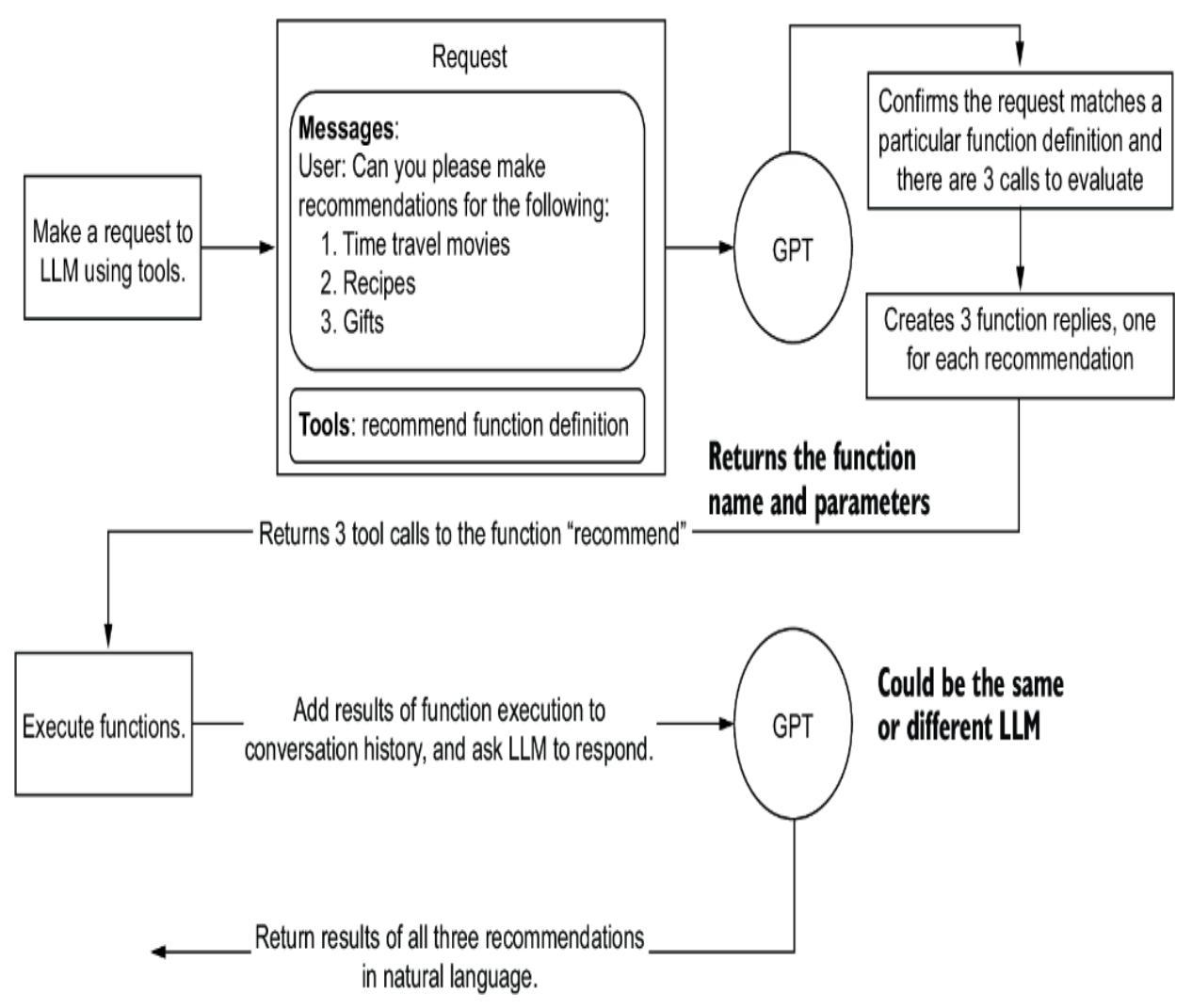
Figure 5.4 A sample request returns three tool function calls and then submits the results back to the LLM to return a natural language response.
Now that we understand the example, open parallel_functions.py in VS Code. Listing 5.3 shows the Python function that you want to call to give recommendations.
Listing 5.3 parallel_functions.py (recommend function)
def recommend(topic, rating="good"):
 if "time travel" in topic.lower(): #1
 return json.dumps({"topic": "time travel",
 "recommendation": "Back to the Future",
                     "rating": rating})
 elif "recipe" in topic.lower(): #1
 return json.dumps({"topic": "recipe",
 "recommendation": "The best thing … ate.",
                     "rating": rating})
 elif "gift" in topic.lower(): #1
 return json.dumps({"topic": "gift",
 "recommendation": "A glorious new...",
                     "rating": rating})
 else: #2
 return json.dumps({"topic": topic,
 "recommendation": "unknown"}) #3
#1 Checks to see if the string is contained within the topic input #2 If no topic is detected, returns the default #3 Returns a JSON object
Next, we’ll look at the function called run_conversation, where all the work starts with the request construction.
Listing 5.4 parallel_functions.py (run_conversation, request)user = """Can you please make recommendations for the following:
1. Time travel movies
2. Recipes
3. Gifts""" #1
messages = [{"role": "user", "content": user}] #2
tools = [ #3
{
"type": "function",
"function": {
"name": "recommend",
"description":
"Provide a recommendation for any topic.",
"parameters": {
"type": "object",
"properties": {
"topic": {
"type": "string",
"description":
"The topic, … recommendation for.",
},
"rating": {
"type": "string",
"description": "The rating … was given.",
"enum": ["good", "bad", "terrible"]
},
},
"required": ["topic"],
},
},
}
]#1 The user message asks for three recommendations. #2 Note that there is no system message. #3 Adds the function definition to the tools part of the request
Listing 5.5 shows the request being made, which we’ve covered before, but there are a few things to note. This call uses a lower model such as GPT-3.5 because delegating functions is a more straightforward task and can be done using older, cheaper, less sophisticated language models.
Listing 5.5 parallel_functions.py (run_conversation, API call)
response = client.chat.completions.create(
 model="gpt-3.5-turbo-1106", #1
 messages=messages, #2
 tools=tools, #2
 tool_choice="auto", #3
)
response_message = response.choices[0].message #4
#1 LLMs that delegate to functions can be simpler models.
#2 Adds the messages and tools definitions
#3 auto is the default.
#4 The returned message from the LLMAt this point, after the API call, the response should hold the information for the required function calls. Remember, we asked the LLM to provide us with three recommendations, which means it should also provide us with three function call outputs, as shown in the following listing.
Listing 5.6 parallel_functions.py (run_conversation, tool_calls)
tool_calls = response_message.tool_calls #1
if tool_calls: #1
 available_functions = {
 "recommend": recommend,
 } #2
 # Step 4: send the info for each function call and function response to
the model
 for tool_call in tool_calls: #3
 function_name = tool_call.function.name
 function_to_call = available_functions[function_name]
 function_args = json.loads(tool_call.function.arguments)
 function_response = function_to_call(
 topic=function_args.get("topic"), #4
 rating=function_args.get("rating"),
 )
 messages.append( #5
 {
 "tool_call_id": tool_call.id,
 "role": "tool",
 "name": function_name,
 "content": function_response,
 }
 ) # extend conversation with function response
 second_response = client.chat.completions.create( #6
 model="gpt-3.5-turbo-1106",
 messages=messages,
 )
 return second_response.choices[0].message.content #6
#1 If the response contains tool calls, execute them. #2 Only one function but could contain several #3 Loops through the calls and replays the content back to the LLM #4 Executes the recommend function from extracted parameters #5 Appends the results of each function call to the set of messages #6 Sends another request to the LLM with updated information and returns the message reply
The tool call outputs and the calls to the recommender function results are appended to the messages. Notice how messages now also contain the history of the first call. This is then passed back to the LLM to construct a reply in natural language.
Debug this example in VS Code by pressing the F5 key with the file open. The following listing shows the output of running parallel_functions.py.
Listing 5.7 parallel_functions.py (output)
more information.
Here are some recommendations for you: 1. Time travel movies: “Back to the Future” 2. Recipes: “The best thing you ever ate.” 3. Gifts: “A glorious new…” (the recommendation was cut off, so I couldn’t provide the full recommendation) I hope you find these recommendations helpful! Let me know if you need
This completes this simple demonstration. For more advanced applications, the functions could do any number of things, from scraping websites to calling search engines to completing far more complex tasks.
Functions are an excellent way to cast outputs for a particular task. However, the work of handling functions or tools and making secondary calls can be done in a cleaner and more efficient way. The following section will uncover a more robust system of adding actions to agents.
5.3 Introducing Semantic Kernel
Semantic Kernel (SK) is another open source project from Microsoft intended to help build AI applications, which we call agents. At its core, the project is best used to define actions, or what the platform calls semantic plugins, which are wrappers for skills and functions.
Figure 5.5 shows how the SK can be used as a plugin and a consumer of OpenAI plugins. The SK relies on the OpenAI plugin definition to define a plugin. That way, it can consume and publish itself or other plugins to other systems.
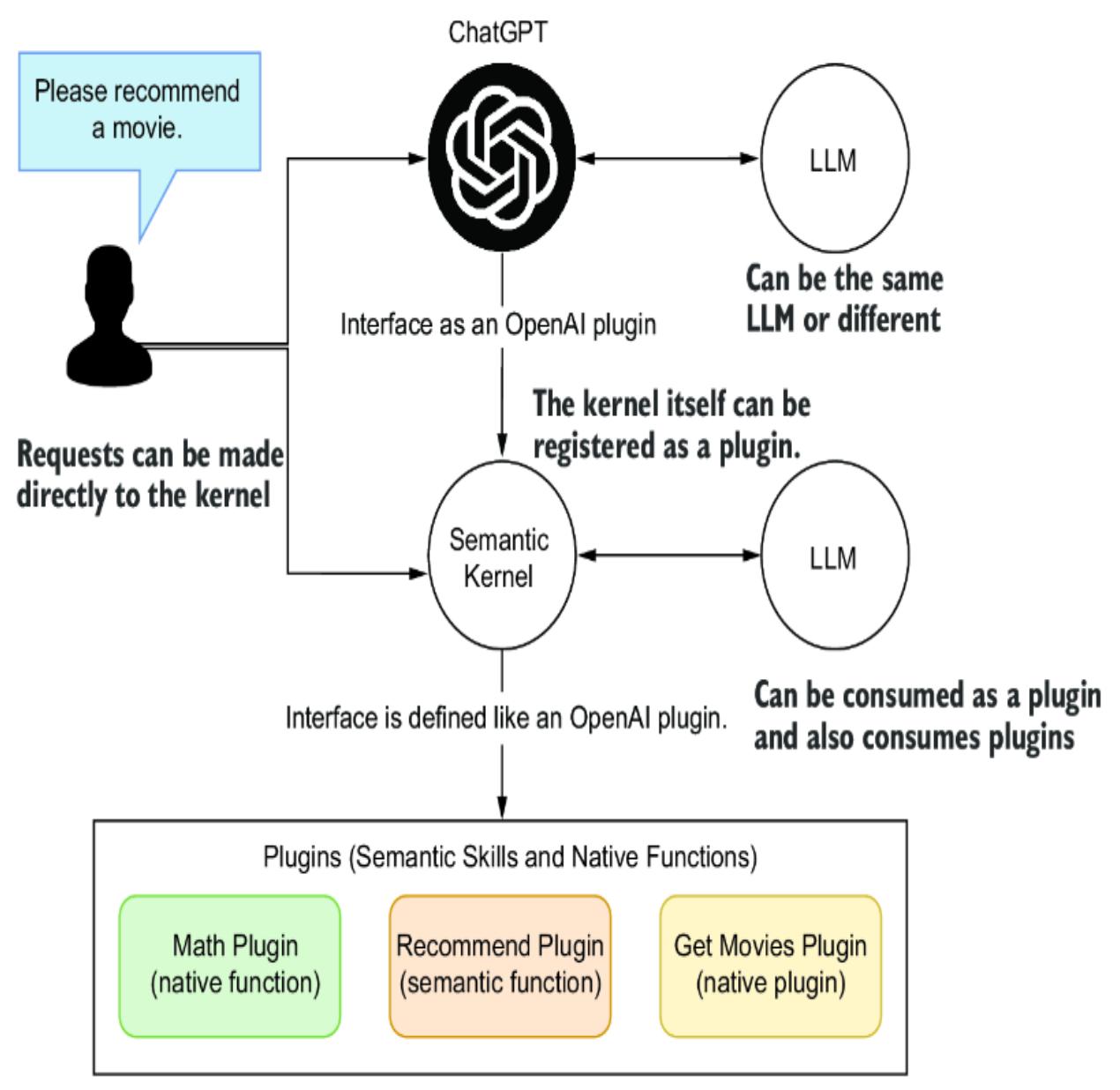
Figure 5.5 How the Semantic Kernel integrates as a plugin and can also consume plugins
An OpenAI plugin definition maps precisely to the function definitions in listing 5.4. This means that SK is the orchestrator of API tool calls, aka plugins. That also means that SK can help organize multiple plugins with a chat interface or an agent.
Note The team at SK originally labeled the functional modules as skills. However, to be more consistent with OpenAI, they have since renamed skills to plugins. What is more confusing is that the code still uses the term skills. Therefore, throughout this chapter, we’ll use skills and plugins to mean the same thing.
SK is a useful tool for managing multiple plugins (actions for agents) and, as we’ll see later, can also assist with memory and planning tools. For this chapter, we’ll focus on the actions/plugins. In the next section, we look at how to get started using SK.
5.3.1 Getting started with SK semantic functions
SK is easy to install and works within Python, Java, and C#. This is excellent news as it also allows plugins developed in one language to be consumed in a different language. However, you can’t yet develop a native function in one language and use it in another.
We’ll continue from where we left off for the Python environment using the chapter_4 workspace in VS Code. Be sure you have a workspace configured if you want to explore and run any examples.
Listing 5.8 shows how to install SK from a terminal within VS Code. You can also install the SK extension for VS Code. The extension can be a helpful tool to create plugins/skills, but it isn’t required.
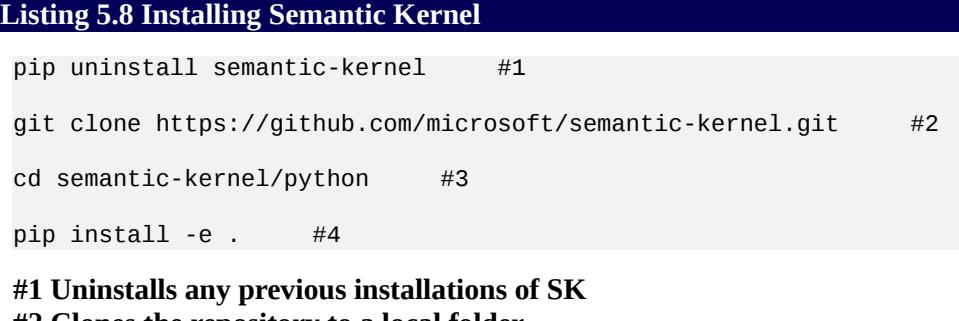
#2 Clones the repository to a local folder #3 Changes to the source folder #4 Installs the editable package from the source folder
Once you finish the installation, open SK_connecting.py in VS Code. Listing 5.9 shows a demo of running an example quickly through SK. The example creates a chat completion service using either OpenAI or Azure OpenAI.
Listing 5.9 SK_connecting.py
import semantic_kernel as sk
selected_service = "OpenAI" #1
kernel = sk.Kernel() #2
service_id = None
if selected_service == "OpenAI":
 from semantic_kernel.connectors.ai.open_ai import OpenAIChatCompletion
 api_key, org_id = sk.openai_settings_from_dot_env() #3
 service_id = "oai_chat_gpt"
 kernel.add_service(
 OpenAIChatCompletion(
 service_id=service_id,
 ai_model_id="gpt-3.5-turbo-1106",
 api_key=api_key,
 org_id=org_id,
 ),
 )
elif selected_service == "AzureOpenAI":
 from semantic_kernel.connectors.ai.open_ai import AzureChatCompletion
 deployment, api_key, endpoint =
↪ sk.azure_openai_settings_from_dot_env() #4
 service_id = "aoai_chat_completion"
 kernel.add_service(
 AzureChatCompletion(
 service_id=service_id,
 deployment_name=deployment,
 endpoint=endpoint,
 api_key=api_key,
 ),
 )
#This function is currently broken
async def run_prompt():
 result = await kernel.invoke_prompt(
 ↪ prompt="recommend a movie about
↪ time travel") #5
 print(result)
# Use asyncio.run to execute the async function
asyncio.run(run_prompt()) #6
###Output
One highly recommended time travel movie is "Back to the Future" (1985)
directed by Robert Zemeckis. This classic film follows the adventures of
teenager Marty McFly (Michael J. Fox)…
#1 Sets the service you're using (OpenAI or Azure OpenAI)
#2 Creates the kernel
#3 Loads secrets from the .env file and sets them on the chat service
#4 Loads secrets from the .env file and sets them on the chat service
#5 Invokes the prompt
#6 Calls the function asynchronously
Run the example by pressing F5 (debugging), and you should see an output similar to listing 5.9. This example demonstrates how a semantic function can be created with SK and executed. A semantic function is the equivalent of a prompt template in prompt flow, another Microsoft tool. In this example, we define a simple prompt as a function.
It’s important to note that this semantic function isn’t defined as a plugin. However, the kernel can create the function as a self-contained semantic element that can be executed against an LLM. Semantic functions can be used alone or registered as plugins, as you’ll see later. Let’s jump to the next section, where we introduce contextual variables.
5.3.2 Semantic functions and context variables
Expanding on the previous example, we can look at adding contextual variables to the semantic function. This pattern of adding placeholders to prompt templates is one we’ll review over and over. In this example, we look at a prompt template that has placeholders for subject, genre, format, and custom.
Open SK_context_variables.py in VS Code, as shown in the next listing. The prompt is equivalent to setting aside a system and user section of the prompt.
Listing 5.10 SK_context_variables.py
#top section omitted…
prompt = """ #1
system:
You have vast knowledge of everything and can recommend anything provided
you are given the following criteria, the subject, genre, format and any
other custom information.
user:
Please recommend a {{$format}} with the subject {{$subject}} and {{$genre}}.
Include the following custom information: {{$custom}}
"""
prompt_template_config = sk.PromptTemplateConfig( #2
 template=prompt,
 name="tldr",
 template_format="semantic-kernel",
 input_variables=[
 InputVariable(
 name="format",
 description="The format to recommend",
 is_required=True
 ),
 InputVariable(
 name="suject",
 description="The subject to recommend",
 is_required=True
 ),
 InputVariable(
 name="genre",
 description="The genre to recommend",
 is_required=True
 ),
 InputVariable(
 name="custom",
 description="Any custom information [CA]
 to enhance the recommendation",
 is_required=True,
 ),
 ],
 execution_settings=execution_settings,
)
recommend_function = kernel.create_function_from_prompt( #3
 prompt_template_config=prompt_template_config,
 function_name="Recommend_Movies",
 plugin_name="Recommendation",
)
async def run_recommendation( #4
 subject="time travel",
 format="movie",
 genre="medieval",
 custom="must be a comedy"
):
 recommendation = await kernel.invoke(
 recommend_function,
 sk.KernelArguments(subject=subject,
 format=format,
                  genre=genre,
custom=custom), #5
)
print(recommendation)
# Use asyncio.run to execute the async function
asyncio.run(run_recommendation()) #5
###Output
One movie that fits the criteria of being about time travel, set in a
medieval period, and being a comedy is "The Visitors" (Les Visiteurs)
from 1993. This French film, directed by Jean-Marie Poiré, follows a
knight and his squire who are transported to the modern era by a
wizard's spell gone wrong.…
#1 Defines a prompt with placeholders
#2 Configures a prompt template and input variable definitions#3 Creates a kernel function from the prompt
#4 Creates an asynchronous function to wrap the function call
#5 Sets the kernel function arguments
Go ahead and debug this example (F5), and wait for the output to be generated. That is the basis for setting up SK and creating and exercising semantic functions. In the next section, we move on to see how a semantic function can be registered as a skill/plugin.
5.4 Synergizing semantic and native functions
Semantic functions encapsulate a prompt/profile and execute through interaction with an LLM. Native functions are the encapsulation of code that may perform anything from scraping websites to searching the web. Both semantic and native functions can register as plugins/skills in the SK kernel.
A function, semantic or native, can be registered as a plugin and used the same way we registered the earlier function directly with our API calls. When a function is registered as a plugin, it becomes accessible to chat or agent interfaces, depending on the use case. The next section looks at how a semantic function is created and registered with the kernel.
5.4.1 Creating and registering a semantic skill/plugin
The VS Code extension for SK provides helpful tools for creating plugins/skills. In this section, we’ll use the SK extension to create a plugin/skill and then edit the components of that extension. After that, we’ll register and execute the plugin in the SK.
Figure 5.6 shows the process for creating a new skill within VS Code using the SK extension. (Refer to appendix B for directions if you need to install this extension.) You’ll then be given the option for the skill/plugin folder to place the function. Always group functions that are similar together. After creating a skill, enter the name and description of the function you want to develop. Be sure to describe the function as if the LLM were going to use it.
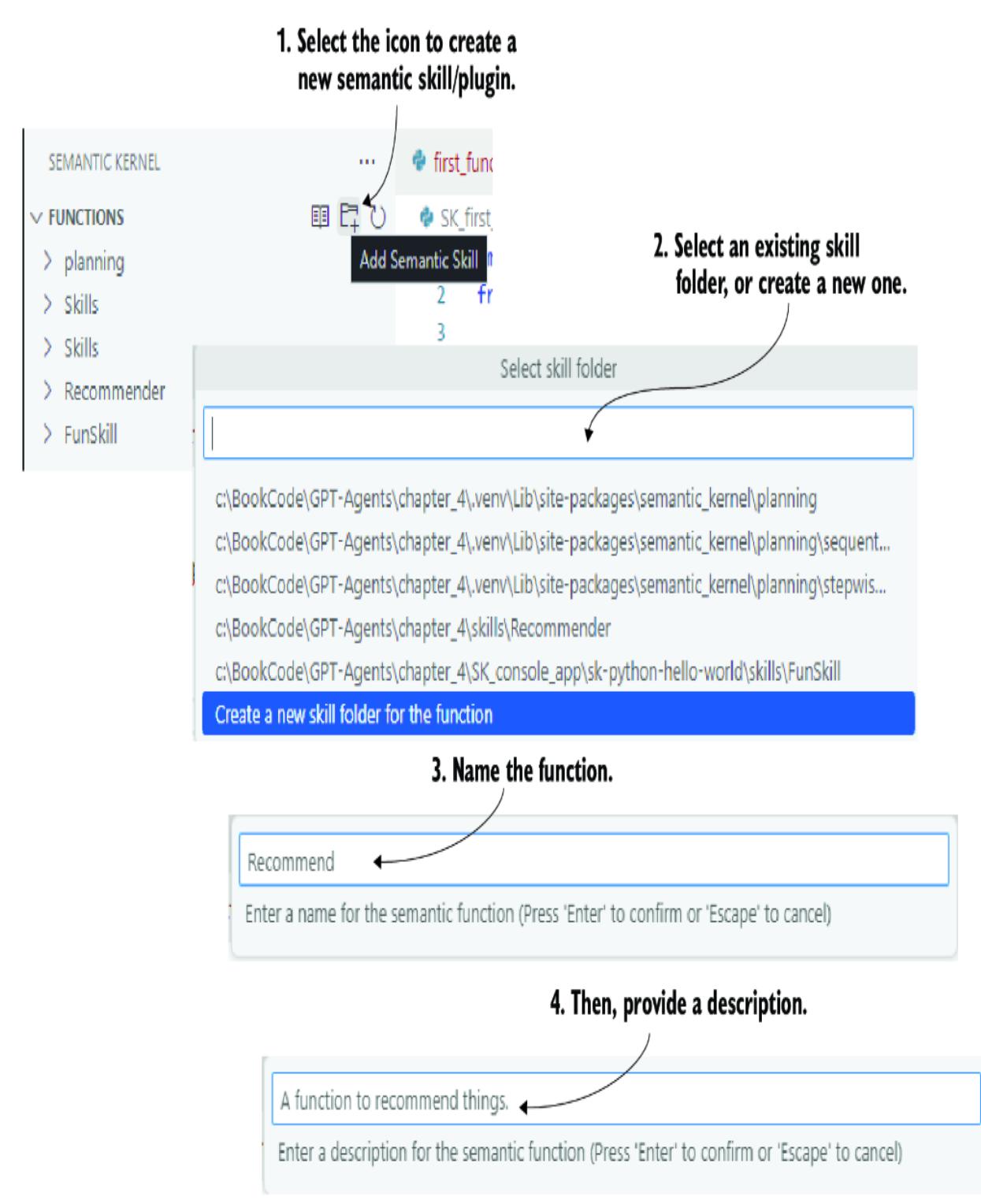
Figure 5.6 The process of creating a new skill/plugin
You can see the completed skills and functions by opening the skills/plugin folder and reviewing the files. We’ll follow the previously constructed example, so open the
skills/Recommender/Recommend_Movies folder, as shown in figure 5.7. Inside this folder is a config.json file, the function description, and the semantic function/prompt in a file called skprompt.txt.
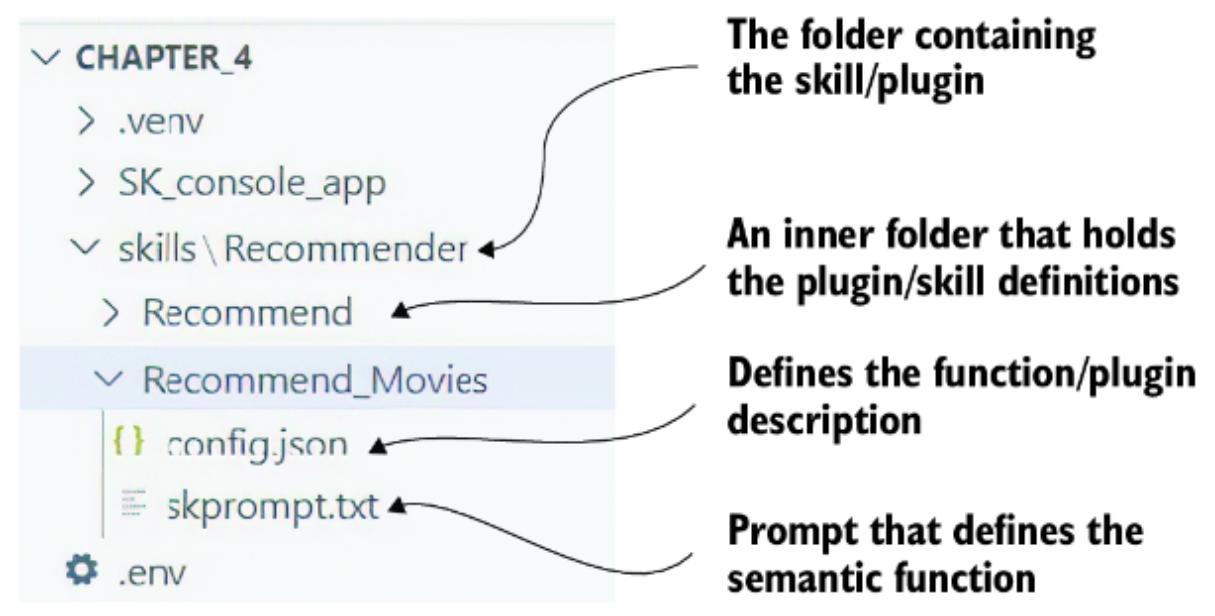
Figure 5.7 The file and folder structure of a semantic function skill/plugin
Listing 5.11 shows the contents of the semantic function definition, also known as the plugin definition. Note that the type is marked as completion and not of type function because this is a semantic function. We would define a native function as a type function.
Listing 5.11 Recommend_Movies/config.json
{
 "schema": 1,
 "type": "completion", #1
 "description": "A function to recommend movies based on users list of
previously seen movies.",
 "completion": { #2
 "max_tokens": 256,
 "temperature": 0,
 "top_p": 0,
 "presence_penalty": 0,
 "frequency_penalty": 0
 },
 "input": {
 "parameters": [
 {
 "name": "input", #3
 "description": "The users list of previously seen movies.",
 "defaultValue": ""
 }
 ]
 },
 "default_backends": []
}
#1 Semantic functions are functions of type completion. #2 We can also set the completion parameters for how the function is called. #3 Defines the parameters input into the semantic function
Next, we can look at the definition of the semantic function prompt, as shown in listing 5.12. The format is a little different, but what we see here matches the earlier examples using templating. This prompt recommends movies based on a list of movies the user has previously seen.
Listing 5.12 Recommend_Movies/skprompt.txt
You are a wise movie recommender and you have been asked to recommend a movie to a user. You are provided a list of movies that the user has watched before. You want to recommend a movie that the user has not watched before. [INPUT] {{$input}} [END INPUT]
Now, we’ll dive into the code that loads the skill/plugin and executes it in a simple example. Open the SK_first_skill.py file in VS Code. The following listing shows an abridged version highlighting the new sections.
Listing 5.13 SK_first_skill.py (abridged listing)kernel = sk.Kernel()
plugins_directory = "plugins"
recommender = kernel.import_plugin_from_prompt_directory(
plugins_directory,
"Recommender",
) #1
recommend = recommender["Recommend_Movies"]
seen_movie_list = [ #2
"Back to the Future",
"The Terminator",
"12 Monkeys",
"Looper",
"Groundhog Day",
"Primer",
"Donnie Darko",
"Interstellar",
"Time Bandits",
"Doctor Strange",
]
async def run():
result = await kernel.invoke(
recommend,
sk.KernelArguments( #3
settings=execution_settings, input=", ".join(seen_movie_list)
),
)
print(result)
asyncio.run(run()) #4
###Output
Based on the list of movies you've provided, it seems you have an
interest in science fiction, time travel, and mind-bending narratives.
Given that you've watched a mix of classics and modern films in this
genre, I would recommend the following movie that you have not watched
before:
"Edge of Tomorrow" (also known as "Live Die Repeat: Edge of Tomorrow")…
#1 Loads the prompt from the plugins folder
#2 List of user's previously seen movies
#3 Input is set to joined list of seen movies.#4 Function is executed asynchronously.
The code loads the skill/plugin from the skills directory and the plugin folder. When a skill is loaded into the kernel and not just created, it becomes a registered plugin. That means it can be executed directly as is done here or through an LLM chat conversation via the plugin interface.
Run the code (F5), and you should see an output like listing 5.13. We now have a simple semantic function that can be hosted as a plugin. However, this function requires users to input a complete list of movies they have watched. We’ll look at a means to fix this by introducing native functions in the next section.
5.4.2 Applying native functions
As stated, native functions are code that can do anything. In the following example, we’ll introduce a native function to assist the semantic function we built earlier.
This native function will load a list of movies the user has previously seen, from a file. While this function introduces the concept of memory, we’ll defer that discussion until chapter 8. Consider this new native function as any code that could virtually do anything.
Native functions can be created and registered using the SK extension. For this example, we’ll create a native function directly in code to make the example easier to follow.
Open SK_native_functions.py in VS Code. We’ll start by looking at how the native function is defined. A native function is typically defined within a class, which simplifies managing and instantiating native functions.
Listing 5.14 SK_native_functions.py (MySeenMovieDatabase)
class MySeenMoviesDatabase:
 """
 Description: Manages the list of users seen movies. #1
 """
 @kernel_function( #2
 description="Loads a list of movies … user has already seen",
 name="LoadSeenMovies",
 )
 def load_seen_movies(self) -> str: #3
 try:
 with open("seen_movies.txt", 'r') as file: #4
 lines = [line.strip() for line in file.readlines()]
 comma_separated_string = ', '.join(lines)
 return comma_separated_string
 except Exception as e:
 print(f"Error reading file: {e}")
 return None
#1 Provides a description for the container class #2 Uses a decorator to provide function description and name #3 The actual function returns a list of movies in a comma-separated string. #4 Loads seen movies from the text file
With the native function defined, we can see how it’s used by scrolling down in the file, as shown in the following listing.
Listing 5.15 SK_native_functions (remaining code)plugins_directory = "plugins"
recommender = kernel.import_plugin_from_prompt_directory(
plugins_directory,
"Recommender",
) #1
recommend = recommender["Recommend_Movies"]
seen_movies_plugin = kernel.import_plugin_from_object(
MySeenMoviesDatabase(), "SeenMoviesPlugin"
) #2
load_seen_movies = seen_movies_plugin["LoadSeenMovies"] #3
async def show_seen_movies():
seen_movie_list = await load_seen_movies(kernel)
return seen_movie_list
seen_movie_list = asyncio.run(show_seen_movies()) #4
print(seen_movie_list)
async def run(): #5
result = await kernel.invoke(
recommend,
sk.KernelArguments(
settings=execution_settings,
input=seen_movie_list),
)
print(result)
asyncio.run(run()) #5
###Output
The Matrix, The Matrix Reloaded, The Matrix Revolutions, The Matrix
Resurrections – output from print statement
Based on your interest in the "The Matrix" series, it seems you enjoy
science fiction films with a strong philosophical undertone and action
elements. Given that you've watched all
#1 Loads the semantic function as shown previously
#2 Imports the skill into the kernel and registers the function as a plugin
#3 Loads the native function#4 Executes the function and returns the list as a string
#5 Wraps the plugin call in an asynchronous function and executes
One important aspect to note is how the native function was imported into the kernel. The act of importing to the kernel registers that function as a plugin/skill. This means the function can be used as a skill from the kernel through other conversations or interactions. We’ll see how to embed a native function within a semantic function in the next section.
5.4.3 Embedding native functions within semantic functions
There are plenty of powerful features within SK, but one beneficial feature is the ability to embed native or semantic functions within other semantic functions. The following listing shows how a native function can be embedded within a semantic function.
Listing 5.16 SK_semantic_native_functions.py (skprompt)
sk_prompt = ““” You are a wise movie recommender and you have been asked to recommend a movie to a user. You have a list of movies that the user has watched before. You want to recommend a movie that the user has not watched before. #1 Movie List: {{MySeenMoviesDatabase.LoadSeenMovies}}. #2 ““”
#1 The exact instruction text as previous #2 The native function is referenced and identified by class name and function name.
The next example, SK_semantic_native_functions.py, uses inline native and semantic functions. Open the file in VS Code, and the following listing shows the code to create, register, and execute the functions.
Listing 5.17 SK_semantic_native_functions.py (abridged)prompt_template_config = sk.PromptTemplateConfig(
template=sk_prompt,
name="tldr",
template_format="semantic-kernel",
execution_settings=execution_settings,
) #1
recommend_function = kernel.create_function_from_prompt(
prompt_template_config=prompt_template_config,
function_name="Recommend_Movies",
plugin_name="Recommendation",
) #2
async def run_recommendation(): #3
recommendation = await kernel.invoke(
recommend_function,
sk.KernelArguments(),
)
print(recommendation)
# Use asyncio.run to execute the async function
asyncio.run(run_recommendation())
###Output
Based on the list provided, it seems the user is a fan of the Matrix
franchise. Since they have watched all four existing Matrix movies, I
would recommend a…#1 Creates the prompt template config for the prompt
#2 Creates an inline semantic function from the prompt
#3 Executes the semantic function asynchronouslyRun the code, and you should see an output like listing 5.17. One important aspect to note is that the native function is registered with the kernel, but the semantic function is not. This is important because function creation doesn’t register a function.
For this example to work correctly, the native function must be registered with the kernel, which uses the import_plugin function call—the first line in listing 5.17. However, the semantic function itself isn’t registered. An easy way to register the function is to make it a plugin and import it.
These simple exercises showcase ways to integrate plugins and skills into chat or agent interfaces. In the next section, we’ll look at a complete example demonstrating adding a plugin representing a service or GPT interface to a chat function.
5.5 Semantic Kernel as an interactive service agent
In chapter 1, we introduced the concept of the GPT interface—a new paradigm in connecting services and other components to LLMs via plugins and semantic layers. SK provides an excellent abstraction for converting any service to a GPT interface.
Figure 5.8 shows a GPT interface constructed around an API service called The Movie Database (TMDB; www.themoviedb.org). The TMDB site provides a free API that exposes information about movies and TV shows.
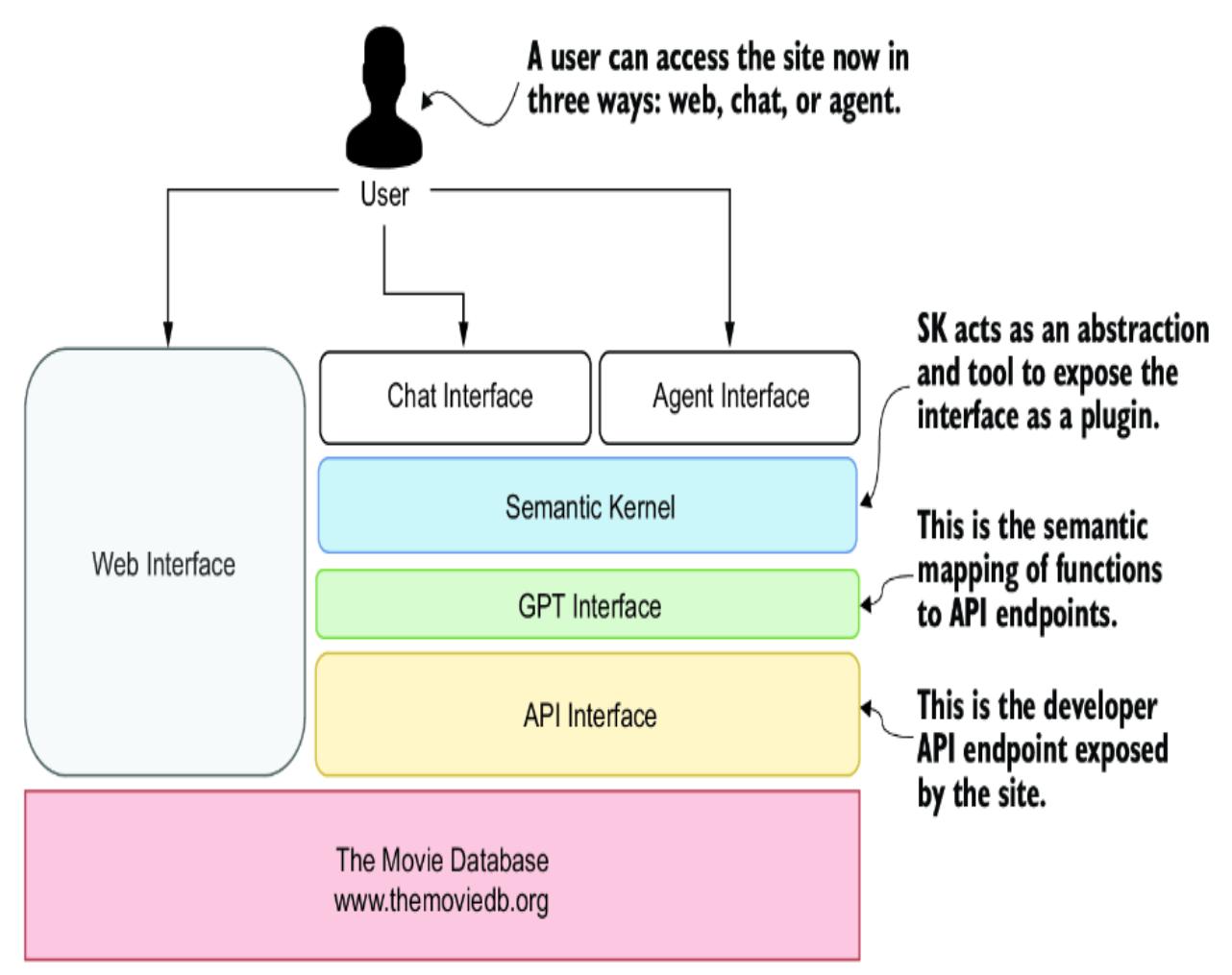
Figure 5.8 This layer architecture diagram shows the role of a GPT interface and the Semantic Kernel being exposed to chat or agent interfaces.
To follow along with the exercises in this section, you must register for a free account from TMDB and create an API key. Instructions for getting an API key can be found at the TMDB website (www.themoviedb.org) or by asking a GPT-4 turbo or a more recent LLM.
Over the next set of subsections, we’ll create a GPT interface using an SK set of native functions. Then, we’ll use the SK kernel to test the interface and, later in this chapter, implement it as plugins into a chat function. In the next section, we look at building a GPT interface against the TMDB API.
5.5.1 Building a semantic GPT interface
TMDB is an excellent service, but it provides no semantic services or services that can be plugged into ChatGPT or an agent. To do that, we must wrap the API calls that TMDB exposes in a semantic service layer.
A semantic service layer is a GPT interface that exposes functions through natural language. As discussed, to expose functions to ChatGPT or other interfaces such as agents, they must be defined as plugins. Fortunately, SK can create the plugins for us automatically, given that we write our semantic service layer correctly.
A native plugin or set of skills can act as a semantic layer. To create a native plugin, create a new plugin folder, and put a Python file holding a class containing the set of native functions inside that folder. The SK extension currently doesn’t do this well, so manually creating the module works best.
Figure 5.9 shows the structure of the new plugin called Movies and the semantic service layer called tmdb.py. For native functions, the parent folder’s name (Movies) is used in the import.
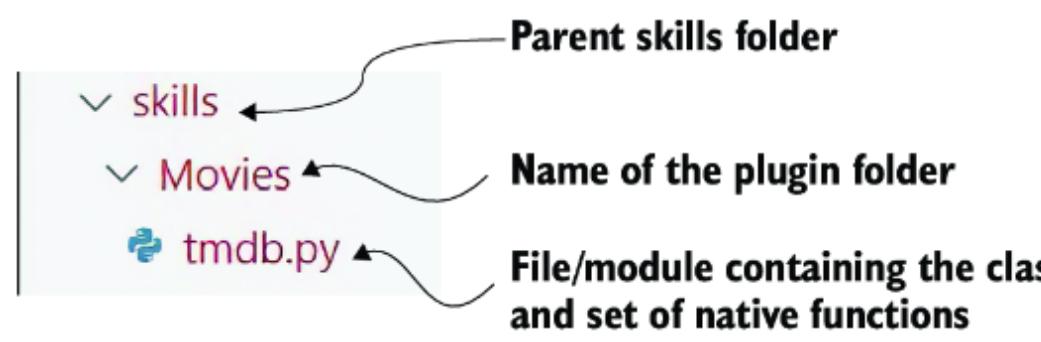
Figure 5.9 The folder and file structure of the TMDB plugin
Open the tmdb.py file in VS Code, and look at the top of the file, as shown in listing 5.18. This file contains a class called TMDbService, which exposes several functions that map to API endpoint calls. The idea is to map the various relevant API function calls in this semantic service layer. This will expose the functions as plugins for a chat or agent interface.
Listing 5.18 tmdb.py (top of file)
from semantic_kernel.functions import kernel_funct
import requests
import inspect
def print_function_call(): #1
 #omitted …
class TMDbService: #2
 def __init__(self):
 # enter your TMDb API key here
 self.api_key = "your-TMDb-api-key"
 @kernel_function( #2
 description="Gets the movie genre ID for a given genre name",
 name="get_movie_genre_id",
 input_description="The movie genre name of the genre_id to get",
 )
 def get_movie_genre_id(self, genre_name: str) -> str: #3
 print_function_call()
 base_url = "https://api.themoviedb.org/3"
 endpoint = f"{base_url}/genre/movie/list↪
 ↪ ?api_key={self.api_key}&language=en-US"
 response = requests.get(endpoint) #4
 if response.status_code == 200: #4
 genres = response.json()['genres']
 for genre in genres:
 if genre_name.lower() in genre['name'].lower():
 return str(genre['id']) #5
 return None
#1 Prints the calls to the functions for debugging #2 Top-level service and decorator used to describe the function (good descriptions are important)
#3 Function wrapped in semantic wrapper; should return str#4 Calls the API endpoint, and, if good (code 200), checks for matching genre #5 Found the genre, returns the id
The bulk of the code for the TMDbService and the functions to call the TMDB endpoints was written with the help of GPT-4 Turbo. Then, each function was wrapped with the sk_function decorator to expose it semantically.
A few of the TMDB API calls have been mapped semantically. Listing 5.19 shows another example of a function exposed to the semantic service layer. This function pulls a current top 10 list of movies playing for a particular genre.
Listing 5.19 tmdb.py (get_top_movies_by_genre)
@kernel_function( #1
 description="""
Gets a list of currently playing movies for a given genre""",
 name="get_top_movies_by_genre",
 input_description="The genre of the movies to get",
 )
 def get_top_movies_by_genre(self, genre: str) -> str:
 print_function_call()
 genre_id = self.get_movie_genre_id(genre) #2
 if genre_id:
 base_url = "https://api.themoviedb.org/3
 playing_movies_endpoint = f"{base_url}/movie/now_playing?↪
↪ api_key={self.api_key}&language=en-US"
 response = requests.get(
 playing_movies_endpoint) #3
 if response.status_code != 200:
 return ""
 playing_movies = response.json()['results'
 for movie in playing_movies: #4
 movie['genre_ids'] = [str(genre_id)
 ↪ for genre_id in movie['genre_ids']]
 filtered_movies = [movie for movie ↪
↪ in playing_movies if genre_id ↪
↪ in movie['genre_ids']][:10] #5
 results = ", ".join([movie['title'] for movie in filtered_movies])
 return results
 else:
 return ""
#1 Decorates the function with descriptions #2 Finds the genre id for the given genre name #3 Gets a list of currently playing movies #4 Converts genre_ids to strings #5 Checks to see if the genre id matches movie genres
Look through the various other API calls mapped semantically. As you can see, there is a well-defined pattern for converting API calls to a semantic service. Before we run the full service, we’ll test each of the functions in the next section.
5.5.2 Testing semantic services
In a real-world application, you’ll likely want to write a complete set of unit or integration tests for each semantic service function. We won’t do that here; instead, we’ll write a quick helper script to test the various functions.
Open test_tmdb_service.py in VS Code, and review the code, as shown in listing 5.20. You can comment and uncomment any functions to test them in isolation. Be sure to have only one function uncommented at a time.
Listing 5.20 test_tmdb_service.py
import semantic_kernel as sk
from plugins.Movies.tmdb import TMDbService
async def main():
 kernel = sk.Kernel() #1
 tmdb_service = kernel.import_plugin_from_object ↪
↪ (TMDbService(), "TMDBService") #2
 print(
 await tmdb_service["get_movie_genre_id"](
 kernel, sk.KernelArguments(
 genre_name="action") #3
 )
 ) #4
 print(
 await tmdb_service["get_tv_show_genre_id"](
 kernel, sk.KernelArguments(
 genre_name="action") #5
 )
 ) #6
 print(
 await tmdb_service["get_top_movies_by_genre"](
 kernel, sk.KernelArguments(
 genre_name="action") #7
 )
 ) #8
 print(
 await tmdb_service["get_top_tv_shows_by_genre"](
 kernel, sk.KernelArguments(
 genre_name="action") #7
 )
 )
 print(await tmdb_service["get_movie_genres"](
kernel, sk.KernelArguments())) #9
 print(await tmdb_service["get_tv_show_genres"](
kernel, sk.KernelArguments())) #9
# Run the main function
if __name__ == "__main__":
 import asyncio
 asyncio.run(main()) #10
###Output
Function name: get_top_tv_shows_by_genre #11
Arguments:
 self = <skills.Movies.tmdb.TMDbService object at 0x00000159F52090C0>
 genre = action
Function name: get_tv_show_genre_id #11
Arguments:
 self = <skills.Movies.tmdb.TMDbService object at 0x00000159F52090C0>
 genre_name = action
Arcane, One Piece, Rick and Morty, Avatar: The Last Airbender, Fullmetal
Alchemist: Brotherhood, Demon Slayer: Kimetsu no Yaiba, Invincible,
Attack on Titan, My Hero Academia, Fighting Spirit, The Owl House
#1 Instantiates the kernel #2 Imports the plugin service #3 Inputs parameter to functions, when needed #4 Executes and tests the various functions #5 Inputs parameter to functions, when needed #6 Executes and tests the various functions #7 Inputs parameter to functions, when needed #8 Executes and tests the various functions #9 Executes and tests the various functions #10 Executes main asynchronously #11 Calls print function details to notify when the function is being called
The real power of SK is shown in this test. Notice how the TMDbService class is imported as a plugin, but we don’t have to define any plugin configurations other than what we already did? By just writing one class that wrapped a few API functions, we’ve exposed part of the TMDB API semantically. Now, with the functions exposed, we can look at how they can be used as plugins for a chat interface in the next section.
5.5.3 Interactive chat with the semantic service layer
With the TMDB functions exposed semantically, we can move on to integrating them into a chat interface. This will allow us to converse naturally in this interface to get various information, such as current top movies.
Open SK_service_chat.py in VS Code. Scroll down to the start of the new section of code that creates the functions, as shown in listing 5.21. The functions created here are now exposed as plugins, except we filter out the chat function, which we don’t want to expose as a plugin. The chat function here allows the user to converse directly with the LLM and shouldn’t be a plugin.
Listing 5.21 SK_service_chat.py (function setup)
system_message = "You are a helpful AI assistant."
tmdb_service = kernel.import_plugin_from_object(
TMDbService(), "TMDBService") #1
# extracted section of code
execution_settings = sk_oai.OpenAIChatPromptExecutionSettings(
 service_id=service_id,
 ai_model_id=model_id,
 max_tokens=2000,
 temperature=0.7,
 top_p=0.8,
 tool_choice="auto",
 tools=get_tool_call_object(
 kernel, {"exclude_plugin": ["ChatBot"]}), #2
 )
prompt_config = sk.PromptTemplateConfig.from_completion_parameters(
 max_tokens=2000,
 temperature=0.7,
 top_p=0.8,
 function_call="auto",
 chat_system_prompt=system_message,
) #3
prompt_template = OpenAIChatPromptTemplate(
 "{{$user_input}}", kernel.prompt_template_engine, prompt_config
) #4
history = ChatHistory()
history.add_system_message("You recommend movies and TV Shows.")
history.add_user_message("Hi there, who are you?")
history.add_assistant_message(
 "I am Rudy, the recommender chat bot. I'm trying to figure out what
people need."
) #5
chat_function = kernel.create_function_from_prompt(
 prompt_template_config=prompt_template,
 plugin_name="ChatBot",
 function_name="Chat",
) #6
#1 Imports the TMDbService as a plugin #2 Configures the execution settings and adds filtered tools #3 Configures the prompt configuration #4 Defines the input template and takes full strings as user input #5 Adds the chat history object and populates some history #6 Creates the chat function
Next, we can continue by scrolling in the same file to review the chat function, as shown in the following listing.
Listing 5.22 SK_service_chat.py (chat function)async def chat() -> bool:
try:
user_input = input("User:> ") #1
except KeyboardInterrupt:
print("\n\nExiting chat...")
return False
except EOFError:
print("\n\nExiting chat...")
return False
if user_input == "exit": #2
print("\n\nExiting chat...")
return False
arguments = sk.KernelArguments( #3
user_input=user_input,
history=("\n").join(
[f"{msg.role}: {msg.content}" for msg in history]),
)
result = await chat_completion_with_tool_call( #4
kernel=kernel,
arguments=arguments,
chat_plugin_name="ChatBot",
chat_function_name="Chat",
chat_history=history,
)
print(f"AI Agent:> {result}")
return True#1 Input is taken directly from the terminal/console. #2 If the user types exit, then exit the chat. #3 Creates arguments to pass to the function #4 Uses the utility function to call the function and execute the tool
Lastly, scroll down to the bottom of the file, and review the primary function. This is the code that calls the chat function in a loop.
Listing 5.23 SK_service_chat.py (main function)
async def main() -> None:
 chatting = True
 context = kernel.create_new_context()
 print("Welcome to your first AI Agent\ #1
\n Type 'exit' to exit.\
\n Ask to get a list of currently playing movies by genre."
 )
 while chatting: #2
 chatting, context = await chat(context) #3
if __name__ == "__main__":
 asyncio.run(main())
#1 Introduction to the user #2 Continues until chatting is False #3 Calls the chat function asynchronously Run the chat interface, run the file (F5), and then ask about movies or television shows of a particular genre. An example conversation session is shown in listing 5.24. This output shows how a request to list movies from two genres made the chat interface make multiple calls to the get_top_movie_by_genre function.
Listing 5.24 SK_service_chat.py (example conversation)#3 List of the top current action movies #4 List of the top current comedy movies
Welcome to your first AI Agent
 Type 'exit' to exit.
 Ask to get a list of currently playing movies by genre.
User:> Input: can you give me list of the current top playing movies for
the action and comedy genres?
Function name: get_top_movies_by_genre #1
Arguments:
 genre = action
Function name: get_movie_genre_id #2
Arguments:
 genre_name = action
Function name: get_top_movies_by_genre #1
Arguments:
 genre = comedy
Function name: get_movie_genre_id #2
Arguments:
 genre_name = comedy
Agent:> Here are the current top-playing movies
for the action and comedy genres:
**Action:** #3
1. The Hunger Games: The Ballad of Songbirds & Snakes
2. Rebel Moon - Part One: A Child of Fire
3. Aquaman and the Lost Kingdom
4. Silent Night
5. The Family Plan
6. Freelance
7. Migration
8. Sound of Freedom
9. Godzilla Minus One
**Comedy:** #4
1. The Family Plan
2. Wonka
3. Freelance
4. Saltburn
5. Chicken Run: Dawn of the Nugget
6. Trolls Band Together
7. There's Something in the Barn
8. Migration
Please note that some movies may overlap in both genres, such as
"The Family Plan" and "Freelance ."
#1 LLM makes two calls to get_top_movies_by_genre.
#2 Internal call to get the genre id
Be sure to explore the chat interface’s boundaries and what you can ask for from the TMDB service. For example, try asking for a list of genres for movies or television shows. This service is a good first try, but we can perhaps do better, as we’ll see in the next section.
5.6 Thinking semantically when writing semantic services
Now we’ve seen an excellent demonstration of converting an API into a semantic service interface. As it is, the functions return the titles of the top movies and television shows currently playing. However, by just returning the titles, we’re limiting the ability of the LLM to parse the results on its own.
Therefore, we’ll create a v2 version of TMDbService to correct this and return the results as JSON strings. Open the file tmdb_v2.py in VS Code, and scroll down to the get_top_movies_by_genre function.
Listing 5.25 tmdb_v2.py (get_top_movies_by_genre)
def get_top_movies_by_genre(self, genre: str) -> str:
 print_function_call()
 genre_id = self.get_movie_genre_id(genre)
 if genre_id:
 #same code …
 return json.dumps(filtered_movies) #1
 else:
 return ""
#1 Now returns a filtered list as a JSON string
Now open SK_service_chat.py in VS Code, and comment and uncomment the line shown in listing 5.26. This will then use version 2 of the TMDbService that outputs results as full JSON documents in a single string.
Listing 5.26 SK_service_chat.py (modifying imports)#from skills.Movies.tmdb import TMDbService #1
from skills.Movies.tmdb_v2 import TMDbService #2#1 Comment out this line.#2 Uncomment this line to use version 2 of the service.
Rerun the SK_service_chat.py file in VS Code, and alter your query slightly, as shown by the output in the following listing.
Listing 5.27 SK_service_chat.py (TMDb_v2 service output)
User:> get a list of currently playing movies for the action genre and only return movies about space #1 Agent:> To find currently playing action movies that are specifically about space, I will need to manually filter the provided list for those that have space-related themes in their overview. Here’s what fits that criteria from the list:
- **Rebel Moon - Part One: A Child of Fire** #2 - Release Date: 2023-12-15
- Overview: When a peaceful colony on the edge of the galaxy finds itself threatened by the armies of the tyrannical Regent Balisarius, they dispatch Kora, a young woman with a mysterious past, to seek out warriors from neighboring planets to help them take a stand.
This is the only movie from the provided list that clearly mentions a space-related theme in its overview. …
#1 New query asks to include an additional filter for space #2 The LLM calls the service and then reviews the returned results that match the filter.
Because the semantic service functions now return the complete movie listing in JSON, the LLM can apply additional filtering. This is the real power of semantic services, allowing you to process the data through the LLM. We won’t see this power by just returning a list of titles.
This last exercise demonstrated the change in mentality you need to make when writing semantic service layers. Generally, you’ll typically want to return as much information as possible. Returning more information takes advantage of the LLM abilities to filter, sort, and transform data independently. In the next chapter, we’ll explore building autonomous agents using behavior trees.
5.7 Exercises
Complete the following exercises to improve your knowledge of the material:
Exercise 1—Creating a Basic Plugin for Temperature Conversion
Objective —Familiarize yourself with creating a simple plugin for the OpenAI chat completions API.
Tasks:
- Develop a plugin that converts temperatures between Celsius and Fahrenheit.
- Test the plugin by integrating it into a simple OpenAI chat session where users can ask for temperature conversions.
- Exercise 2—Developing a Weather Information Plugin
Objective —Learn to create a plugin that performs a unique task.
Tasks:
- Create a plugin for the OpenAI chat completions API that fetches weather information from a public API.
- Ensure the plugin can handle user requests for current weather conditions in different cities.
- Exercise 3—Crafting a Creative Semantic Function
Objective —Explore the creation of semantic functions.
Tasks:
- Develop a semantic function that writes a poem or tells a children’s story based on user input.
- Test the function in a chat session to ensure it generates creative and coherent outputs.
- Exercise 4—Enhancing Semantic Functions with Native Functions
Objective —Understand how to combine semantic and native functions.
Tasks:
Create a semantic function that uses a native function to enhance its capabilities.
- For example, develop a semantic function that generates a meal plan and uses a native function to fetch nutritional information for the ingredients.
- Exercise 5—Wrapping an Existing Web API with Semantic Kernel
Objective —Learn to wrap existing web APIs as semantic service plugins.
Tasks:
- Use SK to wrap a news API and expose it as a semantic service plugin in a chat agent.
- Ensure the plugin can handle user requests for the latest news articles on various topics.
Summary
- Agent actions extend the capabilities of an agent system, such as ChatGPT. This includes the ability to add plugins to ChatGPT and LLMs to function as proxies for actions.
- OpenAI supports function definitions and plugins within an OpenAI API session. This includes adding function definitions to LLM API calls and understanding how these functions allow the LLM to perform additional actions.
- The Semantic Kernel (SK) is an open source project from Microsoft that can be used to build AI applications and agent systems. This includes the role of semantic plugins in defining native and semantic functions.
- Semantic functions encapsulate the prompt/profile template used to engage an LLM.
- Native functions encapsulate code that performs or executes an action using an API or other interface.
- Semantic functions can be combined with other semantic or native functions and layered within one another as execution stages.
- SK can be used to create a GPT interface over the top of API calls in a semantic service layer and expose them as chat or agent interface
plugins.
Semantic services represent the interaction between LLMs and plugins, as well as the practical implementation of these concepts in creating efficient AI agents.
6 Building autonomous assistants
This chapter covers
- Behavior trees for robotics and AI apps
- GPT Assistants Playground and creating assistants and actions
- Autonomous control of agentic behavior trees
- Simulating conversational multi-agent systems via agentic behavior trees
- Using back chaining to create behavior trees for complex systems
Now that we’ve covered how actions extend the power/capabilities of agents, we can look at how behavior trees can guide agentic systems. We’ll start by understanding the basics of behavior trees and how they control robotics and AI in games.
We’ll return to agentic actions and examine how actions can be implemented on the OpenAI Assistants platform using the GPT Assistants Playground project. From there, we’ll look at how to build an autonomous agentic behavior tree (ABT) using OpenAI assistants. Then, we’ll move on to understanding the need for controls and guardrails on autonomous agents and using control barrier functions.
In the final section of the chapter, we’ll examine the use of the AgentOps platform to monitor our autonomous behavior-driven agentic systems. This will be an exciting chapter with several challenges. Let’s begin by jumping into the next section, which introduces behavior trees.
6.1 Introducing behavior trees
Behavior trees are a long-established pattern used to control robotics and AI in games. Rodney A. Brooks first introduced the concept in his “A Robust Layered Control System for a Mobile Robot” paper in 1986. This laid the groundwork for a pattern that expanded on using the tree and node structure we have today.
If you’ve ever played a computer game with nonplayer characters (NPCs) or interacted with advanced robotic systems, you’ve witnessed behavior trees at work. Figure 6.1 shows a simple behavior tree. The tree represents all the primary nodes: selector or fallback nodes, sequence nodes, action nodes, and condition nodes.
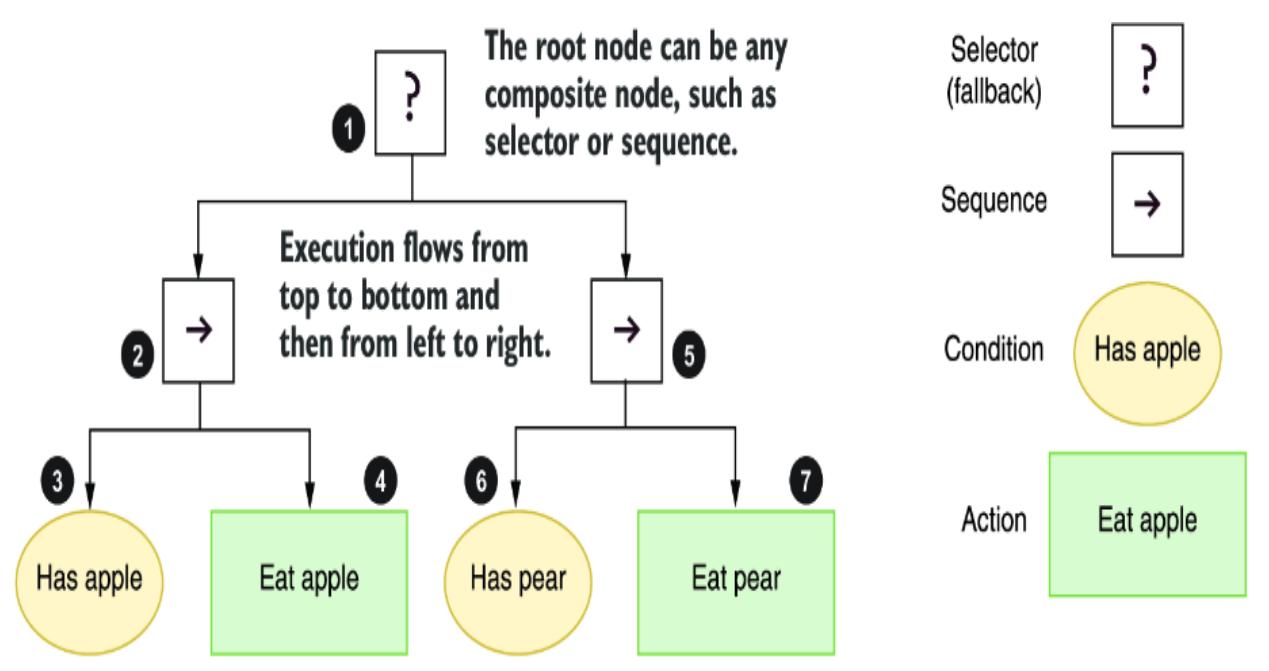
Figure 6.1 A simple behavior tree of eating an apple or a pear
Table 6.1 describes the functions and purpose of the primary nodes we’ll explore in this book. There are other nodes and node types, and you can even create custom nodes, but for now, we’ll focus on those in the table.
Table 6.1 The primary nodes used in behavior trees
| Node | Purpose | Function | Type |
|---|---|---|---|
| Selector (fallback) |
This node works by selecting the first child that completes successfully. It’s often called the fallback node because it will always fall back to the last successful node that executed. |
The node calls its children in sequence and stops executing when the first child succeeds. When a child node succeeds, it will return success; if no nodes succeed, it returns failure. |
Composite |
| Sequence | This node executes all of its children in sequence until one node fails or they all complete successfully. |
The node calls each of its children in sequence regardless of whether they fail or succeed. If all children succeed, it returns success, and failure if just one child fails. |
Composite |
| Condition | Behavior trees don’t use Boolean logic but rather success or failure as a means of control. The condition returns success if the condition is true and false otherwise. |
The node returns success or failure based on a condition. |
Task |
| Action | This is where the action happens. | The node executes and returns success if successful or returns failure otherwise. |
Task |
| Decorator | They work by controlling the execution of child nodes. They are often referred to as conditionals because they can determine whether a node is worth executing or safe to execute. |
The node controls execution of the child nodes. Decorators can operate as control barrier functions to block or prevent unwanted behaviors. |
Decorator |
| Parallel | This node executes all of its nodes in parallel. Success or failure is controlled by a threshold of the number of children needed to succeed to return success. |
The node executes all of its child nodes in sequence regardless of the status of the nodes. |
Composite |
The primary nodes in table 6.1 can provide enough functionality to handle numerous use cases. However, understanding behavior trees initially can be daunting. You won’t appreciate their underlying complexity until you start using them. Before we build some simple trees, we want to look at execution in more detail in the next section.
6.1.1 Understanding behavior tree execution
Understanding how behavior trees execute is crucial to designing and implementing behavior trees. Unlike most concepts in computer science, behavior trees operate in terms of success and failure. When a node in a behavior tree executes, it will return either success or failure; this even applies to conditions and selector nodes.
Behavior trees execute from top to bottom and left to right. Figure 6.2 shows the process and what happens if a node fails or succeeds. In the example, the AI the tree controls has an apple but no pear. In the first sequence node, a condition checks if the AI has an apple. Because the AI doesn’t have an apple, it aborts the sequence and falls back to the selector. The selector then selects its next child node, another sequence, that checks if the AI has a pear, and because it does, the AI eats the apple.
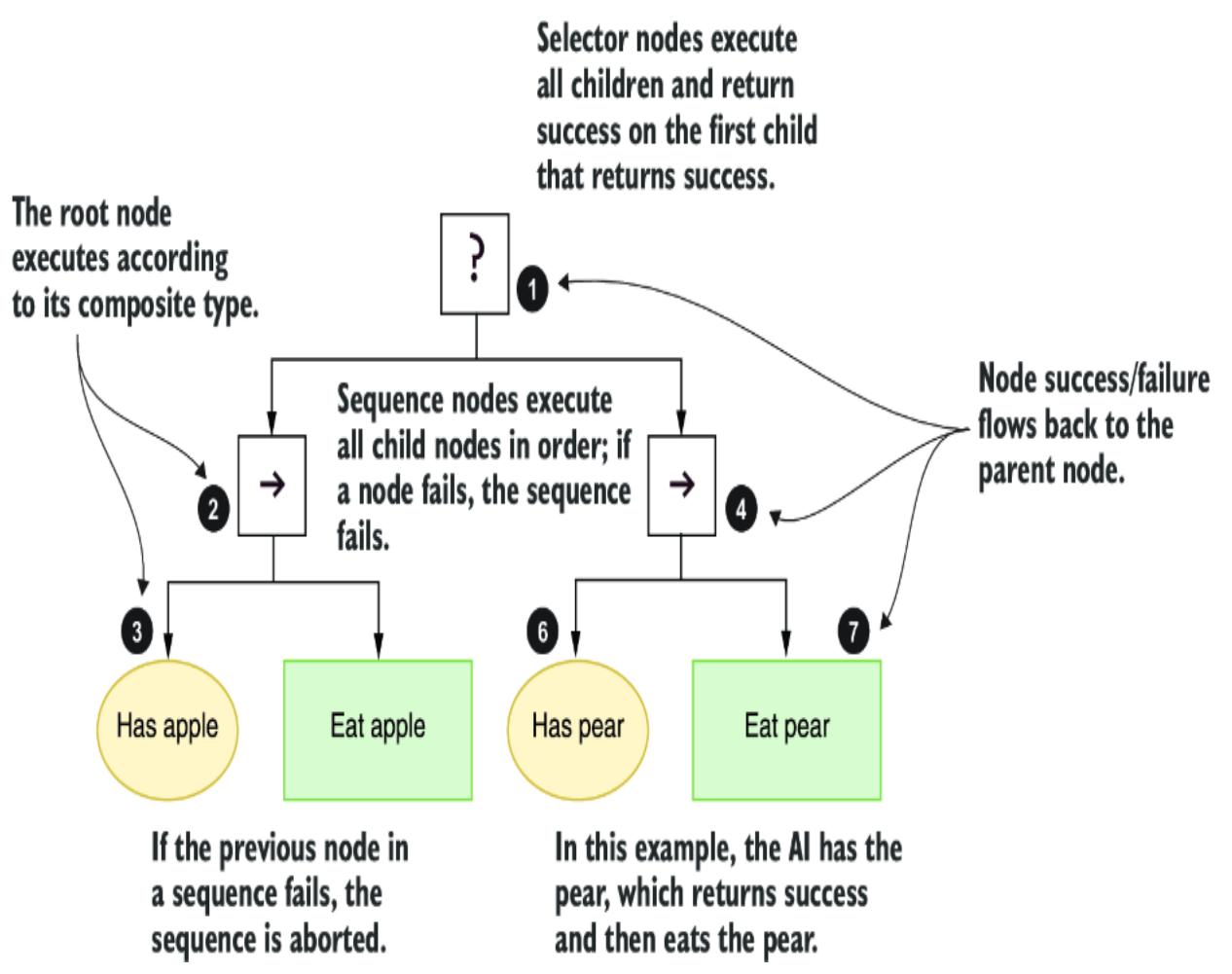
Figure 6.2 The execution process of a simple behavior tree
Behavior trees provide control over how an AI system will execute at a macro or micro level. Regarding robotics, behavior trees will typically be designed to operate at the micro level, where each action or condition is a small event, such as detecting the apple. Conversely, behavior trees can also control more macro systems, such as NPCs in games, where each action may be a combination of events, like attacking the player.
For agentic systems, behavior trees support controlling an agent or assistant at your chosen level. We’ll explore controlling agents at the task and, in later chapters, the planning levels. After all, with the power of LLMs, agents can construct their own behavior tree.
Of course, several other forms of AI control could be used to control agentic systems. The next section will examine those different systems and compare them to behavior trees.
6.1.2 Deciding on behavior trees
Numerous other AI control systems have benefits and are worth exploring in controlling agentic systems. They can demonstrate the benefits of behavior trees and provide other options for specific use cases. The behavior tree is an excellent pattern, but it isn’t the only one, and it’s worth learning about others.
Table 6.2 highlights several other systems we may consider for controlling AI systems. Each item in the table describes what the method does, its shortcomings, and its possible application to agentic AI control.
Table 6.2 Comparison of other AI control systems
| Control name |
Description | Shortcomings | Control agentic AI? |
|---|---|---|---|
| Finite state machine a (FSM) |
FSMs model AI using a set of states and transitions triggered by events or conditions. |
FSMs can become unwieldy with increasing complexity. |
FSMs aren’t practical for agents because they don’t scale well. |
| Decision tree b |
Decision trees use a tree like model of decisions and their possible consequences. |
Decision trees can suffer from overfitting and lack generalization in complex scenarios. |
Decision trees can be adapted and enhanced with behavior trees. |
| Utility-based system b |
Utility functions evaluate and select the best action based on the current situation. |
These systems require careful design of utility functions to balance priorities. |
This pattern can be adopted within a behavior tree. |
| Rule-based system a |
This set of if-then rules define the behavior of the AI. |
These systems can become cumbersome with many rules, leading to potential conflicts. |
These aren’t very practical when paired with agentic systems powered by LLMs. |
| Planning system c |
Planning systems generate a sequence of actions to achieve a specific goal using planning algorithms. |
These systems are computationally expensive and require significant domain knowledge. |
Agents can already implement such patterns on their own as we’ll see in later chapters. |
| Behavioral cloning c |
Behavioral cloning refers to learning policies by mimicking expert demonstrations. |
This system may struggle with generalization to unseen situations. |
This can be incorporated into behavior trees or into a specific task. |
| Hierarchical Task Network (HTN) d |
HTNs decompose tasks into smaller, manageable subtasks arranged in a hierarchy. |
These are complex to manage and design for very large tasks. |
HTNs allow for better organization and execution of complex tasks. This pattern can be used for larger agentic systems. |
| Blackboard system b |
These systems feature collaborative problem solving using a shared blackboard for different subsystems. |
These systems are difficult to implement and manage communication between subsystems. |
Agentic systems can implement similar patterns using conversation or group chats/threads. |
| Genetic algorithm (GA) d |
These optimization techniques are inspired by natural selection to evolve solutions to solve problems. |
GAs are computationally intensive and may not always find the optimal solution. |
GAs have potential and could even be used to optimize behavior trees. |
| Control name |
Description | Shortcomings | Control agentic AI? |
|---|---|---|---|
| a Not practical when considering complex agentic systems b Exists in behavior trees or can easily be incorporated |
|||
| c Typically applied at the task or action/condition level |
|||
| d Advanced systems that would require heavy lifting when applied to agents |
In later chapters of this book, we’ll investigate some of the patterns discussed in table 6.2. Overall, several patterns can be enhanced or incorporated using behavior trees as the base. While other patterns, such as FSMs, may be helpful for small experiments, they lack the scalability of behavior trees.
Behavior trees can provide several benefits as an AI control system, including scalability. The following list highlights other notable benefits of using behavior trees:
- Modularity and reusability—Behavior trees promote a modular approach to designing behaviors, allowing developers to create reusable components. Nodes in a behavior tree can be easily reused across different parts of the tree or even in different projects, enhancing maintainability and reducing development time.
- Scalability—As systems grow in complexity, behavior trees handle the addition of new behaviors more gracefully than other methods, such as FSMs. Behavior trees allow for the hierarchical organization of tasks, making it easier to manage and understand large behavior sets.
- Flexibility and extensibility—Behavior trees offer a flexible framework where new nodes (actions, conditions, decorators) can be added without drastically altering the existing structure. This extensibility makes it straightforward to introduce new behaviors or modify existing ones to adapt to new requirements.
- Debugging and visualization—Behavior trees provide a clear and intuitive visual representation of behaviors, which is beneficial for debugging and understanding the decision-making process. Tools that support behavior trees often include graphical editors that allow developers to visualize and debug the tree structure, making it easier to identify and fix problems.
Decoupling of decision logic—Behavior trees separate the decisionmaking and execution logic, promoting a clear distinction between high-level strategy and low-level actions. This decoupling simplifies the design and allows for more straightforward modifications and testing of specific behavior parts without affecting the entire system.
Having made a strong case for behavior trees, we should now consider how to implement them in code. In the next section, we look at how to build a simple behavior tree, using Python code.
6.1.3 Running behavior trees with Python and py_trees
Because behavior trees have been around for so long and have been incorporated into many technologies, creating a sample demonstration is very simple. Of course, the easiest way is to ask ChatGPT or your favorite AI chat tool. Listing 6.1 shows the result of using a prompt to generate the code sample and submitting figure 6.1 as the example tree. The final code had to be corrected for simple naming and parameter errors.
Note All the code for this chapter can be found by downloading the GPT Assistants Playground project at https://mng.bz/Ea0q.
Listing 6.1 first_btree.py
import py_trees
class HasApple(py_trees.behaviour.Behaviour): #1
 def __init__(self, name):
 super(HasApple, self).__init__(name)
 def update(self):
 if True:
 return py_trees.common.Status.SUCCESS
 else:
 return py_trees.common.Status.FAILURE
# Other classes omitted…
has_apple = HasApple(name="Has apple") #2
eat_apple = EatApple(name="Eat apple") #2
sequence_1 = py_trees.composites.Sequence(name="Sequence 1", memory=True)
sequence_1.add_children([has_apple, eat_apple]) #3
has_pear = HasPear(name="Has pear") #4
eat_pear = EatPear(name="Eat pear") #4
sequence_2 = py_trees.composites.Sequence(name="Sequence 2", memory=True)
sequence_2.add_children([has_pear, eat_pear]) #3
root = py_trees.composites.Selector(name="Selector", memory=True)
root.add_children([sequence_1, sequence_2]) #3
behavior_tree = py_trees.trees.BehaviourTree(root) #5
py_trees.logging.level = py_trees.logging.Level.DEBUG
for i in range(1, 4): #6
 print("\n------------------ Tick {0} ------------------".format(i))
 behavior_tree.tick() #6
### Start of output
------------------ Tick 1 ------------------
[DEBUG] Selector : Selector.tick()
[DEBUG] Selector : Selector.tick() [!RUNNING->reset current_child]
[DEBUG] Sequence 1 : Sequence.tick()
[DEBUG] Has apple : HasApple.tick()
[DEBUG] Has apple : HasApple.stop(Status.INVALID->Status.SUCCESS)
[DEBUG] Eat apple : EatApple.tick()
Eating apple
[DEBUG] Eat apple : EatApple.stop(Status.INVALID->Status.SUCCESS)
[DEBUG] Sequence 1 : Sequence.stop()[Status.INVALID->Status.SUCCESS]
#1 Creates a class to implement an action or condition
#2 Creates the action and condition nodes
#3 Adds the nodes to their respective parents
#4 Creates the action and condition nodes
#5 Creates the whole behavior tree
#6 Executes one step/tick on the behavior tree
The code in listing 6.1 represents the behavior tree in figure 6.1. You can run this code as is or alter what the conditions return and then run the tree again. You can also change the behavior tree by removing one of the sequence nodes from the root selector.
Now that we have a basic understanding of behavior trees, we can move on to working with agents/assistants. Before doing that, we’ll look at a tool to help us work with OpenAI Assistants. This tool will help us wrap our first ABTs around OpenAI Assistants.
6.2 Exploring the GPT Assistants Playground
For the development of this book, several GitHub projects were created to address various aspects of building agents and assistants. One such project, the GPT Assistants Playground, is built using Gradio for the interface that mimics the OpenAI Assistants Playground but with several extras added.
The Playground project was developed as both a teaching and demonstration aid. Inside the project, the Python code uses the OpenAI Assistants API to create a chat interface and an agentic system to build and power assistants. There is also a comprehensive collection of actions assistants you can use, and you can easily add your own actions.
6.2.1 Installing and running the Playground
The following listing shows installing and running the Playground project from the terminal. There is currently no PyPI package to install.
Listing 6.2 Installing the GPT Assistants Playground
change to a working folder and create a new Python virtual environment git clone ↪ https://github.com/cxbxmxcx/GPTAssistantsPlayground #1 cd GPTAssistantsPlayground #2 pip install -r requirements.txt #3
#1 Pulls the source code from GitHub #2 Changes directory to the project source code folder #3 Installs the requirements
You can run the application from the terminal or using Visual Studio Code (VS Code), with the latter giving you more control. Before running the application, you need to set your OpenAI API key through the command line or by creating an .env file, as we’ve done a few times already. Listing 6.3 shows an example of setting the environment variable on Linux/Mac or the Git Bash shell (Windows recommended) and running the application.
Listing 6.3 Running the GPT Assistants Playground
export OPENAI_API_KEY=“your-api-key” #1 python main.py #2
#1 Sets your API key as an environment variable #2 Runs the app from the terminal or via VS Code
Open your browser to the URL displayed (typically
http://127.0.0.1:7860) or what is mentioned in the terminal. You’ll see an interface similar to that shown in figure 6.3. If you’ve already defined the OpenAI Assistants, you’ll see them in the Select Assistant dropdown.
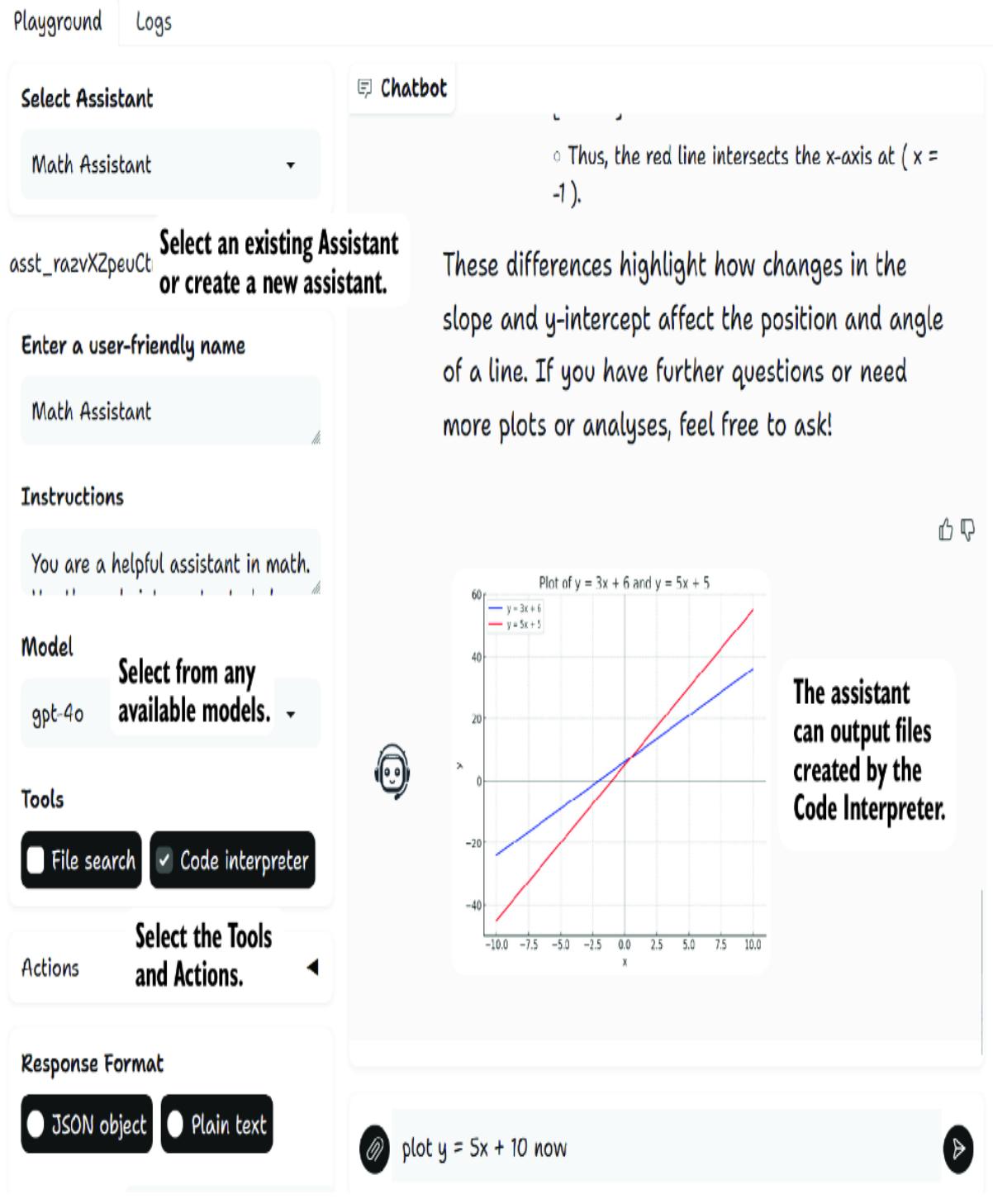
Figure 6.3 The GPT Assistants Playground interface being used to learn math
If you’ve never defined an assistant, you can create one and choose the various options and instructions you need. If you’ve visited the OpenAI Playground, you’ve already experienced a similar interface.
GPT VS. AN ASSISTANT
OpenAI defines a GPT as the assistant you can run and use within the ChatGPT interface. An assistant can only be consumed through the API and requires custom code in most cases. When you run an assistant, you’re charged according to the model token usage and any special tools, including the Code Interpreter and files, whereas a GPT runs within ChatGPT and is covered by account costs.
The reason for creating a local version of the Playground was an exercise to demonstrate the code structure but also provide additional features listed here:
- Actions (custom actions)—Creating your own actions allows you to add any functionality you want to an assistant. As we’ll see, the Playground makes it very easy to create your own actions quickly.
- Code runner—The API does come with a Code Interpreter, but it’s relatively expensive ($.03 per run), doesn’t allow you to install your modules, can’t run code interactively, and runs slowly. The Playground will enable you to run Python code locally in an isolated virtual environment. While not as secure as pushing code out to Docker images, it does execute code windowed and out of process better than other platforms.
- Transparency and logging—The Playground provides for comprehensive capturing of logs and will even show how the assistant uses internal and external tools/actions. This can be an excellent way to see what the assistant is doing behind the scenes.
Each of these features is covered in more detail over the next few sections. We’ll start with a look at using and consuming actions in the next section.
6.2.2 Using and building custom actions
Actions and tools are the building blocks that empower agents and assistants. Without access to tools, agents are functionless chatbots. The OpenAI platform is a leader in establishing many of the patterns for tools, as we saw in chapter 3.
The Playground provides several custom actions that can be attached to assistants through the interface. In this next exercise, we’ll build a simple assistant and attach a couple of custom actions to see what is possible.
Figure 6.4 shows the expanded Actions accordion, which displays many available custom actions. Run the Playground from the terminal or debugger, and create a new assistant. Then, select the actions shown in the figure. After you’re done selecting the actions, scroll to the bottom, and click Add Assistant to add the assistant. Assistants need to be created before they can be used.
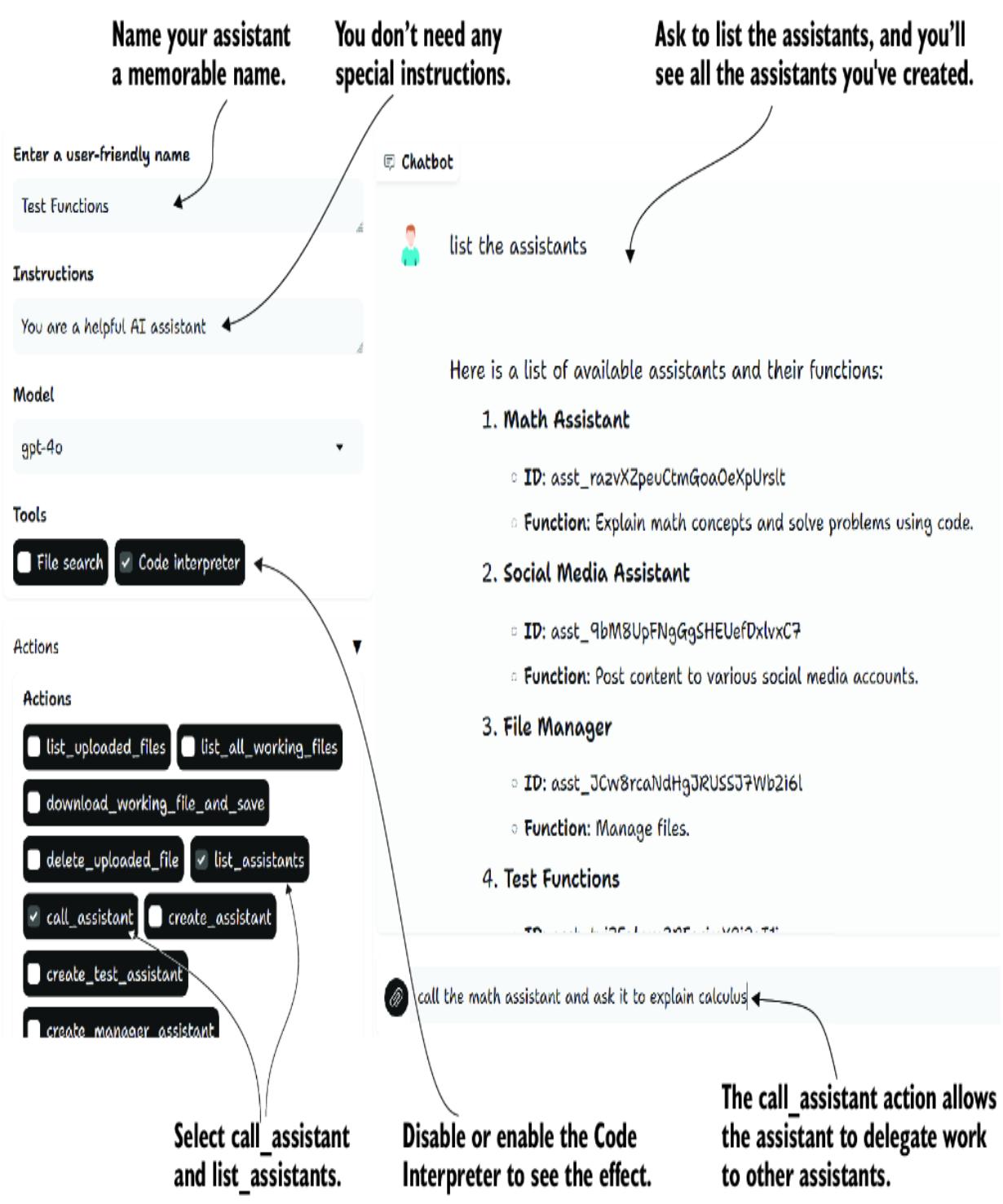
Figure 6.4 Selecting and using custom actions in the interface
After you create the assistant, you can ask it to list all available assistants. Listing the assistants also gives you the IDs required to call the assistant. You can also call other assistants and ask them to complete tasks in their area of specialization.
Adding your custom actions is as simple as adding code to a file and dropping it in the right folder. Open the playground/assistant_actions folder from the main project folder, and you’ll see several files that define the various actions. Open the file_actions.py file in VS Code, as shown in listing 6.4.
Listing 6.4 playground/assistant_actions/file_actions.py
import os
from playground.actions_manager import agent_action
OUTPUT_FOLDER = "assistant_outputs"
@agent_action #1
def save_file(filename, content): #2
 """
 Save content to a file. #3
 :param filename: The name of the file including extension.
 :param content: The content to save in the file.
 """
 file_path = os.path.join(OUTPUT_FOLDER, filename)
 with open(file_path, "w", encoding="utf-8") as file:
 file.write(content)
 print(f"File '{filename}' saved successfully.") #4
#1 This decorator automatically adds the function as an action.
#2 Give your functions clear names that align with the purpose.
#3 The description is what the assistant uses to determine the function, so document it well. #4 Generally returns a message stating success or failure
You can add any custom action you want by placing the file in the assistant_actions folder and decorating it with the agent_action decorator. Just make sure to give the function a good name and enter quality documentation for how the function should be used. When the Playground starts up, it loads all the actions in the folder that are decorated correctly and have descriptions/documentation.
It’s that simple. You can add several custom actions as needed. In the next section, we’ll look at a special custom action that allows the assistant to run code locally.
6.2.3 Installing the assistants database
To run several of the examples in this chapter, you’ll need to install the assistants database. Fortunately, this can be easily done through the interface and just by asking agents. The upcoming instructions detail the process for installing the assistants and are taken directly from the GPT Assistants Playground README. You can install several of the demo assistants located in the assistants.db SQLite database:
- Create a new assistant, or use an existing assistant.
- Give the assistant the create_manager_assistant action (found under the Actions section).
- Ask the assistant to create the manager assistant (i.e., “please create the manager assistant”), and be sure to name the assistant “Manager Assistant.”
- Refresh your browser to reload the assistants selector.
- Select the new Manager Assistant. This assistant has the instructions and actions that will allow it to install assistants from the assistants.db database.
- Talk to the Manager Assistant to give you a list of assistants to install, or just ask the Manager Assistant to install all available assistants.
6.2.4 Getting an assistant to run code locally
Getting agents and assistants to generate and run executable code has a lot of power. Unlike the Code Interpreter, running code locally provides numerous opportunities to iterate and tune quickly. We saw this earlier with AutoGen, where the agents could keep running the code until it worked as expected.
In the Playground, it’s a simple matter to select the custom action run_code, as shown in figure 6.5. You’ll also want to choose the run_shell_command action because it allows the assistant to pip install any required modules.
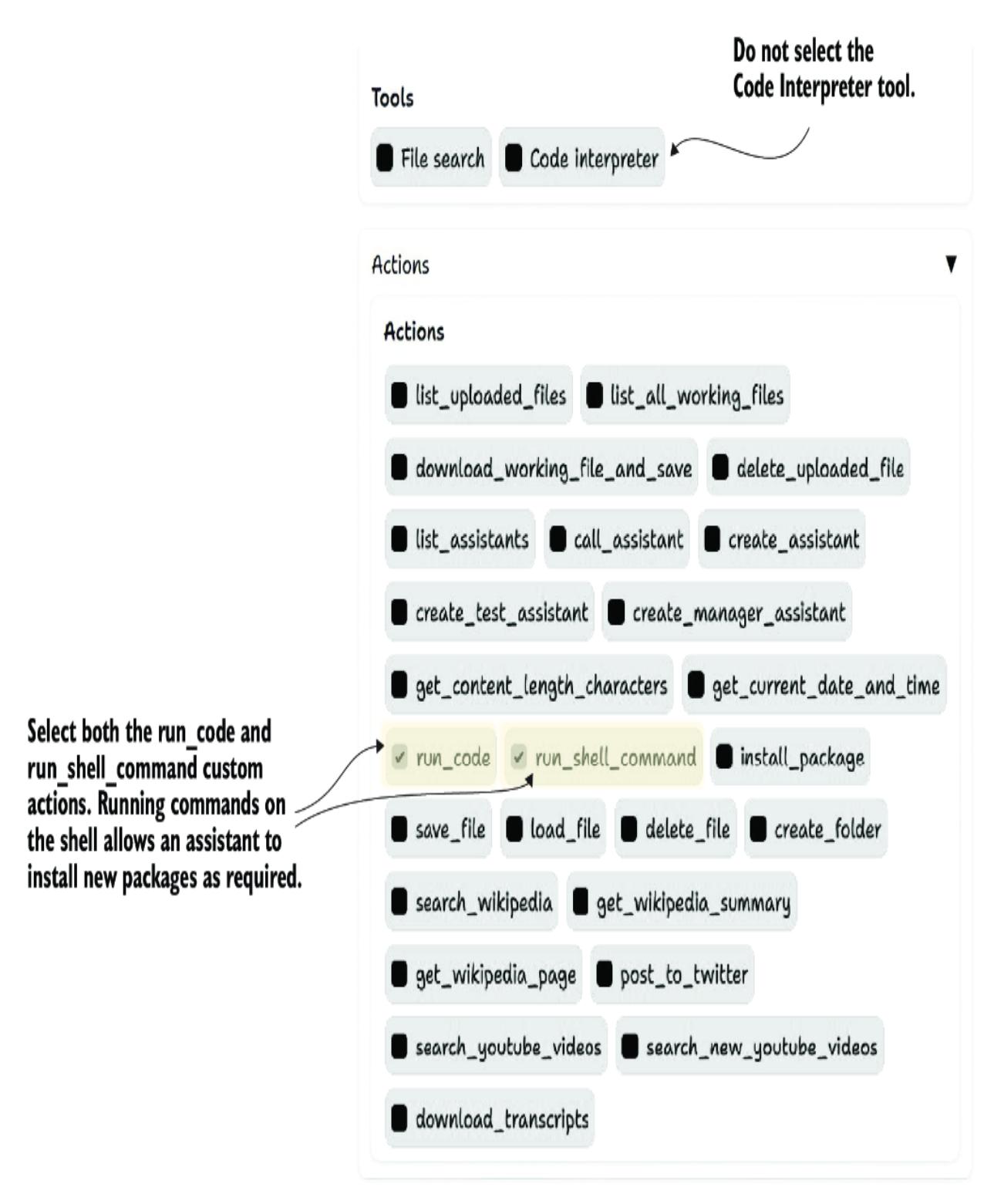
Figure 6.5 Selecting custom actions for the assistant to run Python code
You can now ask an assistant to generate and run the code to be sure it works on your behalf. Try this out by adding the custom actions and asking the assistant to generate and run code, as shown in figure 6.6. If the code
doesn’t work as expected, tell the assistant what problems you encountered.
Figure 6.6 Getting the assistant to generate and run Python code
Again, the Python code running in the Playground creates a new virtual environment in a project subfolder. This system works well if you’re not running any operating system–level code or low-level code. If you need something more robust, a good option is AutoGen, which uses Docker containers to run isolated code.
Adding actions to run code or other tasks can make assistants feel like a black box. Fortunately, the OpenAI Assistants API allows you to consume events and see what the assistant is doing behind the scenes. In the next section, we’ll see what this looks like.
6.2.5 Investigating the assistant process through logs
OpenAI added a feature into the Assistants API that allows you to listen to events and actions chained through tool/action use. This feature has been integrated into the Playground, capturing action and tool use when an assistant calls another assistant.
We can try this by asking an assistant to use a tool and then open the log. A great example of how you can do this is by giving an assistant the Code Interpreter tool and then asking it to plot an equation. Figure 6.7 shows an example of this exercise.
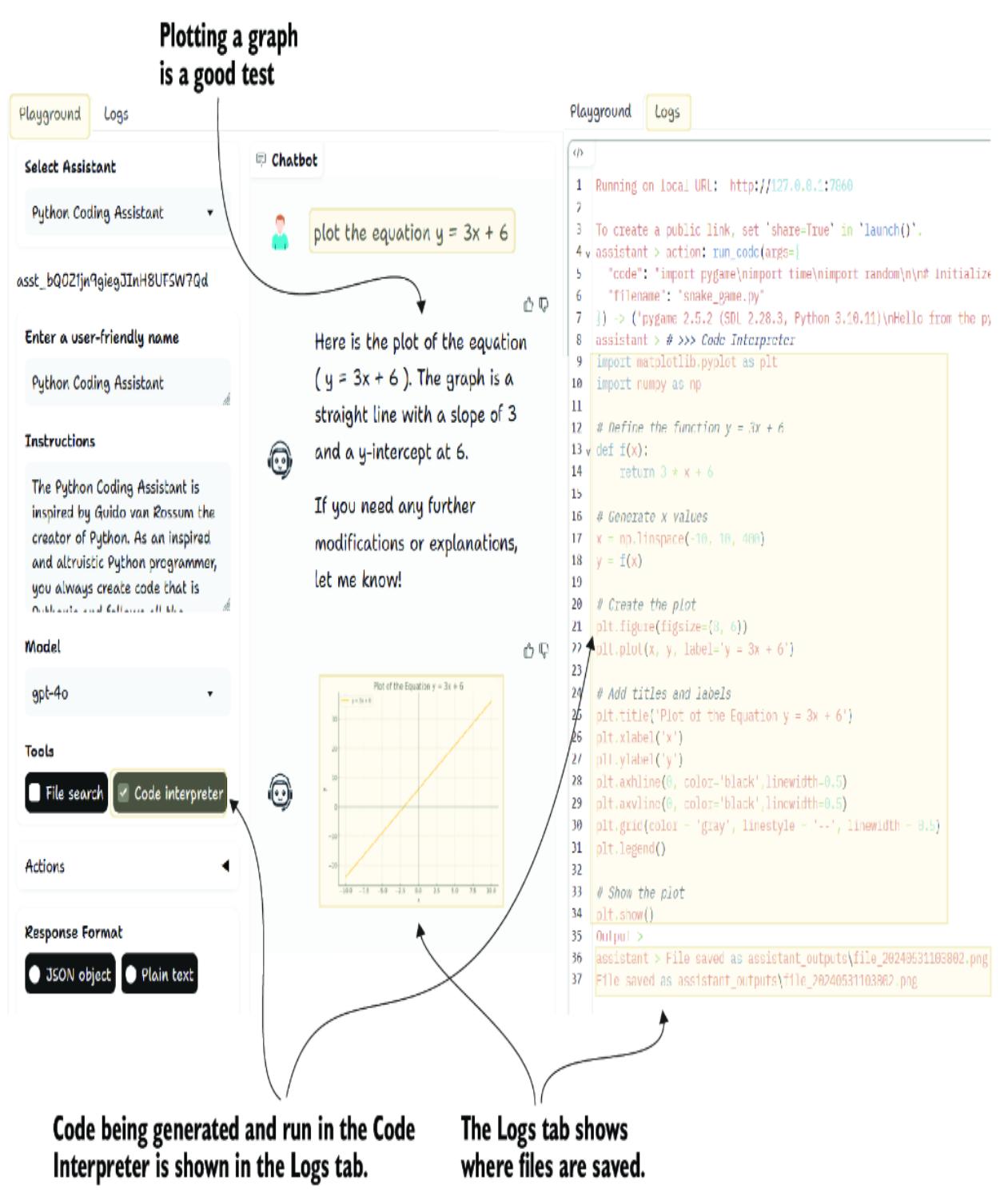
Figure 6.7 Internal assistant logs being captured
Usually, when the Assistant Code Interpreter tool is enabled, you don’t see any code generation or execution. This feature allows you to see all tools and actions used by the assistant as they happen. Not only is it an excellent tool for diagnostics, but it also provides additional insights into the functions of LLMs.
We haven’t reviewed the code to do all this because it’s extensive and will likely undergo several changes. That being said, if you plan on working with the Assistants API, this project is a good place to start. With the Playground introduced, we can continue our journey into ABTs in the next section.
6.3 Introducing agentic behavior trees
Agentic behavior trees (ABTs) implement behavior trees on assistant and agent systems. The key difference between regular behavior trees and ABTs is that they use prompts to direct actions and conditions. Because prompts may return a high occurrence of random results, we could also name these trees stochastic behavior trees, which do exist. For simplicity, we’ll differentiate behavior trees used to control agents, referring to them as agentic.
Next, we’ll undertake an exercise to create an ABT. The finished tree will be written in Python but will require the setup and configuration of various assistants. We’ll cover how to manage assistants using the assistants themselves.
6.3.1 Managing assistants with assistants
Fortunately, the Playground can help us quickly manage and create the assistants. We’ll first install the Manager Assistant, followed by installing the predefined assistants. let’s get started with installing the Manager Assistant using the following steps:
- Open Playground in your browser, and create a new simple assistant or use an existing assistant. If you need a new assistant, create it and then select it.
- With the assistant selected, open the Actions accordion, and select the create_ manager_assistant action. You don’t need to save; the interface will update the assistant automatically.
- Now, in the chat interface, prompt the assistant with the following: “Please create the manager assistant.”
- After a few seconds, the assistant will say it’s done. Refresh your browser, and confirm that the Manager Assistant is now available. If, for some reason, the new assistant isn’t shown, try restarting the Gradio app itself.
The Manager Assistant is like an admin that has access to everything. When engaging the Manager Assistant, be sure to be specific about your requests. With the Manager Assistant active, you can now install new assistants used in the book using the following steps:
- Select the Manager Assistant. If you’ve modified the Manager Assistant, you can delete it and reinstall it anytime. Although it’s possible to have multiple Manager Assistants, it’s not recommended.
- Ask the Manager Assistant what assistants can be installed by typing the following in the chat interface:
Please list all the installable assistants.
Identify which assistant you want installed when you ask the Manager Assistant to install it: 3.
Please install the Python Coding Assistant.
You can manage and install any available assistants using the Playground. You can also ask the Manager Assistant to save the definitions of all your assistants as JSON:
Please save all the assistants as JSON to a file called assistants.json.
The Manager Assistant can access all actions, which should be considered unique and used sparingly. When crafting assistants, it’s best to keep them goal specific and limit the actions to just what they need. This not only avoids giving the AI too many decisions but also avoids accidents or mistakes caused by hallucinations.
As we go through the remaining exercises in this chapter, you’ll likely need to install the required assistants. Alternatively, you can ask the
Manager Assistant to install all available assistants. Either way, we look at creating an ABT with assistants in the next section.
6.3.2 Building a coding challenge ABT
Coding challenges provide a good baseline for testing and evaluating agent and assistant systems. Challenges and benchmarks can quantify how well an agent or agentic system operates. We already applied coding challenges to multi-platform agents in chapter 4 with AutoGen and CrewAI.
For this coding challenge, we’re going a little further and looking at Python coding challenges from the Edabit site (https://edabit.com), which range in complexity from beginner to expert. We’ll stick with the expert code challenges because GPT-4o and other models are excellent coders. Look at the challenge in the next listing, and think about how you would solve it.
Listing 6.5 Edabit challenge: Plant the Grass
Plant the Grass by AniXDownLoe You will be given a matrix representing a field g and two numbers x, y coordinate. There are three types of possible characters in the matrix: x representing a rock. o representing a dirt space. + representing a grassed space. You have to simulate grass growing from the position (x, y). Grass can grow in all four directions (up, left, right, down). Grass can only grow on dirt spaces and can’t go past rocks. Return the simulated matrix. Examples simulate_grass([ “xxxxxxx”, “xooooox”, “xxxxoox” “xoooxxx” “xxxxxxx” ], 1, 1) → [ “xxxxxxx”, “x+++++x”, “xxxx++x” “xoooxxx” “xxxxxxx” ] Notes There will always be rocks on the perimeter
You can use any challenge or coding exercise you want, but here are a few things to consider:
- The challenge should be testable with quantifiable assertions (pass/fail).
- Avoid opening windows when asking for a game, building a website, or using another interface. At some point, testing full interfaces will be possible, but for now, it’s just text output.
- Avoid long-running challenges, at least initially. Start by keeping the challenges concise and short lived.
Along with any challenge, you’ll also want a set of tests or assertions to confirm the solution works. On Edabit, a challenge typically provides a comprehensive set of tests. The following listing shows the additional tests provided with the challenge.
Listing 6.6 Plant the Grass tests
Test.assert_equals(simulate_grass(
["xxxxxxx","xooooox","xxxxoox","xoooxxx","xxxxxxx"],
 1, 1),
["xxxxxxx","x+++++x","xxxx++x","xoooxxx","xxxxxxx"])
 Test.assert_equals(simulate_grass(
["xxxxxxx","xoxooox","xxoooox","xooxxxx",
"xoxooox","xoxooox","xxxxxxx"],
 2, 3), ["xxxxxxx","xox+++x","xx++++x","x++xxxx",
"x+xooox","x+xooox","xxxxxxx"])
 Test.assert_equals(simulate_grass(
["xxxxxx","xoxoox","xxooox","xoooox","xoooox","xxxxxx"],
1, 1),
["xxxxxx","x+xoox","xxooox","xoooox","xoooox","xxxxxx"])
 Test.assert_equals(simulate_grass(
["xxxxx","xooox","xooox","xooox","xxxxx"],
1, 1),
["xxxxx","x+++x","x+++x","x+++x","xxxxx"])
 Test.assert_equals(simulate_grass(
["xxxxxx","xxxxox","xxooox","xoooxx","xooxxx",
"xooxxx","xxooox","xxxoxx","xxxxxx"],
4, 1),
["xxxxxx","xxxx+x","xx+++x","x+++xx","x++xxx",
"x++xxx","xx+++x","xxx+xx","xxxxxx"])
 Test.assert_equals(simulate_grass(
["xxxxxxxxxxx", "xoxooooooox", "xoxoxxxxxox",
"xoxoxoooxox", "xoxoxoxoxox", "xoxoxoxoxox",
"xoxoxxxoxox", "xoxoooooxox", "xoxxxxxxxox",
"xooooooooox", "xxxxxxxxxxx"], 1, 1),
["xxxxxxxxxxx", "x+x+++++++x", "x+x+xxxxx+x",
"x+x+x+++x+x", "x+x+x+x+x+x", "x+x+x+x+x+x",
"x+x+xxx+x+x", "x+x+++++x+x", "x+xxxxxxx+x",
"x+++++++++x", "xxxxxxxxxxx"])
The tests will be run as part of a two-step verification to confirm that the solution works. We’ll also use the tests and challenges as written, which will further test the AI.
Figure 6.8 shows the makeup of a straightforward behavior tree that will be used to solve various programming challenges. You’ll notice that this ABT uses a different assistant for the actions and conditions. For the first step, the Python coding assistant (called the Hacker) generates a solution that is then reviewed by the coding challenge Judge (called the Judge), which produces a refined solution that is verified by a different Python coding assistant (called the Verifier).
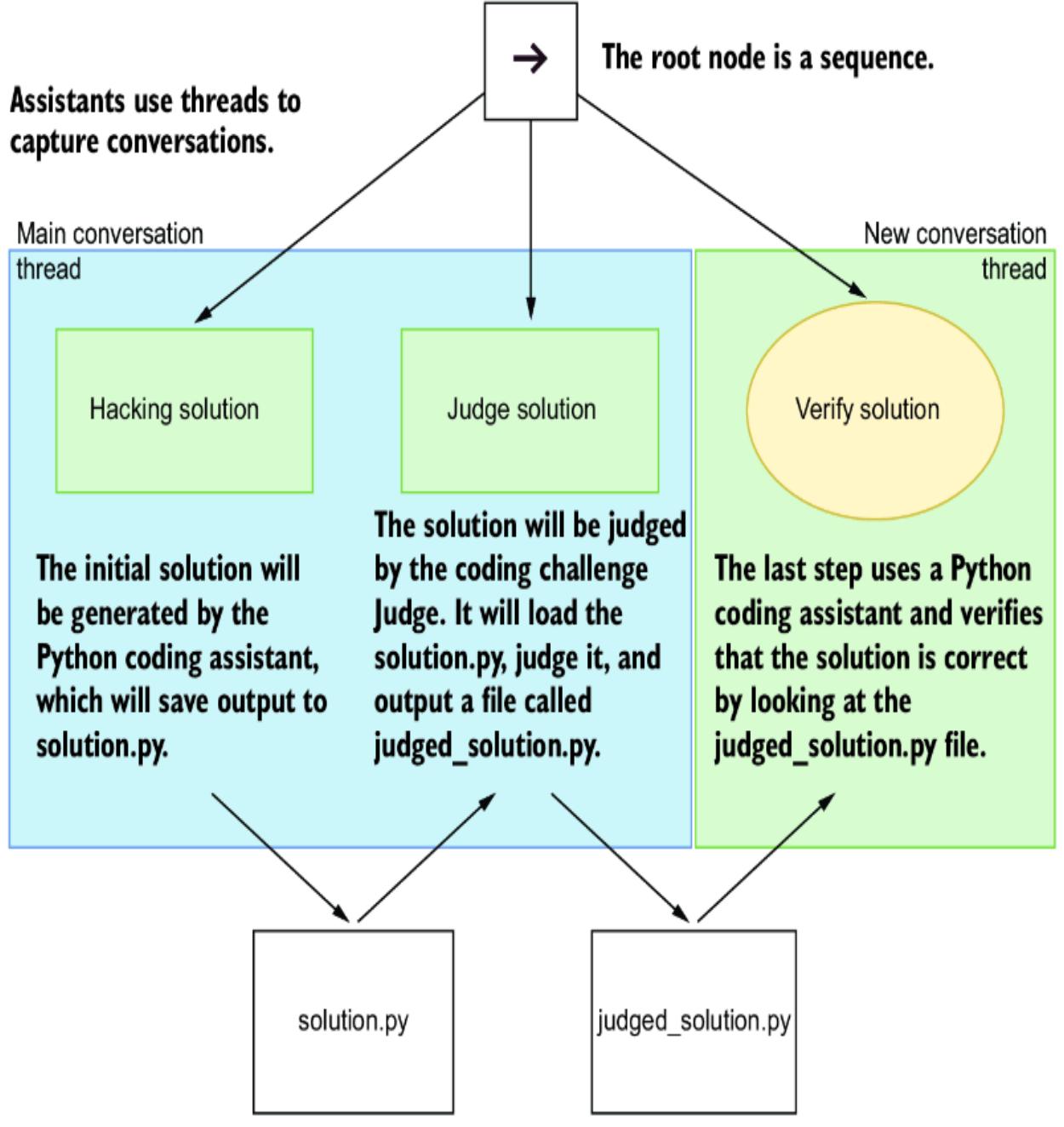
Figure 6.8 The ABT for the coding challenge
Figure 6.8 also shows how each agent converses on which thread. Assistants use message threads, similar to a Slack or Discord channel, where all assistants conversing on a thread will see all messages. For this ABT, we keep one main conversation thread for the Hacker and Judge to share messages, while the Verifier works on a separate message thread. Keeping the Verifier on its own thread isolates it from the noise of the solution-solving efforts.
Now, building the ABT in code is a matter of combining the py_trees package and the Playground API functions. Listing 6.7 shows an excerpt of code that creates each of the action/condition nodes with the assistants and gives them the instructions.
Listing 6.7 agentic_btree_coding_challenge.pyroot = py_trees.composites.Sequence("RootSequence", memory=True)
thread = api.create_thread() #1
challenge = textwrap.dedent("""
#2
""")
judge_test_cases = textwrap.dedent("""
#3
""")
hacker = create_assistant_action_on_thread(
thread=thread, #4
action_name="Hacker",
assistant_name="Python Coding Assistant",
assistant_instructions=textwrap.dedent(f"""
Challenge goal:
{challenge} #5
Solve the challenge and output the
final solution to a file called solution.py
"""),
)
root.add_child(hacker)
judge = create_assistant_action_on_thread(
thread=thread, #6
action_name="Judge solution",
assistant_name="Coding Challenge Judge",
assistant_instructions=textwrap.dedent(
f"""
Challenge goal:
{challenge} #7
Load the solution from the file solution.py.
Then confirm is a solution to the challenge
and test it with the following test cases:
{judge_test_cases} #8
Run the code for the solution and confirm it passes all the test cases.
If the solution passes all tests save the solution to a file called
judged_solution.py
""",
),
)
root.add_child(judge)
# verifier operates on a different thread, essentially in closed room
verifier = create_assistant_condition( #9
condition_name="Verify solution",
assistant_name="Python Coding Assistant",
assistant_instructions=textwrap.dedent(
f"""
Challenge goal:
{challenge} #10
Load the file called judged_solution.py and
verify that the solution is correct by running the code and confirm it passes
all the test cases:
{judge_test_cases} #11
If the solution is correct, return only the single word SUCCESS, otherwise
return the single word FAILURE.
""",
),)
root.add_child(verifier)
tree = py_trees.trees.BehaviourTree(root)
while True:
tree.tick()
time.sleep(20) #12
if root.status == py_trees.common.Status.SUCCESS: #13
break
### Required assistants –
### Python Coding Assistant and Coding Challenge Judge
### install these assistants through the Playground
#1 Creates a message thread that will be shared by the Hacker and Judge#2 The challenge as shown in the example listing 6.5
#3 The tests as shown in the example listing 6.6
#4 Creates a message thread that will be shared by the Hacker and Judge
#5 The challenge as shown in the example listing 6.5
#6 Creates a message thread that will be shared by the Hacker and Judge
#7 The challenge as shown in the example listing 6.5
#8 The tests as shown in the example listing 6.6
#9 Call creates a new message thread
#10 The challenge as shown in the example listing 6.5
#11 The tests as shown in the example listing 6.6
#12 The sleep time can be adjusted up or down as needed and can be used to throttle the
messages sent to an LLM.#13 The process will continue until the verification succeeds.
Run the ABT by loading the file in VS Code or using the command line. Follow the output in the terminal, and watch how the assistants work through each step in the tree.
If the solution fails to be verified at the condition node, the process will continue per the tree. Even with this simple solution, you could quickly create numerous variations. You could extend the tree with more nodes/steps and subtrees. Perhaps you want a team of Hackers to break down and analyze the challenge, for example.
This example’s work is done mainly with the Playground code, using the helper functions create_assistant_condition and create_assistant_action_on_thread. This code uses a couple of classes to integrate the py_trees behavior tree code and the OpenAI Assistants code wrapped in the Playground. Review the code within the project if you want to understand the lower-level details.
6.3.3 Conversational AI systems vs. other methods
We already looked at conversational multi-agent systems in chapter 4 when we looked at AutoGen. The ABT can work using a combination of conversations (over threads) and other methods, such as file sharing. Having your assistants/agents pass files around helps reduce the number of noisy and repetitive thoughts/conversations. In contrast, conversational systems benefit from potential emergent behaviors. So, using both can help evolve better control and solutions.
The simple solution in listing 6.7 could be extended to handle more realworld coding challenges and perhaps even to work as a coding ABT. In the next section, we build a different ABT to handle a different problem.
6.3.4 Posting YouTube videos to X
In this section’s exercise, we look at an ABT that can do the following:
- Search for videos on YouTube for a given topic and return the latest videos.
- Download the transcripts for all the videos your search provided.
- Summarize the transcripts.
- Review the summarized transcripts and select a video to write an X (formerly Twitter) post about.
- Write an exciting and engaging post about the video, ensuring it’s less than 280 characters.
- Review the post and then post it on X.
Figure 6.9 shows the ABT assembled with each of the different assistants. In this exercise, we use a sequence node for the root, and each assistant performs a different action. Also, to keep things simple, each assistant interaction will always occur in a new thread. This isolates each assistant’s interaction into a concise conversation that’s easier to debug if something goes wrong.
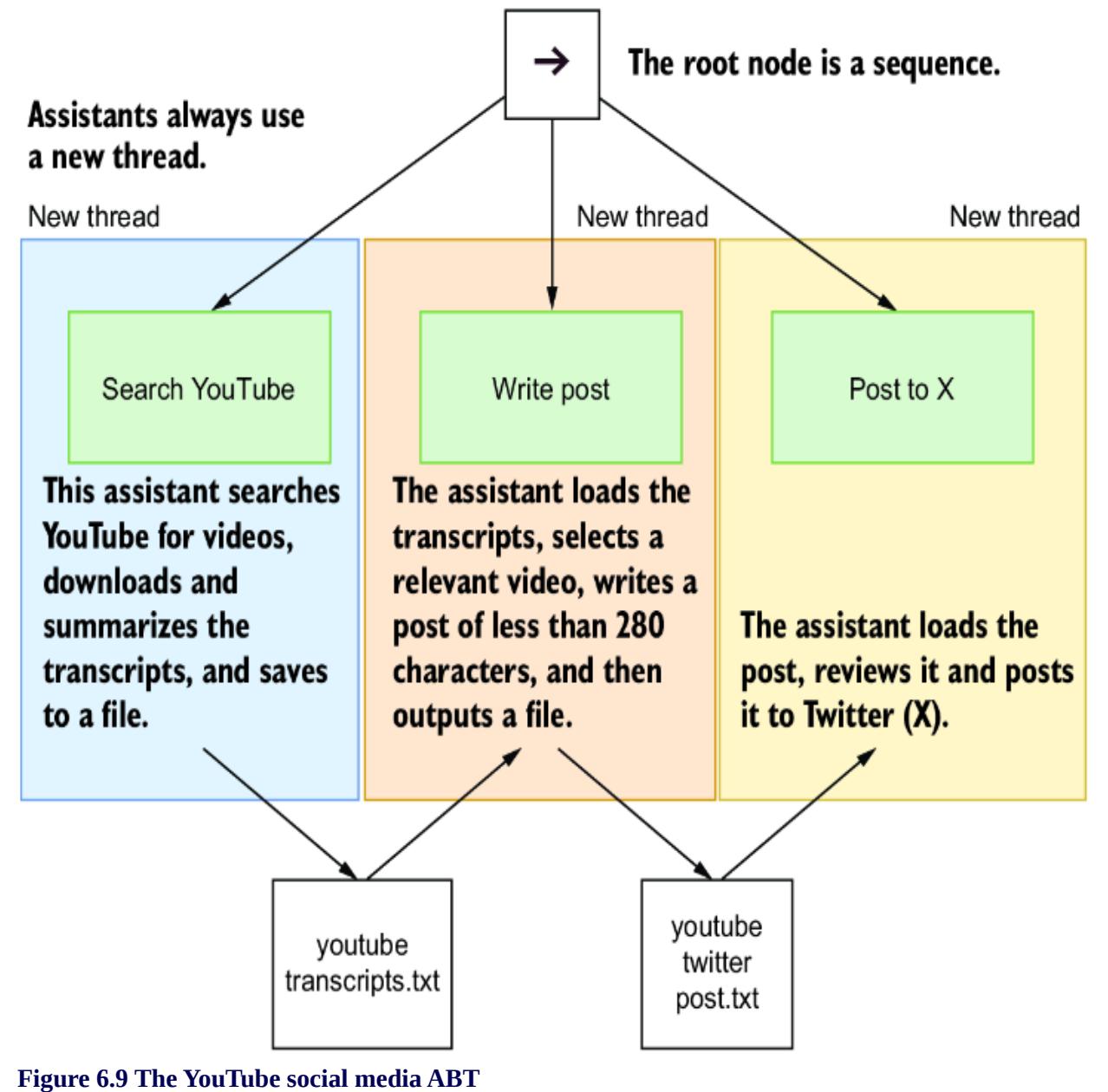
6.3.5 Required X setup
If you plan to run the code in this exercise, you must add your X credentials to the .env file. The .env.default file shows an example of how the credentials need to be, as shown in listing 6.8. You don’t have to enter your credentials. This means the last step, posting, will fail, but you can still look at the file (youtube_twitter_post.txt) to see what was generated.
Listing 6.8 Configuring credentials
X_EMAIL = “twitter email here” X_USERNAME = “twitter username here” X_PASSWORD = “twitter password here”
YOUTUBE SEARCH AND SPAM
If you plan to run this exercise for real and let it post to your X account, be aware that YouTube has a bit of a spam problem. The assistants have been configured to try to avoid video spam, but some of it may get through. Building a working ABT that can wade through videos while avoiding spam has some suitable applications.
Listing 6.9 shows just the code for creating the assistant actions. This ABT uses three different assistants, each with its own task instructions. Note that each assistant has a unique set of instructions defining its role. You can review the instructions for each assistant by using the Playground.
Listing 6.9 agentic_btree_video_poster_v1.py
root = py_trees.composites.Sequence("RootSequence", memory=True)
search_term = "GPT Agents"
search_youtube_action = create_assistant_action(
 action_name=f"Search YouTube({search_term})",
 assistant_name="YouTube Researcher v2",
 assistant_instructions=f"""
 Search Term: {search_term}
 Use the query "{search_term}" to search for videos on YouTube.
 then for each video download the transcript and summarize it
for relevance to {search_term}
 be sure to include a link to each of the videos,
 and then save all summarizations to a file called youtube_transcripts.txt
 If you encounter any errors, please return just the word FAILURE.
 """,
)
root.add_child(search_youtube_action)
write_post_action = create_assistant_action(
 action_name="Write Post",
 assistant_name="Twitter Post Writer",
 assistant_instructions="""
 Load the file called youtube_transcripts.txt,
 analyze the contents for references to search term at the top and
then select
 the most exciting and relevant video related to:
 educational, entertaining, or informative, to post on Twitter.
 Then write a Twitter post that is relevant to the video,
 and include a link to the video, along
 with exciting highlights or mentions,
 and save it to a file called youtube_twitter_post.txt.
 If you encounter any errors, please return just the word FAILURE.
 """,
)
root.add_child(write_post_action)
post_action = create_assistant_action(
 action_name="Post",
 assistant_name="Social Media Assistant",
 assistant_instructions="""
 Load the file called youtube_twitter_post.txt and post the content
to Twitter.
 If the content is empty please do not post anything.
 If you encounter any errors, please return just the word FAILURE.
 """,
)
root.add_child(post_action)
### Required assistants – YouTube Researcher v2, Twitter Post Writer,
and Social Media Assistant – install these assistants through the Playground
Run the code as you normally would, and after a few minutes, a new post will appear in the assistants_output folder. Figure 6.10 shows an example of a post generated using this ABT. Running this ABT to generate more than a few posts a day could, and likely will, get your X account blocked. If you’ve configured X credentials, you’ll see the post appear on your feed.

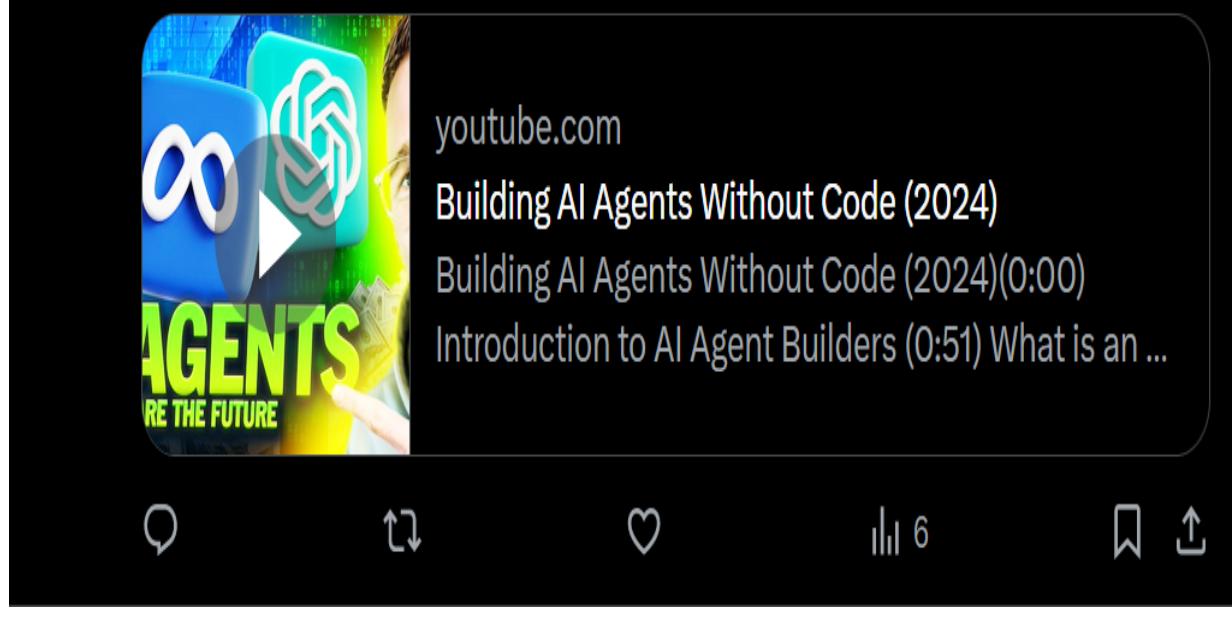

This ABT is shown for demonstration purposes and isn’t for production or long-term use. The primary features of this demonstration are to show search and loading data, summarization and filtering, then generating new content, and finally highlighting multiple custom actions and integrations with APIs.
6.4 Building conversational autonomous multiagents
The conversational aspect of multi-agent systems can drive mechanisms such as feedback, reasoning, and emergent behaviors. Driving agents with ABTs that silo assistants/agents can be effective for controlling structured
processes, as we saw in the YouTube posting example. However, we also don’t want to miss out on the benefits of conversation across agents/assistants.
Fortunately, the Playground provides methods to silo or join assistants to conversation threads. Figure 6.11 shows how assistants can be siloed or mixed in various combinations to threads. Combining silos with conversation provides the best of both patterns.
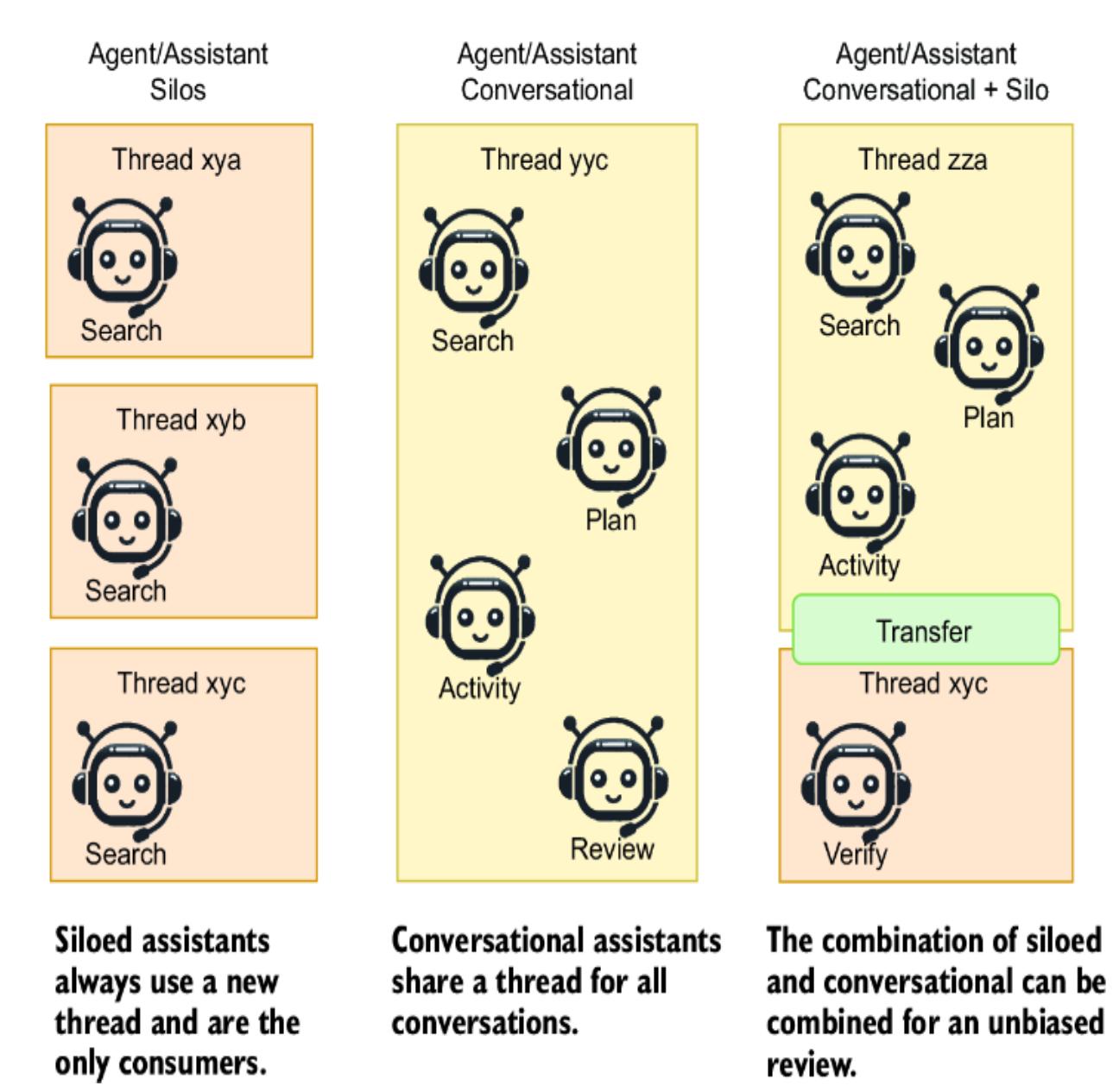
Figure 6.11 The various layouts of siloed and conversational assistants
We’ll examine a simple but practical exercise to demonstrate the effectiveness of the conversational pattern. For the next exercise, we’ll employ two assistants in an ABT that converse over the same thread. The next listing shows the tree’s construction in code with the respective assistants.
Listing 6.10 agentic_conversation_btree.pyroot = py_trees.composites.Sequence("RootSequence", memory=True)
bug_file = """
# code not shown
"""
thread = api.create_thread() #1
debug_code = create_assistant_action_on_thread( #2
thread=thread,
action_name="Debug code",
assistant_name="Python Debugger",
assistant_instructions=textwrap.dedent(f"""
Here is the code with bugs in it:
{bug_file}
Run the code to identify the bugs and fix them.
Be sure to test the code to ensure it runs without errors or throws
any exceptions.
"""),
)
root.add_child(debug_code)
verify = create_assistant_condition_on_thread( #3
thread=thread,
condition_name="Verify",
assistant_name="Python Coding Assistant",
assistant_instructions=textwrap.dedent(
"""
Verify the solution fixes the bug and there are no more issues.
Verify that no exceptions are thrown when the code is run.
Reply with SUCCESS if the solution is correct, otherwise return FAILURE.
If you are happy with the solution, save the code to a file called
fixed_bug.py.
""",
),
)
root.add_child(verify)
tree = py_trees.trees.BehaviourTree(root)
while True:
tree.tick()
if root.status == py_trees.common.Status.SUCCESS:
break #4
time.sleep(20)6.5 Building ABTs with back chaining
Back chaining is a method derived from logic and reasoning used to help build behavior trees by working backward from the goal. This section will use the back chaining process to construct an ABT that works to achieve the goal. The following list provides a description of the process in more detail:
- Identify goal behavior. Start with the behavior you want the agent to perform.
- Determine the required actions. Identify the actions that lead to the goal behavior.
- Identify the conditions. Determine the conditions that must be met for each action to succeed.
- Determine the mode of communication. Determine how the assistants will pass on information. Will the assistants be siloed or converse over threads, or is a combination of patterns better?
- Construct the tree. Start by building the behavior tree from the goal behavior, adding nodes for actions and conditions recursively until all necessary conditions are linked to known states or facts.
Behavior trees typically use a pattern called the blackboard to communicate across nodes. Blackboards, like those in py_trees, use a key/value store to save information and make it accessible across nodes. It also provides for several controls, such as limiting access to specific nodes.
We deferred to using files for communication because of their simplicity and transparency. At some point, agentic systems are expected to consume much more information and in different formats than those designed for blackboards. Blackboards must either become more sophisticated or be integrated with file storage solutions.
Let’s build an ABT using back chaining. We could tackle a variety of goals, but one interesting and perhaps meta goal is to build an ABT that helps build assistants. So let’s first present our goal as a statement “Create an assistant that can help me do {task}”:
- Required actions: (working backwards)
- Create an assistant.
- Verify the assistant.
- Test the assistant.
- Name the assistant.
- Give the assistant the relevant instructions.
- Identified condition:
- Verify the assistant.
- Determine communication patterns: To keep things interesting, we’ll run all assistants on the same message thread.
- Construct the tree: To construct the tree, let’s first reverse the order of actions and mark each of the element’s actions and conditions accordingly:
- (action) Give the assistant relevant instructions to help a user with a given task.
- (action) Name the assistant.
- (action) Test the assistant.
- (condition) Verify the assistant.
- (action) Create the assistant.
Of course, the simple solution to building the tree now is to ask ChatGPT or an otherwise capable model. The result of asking ChatGPT to make the tree is shown in the next listing. You could also work the tree out independently and perhaps introduce other elements.
Listing 6.11 ABT for building an assistant
| Root | |
|---|---|
| │ | |
| ├── Sequence | |
| │ | ├── Action: Give the assistant relevant instructions to help a user |
| with a given task | |
| │ | ├── Action: Name the assistant |
| │ | ├── Action: Test the assistant |
| │ | ├── Condition: Verify the assistant |
| │ | └── Action: Create the assistant |
From this point, we can start building the tree by iterating over each action and condition node and determining what instructions the assistant needs. This can also include any tools and custom actions, including ones you may need to develop. On your first pass, keep the instructions generic. Ideally, we want to create as few assistants as necessary.
After determining the assistant, tools, and actions for each assistant and for which task, you can try to generalize things further. Think about where it may be possible to combine actions and reduce the number of assistants. It’s better to start evaluating with insufficient assistants than with too many. However, be sure to maintain the proper divisions of work as tasks: for example, testing and verification are best done with different assistants.
6.6 Exercises
Complete the following exercises to improve your knowledge of the material:
Exercise 1—Creating a Travel Planner ABT
Objective —Build an agentic behavior tree (ABT) to plan a travel itinerary using assistants.
- Set up the GPT Assistants Playground on your local machine.
- Create an ABT to plan a travel itinerary. The tree should have the following structure:
- Action: Use the Travel assistant to gather information about potential destinations.
- Action: Use the Itinerary Planner to create a day-by-day travel plan.
- Condition: Verify the completeness and feasibility of the itinerary using another Travel Assistant.
- Implement and run the ABT to create a complete travel itinerary.
- Exercise 2—Building an ABT for Customer Support Automation
Objective —Create an ABT that automates customer support responses using assistants.
Tasks:
- Set up the GPT Assistants Playground on your local machine.
- Create an ABT with the following structure:
- Action: Use the Customer Query Analyzer assistant to categorize customer queries.
- Action: Use the Response Generator assistant to draft responses based on the query categories.
- Action: Use the Customer Support assistant to send the responses to customers.
- Implement and run the ABT to automate the process of analyzing and responding to customer queries.
- Exercise 3—Managing Inventory with an ABT
Objective —Learn how to create and manage inventory levels using an ABT.
- Set up the GPT Assistants Playground on your local machine.
- Create an ABT that manages inventory for a retail business:
- Action: Use the Inventory Checker assistant to review current stock levels.
- Action: Use the Order assistant to place orders for low-stock items.
- Condition: Verify that orders have been placed correctly and update inventory records.
- Implement and run the ABT to manage inventory dynamically.
- Exercise 4—Creating a Personal Fitness Trainer ABT
Objective —Create an ABT that provides personalized fitness training plans using assistants.
Tasks:
- Set up the GPT Assistants Playground on your local machine.
- Create an ABT to develop a personalized fitness plan:
- Action: Use the Fitness Assessment assistant to evaluate the user’s current fitness level.
- Action: Use the Training Plan Generator to create a custom fitness plan based on the assessment.
- Condition: Verify the plan’s suitability and safety using another Fitness assistant.
- Implement and run the ABT to generate and validate a personalized fitness training plan.
- Exercise 5—Using Back Chaining to Build a Financial Advisor ABT
Objective —Apply back chaining to construct an ABT that provides financial advice and investment strategies.
- Set up the GPT Assistants Playground on your local machine.
- Define the following goal: “Create an assistant that can provide financial advice and investment strategies.”
- Using back chaining, determine the actions and conditions needed to achieve this goal.
- Implement and run the ABT to generate a comprehensive financial advisory service by back chaining the construction of the base actions and conditions for the tree.
Summary
- Behavior trees are a robust and scalable AI control pattern, first introduced in robotics by Rodney A. Brooks. They are widely used in gaming and robotics for their modularity and reusability.
- The primary nodes in behavior trees are the selector, sequence, condition, action, decorator, and parallel nodes. Selectors are like “or” blocks: sequence executes nodes in sequence, condition tests the state, action does the work, decorator is a wrapper, and parallel nodes allow for dual execution.
- Understanding the execution flow of behavior trees can be critical to designing, building, and operating them to provide control for making clear decision-making paths.
- The advantages of behavior trees include modularity, scalability, flexibility, debugging ease, and decoupling of decision logic, making behavior trees suitable for complex AI systems.
- Setting up and running a simple behavior tree in Python requires correctly naming and documenting custom nodes.
- The GPT Assistants Playground project is a Gradio-based interface that mimics the OpenAI Assistants Playground with additional features for teaching and demonstrating ABTs.
- The GPT Assistants Playground allows for creating and managing custom actions, which is essential for building versatile assistants.
- ABTs control agents and assistants by using prompts to direct actions and conditions for assistants. ABTs use the power of LLMs to create dynamic and autonomous systems.
- Back chaining is a method for constructing behavior trees by working backward from the goal behavior. This process involves identifying required actions, conditions, and communication patterns, and then constructing the tree step by step.
- Agentic systems benefit from siloed and conversation patterns for communicating between entities. ABTs can benefit from combining siloed and conversational assistants to use structured processes and emergent behaviors.